Manage MoH Playlists
You can manage MoH playlists and the audio files in each playlist as needed.
Manage a MoH playlist
| Scenario | Instruction |
|---|---|
| Edit a MoH playlist |
You can update the name or play order of a MoH playlist. Note: The default MoH playlist can not
be renamed.
|
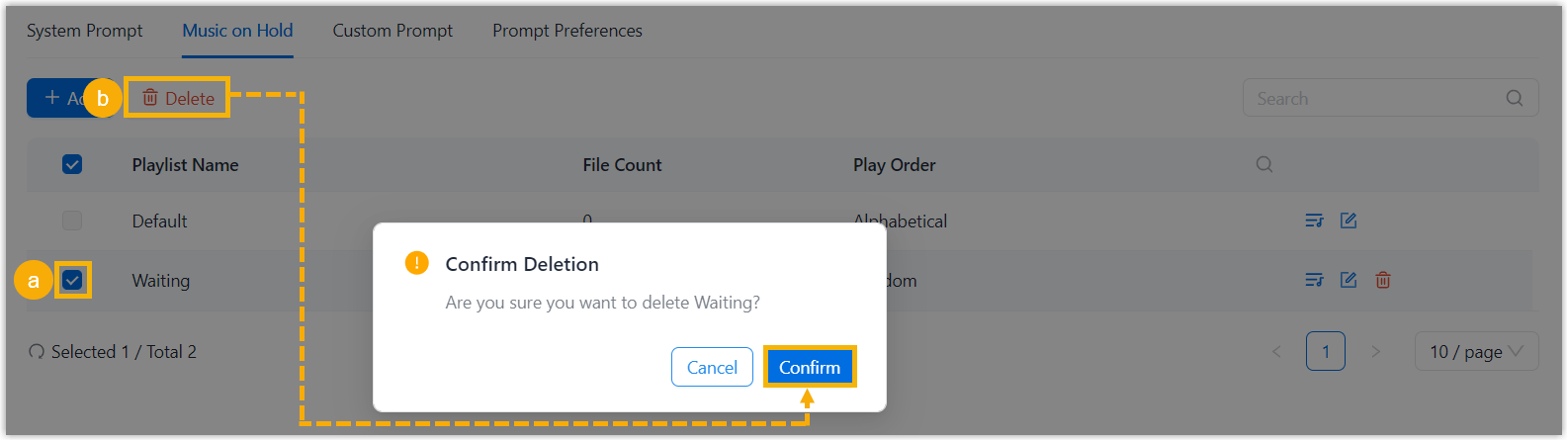
| Delete a MoH playlist |
You can delete MoH playlists that are no longer needed. Note: The default MoH playlist can not
be deleted.
|
 beside the desired
playlist.
beside the desired
playlist.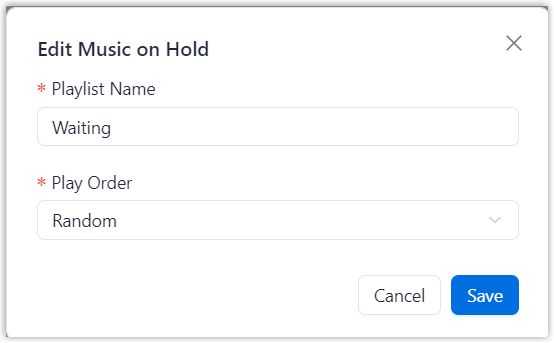
Manage MoH audio files
| Scenario | Instruction |
|---|---|
| Edit a MoH audio file |
You can update the name of a MoH audio file to keep your audio files organized.
|
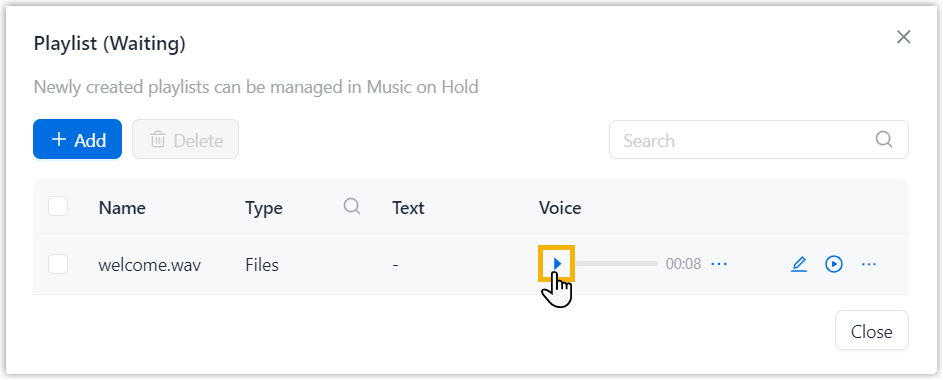
| Play a MoH audio file |
You can play a MoH audio file to verify that the audio content meets your needs.
|
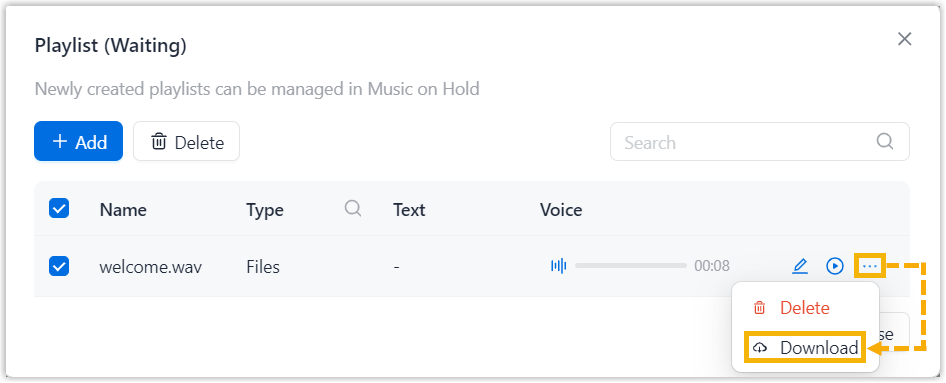
| Download a MoH audio file |
You can download a MoH audio file to your local computer for backup or further use.
|
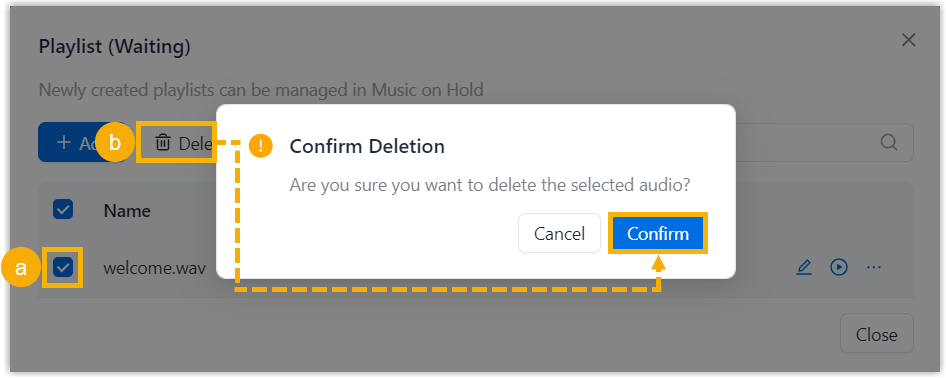
| Delete a MoH audio file |
You can delete a MoH audio file that is no longer needed.
|
 beside the desired
playlist.
beside the desired
playlist.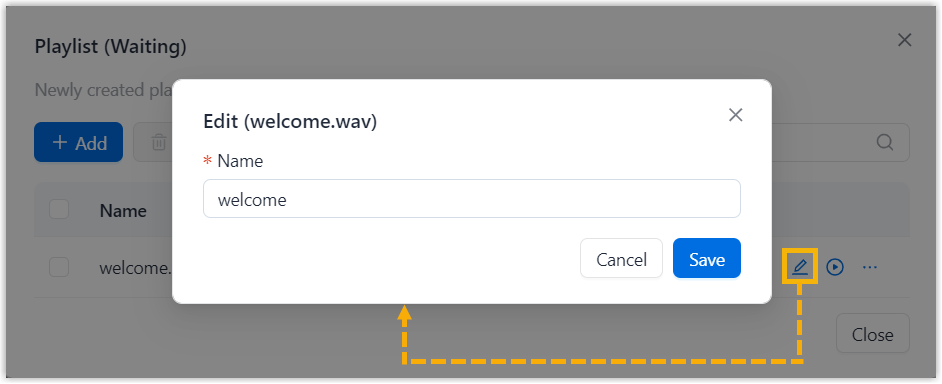
 .
.
 beside the
desired prompt, then click
beside the
desired prompt, then click 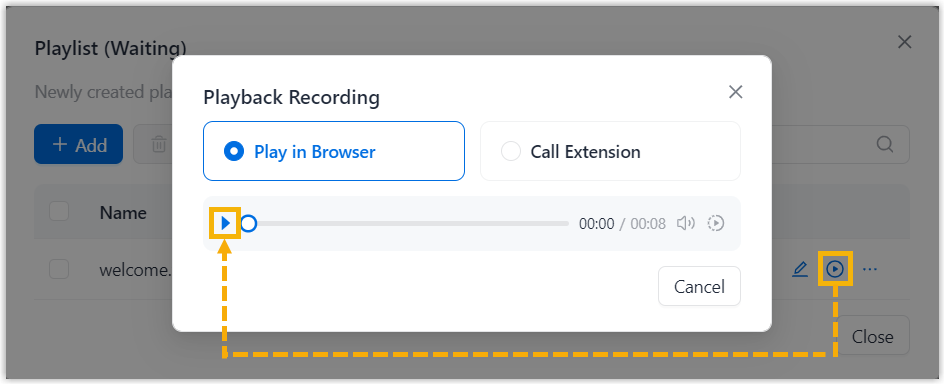
 beside the
desired audio file, and select
beside the
desired audio file, and select