Feature Code Reference
This topic lists the default feature codes and describes their usage.
Recording

| Feature | Default Code | Description |
|---|---|---|
| Switch User Recording Status | *1 |
|
Voicemail

| Feature | Default Code | Description |
|---|---|---|
| Check Voicemail / Subscribe Voicemail Status | *2 |
|
| Leave a Voicemail for a User | *12 |
A user can leave a voicemail for another user by dialing
|
Call Transfer
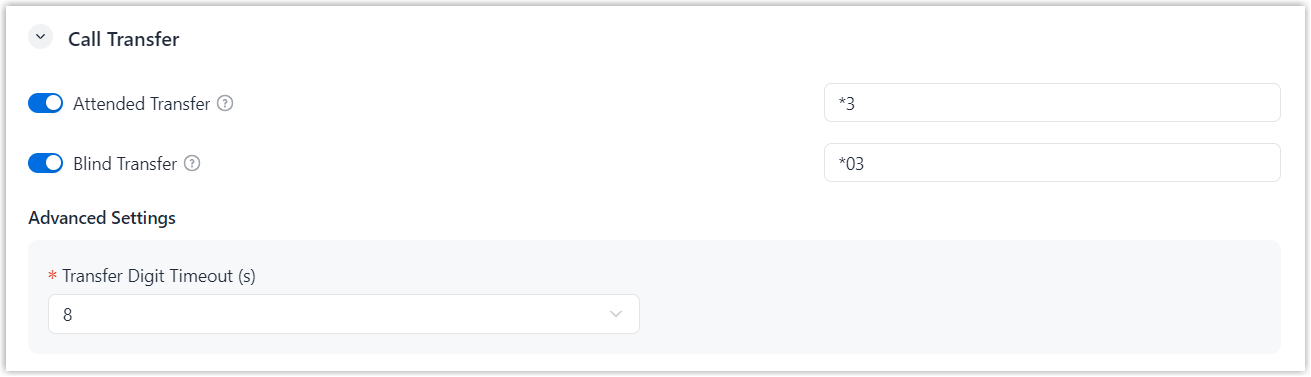
- Feature code setting
-
Feature Default Code Description Attended Transfer *3 A user can perform an attended transfer by dialing
*3+ {target_extension_number}.The user can consult with the target extension before confirming the transfer.
For more information, see Perform an Attended Transfer.
Blind Transfer *03 A user can perform a blind transfer by dialing
*03+ {target_extension_number}.The call is transferred directly without consultation with the target extension.
For more information, see Perform a Blind Transfer.
- Advanced setting
-
Setting Description Transfer Digit Timeout (s) The maximum interval (in seconds) allowed between digits when transferring a call.
If the timeout is reached, the transfer will be canceled and the original call will be resumed.
Valid value: 3 to 8
Call Forwarding
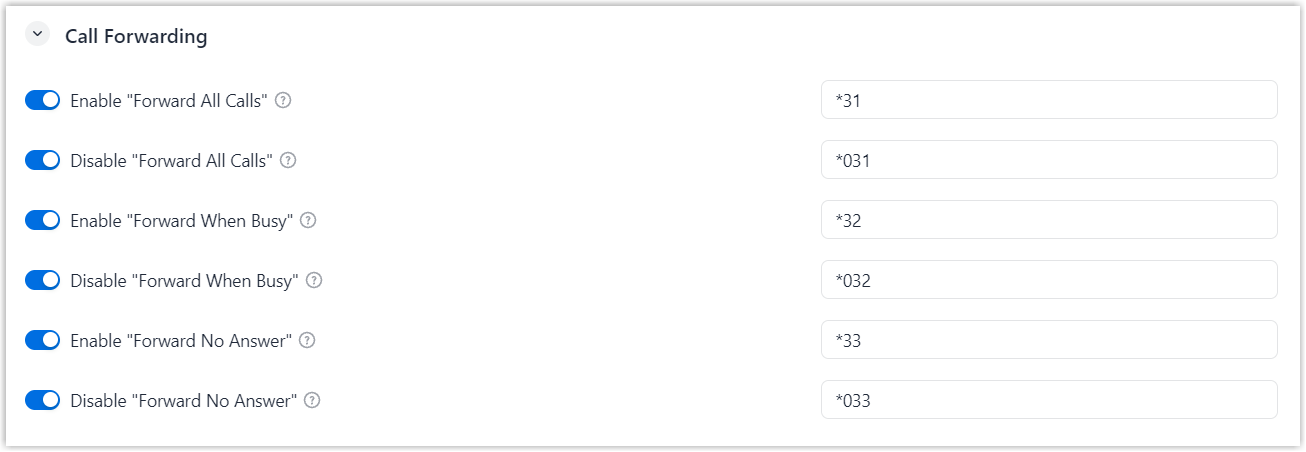
| Feature | Default Code | Description |
|---|---|---|
| Enable "Forward All Calls" | *31 |
|
| Disable "Forward All Calls" | *031 |
|
| Enable "Forward When Busy" | *32 |
|
| Disable "Forward When Busy" | *032 |
|
| Enable "Forward No Answer" | *33 |
|
| Disable "Forward No Answer" | *033 |
|
For more information, see Forward Incoming Calls to Another Destination.
Call Pickup

| Feature | Default Code | Description |
|---|---|---|
| Extension Pickup | *04 |
A user can pick up a ringing call for a target extension by
dialing For more information, see Pick up a Call for a Specific Extension. |
Call Parking
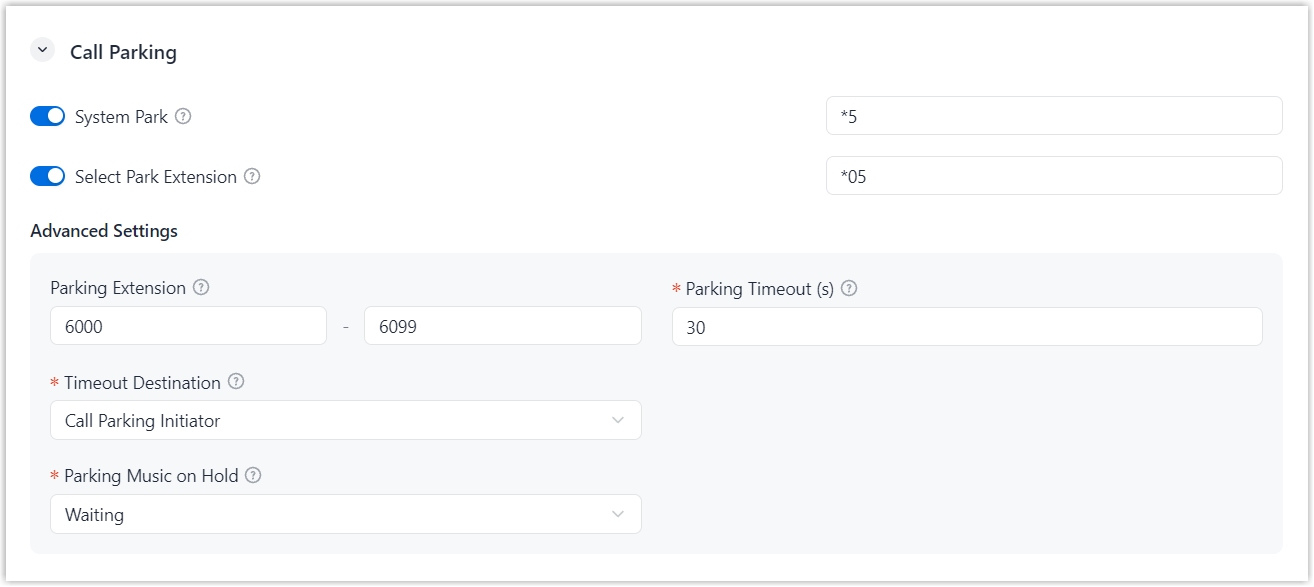
- Feature code setting
-
Feature Default Code Description System Park *5 A user can park an ongoing call to a system-assigned parking number by dialing
*5during a call.Note: The system assigns the first available virtual number from the default parking extension range.Select Park Extension *05 A user can park an ongoing call to a specific parking number by dialing
*05+ {target_parking_number}.Note: The parking number must fall within the parking extension range. - Advanced setting
-
Feature Description Parking Extension Set the number range for call parking.
Note: The range is synchronized with .Parking Timeout (s) Set the maximum time allowed before a parked call is retrieved.
If the timeout is reached, the call is routed to the configured timeout destination.
Timeout Destination Select a destination to route the call when the parking timeout is reached. - Call Parking Initiator: Route the call back to the user who parked it.
- User: Route the call to
a specific user.
You need to select a user from the subsequent User drop-down list.
- User Voicemail: Route
the call to a specific user's voicemail.
You need to select a user from the subsequent User drop-down list.
- External Number: Route
the call to an external number.
You need to enter a number in the subsequent External Number field.
Note: If a dial prefix is required, enter it in the Prefix field.
Parking Music on Hold Set the music played when a call is parked. Note: Available music is synchronized from . You can select from existing music, or choose one of the following options.- Create New: Add a new Music on Hold playlist.
- Follow System: Play the default Music on Hold playlist (the playlist configured in ).
- Ring Tone: Play a ring tone.
- Default: Play the default Music on Hold playlist (the playlist named Default in ).
Switch Business Hours and Holidays Status
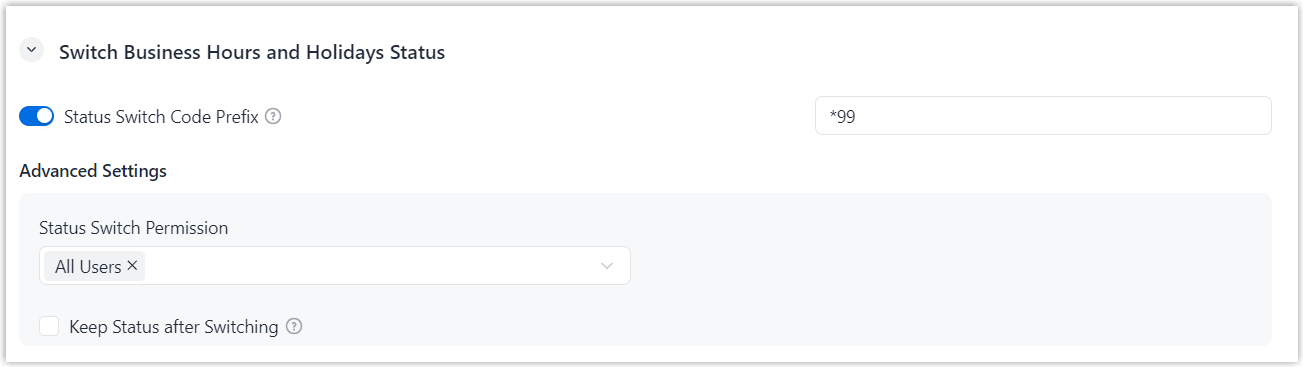
- Feature code setting
-
Feature Default Code Description Status Switch Code Prefix *99 The prefix used to automatically generate status switch codes for Business Hours Profiles. Note: An authorized user can switch business hours status by dialing the corresponding feature code. You can view the feature code in .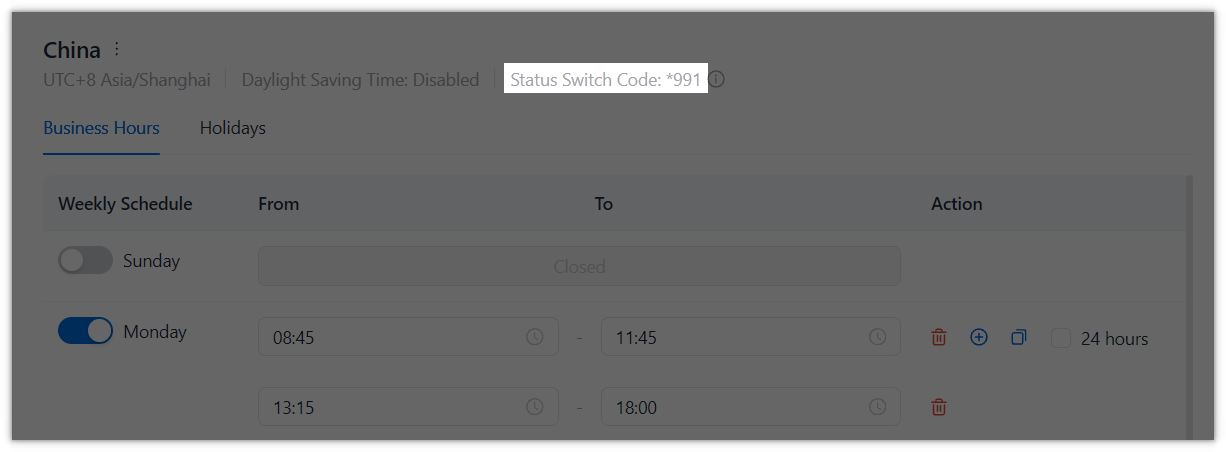
- Advanced setting
-
Feature Description Status Switch Permission Select the users who can switch business hours status by dialing the corresponding feature code. Keep Status after Switching Specify whether to keep the manually selected status after an authorized user switches business hours status.
- If enabled, the profile remains in the manually selected status until it is manually switched again.
- If disabled, the profile follows the configured schedule again at the next scheduled status change.
Intercom

| Feature | Default Code | Description |
|---|---|---|
| Intercom | *6 |
A user can initiate an intercom call to a target extension by
dialing |
Queues
| Feature | Default Code | Description |
|---|---|---|
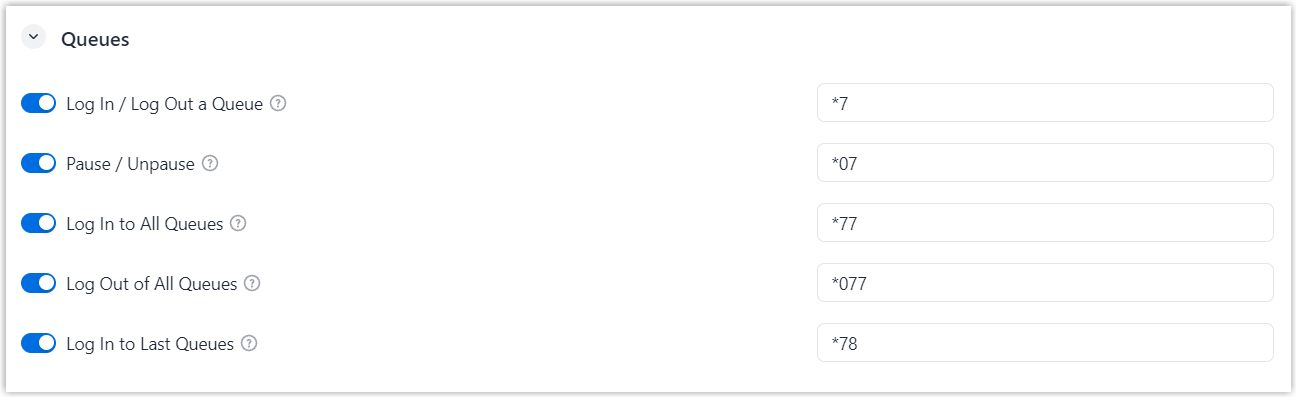
| Log In / Log Out a Queue | *7 |
|
| Pause / Unpause | *07 |
An agent can pause or resume receiving calls from a specific
queue by dialing |
| Log In to All Queues | *77 |
|
| Log Out of All Queues | *077 |
A dynamic agent can log out of all assigned queues by dialing
Note: Static agents do not support
this feature, as they remain logged in to the queue once
their extensions are registered and cannot log
out.
|
| Log In to Last Queues | *78 |
|
Pause Reason
NovoOne provides default pause reasons and corresponding feature codes for queue agents. You can modify the default settings, or add new pause reasons as needed.
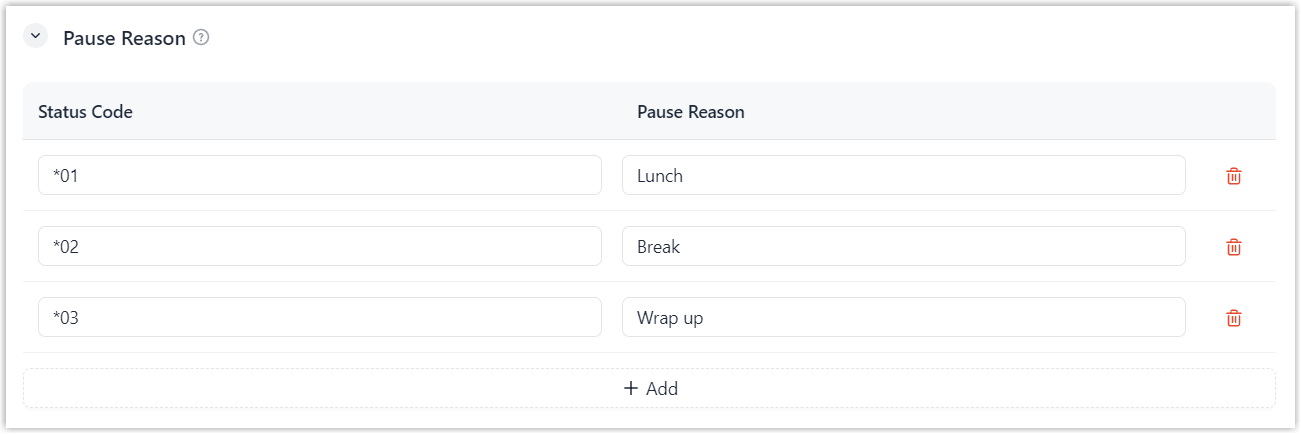
- Up to 20 feature codes for pause reasons are supported; The
feature code must start with
*or#and end with a number, with a length of 2 - 7 digits. - The feature codes are synchronized with .
After you set the feature codes, agents can pause with a specific reason by dialing
pause_feature_code + queue_number
+ pause_reason_feature_code.
| Pause reason | Default Code | Description |
|---|---|---|
| Lunch | *01 |
An agent can pause receiving calls from a specific queue for
specific reason by dialing |
| Break | *02 | |
| Wrap up | *03 |