Export and Import SIP Extensions
The SIP extensions configured on Yeastar P-Series PBX System can be exported and saved as a template. You can fill in desired extension information in the exported file, and import the file to PBX again. This topic describes how to export and import SIP extensions.
Export extensions
- Log in to PBX web portal, go to .
- To export specific extensions, do as follows:
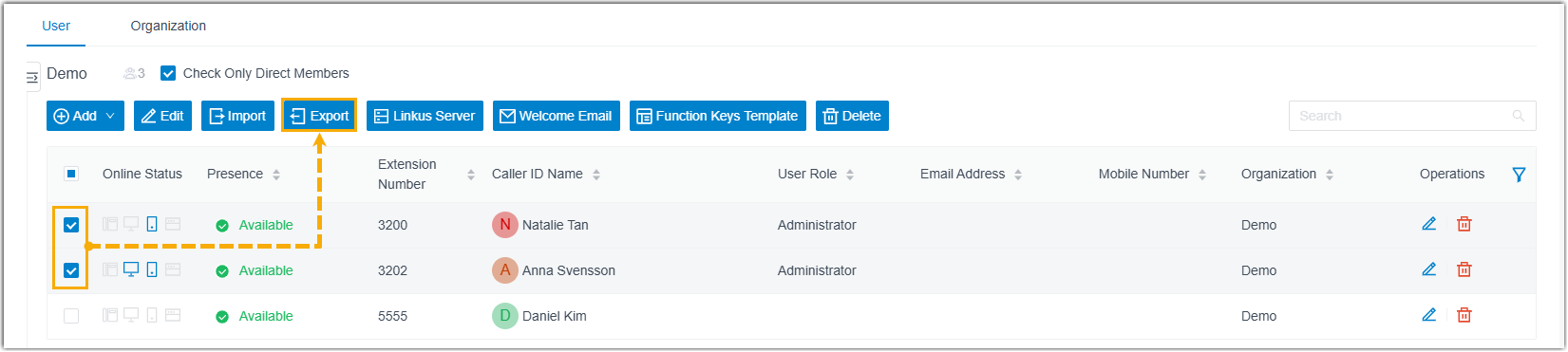
- Select the desired extensions from the list.
- Click Export.
- To export all extensions, click Export directly.
A CSV file is saved to your computer. To check and edit parameters in the CSV file, see Extension Parameters.
Import SIP extensions
We recommend that you export extension data to a CSV file first, and use the file as a template to start with. In this way, you can save time and effort.
- Prerequisites
- Requirements of an imported file:
- Format: UTF-8.CSV
- Size: Less than 50 MB
- File name: Less than 127 characters
- Import parameters: Ensure that the import parameters meet
requirements.
For more information, see Extension Parameters.
- Procedure
-
- Log in to PBX web portal, go to .
- Click Import.
- In the pop-up window, click Browse, select your CSV file.
- Click Import.
The extension data in the CSV file will be displayed in the Extension list.