Export and Import Function Key Templates
The function key templates configured on Yeastar P-Series PBX System can be exported. You can fill in desired function key information in the exported file, and import the file to PBX again. This topic describes how to export and import function key templates.
Export function key templates
- Log in to PBX web portal, go to .
- At the top of the list, click Function Keys Template.
- Optional: Select the checkboxes of the templates that you want to
export.
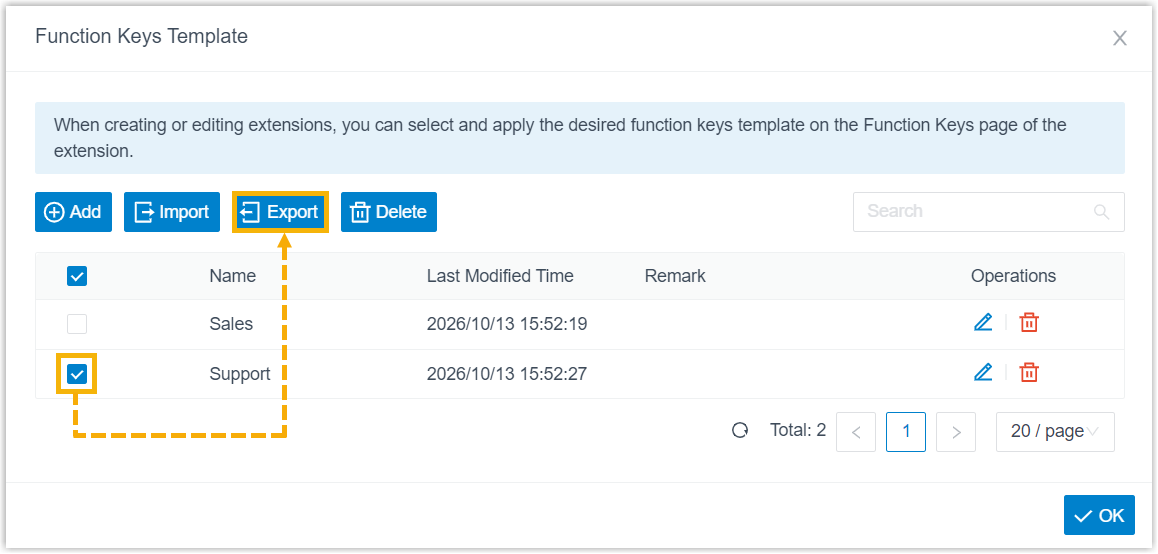
- Click Export.
A CSV file is saved to your computer. To check and edit parameters in the CSV file, see Function Keys Template Parameters.
Import function key templates
We recommend that you export function key templates to a CSV file first, and use the file as a template to start with. In this way, you can save time and effort.
- Prerequisites
- Requirements of an imported file:
- Format: UTF-8.CSV
- Size: Less than 50 MB
- File name: Less than 127 characters
- Import parameters: Ensure that the import parameters meet
requirements.
For more information, see Function Keys Template Parameters.
- Procedure
-
- Log in to PBX web portal, go to .
- At the top of the list, click Function Keys Template.
- Click Import.
- In the pop-up window, click Browse, select your CSV file.
- Click Import.
The function key template will be displayed in the Function Keys Template list.