Upload IP Phone Firmware
On Yeastar Central Management, you can upload IP phone firmwares used for phone upgrade. This topic describes how to upload an IP phone firmware.
Prerequisites
- Make sure that the number of phone firmware files currently retained on the Yeastar Central Management does not exceed the retention limit. You may increase the limit if needed.
- You have obtained the phone firmware file to be uploaded.
Procedure
- Log in to Yeastar Central Management, go to .
- Click Upload.
- In the pop-up window, complete the following settings.
- Fill in the following firmware information.
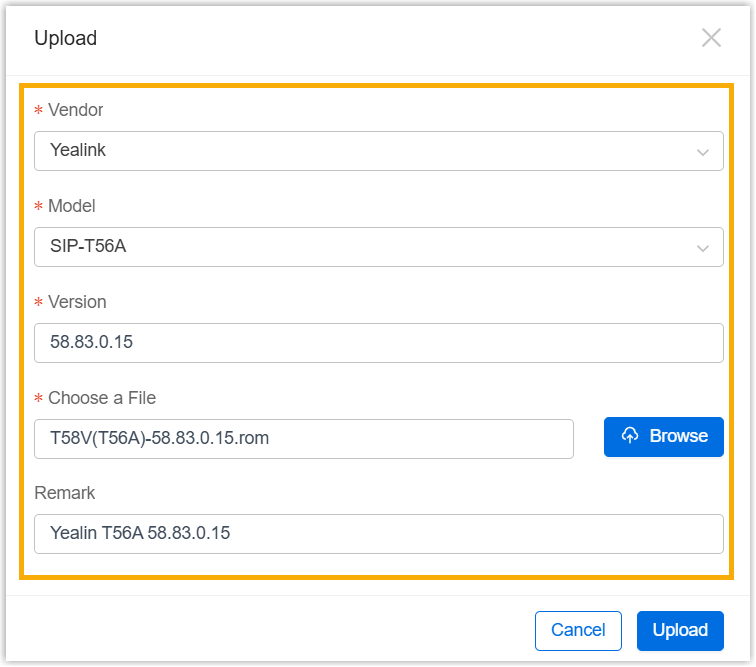
- Vendor: Select the firmware vendor.
- Model: Select the device model.
- Version: Enter the firmware version.
- Choose a File: Click Browse and select the firmware file from your computer.
- Remark: Optional. Enter a short description about the firmware.
- Click Upload.
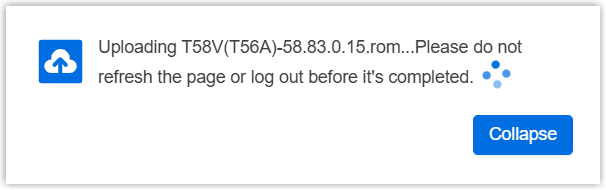
A pop-up window prompts that the firmware is being uploaded, you can click Collapse to collapse the window to the bottom-right corner.
- Fill in the following firmware information.
Result
The firmware is displayed in the Phone Management list.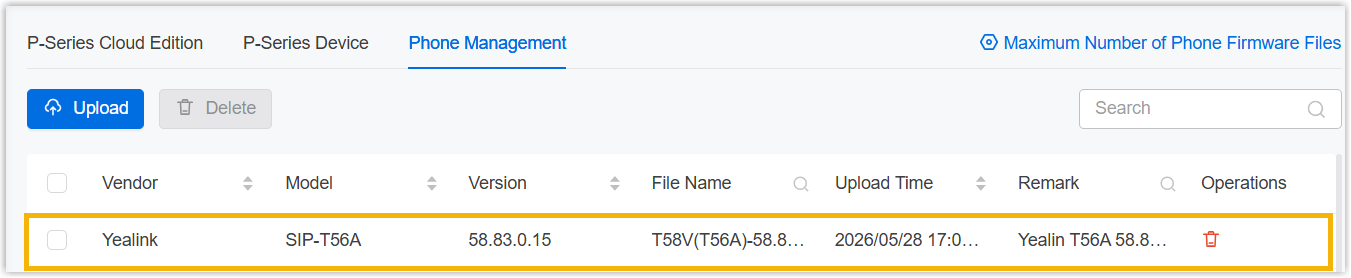
What to do next
To centrally upgrade phones using the uploaded firmwares, see Schedule an Automated Phone Firmware Upgrade Task.