Set Max Number of Phone Firmware Files
This topic describes how to set maximum number of phone firmware files that can be retained on Yeastar Central Management.
Procedure
- Log in to Yeastar Central Management, go to .
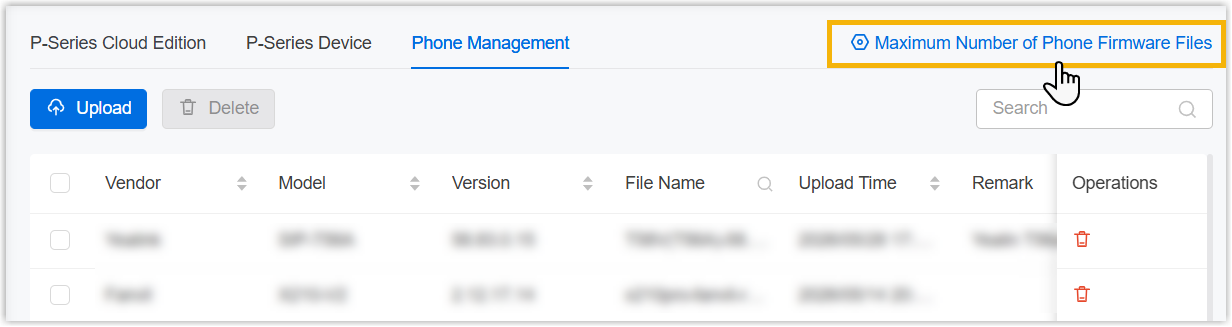
- At the top-right corner, click Max Number of Phone Firmware
Files.
- In the pop-up window, complete the following settings.
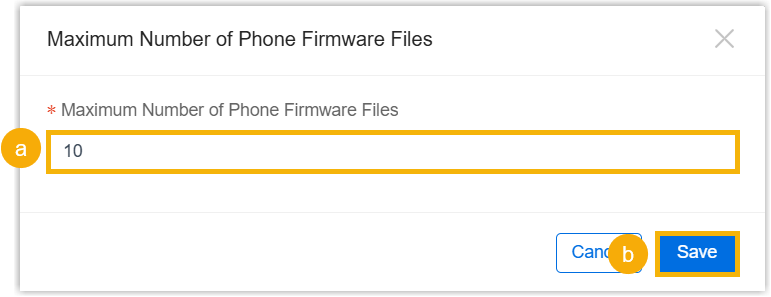
- In the Maximum Number of Phone Firmware Files
field, specify the maximum number of phone firmware files that can be
retained.Note: If the value is less than the number of currently retained phone firmware files, the system will automatically delete the oldest ones and the deletions cannot be undone.
- Click Save.
- In the Maximum Number of Phone Firmware Files
field, specify the maximum number of phone firmware files that can be
retained.
- In the pop-up window, click Confirm.