Check for Firmware Updates of P-Series Appliance / Software Edition
This topic describes how to manually check for firmware updates of P-Series Appliance Edition and Software Edition.
Requirements
Your account has subscribed to Remote Management Premium service, or the remotely connected P-Series Appliance / Software Edition has subscribed to Remote Management Connection service.
Background information
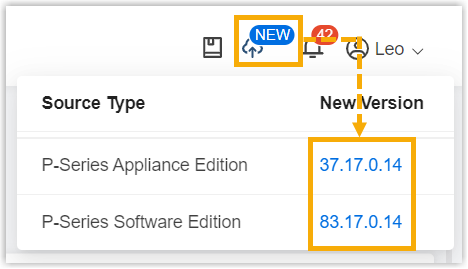
By default, when a new version of P-Series Appliance / Software Edition is detected,
you will find  displayed at the top-right corner of the web page. You
can click on the version to check the firmware.
displayed at the top-right corner of the web page. You
can click on the version to check the firmware.
Procedure
- Log in to Yeastar Central Management, go to .
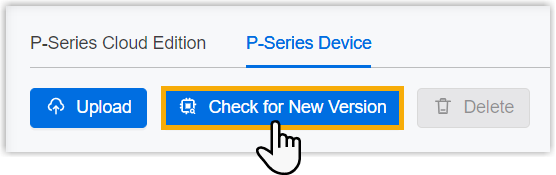
- Under P-Series Device tab, click Check for New
Version.
Result
- If a new firmware is detected, it will be displayed and marked with
 .
.You can click
 to check what was updated in the firmware
version.
to check what was updated in the firmware
version.
- If no new firmware is detected, the page prompts "Your firmware list already includes the latest version".
What to do next
To upgrade the remotely connected P-Series Appliance/Software Edition to a new firmware on Yeastar Central Management, see Upgrade Firmware of P-Series Appliance/Software Edition or Schedule an Automated Upgrade Task.