Upgrade Firmware of P-Series Cloud PBXs
This topic describes how to upgrade firmware for one or more P-Series Cloud PBXs on Yeastar Central Management.
Procedure
- Log in to Yeastar Central Management, access the configuration page for
upgrade task in either of the following ways.
- Go to , select one or more Cloud PBXs, and click
Upgrade.
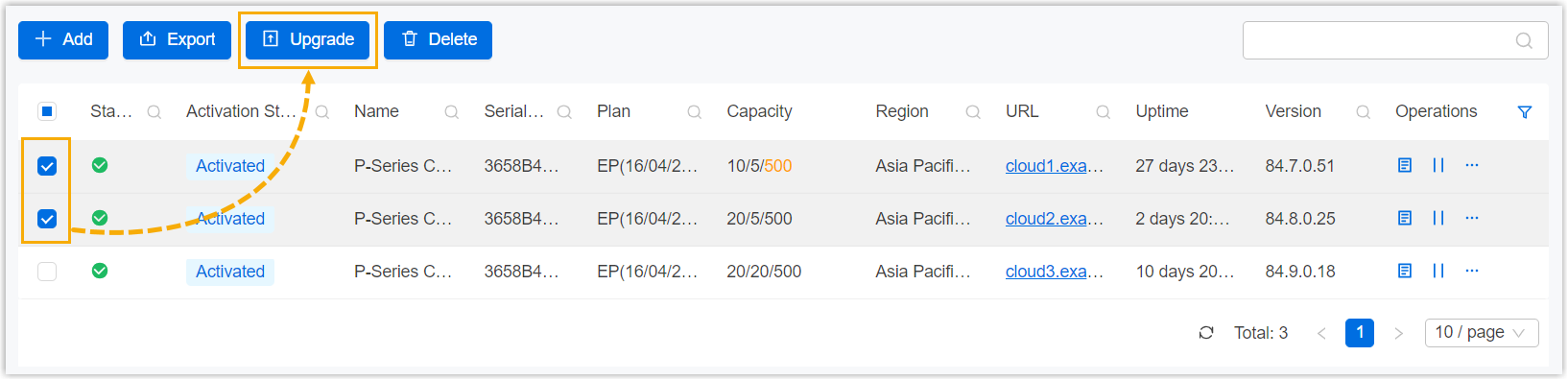
You are redirected to the Add Task page.
- Go to , click Add.

- Go to , select one or more Cloud PBXs, and click
Upgrade.
- Set up a firmware upgrade task for Cloud PBX.
- Fill in the following information.
Setting Description Name Enter a name to help you identify the task. Object Type Retain P-Series Cloud Edition.
Task Retain Upgrade. Firmware Select a firmware version. Note: The selected firmware version can NOT be lower than the current version, otherwise the upgrade would fail.Repeat Select One-time. Execution Time Set when to upgrade. Note: It is recommended to execute upgrade during off-business hours to minimize the impact on telephony service.- To upgrade at a scheduled time, choose a time.
- To upgrade as soon as you save the task, select the checkbox of Immediately.
Timezone Select a time zone of the task execution time. Tip: You can enable or disable Daylight Saving Time (DST) as needed.Creator Your name is automatically filled in, and the field can not be edited. Remark Optional. Add a note to the task. Object Select the P-Series Cloud PBXs that you want to upgrade.
- Click Save.
- Fill in the following information.
Result
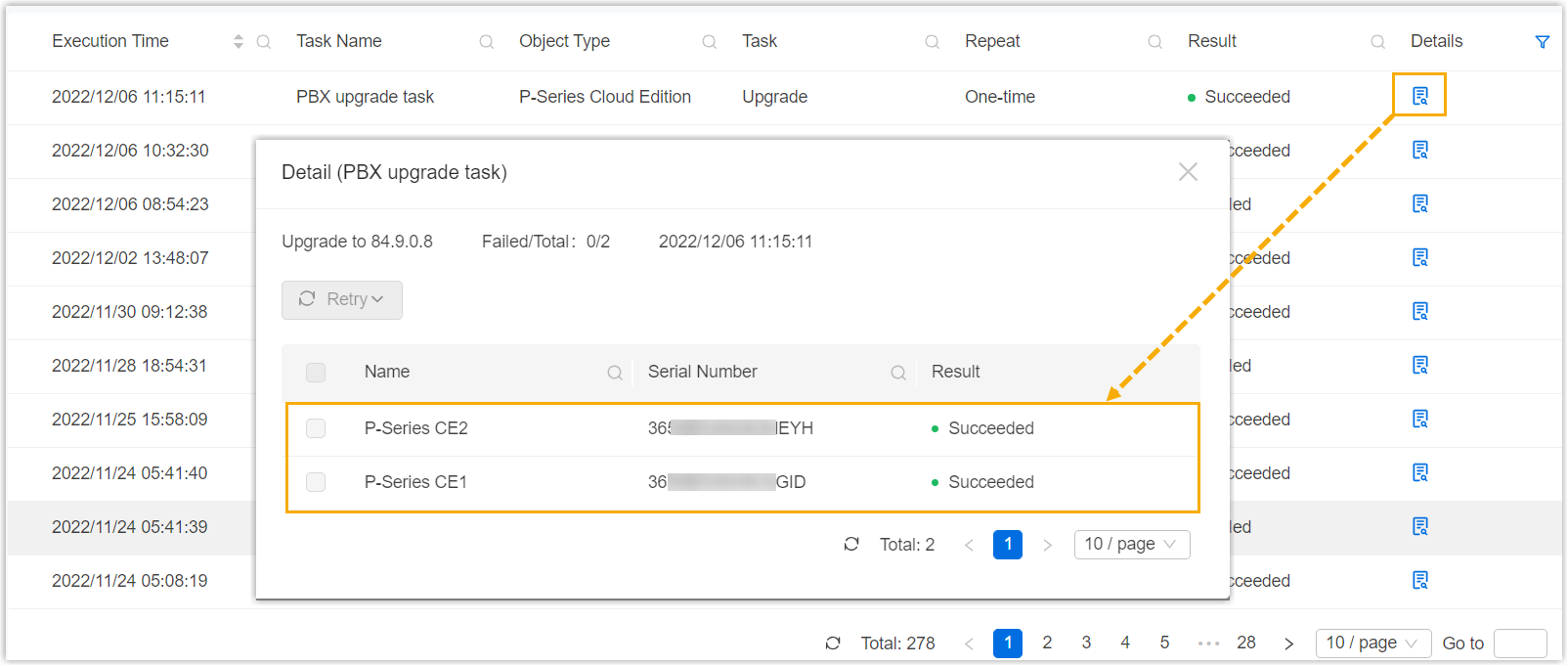
The PBX system will be upgraded immediately or on a scheduled time, depending on the execution time that you set for the task.
You can check the result on .