Create a P-Series Cloud PBX
After you purchase hosting package of P-Series Cloud Edition, you can create P-Series Cloud PBXs on Yeastar Central Management as needed.
Prerequisites
- Go to to check if the available capacity in the desired region is
sufficient.
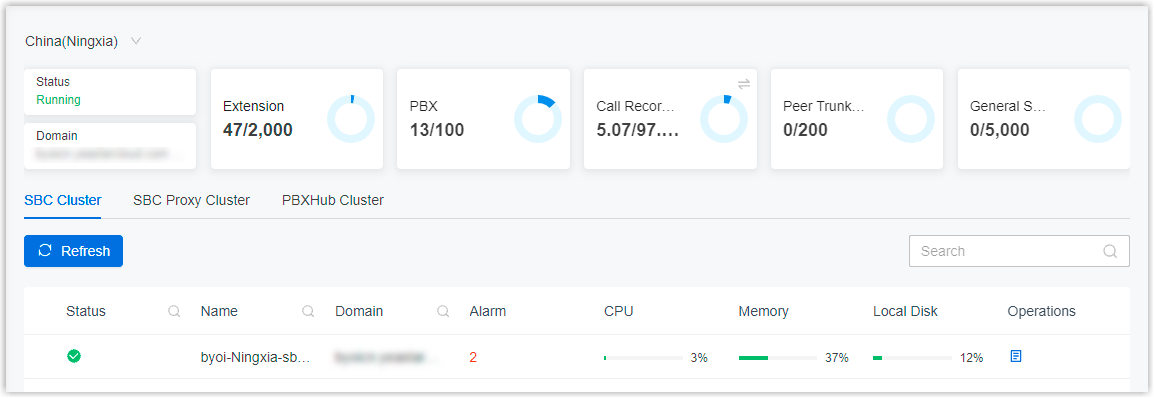
- Go to to check if the available capacity of the following subscriptions
in your P-Series Hosting Package is sufficient.
Subscription Description Extension The total number of extensions that can be created for Cloud PBXs. Concurrent Calls The number of concurrent calls that can be assigned to Cloud PBXs. Ultimate Plan The number of extensions that can be created for Cloud PBXs with Ultimate Plan. Note: To create a Cloud PBX with Ultimate Plan, the following requirements should be met:- You have subscribed to the Ultimate Plan service.
- Both the Extension and Ultimate Plan subscription have sufficient available capacity.
Call Recording Optional. Additional minutes for call recording that can be allocated to Cloud PBXs. Note:- Each Cloud PBX has 500 recording minutes for free.
- You need to subscribe to Recording Minutes service to get additional minutes.
AI Transcription Optional. Additional minutes for AI transcription that can be allocated to Cloud PBXs. Note:- Each Cloud PBX has a one-time free transcription quota (120 minutes for Enterprise Plan and 240 minutes for Ultimate Plan).
- To get more minutes, you need to subscribe to the AI Transcription (On-Demand Minute Pack) service (one-time package) or the AI Transcription (Monthly Rolling Plan) service (monthly quota pack).
AI Receptionist Optional. Additional minutes for AI receptionist that can be allocated to Cloud PBXs. Note:- Each Cloud PBX has a one-time quota of 60 free AI receptionist minutes.
- To get more AI receptionist minutes, you need to subscribe to AI Receptionist (On-Demand Minute Pack) service (one-time package) or the AI Receptionist (Monthly Rolling Plan) service (monthly quota pack).
- Prepare the following resources as needed.
Resource Description Shared trunk and DID numbers If you want to bind a trunk that is centrally managed on Yeastar Central Management to the Cloud PBX for inbound and outbound call routing, ensure there is at least one available shared trunk with DID numbers in the region where you want to create the PBX. For more information, see Trunk Sharing Overview.
Provisioning template If you want to quickly complete the initial setup of the Cloud PBX, prepare a provisioning template with the required configurations. For more information, see Create a Provisioning Template.
Procedure
- Log in to Yeastar Central Management, go to .
- Click Add to create a P-Series Cloud PBX.
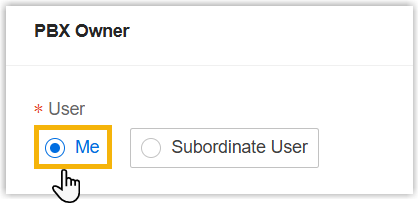
- In the PBX Owner
section, select Me.
- In the PBX Information section, fill in the following information:
Setting Description PBX Name Enter a name to help you identify the PBX. PBX Plan Select Enterprise Plan (EP) or Ultimate Plan (UP). Extension Set the maximum number of extensions.
Valid value: 1-500
Concurrent Calls Set the maximum number of concurrent calls. Call Recording Set whether to enable Call Recording feature for the PBX or not. - Enabled: PBX users can record both internal calls and external calls.
- Disabled: PBX users can NOT record calls.
Recording Capacity (mins) Set recording capacity. Note:- Only when Call Recording is enabled can you configure the option.
- Each PBX has 500-minute recording time for free. If you enter a value greater than 500, the exceeding minutes will be deducted from the total recording capacity of your subscribed hosting package.
AI Transcription (One-Time Capacity) (mins) Assign extra AI transcription minutes. Note:- The setting is available only when you have subscribed to AI Transcription (On-Demand Minute Pack) service and the subscription has remaining capacity, and applies to the P-Series Cloud PBX with firmware version 84.19.0.110 or later.
- Each PBX comes with one-time free transcription time (120 minutes for Enterprise Plan and 240 minutes for Ultimate Plan). The number of minutes specified here will be added to these default quotas.
- Set the value to 0 if no extra minutes are needed.
AI Transcription (Monthly Quota Pack) Specify the number of monthly quota packs of AI transcription minutes to assign.
Each pack provides a recurring quota of minutes that resets each month; unused minutes do not roll over. For example, if two monthly quota packs of 500 minutes are assigned, the PBX will have 1000 transcription minutes available per month.
Note:- The setting is available only when you have subscribed to AI Transcription (Monthly Rolling Plan) service and the subscription has remaining capacity, and applies to the P-Series Cloud PBX with firmware version 84.22.0.138 or later.
- Set the value to 0 if you do not need to assign any packs.
AI Receptionist (One-Time Capacity) (mins) Assign extra AI receptionist minutes. Note:- The setting is available only when you have subscribed to AI Receptionist (On-Demand Minute Pack) service and the subscription has remaining capacity, and applies to the P-Series Cloud PBX with firmware version 84.22.0.138 or later.
- Each PBX comes with 60 free AI Receptionist minutes (one-time). The number of minutes specified here will be added to the default quotas.
- Set the value to 0 if no extra minutes are needed.
AI Receptionist (Monthly Quota Pack) Specify the number of monthly quota packs of AI receptionist minutes to assign.
Each pack provides a recurring quota of minutes that resets each month; unused minutes do not roll over. For example, if two monthly quota packs of 200 minutes are assigned, the PBX will have 400 AI receptionist minutes available per month.
Note:- The setting is available only when you have subscribed to AI Receptionist (Monthly Rolling Plan) service and the subscription has remaining capacity, and applies to the P-Series Cloud PBX with firmware version 84.22.0.138 or later.
- Set the value to 0 if you do not need to assign any packs.
Region Select a desired region. The PBX will be created in the region. Note: If desired region can NOT be selected, you need to expand server capacity.PBXHub Select a desired PBXHub in the chosen region. The PBX will be created in the PBXHub Server. Note:- If you select Follow System, the system will automatically create the PBX in the PBXHub with the lowest system load.
- To allow your colleagues or hosting users to choose PBXHub when creating a Cloud PBX, you need to grant the permission Allow PBXHub Selection to their accounts (Path: ).
URL Enter a prefix in the text field, then select a suffix from the drop-down list.Note:- The URL is the domain name of the PBX.
- Only allowed to enter numbers, letters, and
hyphens
-.
PBX Version Select a firmware version to be used on the PBX. Group Select the existing group(s) to which the PBX will be added. PBX Type Select a type to help you identify the PBX. Note: By default, the PBX to be created is for commercial use. To allow specific users to try PBX for a short period of time, you can set the type to Trial.- Trial
- Commercial
PBX Expiration Date Set an expiration date.
The expiration date indicates period of validity for PBX, which will be displayed on PBX management portal.
When the expiration date is reached Set whether users can continue to use the PBX when reaching the expiration date. - Stop the PBX immediately
- Allow PBX to continue working
- In the Call
Restriction section, configure call restriction for outbound
calls within a time cycle.Note: This section is available only when the firmware version of the Cloud PBX is 84.24.0.122 or later.
Setting Description Call Restriction Type Select which call type to restrict. Only Outbound call is supported. Call Minutes Restriction Select the maximum outbound call minutes allowed to be used on the PBX within the time cycle. Note: If you subsequently change the Call Minutes Restriction, the system will restart calculating outbound call minutes from 0 within the time cycle.Time Cycle Select the time cycle for calculating outbound call minutes. Only This Month is supported. The system starts calculating outbound call minutes for the current month and reset the used minutes to 0 at the beginning of the next month.
Call Minutes Exceed Action Select the action the PBX takes when the outbound call minutes exceed the Call Minutes Restriction within the time cycle. Note:- This setting is editable only when Call Minutes Restriction does not be set to Unlimited.
- This setting does not affect ongoing outbound calls.
- Restrict: The PBX cannot initiate outbound calls.
- Allow: The PBX can initiate outbound calls.
Call Minute Alert Threshold Select desired thresholds. When the outbound call minutes used by the PBX reach the specified thresholds within the time cycle, an event notification called Call Minutes Alert will be triggered.
-
In the Customer Information section, select one or more customers to receive PBX activation email(s).
Scenario Instruction Figure 1. Select an existing customer 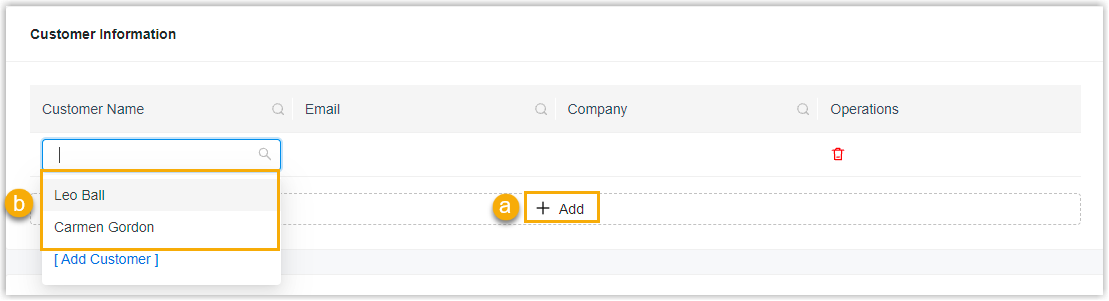
To select an existing customer, do as follows:
- Click Add.
- In the drop-down list of Customer Name, select a customer.
Figure 2. Add a new customer 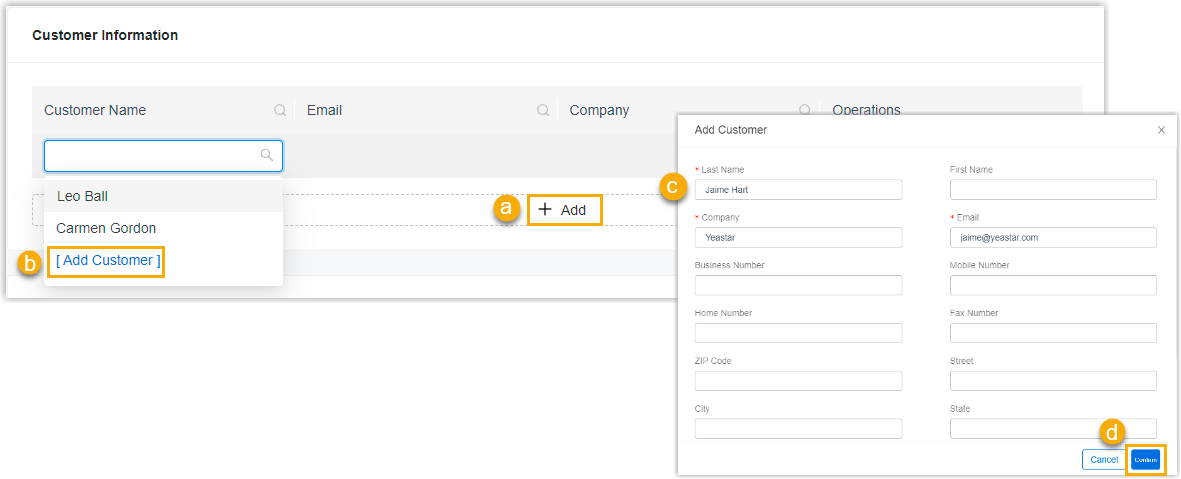
To add a new customer, do as follows:
- Click Add.
- In the drop-down list of Customer Name, select Add Customer.
- Fill in customer information.
- Click Confirm.
The customer is added and synchronized to Customer list (Path: ).
-
Optional: In the Assigned DIDs section, assign DID number to the PBX for trunk sharing.
Note: This setting is available only when the following requirements are met:- You have created shared trunks in the same region as the PBX, and assigned DID numbers to them.
- The firmware version of the Cloud PBX is 84.19.0.22 or later.
- Click Add to add
an assignment rule.
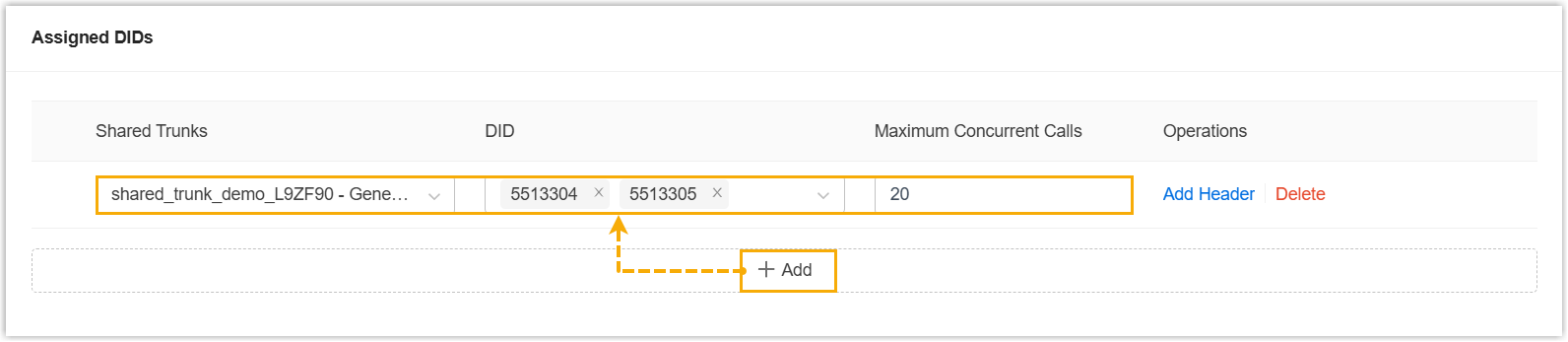
- Shared Trunks: Select the desired trunk that will be shared with the PBX.
- DID: Select the trunk's associated DID numbers to be assigned to the PBX for inbound and outbound call routing.
- Maximum Concurrent Calls:
(Optional) Set the concurrent call limit for the PBX on
the shared trunk. Note:
- This setting only takes effect on P-Series Cloud PBX with firmware version 84.23.0.123 or later.
- If left blank, the PBX can utilize the trunk's maximum concurrent capacity.
-
Assign custom SIP headers of the shared trunk to the PBX as needed, which will be included in SIP INVITE messages of the outbound calls routed through the shared trunk.
Note: This setting is available only when the following requirements are met:- The firmware of Yeastar Central Management is 87.18.0.46 or later.
- The firmware version of the Cloud PBX is 84.22.0.138 or later.
- The shared trunk has been configured with the custom SIP headers.
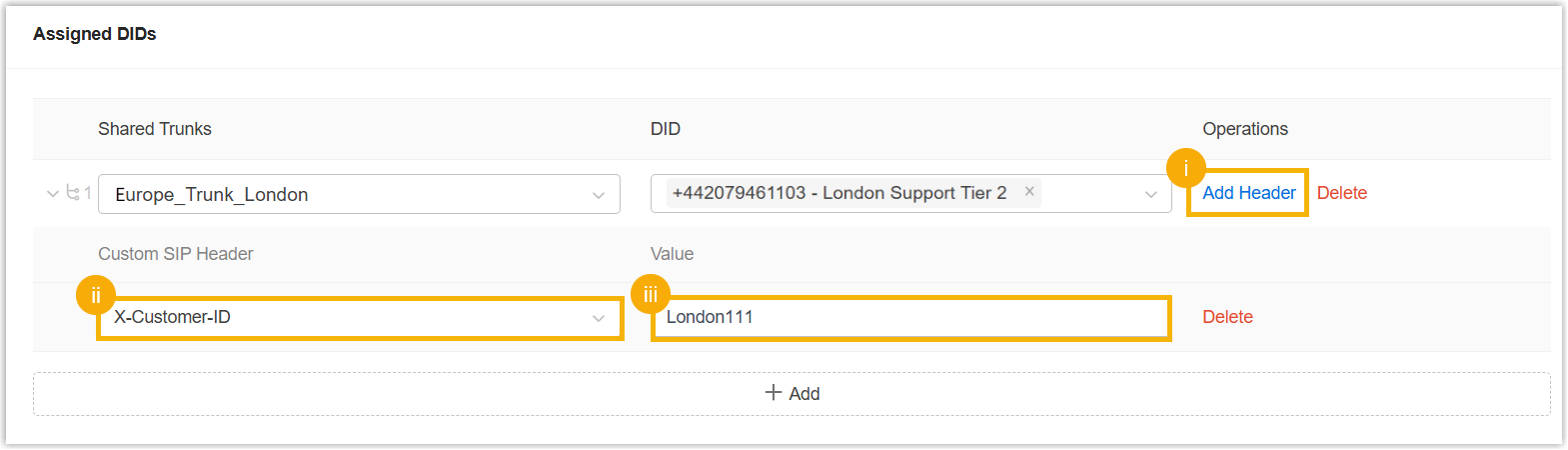
- Click Add Header in the Operations column.
- In the Custom SIP Header drop-down list, select the desired custom SIP header.
- In the Value
filed, enter a value for the SIP header.Note:
- The total length must not exceed 255 characters.
- This value MUST be unique across all Cloud PBXs for the same custom SIP header on the shared trunk.
- To assign more custom SIP headers to the Cloud PBX, repeat step i to iii.
- In the Option section, configure the
following system options for the PBX as needed.
Option Description Allow to Upgrade from the PBX Side The option is enabled by default. To prevent PBX administrators from upgrading firmware on the PBX management portal, disable the option. Note: If you disable the option, the Upgrade feature entrance will NOT be displayed on PBX management portal.Allow Passwordless Login to PBX To allow passwordless login to the PBX from Yeastar Central Management, enable the option.
Note: To implement passwordless login to the Cloud PBX, the 'Passwordless Login' feature on the Cloud PBX must also be enabled (Path: ).Allow Provisioning via Template To allow the PBX to be provisioned via a template, enable the option, then select a template from the Provisioning Template drop-down list as needed.
The system will automatically provision the PBX using the selected template on initial start-up.
Note: Templates displayed in the drop-down list are synchronized from .Allow to Use Internal Chat This option is enabled by default. If you don't want users to use the internal chat feature on their Linkus UC clients, you can disable this option. Note: The setting can be applied to the P-Series Cloud PBXs with a firmware version of 84.12.0.32 or later.Trunk Configuration Access This option is enabled by default. If you don't want users to add or import trunks on the PBX, you can disable this option. Note:-
This option is only available when the following requirements are met:
- The firmware version of Yeastar Central Management is 87.17.0.80 or later.
- The firmware version of the P-Series Cloud PBX is 84.21.0.66 or later.
- If the P-Series Cloud PBX is provisioned via a template while this option is disabled, the trunk configuration in the template will not be applied.
-
- Click Save.
Result
- The P-Series Cloud PBX is created with status displayed as
 (Stopped) and Plan displayed as
EP or UP.
(Stopped) and Plan displayed as
EP or UP.
- The number of extensions and concurrent calls as well as other subscription resources that you have assigned to the PBX is deducted from the total subscription capacity.
What to do next
- Send PBX activation emails to the customers.
For more information, see Send Cloud PBX Activation Emails.
- Start the PBX so that customers can activate it.
For more information, see Start a P-Series Cloud PBX.