Expand or Reduce System Capacity of a P-Series Cloud PBX
After you create a P-Series Cloud PBX, you can flexibly expand or reduce the system capacity as needed, such as the number of extensions, concurrent calls, recording capacity, and AI transcription minutes.
Expand system capacity of a P-Series Cloud PBX
- Prerequisites
-
-
Go to to check if the available capacity in the desired region is sufficient.
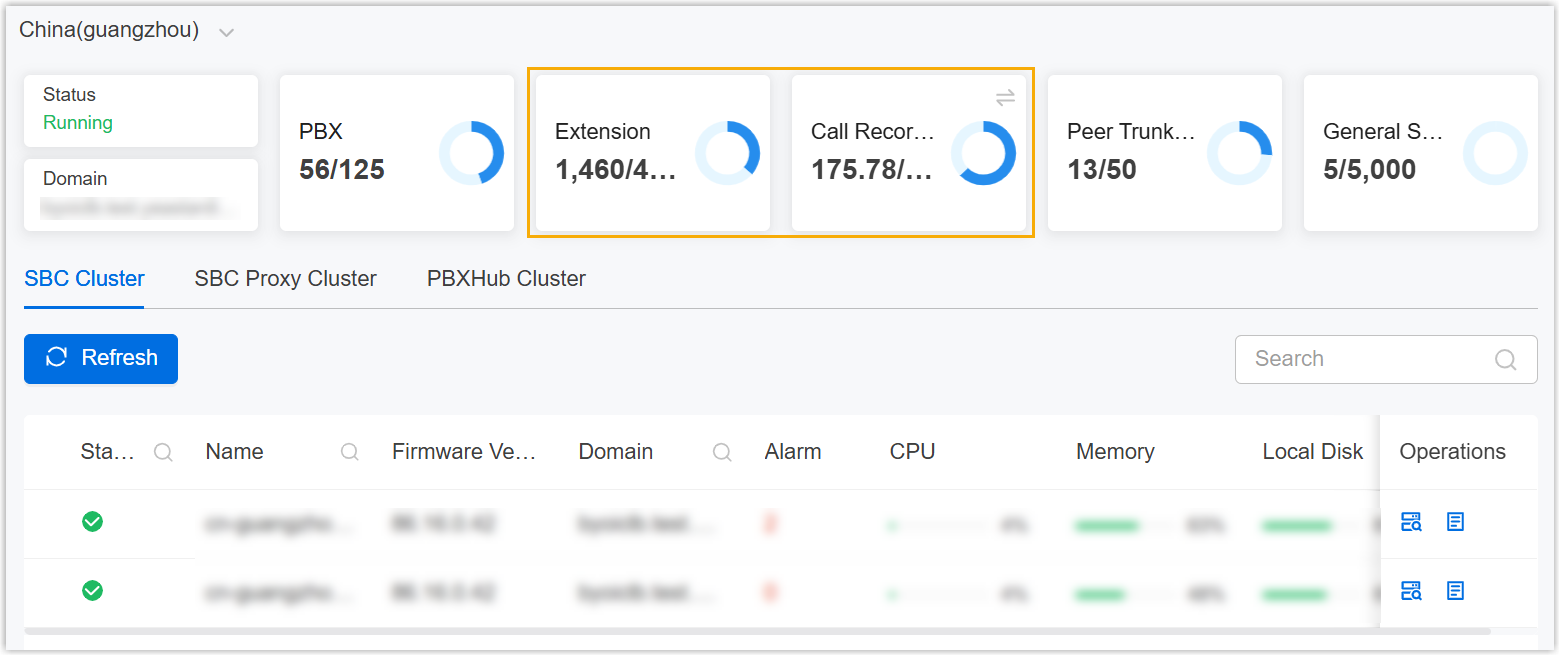
- Go to to check if the available capacity of the
desired resources in your P-Series Hosting Package is sufficient.Note:
- To expand the number of extensions for a Cloud PBX with Enterprise Plan, ensure that the Extension subscription has sufficient available capacity.
- To expand the number of extensions for a Cloud PBX with Ultimate Plan, ensure that both the Extension and Ultimate Plan have sufficient available capacities.
-
- Procedure
-
- Log in to Yeastar Central Management, go to .
- Select a desired PBX, click
 , then select Resize Capacity from the
drop-down list.
, then select Resize Capacity from the
drop-down list.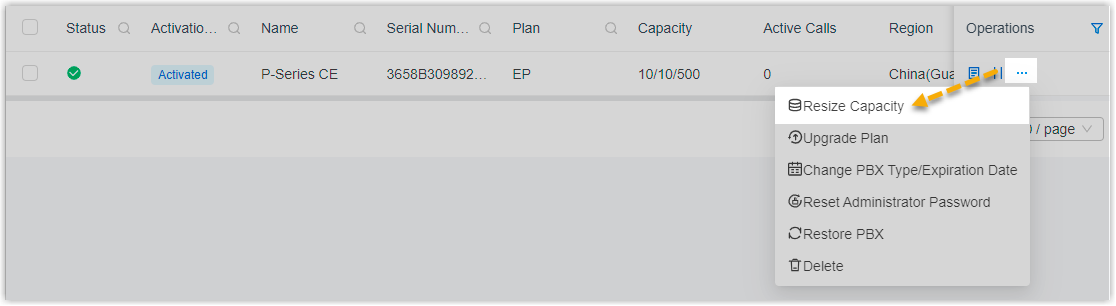
- In the pop-up window, expand the capacity of PBX resources
according to your needs.
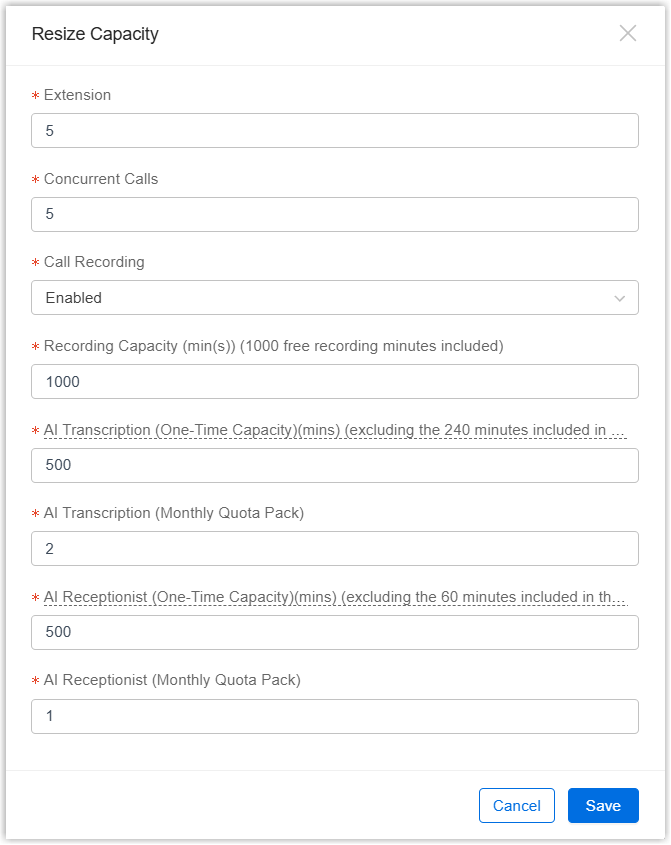
Setting Description Extension Resize the maximum number of extensions. Note: P-Series Cloud PBX supports up to 500 extensions.Concurrent Calls Resize the maximum number of concurrent calls. Call Recording Set whether to enable or disable the call recording feature. Recording Capacity Resize the maximum recording capacity. Note:- Only when Call Recording is enabled can you configure the option.
- Each PBX has 500-minute recording time for free. If you enter a value greater than 500, the exceeding minutes will be deducted from the total recording capacity of your subscribed hosting package.
AI Transcription (One-Time Capacity)(mins) Adjust the allocated amount of one-time AI transcription minutes. AI Transcription (Monthly Quota Pack) Adjust the number of assigned AI transcription monthly quota pack. AI Receptionist (One-Time Capacity)(mins) Adjust the allocated amount of one-time AI receptionist minutes. AI Receptionist (Monthly Quota Pack) Adjust the number of assigned AI receptionist monthly quota pack. - Click Save.
- Result
- The expanded capacity takes effect on the PBX immediately and is
deducted from your total subscription capacity.Note: When you expand the number of extensions for a PBX with the Ultimate Plan, the corresponding counts will be deducted from both the capacities of the Extension and Ultimate Plan subscriptions.
Reduce system capacity of a P-Series Cloud PBX
- Procedure
-
- Log in to Yeastar Central Management, go to .
- Select a desired PBX, click , then select Resize Capacity from the
drop-down list.
- In the pop-up window, reduce the capacity of PBX resources
according to your needs.Note: If you set recording capacity to 0, Call Recording feature on the PBX will be disabled, and existing recording files will be cleared.
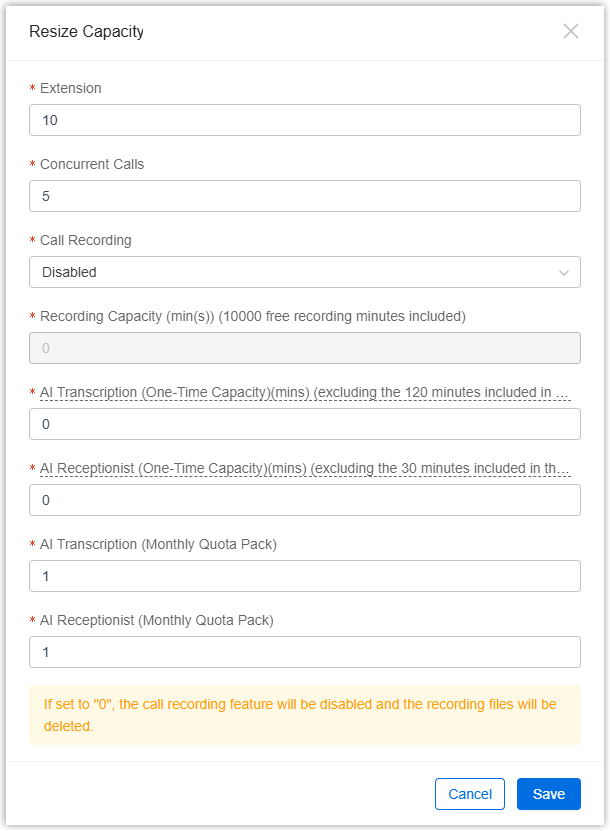
- Click Save.
- Result
-
- The capacity change takes effect on PBX immediately, and the reduced extensions, Ultimate Plan extensions, concurrent calls, recording capacity and other resources are released back to your total subscription capacity.
- The extensions (extension number in ascending order) that fall
out the range can not register to any endpoints.Note: If these extensions have registered to endpoints, they will be de-registered automatically.