Expand Capacity or Subscribe New Service for P-Series BYOI Hosting Package
Yeastar supports to expand extension capacity and call recording minutes, or subscribe additional services - High Availability for BYOI, White Label, AI Transcription, and AI Receptionist for existing P-Series BYOI hosting package.
Introduction
Before you begin, read the table below to understand each service's pricing model and how to onboard the services.
| Service | Description | Guideline |
|---|---|---|
| Ultimate Plan | Quantity-based subscription per Yeastar Partner Portal account. Note: Ultimate Plan allows
you to allocate a portion of your purchased package extensions to
PBX, enabling those extensions with advanced features.
For example, if you purchase a hosting package with 100 extensions and subscribe to Ultimate Plan for 20 extensions, you will have 100 extensions in total to allocate - 80 extensions for Enterprise Plan and 20 extensions for Ultimate Plan. |
|
| Extension Expansion | Quantity-based subscription per Yeastar Partner Portal account. |
|
| Recording Minutes | Quantity-based subscription per Yeastar Partner Portal account. | |
| High Availability for BYOI | Quantity-based subscription per Yeastar Partner Portal account. | Subscribe to High Availability service following this topic. |
| YCM White Label | Flat-rate subscription per Yeastar Partner Portal account. |
|
| PCE White Label | Flat-rate subscription per Yeastar Partner Portal account. |
|
| PSE White Label | Flat-rate subscription per Yeastar Partner Portal account. |
|
| Custom Domain Name | Flat-rate subscription per Yeastar Partner Portal account. | Subscribe to Custom Domain Name service following this topic. |
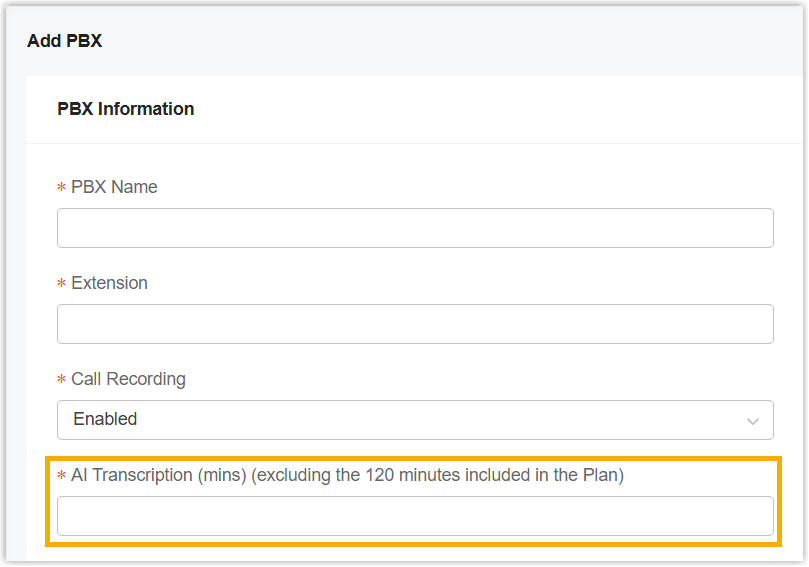
| AI Transcription (On-Demand Minute Pack) |
Usage-based billing per Yeastar Partner Portal account. |
Note: Each cloud PBX comes with free
transcription minutes - 120 minutes for Enterprise
Plan and 240 minutes for Ultimate Plan.
When the free minutes are used up, additional
transcription minutes can be purchased on demand from
Yeastar Partner Portal and allocated from Yeastar
Central Management.
|
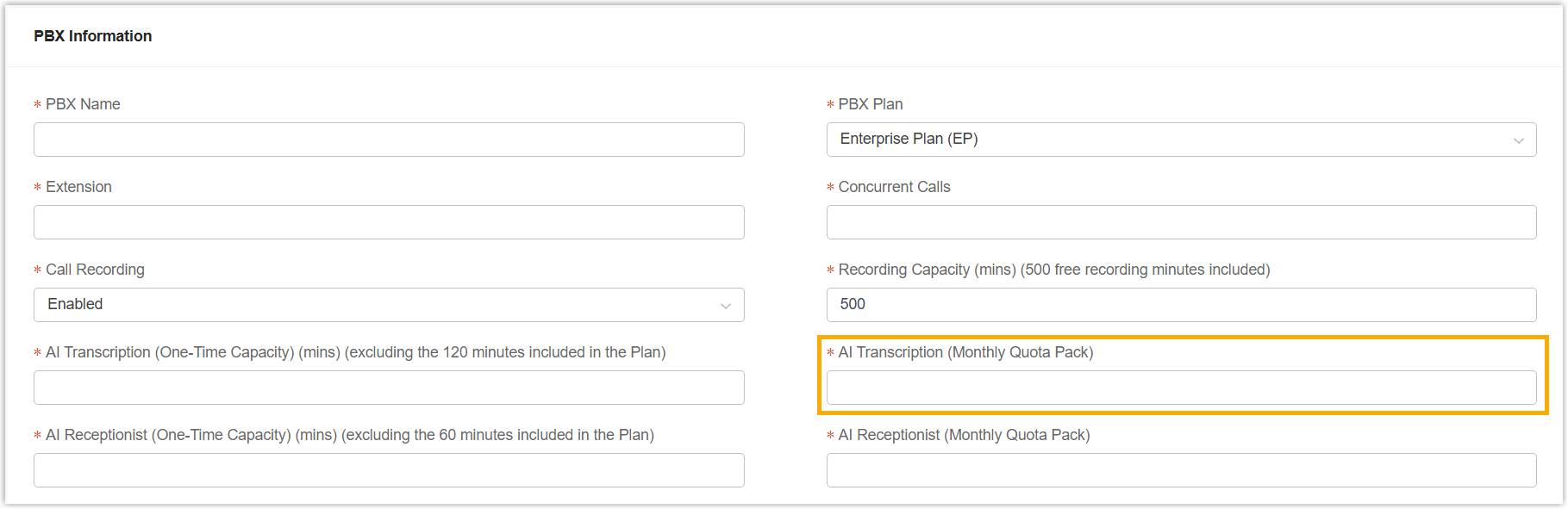
| AI Transcription (Monthly Rolling Plan) | Pack-based subscription per Yeastar Partner Portal account. |
Note: Each cloud PBX comes with free
transcription minutes - 120 minutes for Enterprise
Plan and 240 minutes for Ultimate Plan.
When the free minutes are used up, additional minutes
can be expanded in packs of 500 minutes as
needed.
Note: The quota resets on the
subscription date each month; unused minutes do not roll
over to the next month.
|
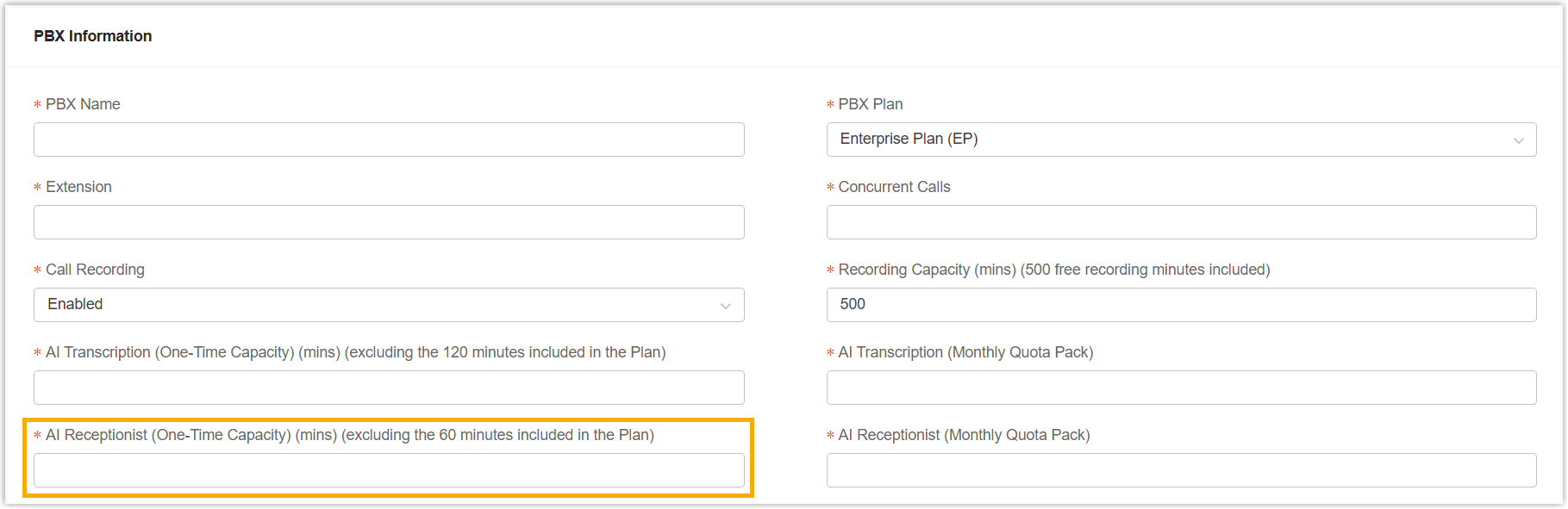
| AI Receptionist (On-Demand Minute Pack) |
Usage-based billing per Yeastar Partner Portal account. |
Note: Each cloud PBX comes with
60 free receptionist minutes. When the free
minutes are used up, additional receptionist minutes can
be purchased on demand.
|
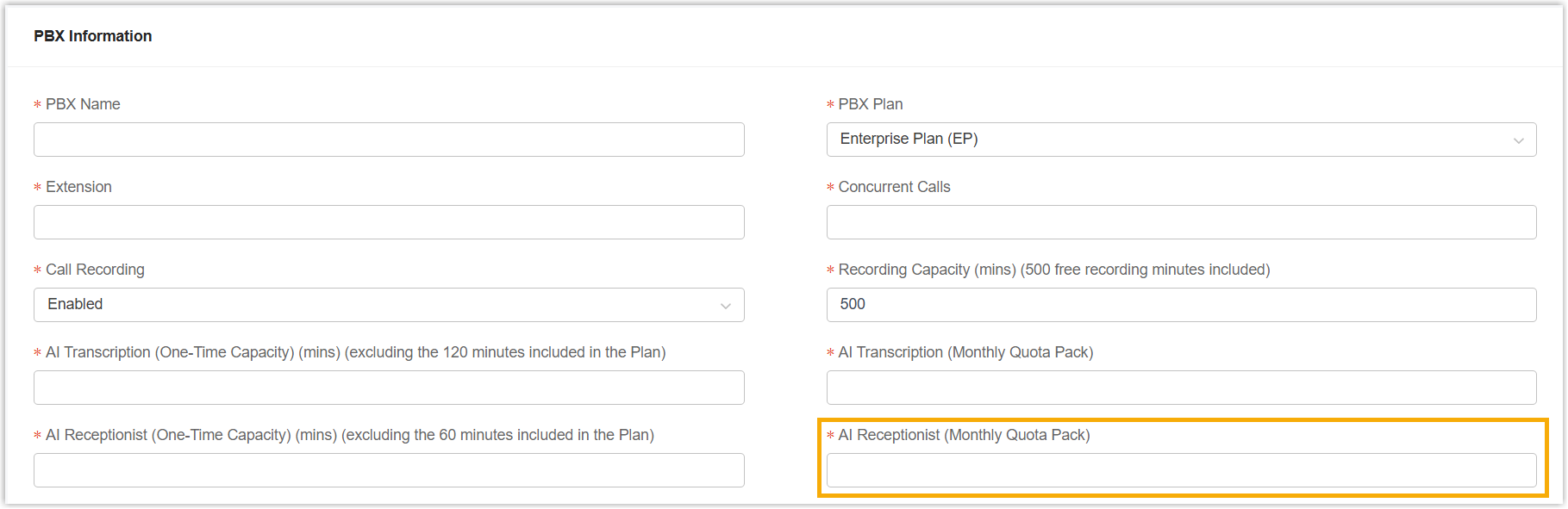
| AI Receptionist (Monthly Rolling Plan) | Pack-based subscription per Yeastar Partner Portal account. |
Note: Each cloud PBX comes with
60 free receptionist minutes. When the free
minutes are used up, additional minutes can be expanded
in packs of 200 minutes as needed.
Note: The quota resets on the
subscription date each month; unused minutes do not roll
over to the next month.
|
Step 1. Go to product purchase page
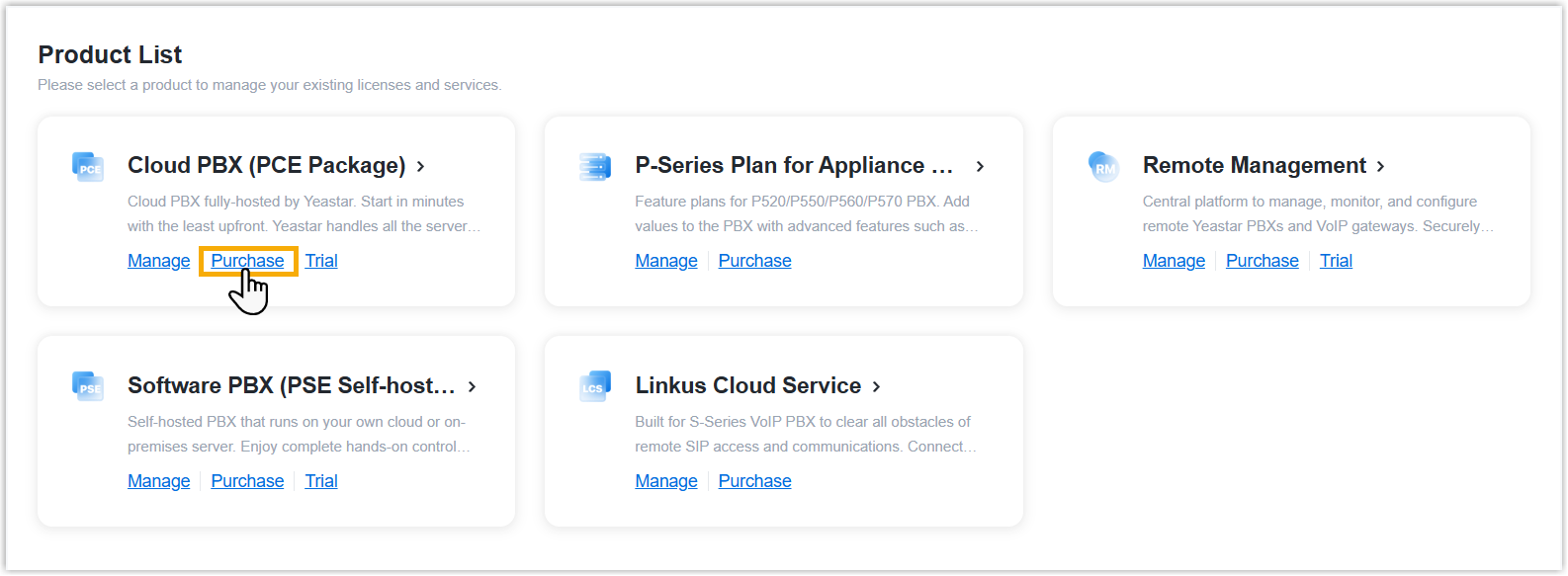
- Log in to Yeastar Partner Portal, go to Products & Purchase.
- On the product list, click Purchase
on Cloud PBX (PCE Package).
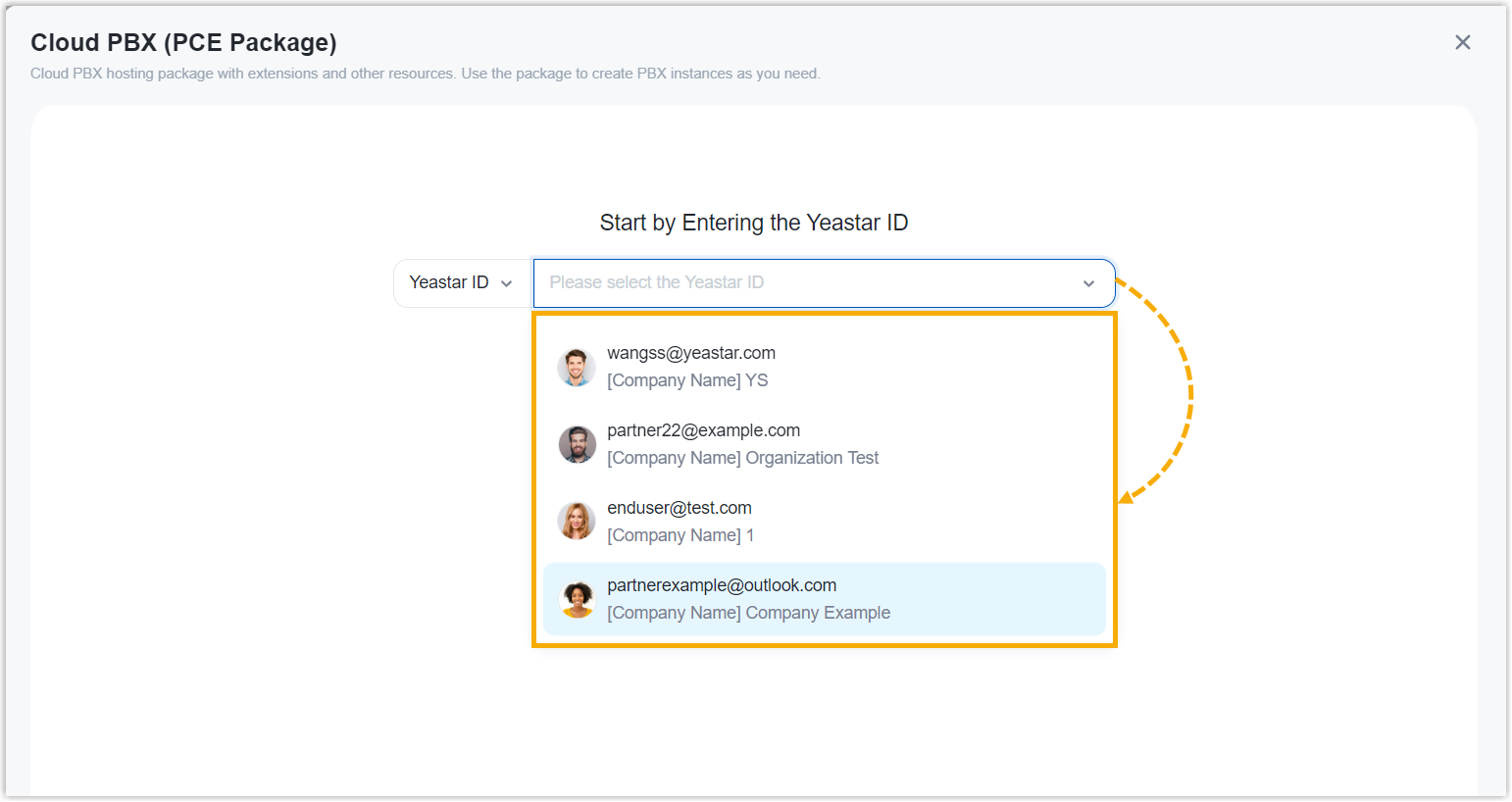
A side panel slides in from the right of the page.
- Specify a user to manage the hosting package you are purchasing.The selected user will have full access to view and manage the package through his or her Yeastar Central Management account, while other users will not have access.Note: If you want to manage the package yourself, make sure to select your own Yeastar ID.
Step 2. Expand capacity or subscribe new service
- Expand the capacity of extensions/call recording minutes, or subscribe to
additional service as needed.
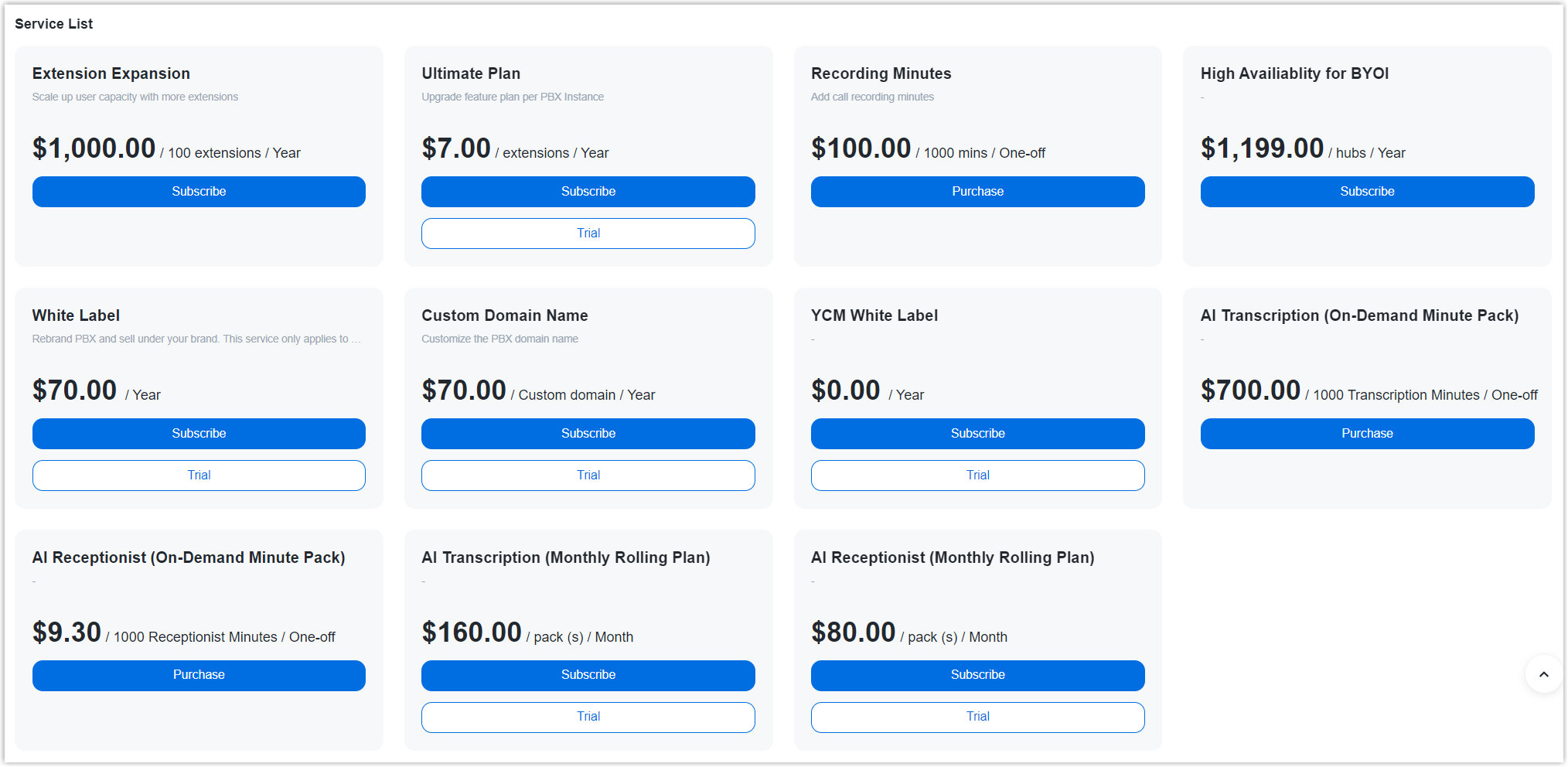
Service Description Extension Expansion Click Subscribe, then specify the quantity as needed. Note:- Ultimate Plan allows
you to allocate a portion of your purchased
package extensions to PBX, enabling those
extensions with advanced features.
For example, if you purchase a hosting package with 100 extensions and subscribe to Ultimate Plan for 20 extensions, you will have 100 extensions in total to allocate - 80 extensions for Enterprise Plan and 20 extensions for Ultimate Plan.
- AI Transcription (Monthly Rolling Plan) and AI Receptionist (Monthly Rolling Plan) are independent of the subscription plan, and must be ordered separately.
Ultimate Plan Recording Minutes High Availability for BYOI Custom Domain Name AI Transcription (On-Demand Minute Pack) AI Transcription (Monthly Rolling Plan) AI Receptionist (On-Demand Minute Pack) AI Receptionist (Monthly Rolling Plan) YCM White Label Click Subscribe. PCE White Label PSE White Label - Ultimate Plan allows
you to allocate a portion of your purchased
package extensions to PBX, enabling those
extensions with advanced features.
- On the right Order Summary section, click Checkout.
Step 3. Review the order and check out
- On the left Service Information section, review the service information.
- On the left Billing Information section, review and
edit the billing information as needed.Note:
- The billing information will be displayed on an invoice, which will be generated and sent to the selected billing contact's email address after you complete payment.
- By default, your information is automatically filled in. You can
change to another billing contact, either by selecting an
existing one from the drop-down list, or by clicking
Add New to add a contact. The billing
contacts are synchronized with the ones that you have set on
Billing Receiver.

- On the right
Checkout section, choose either of the following
ways to check out.
- Pay by PayPal
-
- In the Payment Method section, click PayPal.
- Click PayPal and log in to your PayPal account to complete payment.
- Pay by debit card or credit card
-
- In the Payment Method section, click Debit or Credit Card.
- Click Debit or Credit Card and enter the information required to complete payment.
- Pay offline
-
- In the Payment Method section, click Offline.
- Optional: In the PI Number field, enter the PI number that is provided by Yeastar Sales.
- Click Place Order.
After you submit the order, your account manager or local distributor will contact you actively for the payment.
Result
After you complete payment, the billing contact will receive an email, which contains the order summary and an invoice. He or she can click on the attached link to view or download the invoice.
- The attached link is valid in 24 hours and can be used ONCE only.
- You can also view the invoice on Yeastar Partner Portal: Orders and Billing > Orders >
 .
.