Agent Activity Analysis Report
Agent Activity Analysis report provides granular insights into agent activity in queue call handing. This topic describes how to access the report and explains the key metrics in detail.
Access Agent Activity Analysis report
- Log in to PBX web portal, go to .
- Access Agent Activity Analysis report.
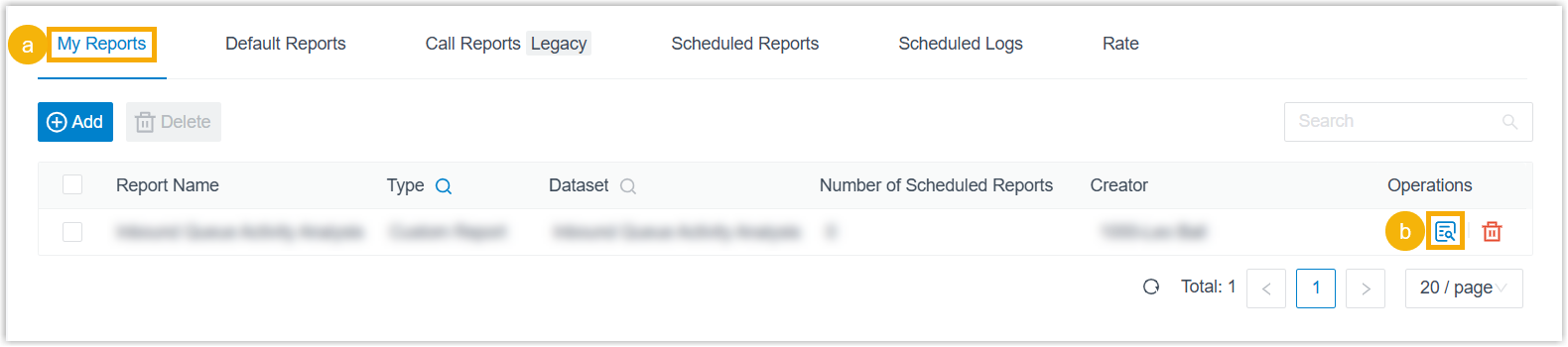
- Click My Reports tab.
- Click
 beside the report.
- Set filter criteria for the call report.

Filter Description Queue Select one or more queues. Agent Select one or more agents. Time Range & Select Date Specify a time range that the report will cover.
Note: If both Time Range & Select Date and Time are used as filters, the overlapping time period applies.Time Specify a time range that the report will cover.
Note: If both Time Range & Select Date and Time are used as filters, the overlapping time period applies.Exclude Calls Abandoned within Xs Specify the ring duration to exclude short abandoned calls. Calls abandoned within this time frame will NOT be included in the report.
Exclude Calls within Xs Specify the talk duration to exclude short answered calls. Calls ended within this time frame will NOT be included in the report.
The report that matches the filter criteria is displayed on the page, as shown below.

- Optional: Adjust columns in the list to focus on
the key performance indicators that you want to track.
Operation Description Select columns to display Click  to select the
columns to display.
to select the
columns to display.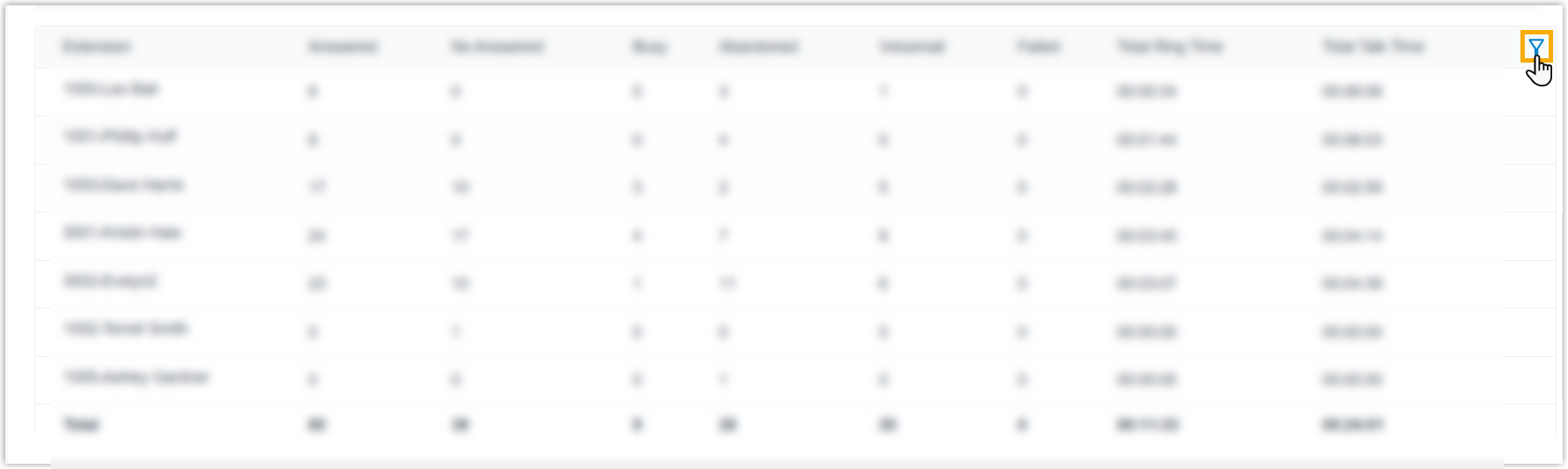
Change column order Click  beside the desired field,
then drag it to the desired position.
beside the desired field,
then drag it to the desired position.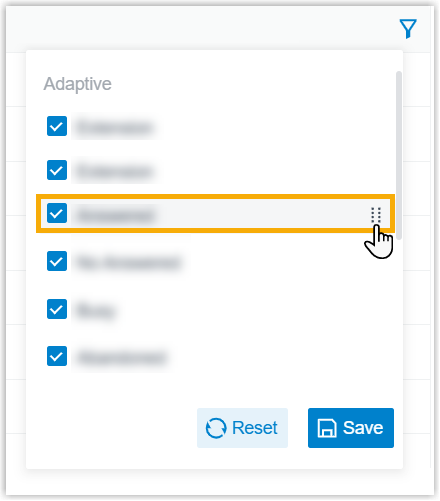
- Optional: Save the report for quick access, or
schedule it for automatic delivery via email.
Operation Description Add to My Reports Add the report to My Reports list for quick access. - At the bottom of the page, click Add to My Reports.
- Enter a name to help you identify the report, and adjust dimensions, filters, or metrics as needed.
- Click Save.
Add to Scheduled Reports Schedule a task to automatically send the report via email. - At the bottom of the page, click Add to Scheduled Reports.
- Complete the follow-up settings according to scheduled task.
Download the report Download the report to local PC for offline review and further analysis. 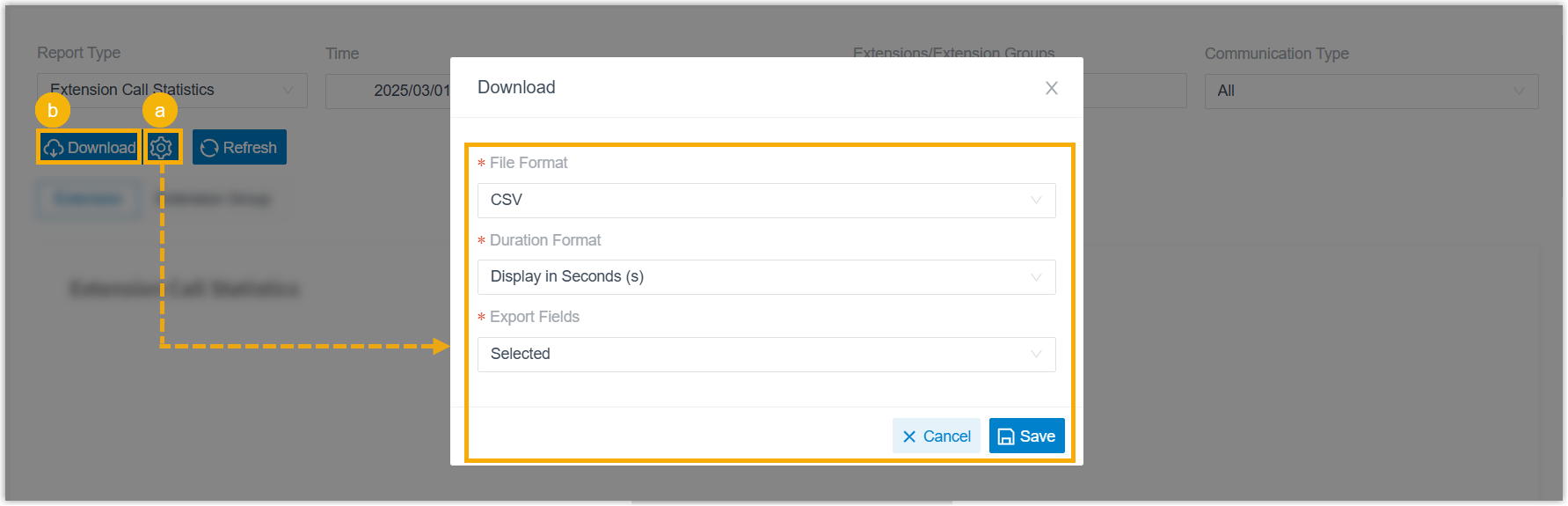
- Optional: Click
 to customize the report
download setting, then save the changes.
to customize the report
download setting, then save the changes.- File
Format: Specify the download format
for this report.
- CSV
- XLS
- HTML
- Duration
Format: Specify the display format for
all duration-related fields.
- Display in Second (s)
- Display as HH:MM:SS
- Export
Fields: Specify the fields to
export.
- All
- Selected
- File
Format: Specify the download format
for this report.
- Click Download.
Report details
Refer to the table below for a detailed description of the report metrics.
| Metric | Description |
|---|---|
| Agent | Agent number and name. |
| Queue | Queue number and name. |
| Month/Date/Hour |
The time period during which the agent handled queue calls. |
| Total Calls | The total number of queue calls that the agent received. |
| Answered | The number of queue calls that the agent answered. |
| No Answer Calls | The number of queue calls that the agent didn't answer. |
| Busy | The number of queue calls that the agent rejected. |
| Abandoned | The number of queue calls abandoned before being answered. |
| Missed |
The number of queue calls that the agent rejected or didn't answer. |
| Answered Rate | The percentage of answered calls in relation to the total received calls. |
| No Answer Rate | The percentage of unanswered calls in relation to the total received calls. |
| Busy Rejection Rate | The percentage of rejected calls in relation to the total received calls. |
| Abandon Rate | The percentage of abandoned calls in relation to the total received calls. |
| Missed Rejection Rate | The percentage of missed calls in relation to the total received calls. |
| Total Rings |
The total number of times that queue calls rang the agent. |
| Unanswered Rings |
The number of times that queue calls rang the agent without being answered. |
| Unanswered Ring Rate | The percentage of unanswered rings in relation to the total rings. |
| Total Wait Time | The total waiting time of answered queue calls before being connected to an agent. |
| Max Wait Time | The maximum waiting time of answered queue calls before being connected to an agent. |
| AVG Wait Time | The average waiting time of answered queue calls before being connected to an agent. |
| Total Talk Time | The total amount of time that the agent spent talking to callers, including hold time. |
| Max Talk Time | The maximum amount of time that the agent spent talking to callers, including hold time. |
| AVG Talk Time | The average amount of time that the agent spent talking to callers, including hold time. |
| Total Pure Talk Time | The total amount of time that the agent spent talking to callers, excluding hold time. |
| Max Pure Talk Time | The maximum amount of time that the agent spent talking to callers, excluding hold time. |
| AVG Pure Talk Time | The average amount of time that the agent spent talking to callers, excluding hold time. |
| Total Hold Time | The total amount of time that the agent held queue calls. |
| Max Hold Time | The maximum amount of time that the agent held queue calls. |
| AVG Hold Time | The average amount of time that the agent held queue calls. |
| Total Handle Time | The total amount of time that the agent spent handling queue calls, from ringing to call end. |
| Max Handle Time | The maximum amount of time that the agent spent handling queue calls, from ringing to call end. |
| AVG Handle Time | The average amount of time that the agent spent handling queue calls, from ringing to call end. |