Create a Queue
You can create and design queues to allow callers to talk with agents according to your business. This topic describes how to create a queue.
Limitations
Yeastar P-Series Software Edition supports up to 256 queues, with each queue supporting up to 120 agents.
Prerequisites
Before you begin, prepare the following voice prompts and music as needed, and upload them to the system.
- Prepare and upload the
following voice prompts for the queue to provide different information:
- Join Announcement: The prompt played to callers when they join the queue.
- Periodic Announcement: The prompt played periodically to callers after they reach the queue and before agents answer the calls. Following the prompt, callers can press the key to respond.
- Prepare and upload Music on Hold for the queue, which is played to callers when their calls are put on hold by agents.
Procedure
- Log in to PBX web portal, go to , click Add.
- In the Basic page, configure the basic settings for
the queue.
- In the Basic section, configure the
following settings.
Setting Description Number Enter a virtual number for callers to access the queue. Note:- If the total of PBX extensions is less than or equal to 6000, the default queue number range is from 6400 to 6499.
- If the total of PBX extensions is greater than 6000, the default queue number range is from 50400 to 50499.
Name Specify a name to help you identify this queue. Skill-based Routing Decide whether to route incoming calls in the queue based on agents' skill level. If this option is enabled, you can specify skill levels for agents, and queue calls will be routed in descending order of agent skill level. For more information, see Set up Skill-based Routing for a Queue.
Ring Strategy Select a ring method to distribute calls to agents. - Ring All: Ring all available agents simultaneously until someone answers.
- Least Recent: Ring the available agent that was least recently called.
- Fewest Calls: Ring the available agent with the fewest completed calls.
- Random: Ring the agents randomly.
- Rrmemory: Round robin with memory.
- Queue with static agents only: The system remembers the last agent it tried and rings the next agent specified in the static agents list.
- Queue with dynamic agents only: The system remembers the last agent it tried and rings the next agent in the order that dynamic agents have logged in.
- Queue with both static agents and dynamic agents: The system remembers the last agent it tried and rings the next agent specified in the static agents list. If none of the static agents are available, the system rings the dynamic agent in the order that dynamic agents have logged in.
- Linear: Ring the available agent in
specific order based on the type of agents in the
queue.
- Queue with static agents only: The system rings available agents in the order specified in the agents list.
- Queue with dynamic agents only: The system rings available agents in the order that agents have logged in.
- Queue with both static agents and dynamic agents: The system rings available agents in the order that agents have logged in.
Maximum Waiting Time(s) Set a number of seconds that the caller can wait for an available agent. Maximum Callers In Queue Set the maximum number of callers that can wait in the queue. The default value is 0 (unlimited).
Note: When the number of callers waiting in queue reaches the Maximum Callers In Queue, the system routes the additional calls to Failover Destination.Last Agent Routing Whether to route repeat calls from the same caller within the specified time period to the agent who last answered the call from the caller. When enabled, you need to select a time period from the Time Period (Days) drop-down list.Note: After enabled, calls are still routed based on the queue's ring strategy under the following circumstances:- No agent in the queue answered calls from the same caller with the specified time period.
- The agent who last answered the call is unavailable, has been removed from the queue, or does not answer the current call.
- To only receive calls during business hours and route calls
received outside business hours to designated destinations,
configure the following settings:Note: To achieve this, make sure the following requirements are met:
- The firmware of Yeastar P-Series Software Edition is 83.18.0.59 or later.
- You have set up business hours and holidays in the desired time zone.
Setting Description Time Condition Select the checkbox to allow the PBX to route queue calls to different destination based on time. Time Zone Select a desired time zone. The business hours and holidays settings in the selected time zone will be applied to the queue.
Note: The time displayed in the queue notification emails will also follow the time of the selected time zone.Outside Business Hours Destination Select the destination for calls received during the time periods that are not defined as business hours or holidays in the selected time zone. Holidays Destination Select the destination for calls received during holidays defined in the selected time zone. Ignore the Holiday Destination Optional. To prevent incoming calls from being distributed to the holiday destination, select the checkbox of Ignore the Holiday Destination. If enabled, incoming calls during holiday will be distributed to other destinations according to your office hour setting.
Play Holiday Prompt During Holidays Optional. To play a prompt to callers before routing the inbound calls to the holiday destination, select the checkbox of Play Holiday Prompt During Holidays. Note: Make sure that you have set a prompt for the holiday (Path: ). Otherwise, the inbound calls will be directly routed to the holiday destination without playing a prompt. - In the Call Routing Destination,
configure the call routing destination for unanswered queue calls.
Setting Description Leave Empty When enabled, you can configure the trigger conditions for "No Agents Available" scenario in the No Agent Available field, and set a corresponding destination for each specified condition in the Destination drop-down list.
When the queue is in a specified "No Agent Available" scenario, callers already waiting in the queue will be transferred to the corresponding destination.Note: When all agents are logged out, the queue is automatically considered as "No Agent Available", and incoming calls will be directly routed to the failover destination.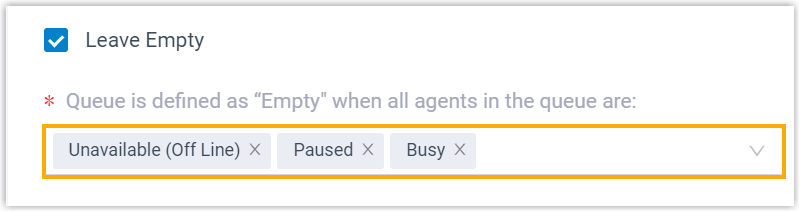
Disallow to Join When Empty When enabled, you can configure the trigger conditions for "No Agents Available" scenario in the No Agent Available field, and set a corresponding destination for each specified condition in the Destination drop-down list.
When the queue is in a specified "No Agent" scenario, new callers can NOT join the queue.
Note: When all agents are logged out, the queue is automatically considered as "No Agent Available", and incoming calls will be directly routed to the failover destination.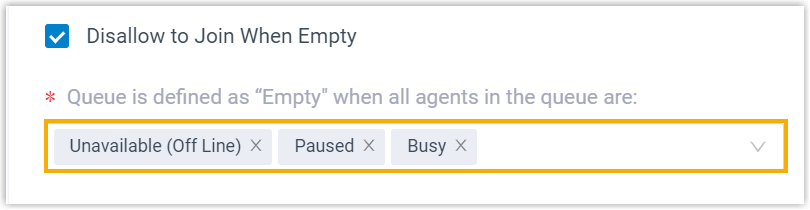
Failover Destination Select a destination to route queue calls in the following scenarios: - The maximum waiting time is reached.
- The queue exceeds the maximum number of waiting callers.
- All queue agents have logged out.
- Hang up: End the current call.
- Extension: Route the call to the specified extension.
- Extension Voicemail: Route the call to voicemail box of the specified extension.
- Group Voicemail: Route the call to voicemail box of a queue, a ring group, or a custom group.
- IVR: Route the call to the specified IVR.
- Call Flow: Route the call to the specified call flow.
- Ring Group: Route the call to another ring group.
- Queue: Route the call to the specified queue.
- External Number: Route the call to an external number.
- Play Prompt and Exit: Play a custom prompt, then hang up the call.
- In the Agent Options section, configure
the following agent settings.
Setting Description Agent Timeout(s) Set a number of seconds that the system rings an agent's phone. Retry Interval(s) Set a number of seconds to wait before ringing the next available agent when the last available agent has been ringed and timed out. Wrap-up Time(s) Set a number of seconds for agents to complete post-call processing after finishing a call. The next call will come after this period following the ring strategy.
Agent Announcement Select a prompt to be played to agents when they answer a queue call. Ring In Use Set whether to ring an in-call agent when there are incoming calls in the queue.
Agent Auto Pause Decide whether to automatically pause agents when their consecutive missed calls in the queue reach a threshold.
To use this feature, select Agent Auto Pause and specify the threshold in the Max Threshold for Missed Calls drop-down list.
Note:- Agents will receive a notification email when they are paused.
- The missed calls count for an agent will be
cleared when any of the following events occurs:
- The agent makes or answers a queue call.
- The agent is paused or logged out.
- The PBX is rebooted.
Display Missed Call Records in Agent IP Phone Decide whether to display missed queue call records on agents' IP phones. Note:- This option will be applied to all agents in the queue.
- If an agent belongs to multiple queues, the agent's IP phone will only display the missed call records for those queues in which this option is enabled.
Make the extension's 'Always' call forwarding destination effective Decide whether to apply the Always call forwarding destinations of the agent's extension for queue calls. After enabled, if an agent's extension has an Always call forwarding destination configured to Extension, Mobile Number, or External Number, and is currently in the corresponding presence, the system will directly ring the configured forwarding destination instead of the agent's extension upon receiving a queue call, while other agents still ring normally based on the ring strategy.Note: If this setting is enabled but forwarding conditions are not met, or the setting is disabled, call handling differs across registered endpoints upon receiving queue calls:- For Linkus clients logged in to an agent extension, the extension rings normally.
- For IP phones registered to an agent
extensions, calls are processed based on the
phone‑side forwarding rules.
-
If the forwarding destination is set to an extension or an external number, the forwarding destination rings instead of the phone when the forwarding condition is met, while other registered endpoints still ring normally.
-
If the forwarding destination is set to a value other than extensions or external numbers, the call is automatically disconnected when forwarding conditions are met, while other registered endpoints still ring normally.
-
If the forwarding condition is not met or no forwarding destination is configured , the phone rings normally.
-
- In the Prompt section, complete the
following prompt settings.Note: For Queue-related Announcement, the available prompts, music on hold playlists, and ringtones are synchronized from .
You can play and manage audio files in corresponding drop-down lists. If the desired audio file is not available in these lists, you can add a new one and apply.
The changes for these audio files will be synchronized to .
Setting Description Queue-related Announcement Join Announcement Set the announcement to be played to callers when they join the queue. - Play full Join Announcement to the caller before ringing extensions: Set whether to play full join announcement to callers before ringing agents.
Ringback Tone Select a prompt to be played continuously in a loop to callers before agents answer the calls. Note: The Ringback Tone will be played after the Join Announcement.Music On Hold Set the music to be played to callers when their calls are put on hold by agents after being answered. Periodic Announcement Set the announcement to be played to callers periodically after they reach the queue and before agents answer the calls. Frequency (s) Set the time interval to play the periodic announcements. Caller Position Announcement Announce Position Set whether to announce the position of the caller in the queue. Announce Hold Time Set whether to announce the estimated waiting time to the caller. Play "Thank You for Your Patience" Prompt Set whether to play the prompt "Thank You for Your Patience" to callers periodically while the callers are waiting in the queue. Frequency (s) Set the time interval to play the caller position announcement. Agent-related Announcement Agent ID Announcement Set whether to play an announcement to both the caller and the agent to prompt the agent ID when an agent answers the call. Announcement Language Custom Prompt Language Set the language of system default announcements heard by callers when they join the queue. Note: The available languages are synchronized from System Prompt (Path: ).
- In the Basic section, configure the
following settings.
- Click the Members tab, set agents for the queue.
- Dynamic Agents: Select the dynamic agents
that can log in to or log out of a queue at any time.Note: The queue distributes calls to the dynamic agents only when they log in to the queue and unpause the queue calls.
- Static Agents: Select the static agents that
always stay in the queue.Note: Static agents do not need to “log in” to the queue, and cannot “log out” of the queue.
- Dynamic Agents: Select the dynamic agents
that can log in to or log out of a queue at any time.
- Click Preferences tab to customize the queue
according to your needs.
For more information of the preference settings, see Queue Preferences.
- Click Save and Apply.