Set Ringtones for Incoming Calls
This topic describes how to assign ringtones for incoming calls on your Linkus Desktop Client. You can set a default ringtone for all incoming Linkus calls, or assign distinctive ringtones based on different call sources, making it easier to distinguish calls from colleagues, customers, or specific contacts.
Introduction
You can customize ringtones for incoming calls directly within each Linkus UC Client. Ringtone settings are managed independently on each Linkus client and are NOT synchronized across clients.
In addition to the ringtone settings on Linkus clients, system administrator can also configure a Linkus Client Distinctive Ringtone for specific call scenarios, including ring group, queue, or IVR. These PBX-assigned ringtones will be applied to Linkus when the users are members of a ring group or queue, or are set as IVR destinations.
If multiple ringtone rules are applied at the same tine, the following priority is used: .
Requirements
The firmware of PBX Server is 84.20.0.21 or later.
Procedure
- Log in to Linkus Desktop Client, go to .
- Select the checkbox of Play Ringtone.
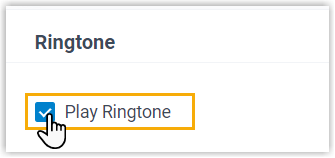
If enabled, Linkus will play a ringtone upon receiving incoming calls. Otherwise, incoming calls will be muted.
- In the Default Ringtone drop-down list, select or
upload the default ringtone for incoming calls.Tip:
- You can upload up to 10 custom ringtones, and click
 to delete a custom ringtone you uploaded as needed.
 - You can click
 beside a ringtone to preview
it.
beside a ringtone to preview
it.
This ringtone will be used for all incoming calls unless a distinctive ringtone is set for them.
- You can upload up to 10 custom ringtones, and click
- In the Distinctive Ringtone Settings section,
configure distinctive ringtones based on different call sources as needed.
Call Source Instruction Contacts or Phonebooks Note:- You can configure up to 10 distinctive ringtone rules for specific contacts or phonebooks.
- For ringtone rule priority, personal contacts are prioritized over company contacts and phonebooks, while the priority of company contacts and phonebooks is based on their position in the rule list, from top to bottom.
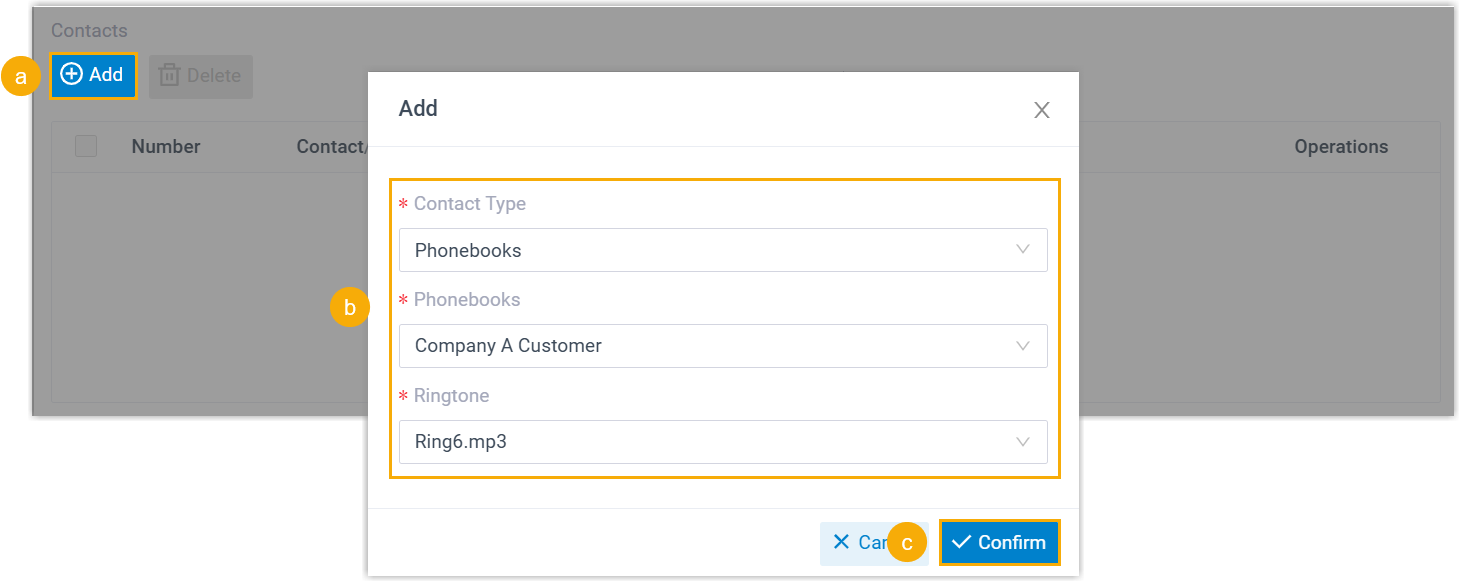
- Click Add.
- Configure the ringtone setting as follows:
- Contact Type: Choose whether to apply the ringtone to an individual contact or a group of contacts.
- Contacts / Phonebooks: Select the specific contact (either company or personal) or the phonebook containing the desired contacts.
- Ringtone: Select or upload a ringtone you want to assign.
- Click Save.
- Repeat step a to c to add more
rules.
Incoming calls from the specified contacts or phonebooks will use the custom ringtone you set.
External Calls - In the External Calls
drop-down list, select a ringtone for external
calls.
Incoming calls from external numbers will use the selected ringtone.
Internal Calls - In the Internal Calls
drop-down list, select or upload a ringtone for
internal calls.
Incoming calls from internal extensions will use the selected ringtone.
-
Click Save.