Set Up an Inbound Route
This topic describes how to add and configure an inbound route.
Note: To create an inbound route based on DID, Caller ID, or time
conditions, see the following topics:
- DID-based routes
- Caller ID-based routes
- Time-based routes
Prerequisites
Your service provider has assigned at least one trunk to your tenant.
Procedure
- Log in to NovoOne Tenant portal, go to .
- Click Add.
- Configure the inbound route.
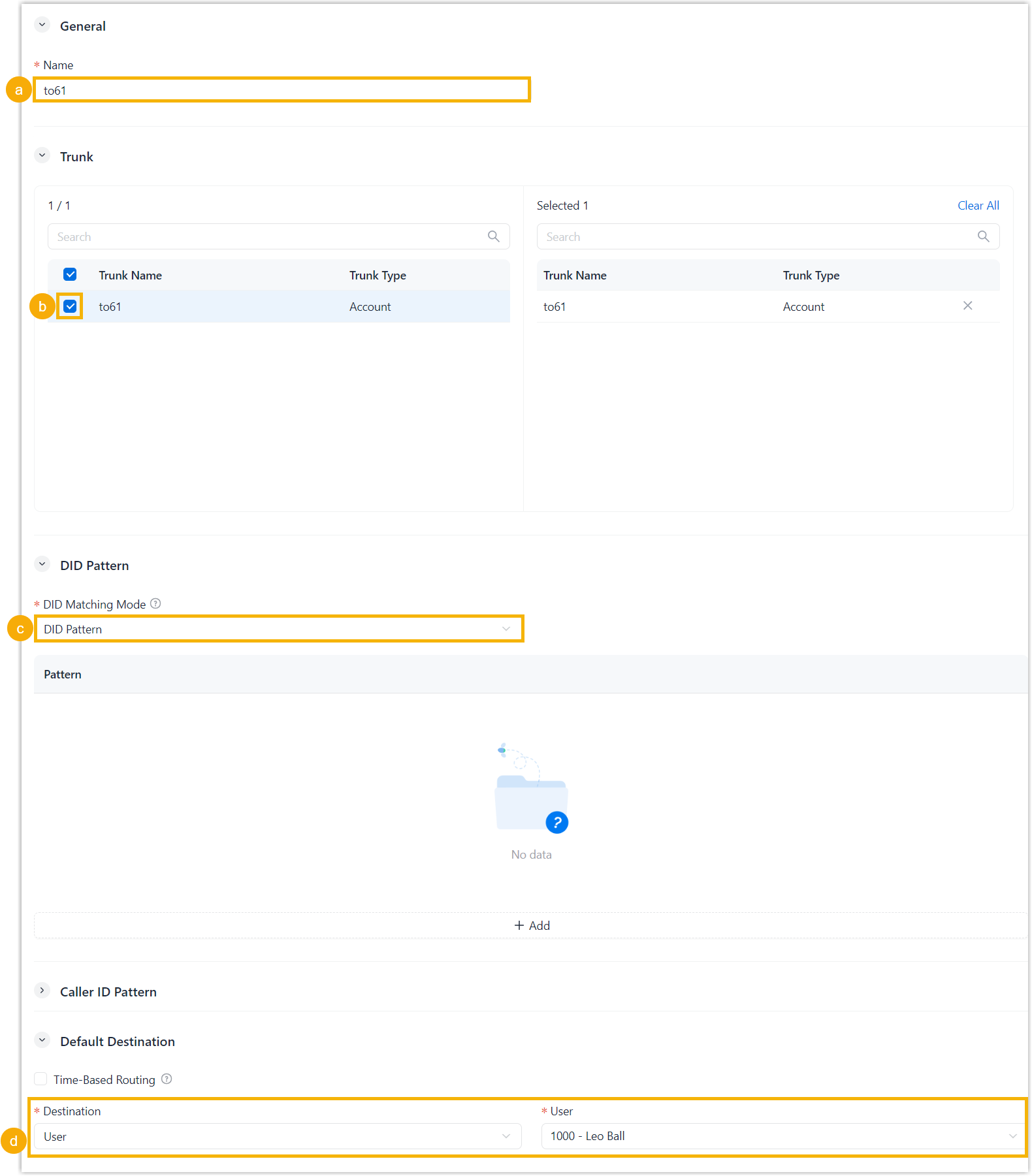
- In the Name field, enter a name to help identify the inbound route.
- In the Trunk section, select the
desired trunks to the Selected box.
Inbound calls received through the selected trunks are routed according to this inbound route.
- In the DID Pattern section, retain the
default setting or configure DID matching conditions.
- DID Matching Mode: Select DID Pattern.
- Pattern: Click
Add to add exact DID numbers or
DID patterns.Note: For more information about the supported characters in DID patterns, see Supported Pattern Syntax.
- In the Default Destination
section, select the destination for inbound calls from the drop-down
list.
- Hang Up
- User
- User Voicemail
- IVR
- Ring Group
- Queue
- External Number
- Play Prompt then Hang Up
- Click Save.
Result
The inbound route is created and displayed in the list.