Send NovoOne Client Welcome Emails to Users
A welcome email provides users with a QR code and link for signing in to NovoOne Clients. After enabling clients for users, you can send welcome emails to help them get started with the clients.
Note: By default, the QR code and link are valid for 24 hours and can
be used only once. You can extend the validity period to up to 7 days (Path: ).

Automatically send welcome emails
You can configure the system to automatically send welcome emails when new users are created.
- Log in to NovoOne Tenant portal, go to .
- At the top of the list, click Welcome Email, then
select Settings.
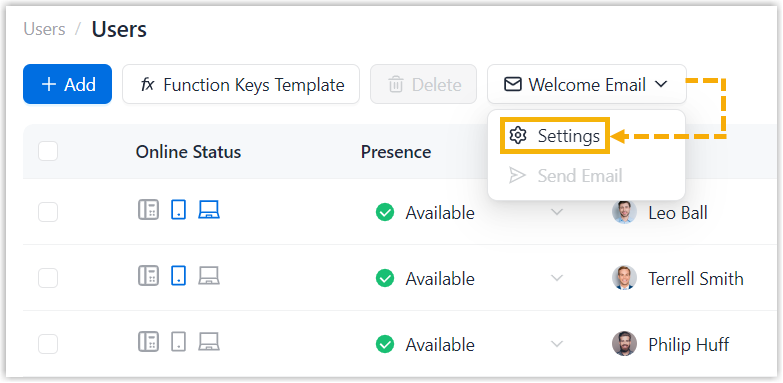
- In the pop-up window, turn on the switch of Auto Send Welcome
Email, then click Save.
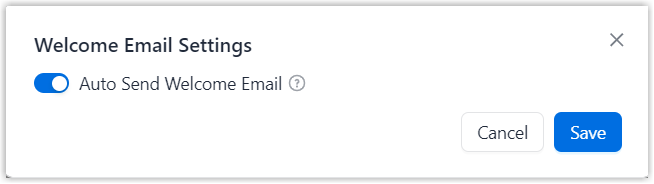
The system automatically sends a welcome email when a new user is created.
Note: You can view the sending history in .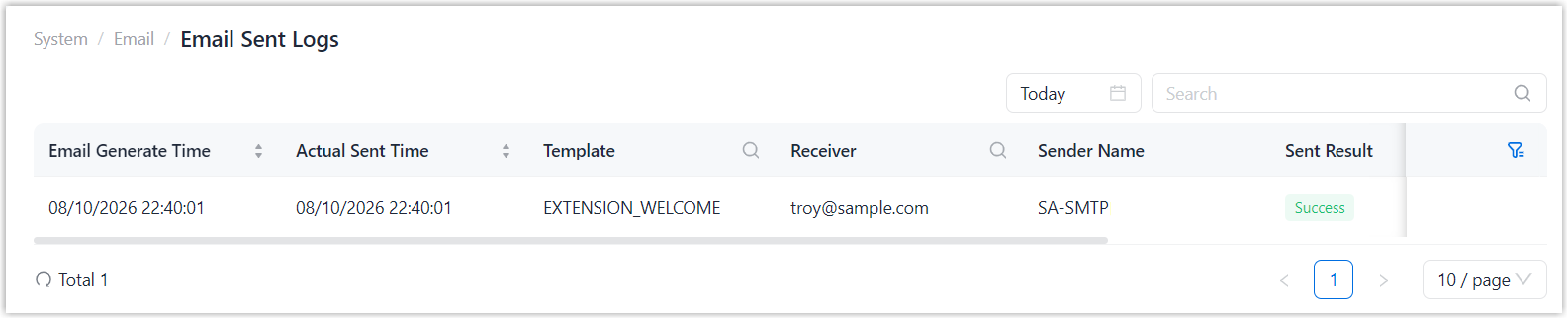
Manually send welcome emails
You can manually send welcome emails to the desired users.
- Log in to NovoOne Tenant portal, go to .
- Select the checkboxes of the desired users, then click Welcome
Email to select Send Email, then
confirm the operation.
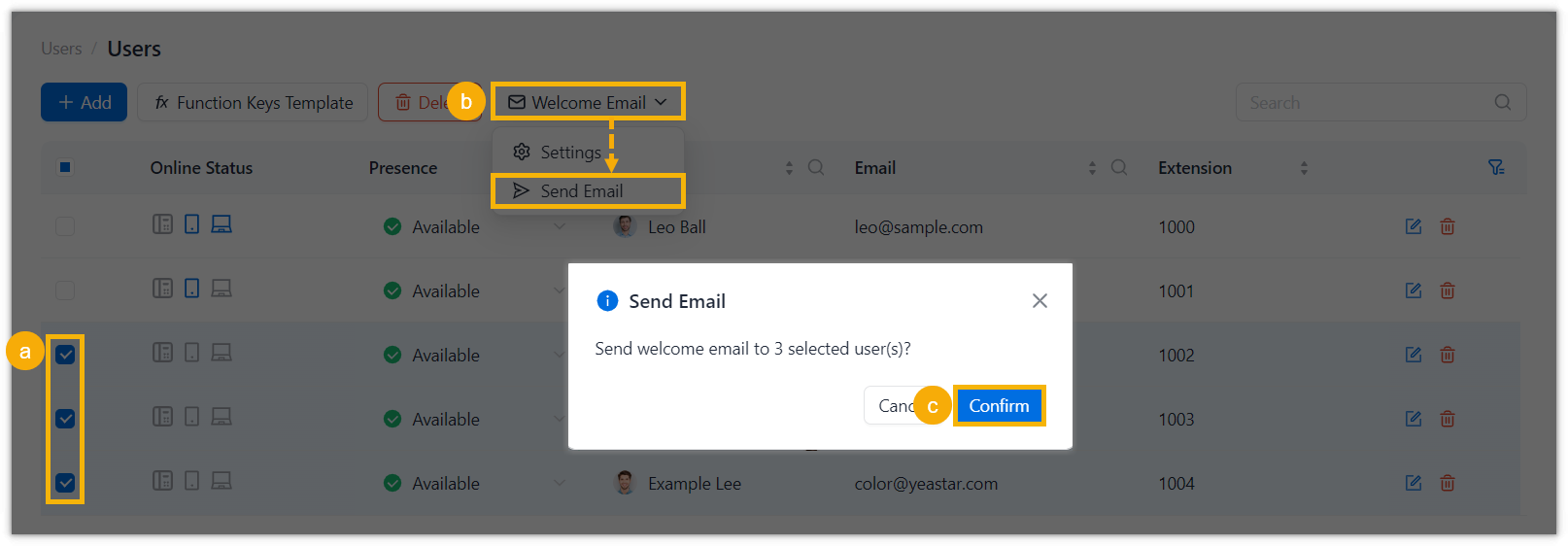
The system automatically sends a welcome emails to the selected users.
Note: You can view the sending history in .