Manage Custom Prompts
After custom prompts are added, you can play, download, edit, or delete them as needed.
Play a custom prompt
You can play a custom prompt to preview its audio content before using it.
- Log in to NovoOne Tenant portal, go to .
- In the Custom Prompt tab, play the desired custom
prompt using one of the following methods.
Method Instruction Play custom prompt in browser - Hover your mouse over the audio player in
Voice column, then click
 .
.
- Click
 beside the
desired prompt, then click .
beside the
desired prompt, then click .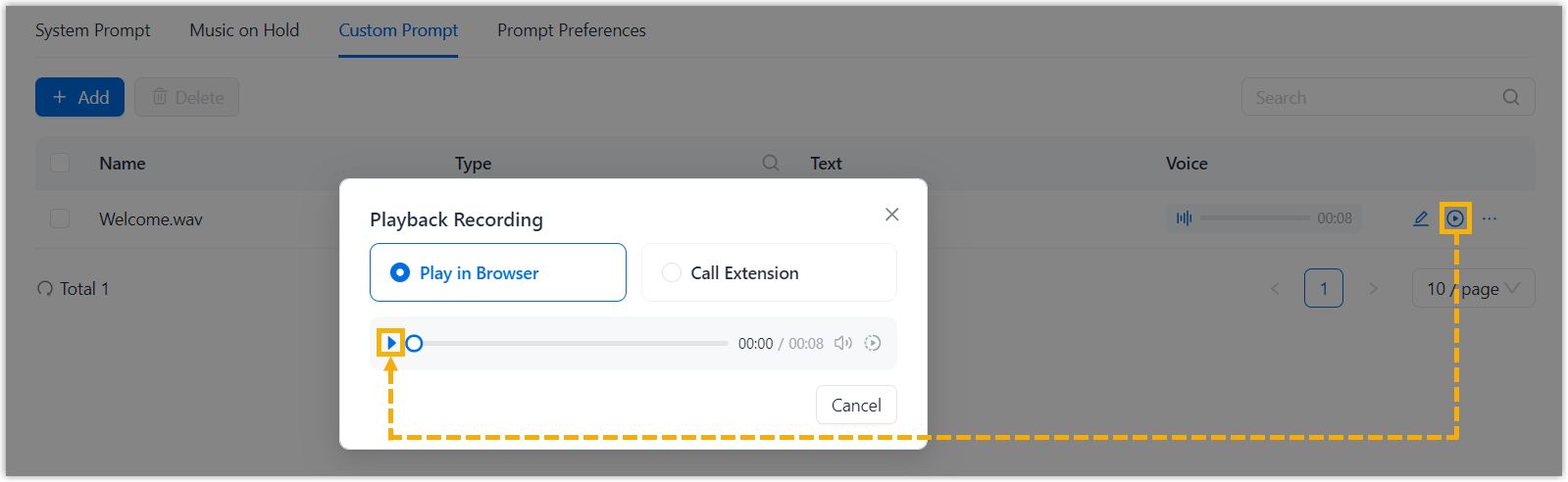
Note: You can adjust the volume and playback speed as needed.Play custom prompt through an extension 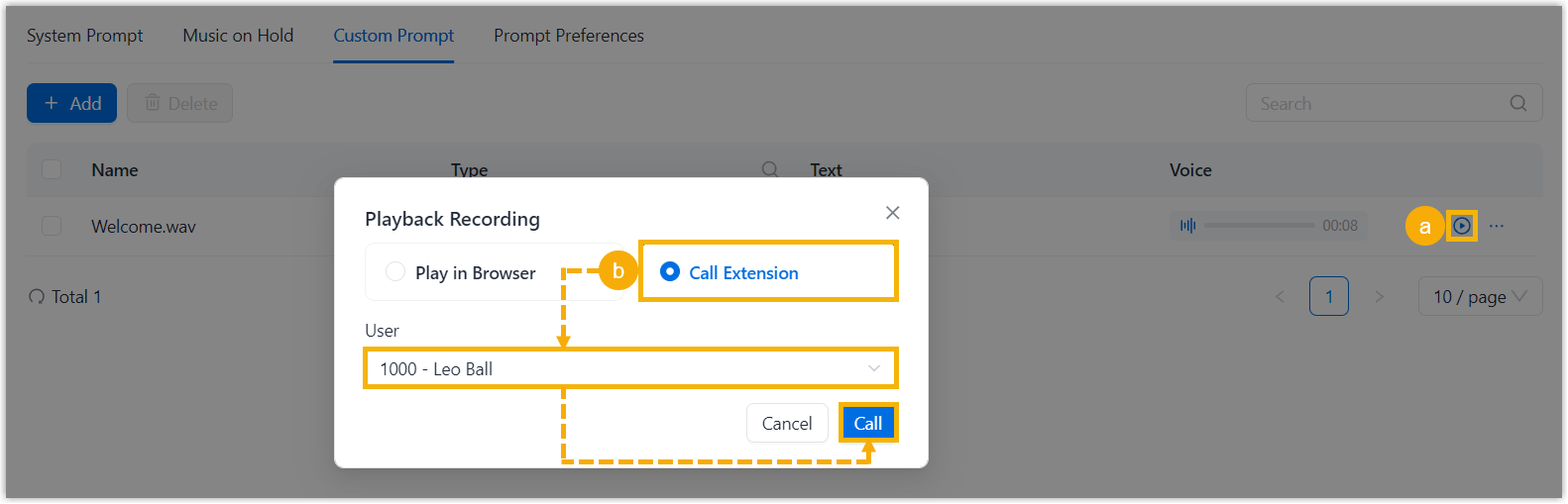
- Click beside the
desired prompt.
- Select Call Extension,
select a user extension from the
User drop-down list, then
click Call.
The system calls the selected user extension and plays the prompt after the call is answered.
- Hover your mouse over the audio player in
Voice column, then click
Download a custom prompt
You can download a custom prompt to your local computer for backup or further use.
- Log in to NovoOne Tenant portal, go to .
- In the Custom Prompt tab, click
 beside the
desired prompt, then click Download.
beside the
desired prompt, then click Download.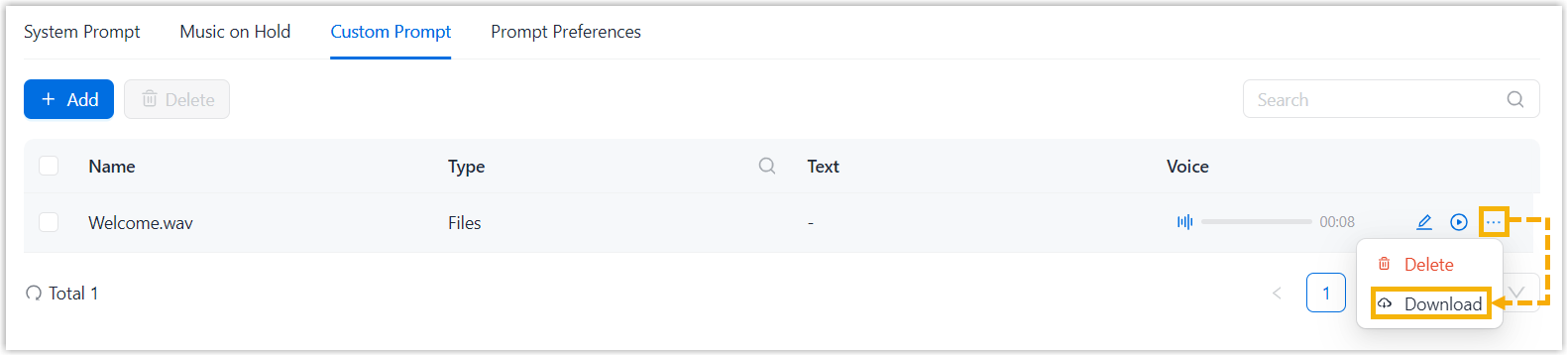
Edit a custom prompt
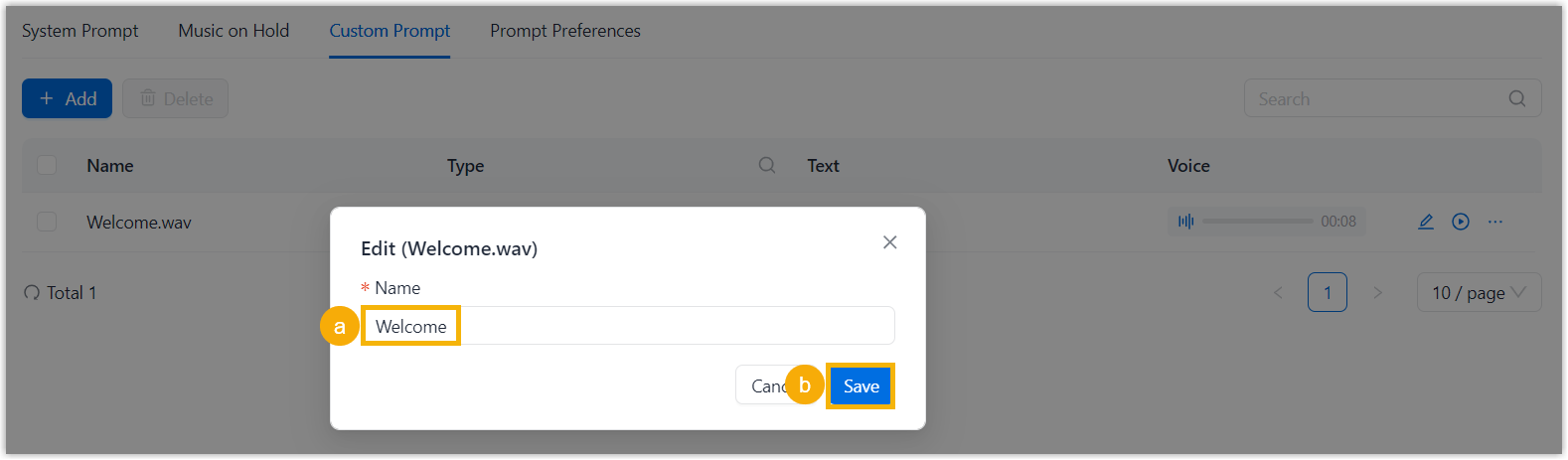
You can update the name of an existing custom prompt to keep your prompt list organized.
- Log in to NovoOne Tenant portal, go to .
- Click
 beside the desired prompt.
 - In the pop-up window, update the prompt name, then click
Save.
Delete a custom prompt
You can delete custom prompts that are no longer needed.
- Log in to NovoOne Tenant portal, go to .
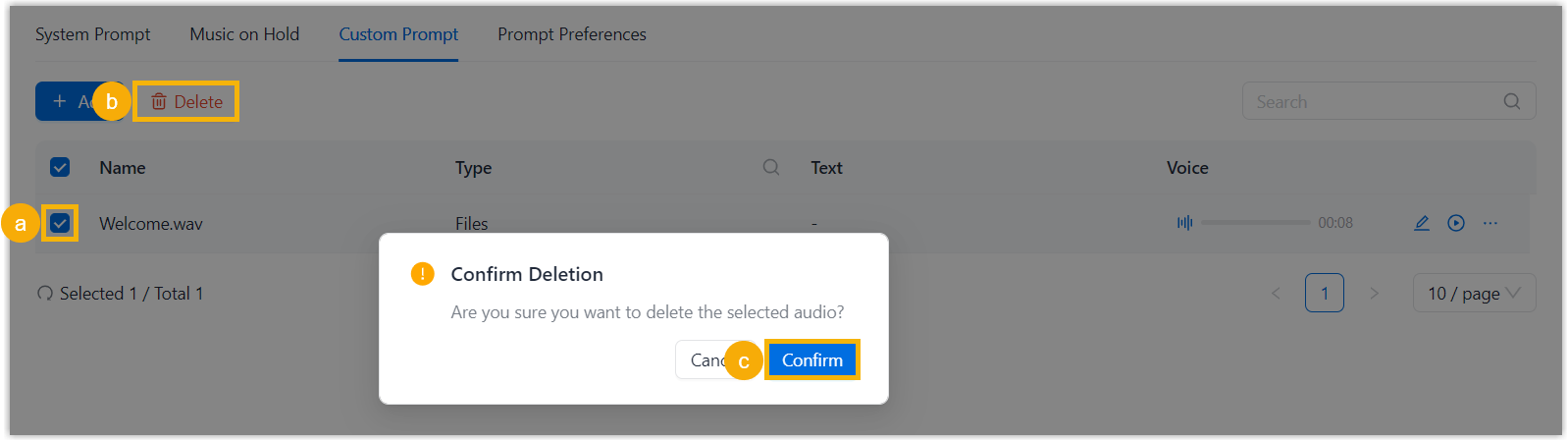
- In the Custom Prompt tab, select the checkbox of the
desired prompt, then click Delete and confirm the
operation.