Upgrade Firmware of P-Series Appliance/Software Edition
This topic describes how to upgrade the remotely connected P-Series Appliance/Software Edition on Yeastar Central Management.
Requirements
- Your account has subscribed to RM Premium (Self-hosted) service.
- The firmware of Yeastar Central Management is 87.15.0.83 or later.
- The firmware of the P-Series Appliance/Software Edition is 37.24.0.122 / 83.24.0.122 or later.
Prerequisites
You have connected the P-Series Appliance/Software Edition to Yeastar Central Management.
For more information, see Connect PBX System to Yeastar Central Management Using Email and Connect PBX System to Yeastar Central Management Using Authentication Code.
Procedure
- Log in to Yeastar Central Management, go to .
- In the PBX list, select one or more PBXs of the same product model, then
click Upgrade.
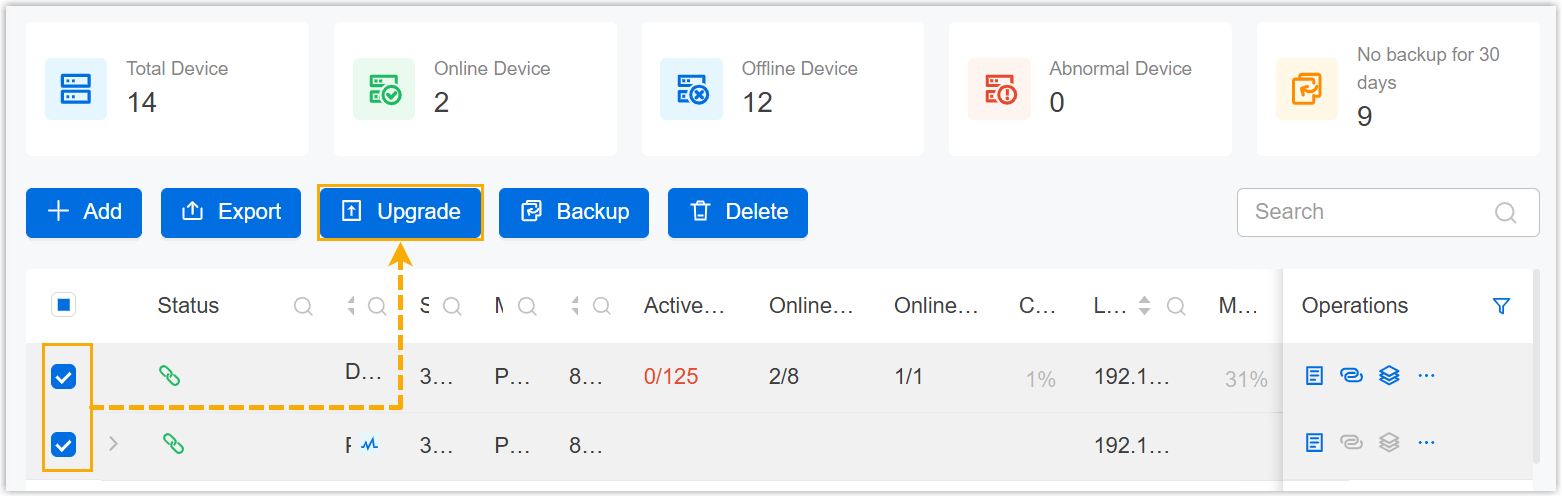
You are redirected to the Add Task page.
- Set up PBX upgrade task.
- Fill in the following information.
Setting Description Name Enter a name to help you identify the task. Object Type Select P-Series Appliance Edition or P-Series Software Edition.
Task Retain Upgrade. Firmware Select a firmware version. Note: The selected firmware version can NOT be lower than the current version, otherwise the upgrade would fail.Repeat Retain One-time. Execution Time Set when to upgrade. - To upgrade at a scheduled time, choose a time.
- To upgrade as soon as you save the task, select the checkbox of Immediately.
Timezone Select a time zone of the task execution time. Tip: You can enable or disable Daylight Saving Time (DST) as needed.Creator Your name is automatically filled in, and the field can not be edited. Remark Optional. Add a note to the task. Object The Selected box lists the PBXs that you have selected.
- Click Save.
- Fill in the following information.
Result
The PBX system will be upgraded immediately or on a scheduled time, depending on the execution time that you set for the task.
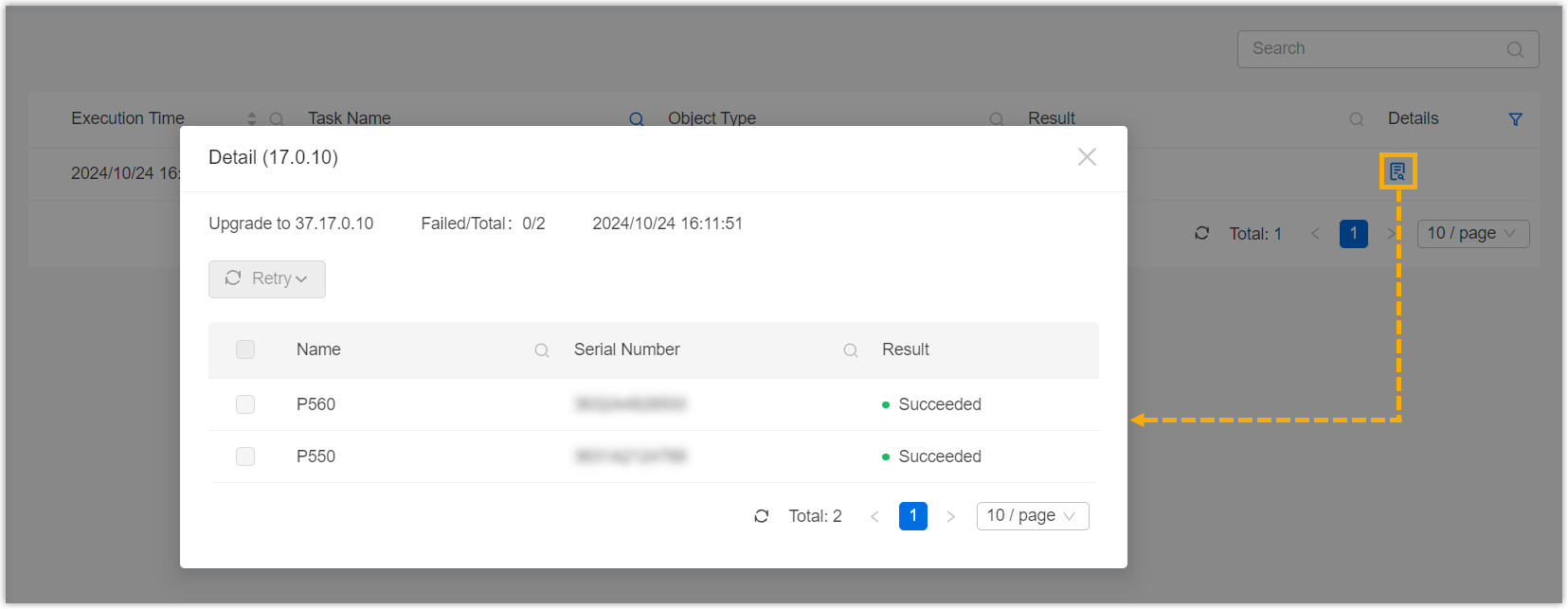
You can check the result on .