Manage User Devices
You can view, export and delete the devices that your subordinate users (hosting users and resellers) have added to Yeastar Central Management. This topic describes how to manage these users' devices.
Procedure
- Log in to Yeastar Central Management, go to .
- Optional: Search or filter the user devices from the list.
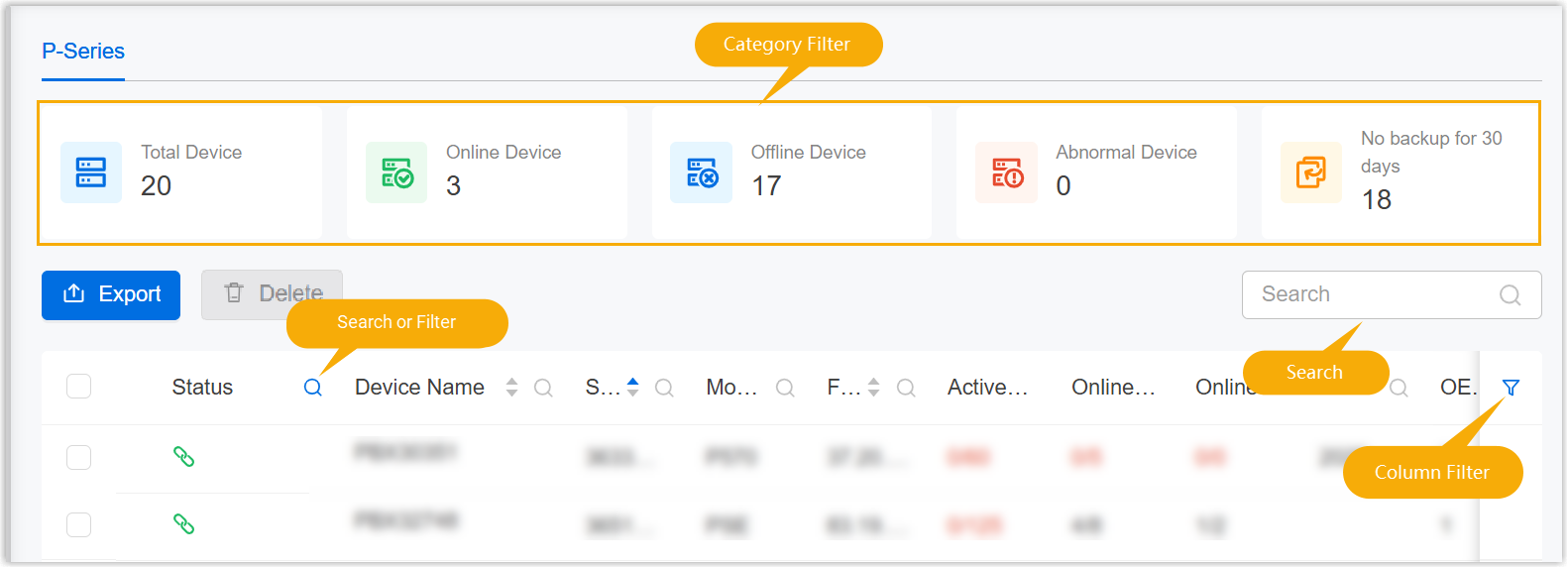
- To check the system resources of a user device, click
 beside
the desired device.
beside
the desired device.
For more information about the monitoring details, see System Resource Metric Descriptions.
- To export the user device information, do as follows:
- To export the information of one or more devices, select the desired
devices, then click Export.
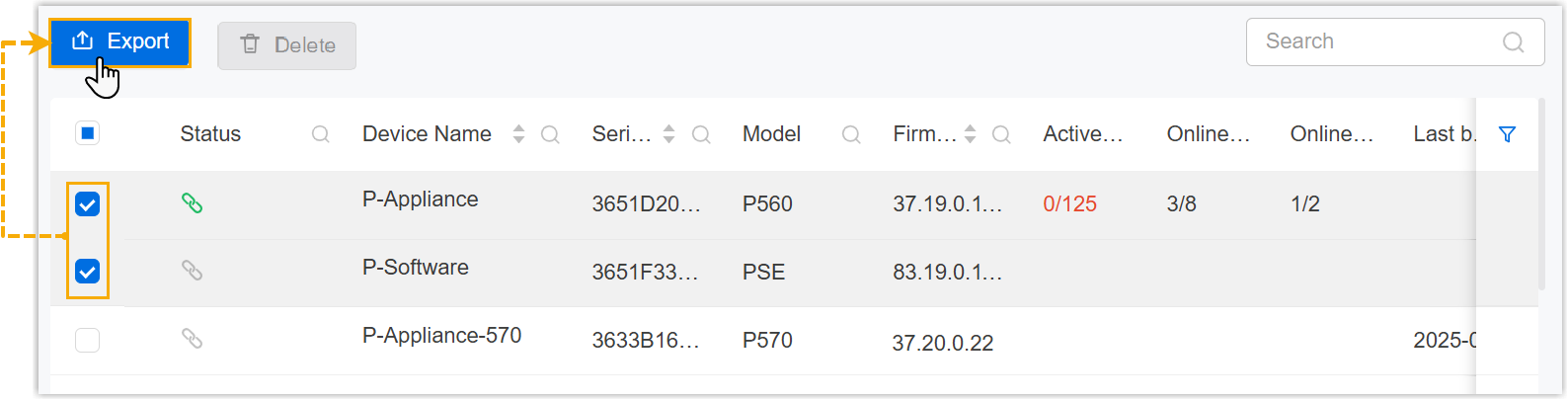
- To export the information of all devices, directly click
Export.
An XLSX file containing the information of the selected devices is downloaded to your computer.
- To export the information of one or more devices, select the desired
devices, then click Export.
- To help users unbind devices from their inactive accounts, delete user
devices as follows:Note:
- To use this feature, the firmware of Yeastar Central Management should be 87.19.0.27 or later.
- After deletion, the devices will be removed from the device list of the original associated user account (Path: ).
- To delete a single device, do as follows:
- Click
 beside the desired
device.
beside the desired
device.
- In the pop-up window, click Confirm.
- Click
- To delete multiple devices in bulk, do as follows:
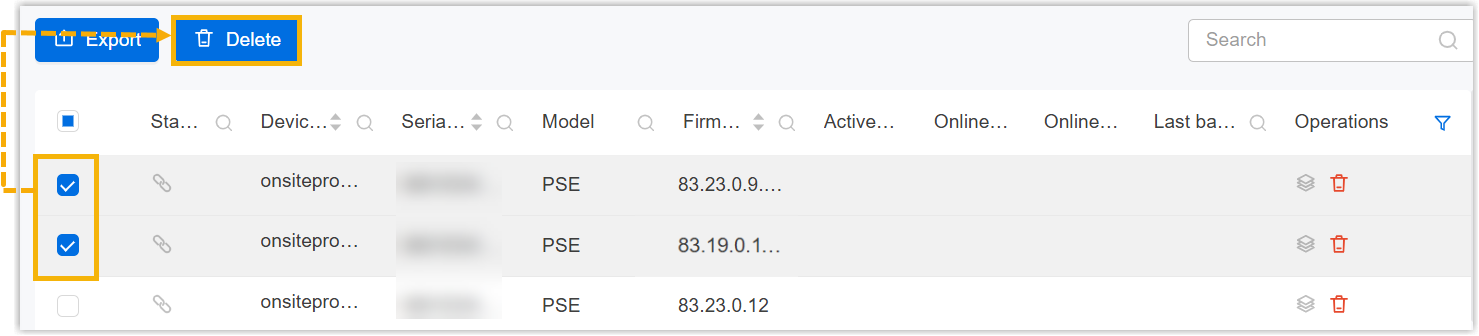
- Select the checkboxes of desired devices, then click
Delete.
- In the pop-up window, click Confirm.
- Select the checkboxes of desired devices, then click
Delete.