Enable Call Quality Monitoring
Linkus Web Client supports call quality monitoring for extension, helping technical support diagnose and troubleshoot more efficiently when you encounter call issues. This topic describes how to enable call quality monitoring for your extension on Linkus Web Client.
Requirements
The firmware version of the PBX server is 37.23.0.123 or later.Prerequisites
System administrator has granted you the permission to enable call quality monitoring for your own extension.
Procedure
- Log in to Linkus Web Client, go to .
- In the Monitor Call Quality section, configure the
following settings.
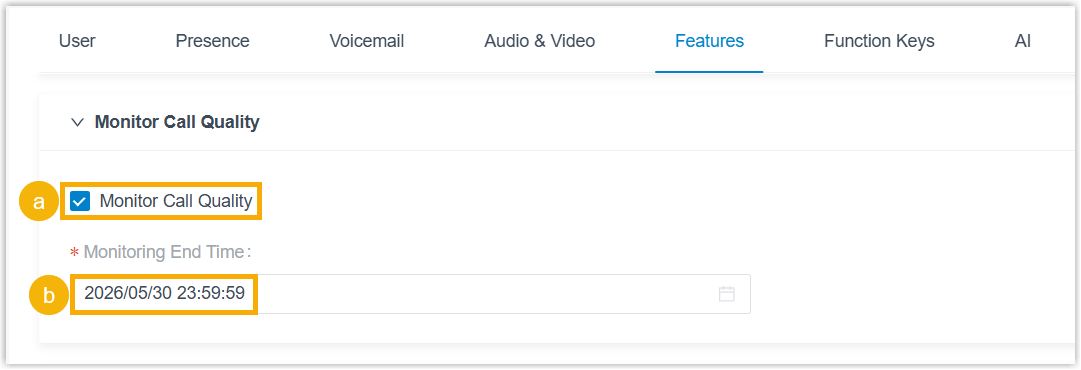
- Select the checkbox of Monitor Call Quality.
- In the Monitoring End Time drop-down list,
specify when call quality monitoring should end.Note: You can set the monitoring duration to up to 7 days.
- Click Save.
Result
When your extension is on a call in Linkus Web Client, call quality data is automatically collected and a call quality report is generated. You can view the report from the corresponding call log.
For more information, see Access Call Quality Monitoring Report.