AI Text-to-Speech
The AI-powered Text-to-Speech (TTS) supports converting text into lifelike speech. With TTS, you can generate greetings simply by entering text, eliminating the need to record greetings or upload audio files manually. This topic describes how to generate greetings with AI TTS on Linkus Web Client.
Introduction
You can use AI Text to Speech (TTS) to generate greetings for the two features listed below.
| Feature | Description | Illustration |
|---|---|---|
| Call Forwarding | Set greetings for call forwarding destination (Path: ). | 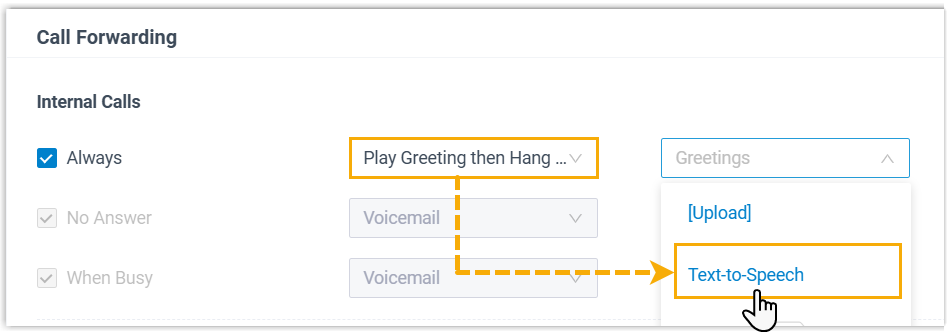 |
| Voicemail Greeting | Set greetings for voicemail (Path: ). | 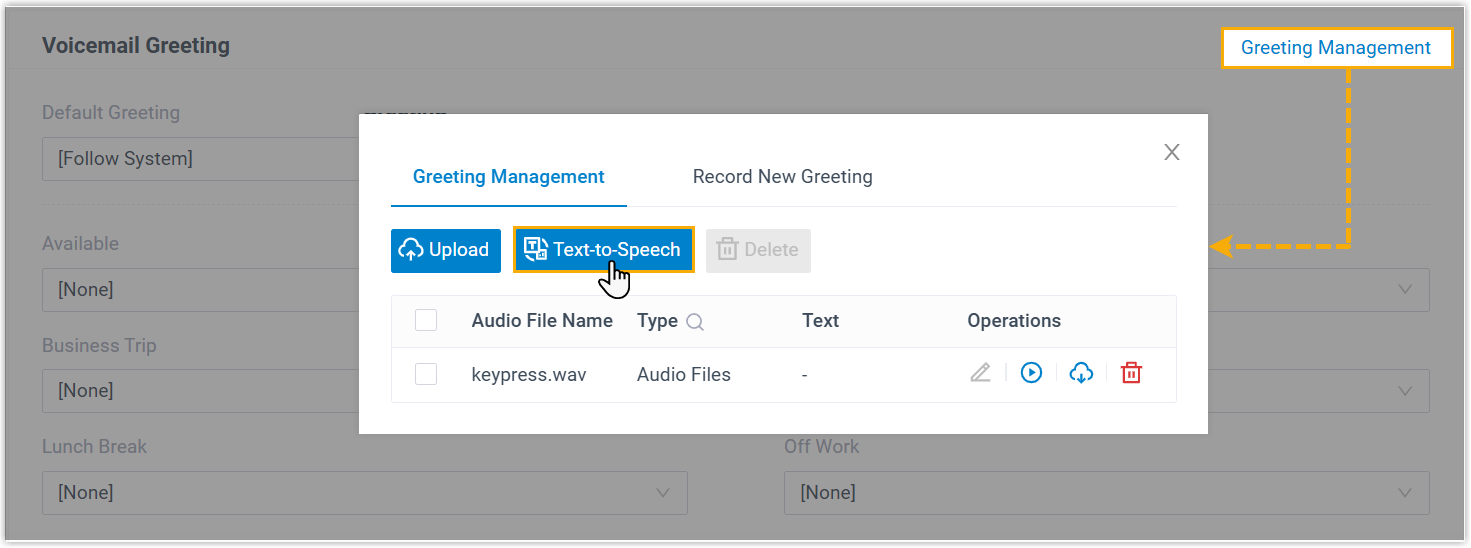 |
Prerequisites
- The firmware of the PBX server is 37.20.0.128 or later.
-
System administrator has enabled AI Text-to-Speech feature.
Procedure
- Access the corresponding menu of desired feature, and click Text-to-Speech.
- In the pop-up window, specify the prompt details.
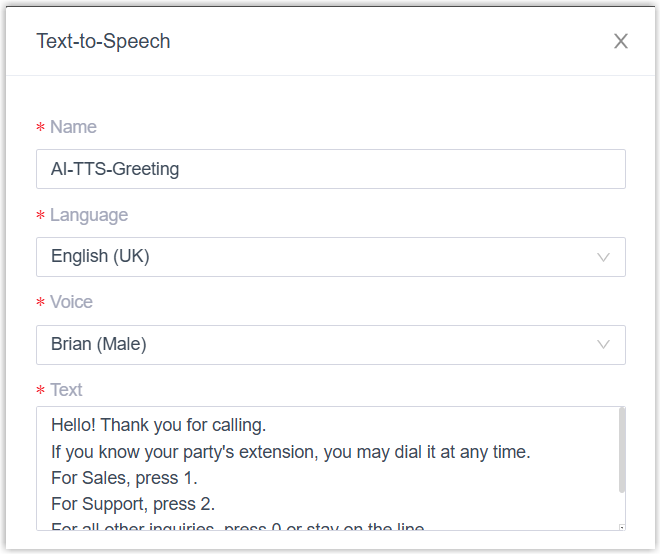
- Name: Specify a name for the prompt to help you identify it.
- Language: Select the language for the prompt.
- Voice: Select a voice profile for the prompt.
- Text: Enter the content to be converted to audio.Note: The text content should be in the same language as the audio prompt.
- Optional: Adjust audio settings and preview the prompt as needed.
- On the Speed, Volume,
and Pitch sliders, adjust the desired values.Note: The option Pitch is only available when you set Language to Arabic, English (Wales), Icelandic, Romanian, Russian or Welsh.
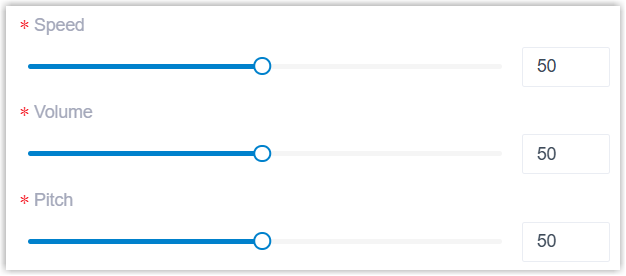
- To preview the audio prompt, click
Listen.
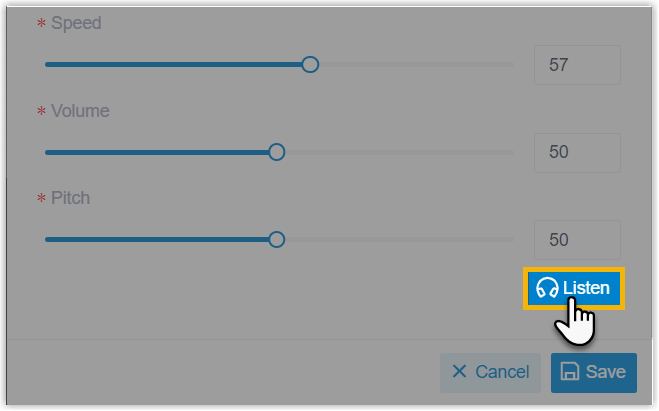
The button displays Generating, and then change to Play after the audio prompt is successfully generated.

- Click Play, then click
 in the pop-up window to listen to the audio prompt on web.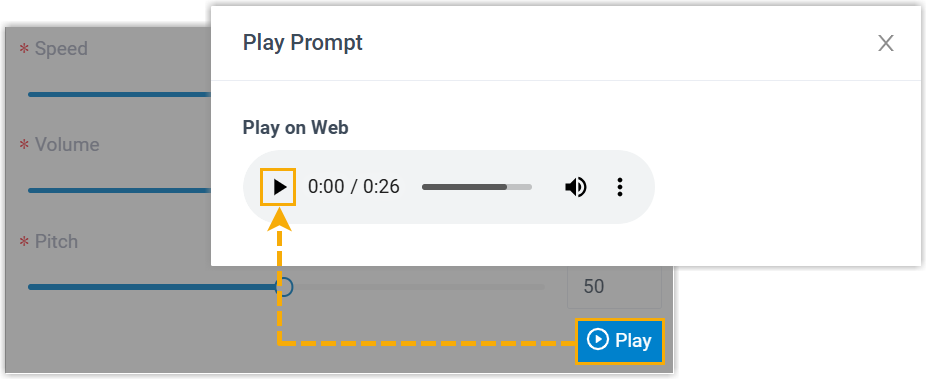
- On the Speed, Volume,
and Pitch sliders, adjust the desired values.
- Click Save.
Result
- The audio prompt is saved and can be applied to the specific feature.
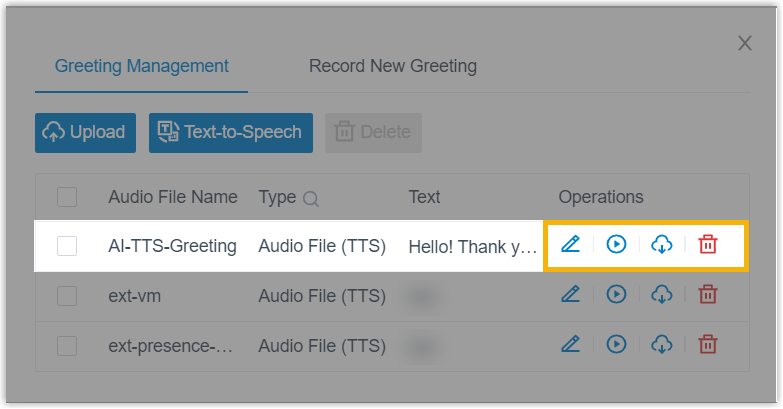
- You can easily manage the prompt after it has been added (Path: ).
For more information, see Manage Personal Voicemail Greetings.