Enable Homer Monitoring
To enable comprehensive monitoring of communication activities across all P-Series Cloud PBXs with Homer, you need to first set up the connection to the Homer server in Yeastar Central Management. This topic describes how to enable and configure the Homer monitoring.
Requirements
- The firmware of Yeastar Central Management is 87.17.0.22 or later.
- You have prepared the environment for Homer and contacted Yeastar to complete the server deployment.
Prerequisites
Obtain the Homer server's public IP address/domain, private IP address, and port number.
Procedure
- Log in to Yeastar Central Management, go to .
- Turn on the switch of Homer.
- Enter the IP address and port of the Homer server.
Setting Description IP Address Enter the private IP address of the Homer server. This is used for internal communication, allowing the cluster servers (SBC, SBC Proxy, PBXHub) to report data to Homer.
Port Enter the port number for the Homer server. The default port is 9080.Public Address Enter the public IP address or domain of the Homer server. This address is used for secure, password-free access to the Homer web interface from Yeastar Central Management.
- Click Save.
Result
- The system automatically distributes the Homer server address to the cluster
servers (SBC Server, SBC Proxy Server, and PBXHub Server). These servers
immediately begin reporting SIP traffic of P-Series Cloud PBX communications
to the specified Homer server using the Homer Encapsulation Protocol
(HEP).Note: Monitoring is only supported for P-Series Cloud PBXs with firmware version 84.20.0.128 or later.
- A
Manage
Homer button appears at the top-right
corner of the webpage, via which you can directly log in to the Homer web
interface in one-click without the need to enter credentials.
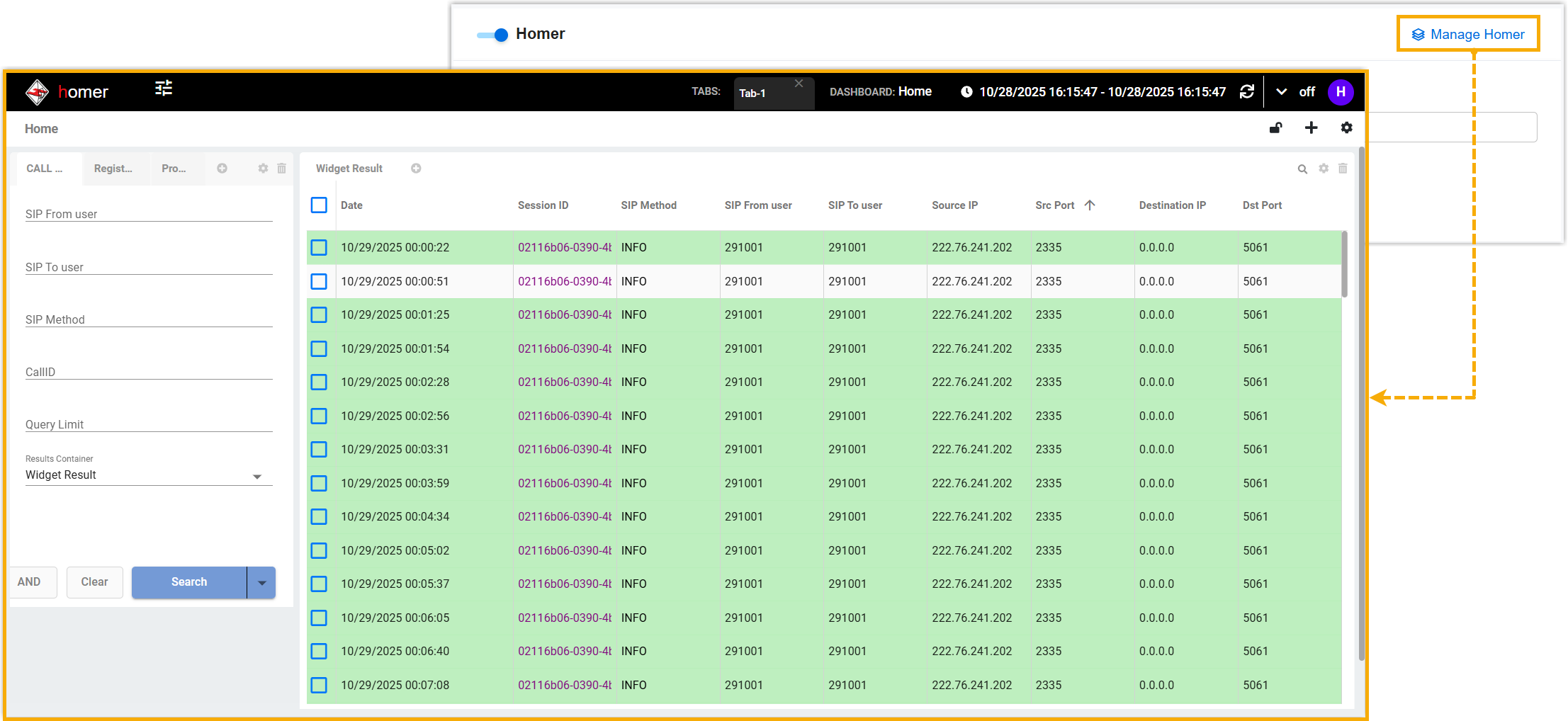
- You can now monitor and trace the SIP traffic of all P-Series Cloud PBXs
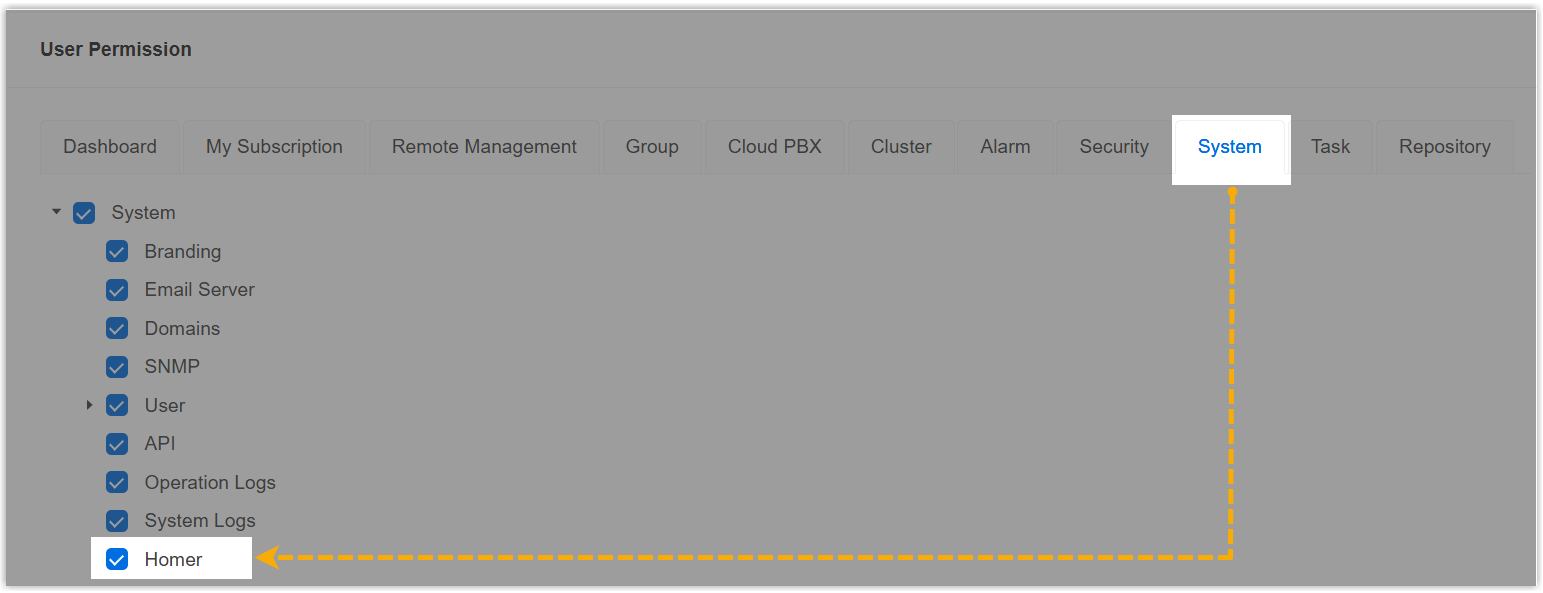
directly in Homer web interface. For detailed usage instructions, see View and Analyze SIP Traffic with Homer.Tip: You can share the access to this feature with your colleagues for collaborative management by assigning them the relevant permission (Path: ).