Configure Distinctive Ringtones for Mitel IP Phone
Distinctive ringtone feature allows certain incoming calls to trigger IP phones to play specific ringtones, making it easy to identify important calls at a glance. After auto-provisioning a Mitel IP Phone with Yeastar P-Series Software Edition, you can configure distinctive ringtones for the IP phone using Alert-Info keyword. This topic takes Mitel 6867i (firmware: 5.0.0.1018) as an example to describes how to set distinctive ringtones for different types of incoming calls to the Mitel IP Phone.
Requirements
The firmwares of Mitel IP phone and Yeastar PBX meet the following requirements.
| Model | Phone Requirement | PBX Requirement |
|---|---|---|
| 6863i | R5.1.0SP6 or later | 83.23.0.83 or later |
| 6865i | R5.1.0SP6 or later | 83.23.0.83 or later |
| 6867i | R5.1.0SP6 or later | 83.23.0.83 or later |
| 6869i | R5.1.0SP6 or later | 83.23.0.83 or later |
| 6873i | R5.1.0SP6 or later | 83.23.0.83 or later |
| 6905 | 6.3 SP3 or later | 83.23.0.83 or later |
| 6910 | 6.3 SP3 or later | 83.23.0.83 or later |
| 6915 | 6.3 SP3 or later | 83.23.0.83 or later |
| 6920 | 6.3.1 SP1 or later | 83.23.0.83 or later |
| 6930 | 6.3.1 SP1 or later | 83.23.0.83 or later |
| 6940 | 6.3.1 SP1 or later | 83.23.0.83 or later |
Prerequisites
You have auto provisioned Mitel IP Phone with Yeastar P-Series Software Edition.
Procedure
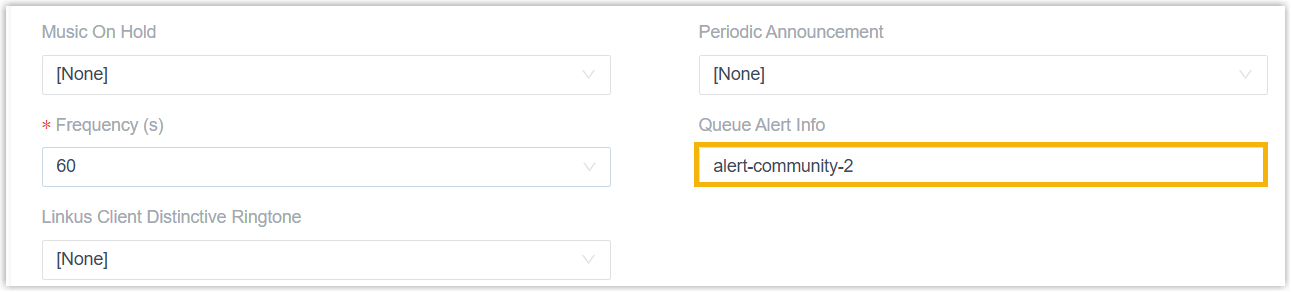
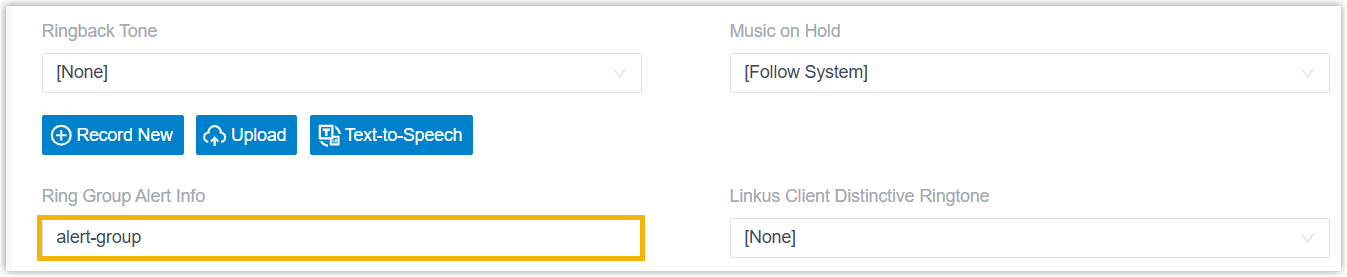
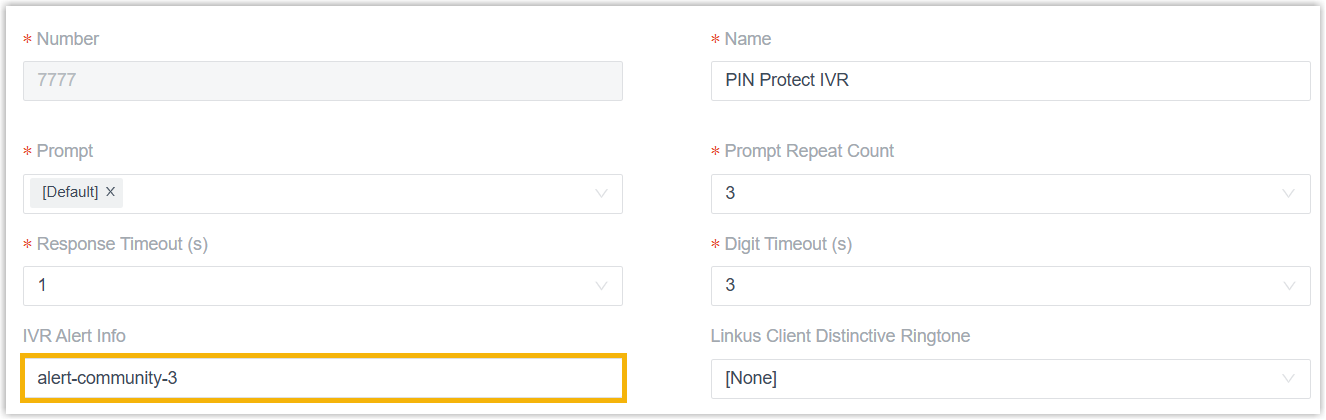
Set Alert-Info keywords based on call type
alert-acd, alert-internal,
alert-external, alert-community-1,
alert-community-2, alert-community-3,
alert-community-4, alert-emergency,
alert-group, and
alert-priority.| Call type | Instruction |
|---|---|
| Internal calls |
|
| External calls |
|
| Queue calls |
|
| Ring group calls |
|
| IVR calls |
|



Set specific ringtones for a Mitel IP phone
After set Alert-Info keywords for desired different call types, you can configuring distinctive ringtones for a Mitel IP phone based on these keywords.
- On the PBX web portal, go to , click
 beside the desired Mitel IP phone.
- Scroll down to the Distinctive Ringtone section,
configure specific ringtones for different call types.
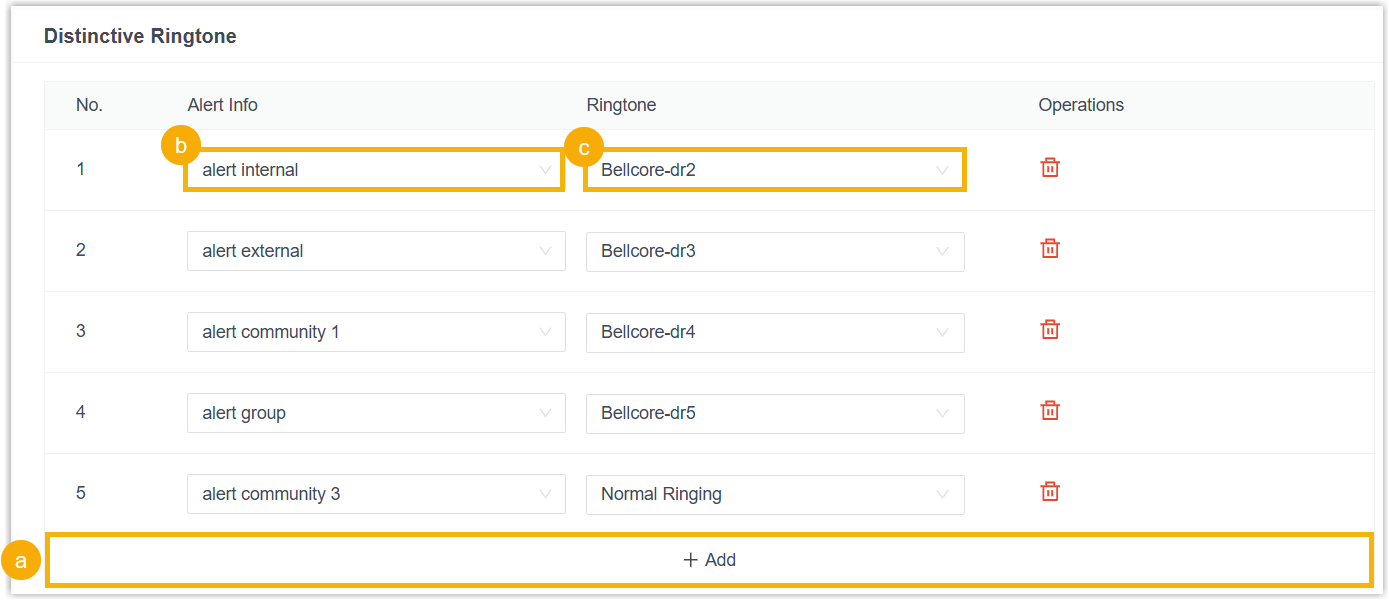
- Click Add.
- In the Alert Info field, enter the mapping
text that corresponds to the predefined Alert-Info keyword for the
desired call type.Note: The following table lists the mapping text for all Alert-Info keywords that can be recognized by Mitel IP phone.
Alert-Info keyword Mapping text alert-acd alert auto call distribution alert-internal alert internal alert-external alert external alert-community-1 alert community 1 alert-community-2 alert community 2 alert-community-3 alert community 3 alert-community-4 alert community 4 alert-emergency alert emergency alert-group alert group alert-priority alert priority - In the Ringtone drop-down list,
select a ringtone for the Alert-Info.Note: The available ringtones vary by phone models.
-
To configure specific ringtones for multiple call types, repeat step a - c.
- Click Save.
You are redirected to the phone list.
- Click
 beside the Mitel IP phone to reprovision it.
Result
The Mitel IP phone applies the ringtone configuration from the PBX and plays the corresponding ringtone according to the Alert-Info header carried in the call.
For example, when receiving an internal call, the Mitel IP phone identifies the
keyword alert-internal in the Alert-Info header, maps it to
alert internal, and plays the ringtone
Bellcore-2.wav.