Send WhatsApp Template Message
This topic provides an overview of the Send WhatsApp Template Message component, and describes its configuration as well as supported connections.
Component introduction
Send WhatsApp Template Message component enables the system to automatically send WhatsApp messages to a recipient without creating a new session once the inbound call is routed to the component.
The message sent log will be recorded in the SMS/WhatsApp Sent Logs (Path: ).
- If an active session already exists for the recipient number, the message will be sent to the existing session.
- When an internal call is routed to the component, the call is routed to
the Send Failed branch of the Send WhatsApp Template
Message component, and the message sending strategy configured
for the component is not executed.
If the Send WhatsApp Template Message component is connected to the Call End branch of the components Dial by Name, Hang Up Call or Transfer, the system first prompts the caller that the key is unavailable, and then routes the call to the Send Failed branch.
Component configuration
- Prerequisites
- You have set up at least one WhatsApp messaging channel on the PBX server and synchronized the desired templates to the PBX server.
- Procedure
-
- After adding Send WhatsApp Template Message
component to a message flow, click the component to proceed with the
configuration.
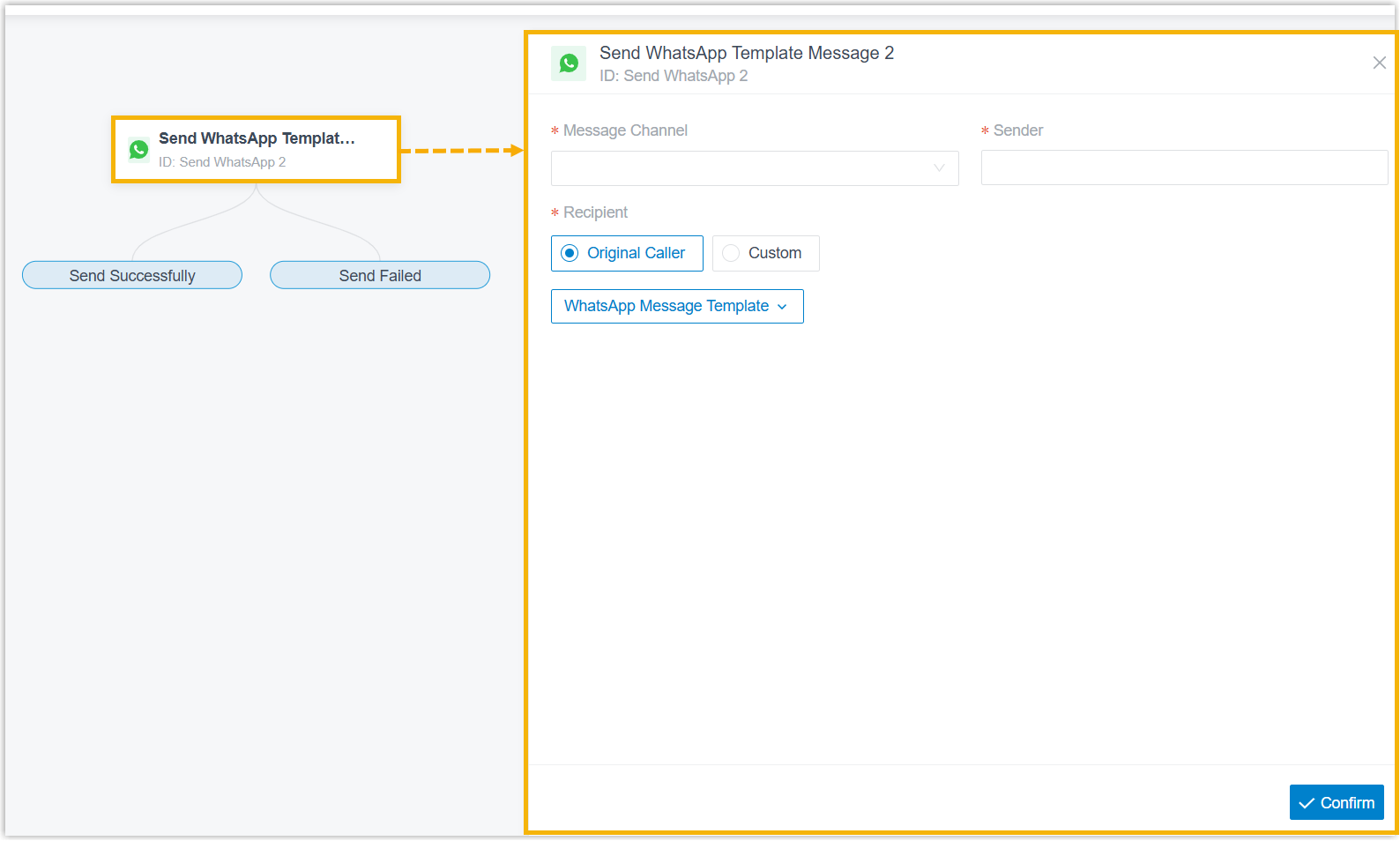
- In the pop-up right panel, complete the following settings and click
Confirm.
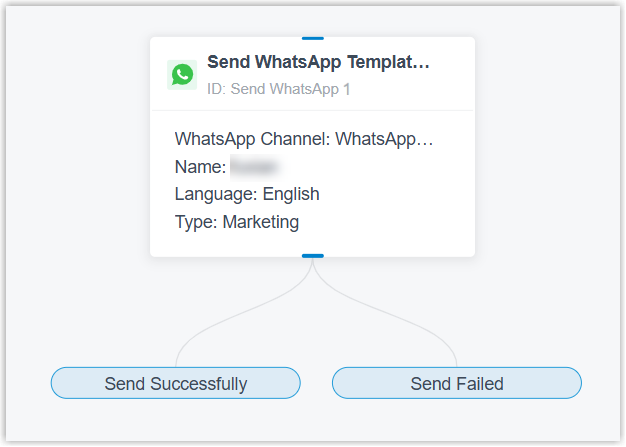
The configured template appears on the component.Setting Instruction Message Channel Select an WhatsApp messaging channel from the drop-down list. Sender The sender number is automatically filled in the field. Recipient Define the recipient as needed. - To send messages to the caller or a recipient
specified by the caller, click Original
Caller.When the inbound call is routed to this component, the system plays a prompt for the caller to enable him or her to specify a recipient by keypress (key
1for the current caller number and key2for a custom number).- If key
1is pressed, the system automatically populates absent+and the country/region code configured for the selected message channel to the caller number, and sends the configured message to this number. - If key
2is pressed, the caller needs to enter a number starting with a country/region code.The system automatically populates absent
+to the specified number, and sends the configured message to this number.
Note: If the Send SMS component is connected to the Call End branch of the components Dial by Name, Hang Up Call or Transfer, the system does not play a prompt to guide the caller, automatically populates the absent+and country/region code for the caller number, and sends the message directly to this number. - If key
- To send messages to a specific recipient
directly, click Custom,
then fill in the recipient number in the
Recipient Number field
using one of the following method.Note: The recipient number must start with "+<country/region code>", and only numbers and character
+are allowed. E.g., "+8613800138000".- Enter the recipient number directly in the field.
- Click
 , enter an expression and
click Save.Note: An expression may include variables, constants, and functions. You can enter
, enter an expression and
click Save.Note: An expression may include variables, constants, and functions. You can enterFXto view and select system‑supported functions, and enter$to view and select variables already stored in the current call flow.For more information about functions and variables, see Variables and Functions in Yeastar Expression.
WhatsApp Message Template Select the desired template and populate the media and variable placeholders. - Click WhatsApp Message
Template, filter and select the
desired template from the list.
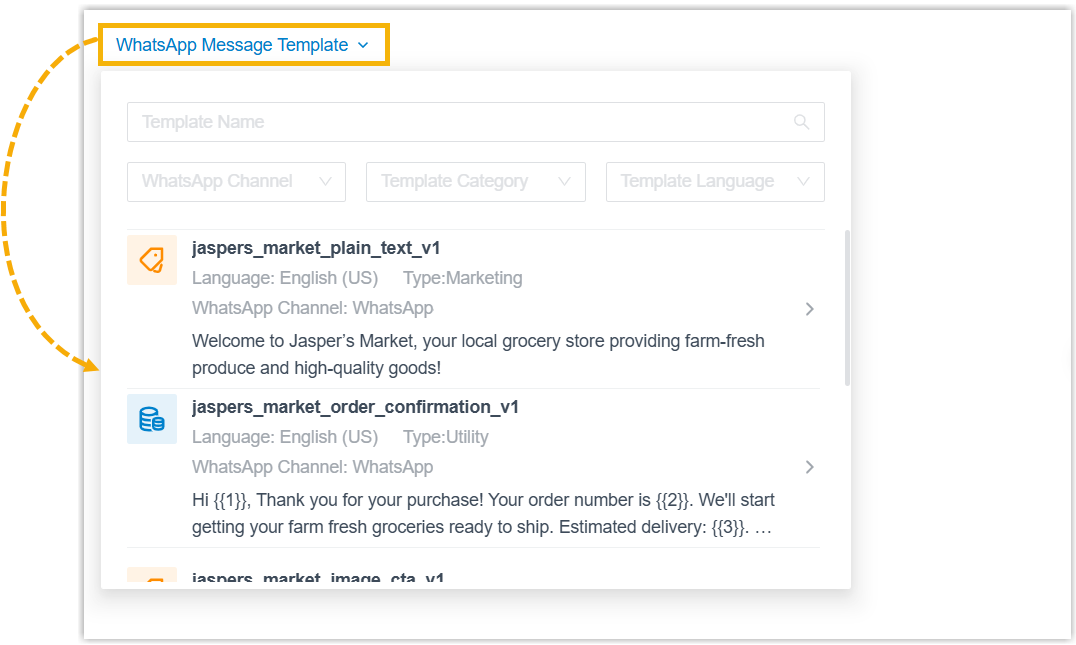
The configuration and preview for the message in select template are displayed on the webpage.
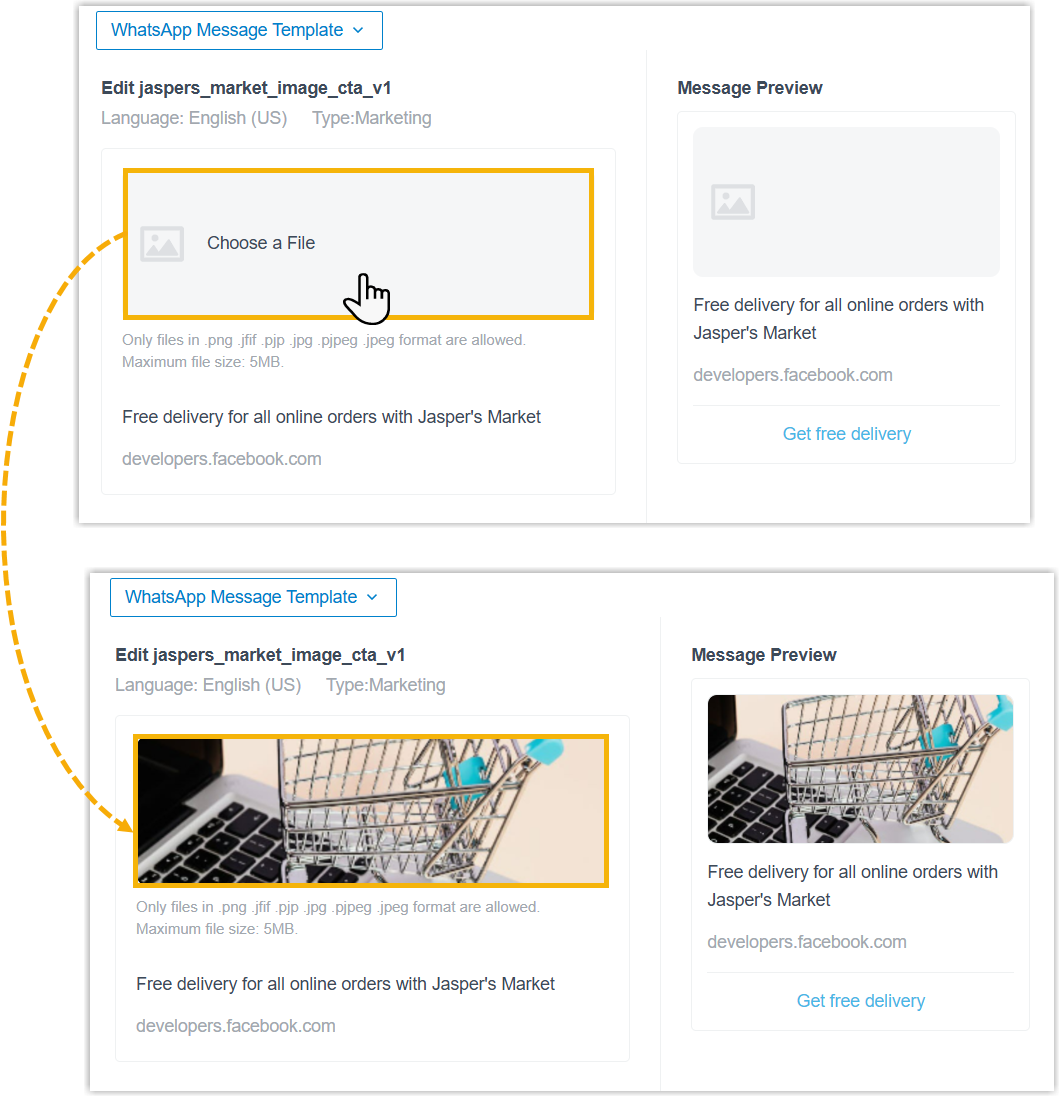
- If the template includes media or variable
placeholders, upload the required media files and
fill in specific values for all variables.
- Upload media files.
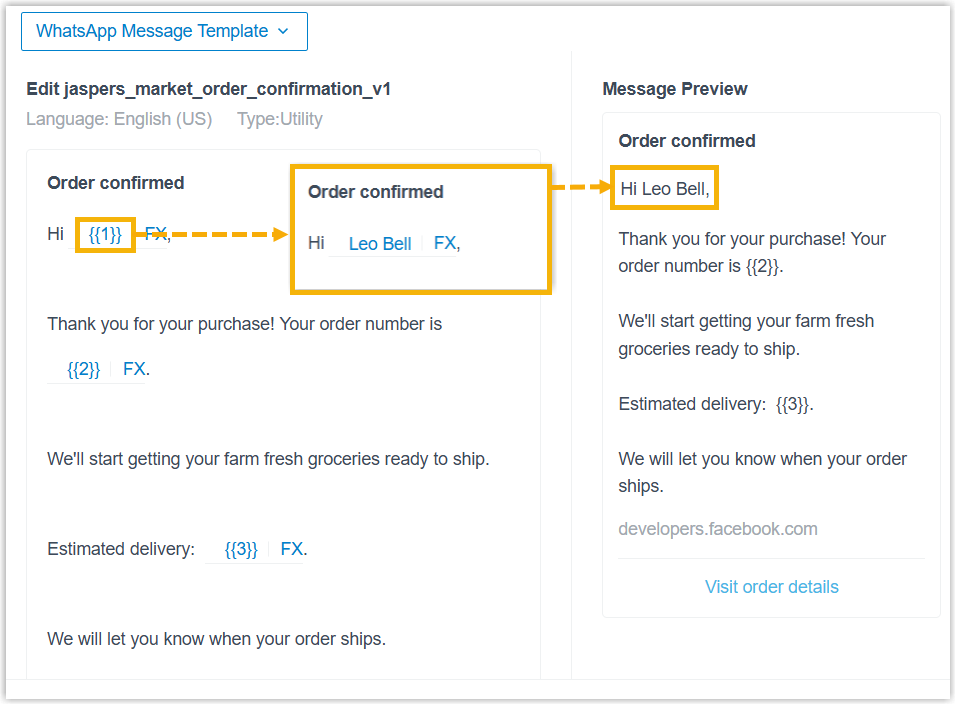
- Fill in specific values for all variables.
- To specify a constant as a variable value,
directly click {{Variable}} and
enter plain text.
- To specify an expression as a variable value,
click beside the
{{Variable}}, enter an
expression and click
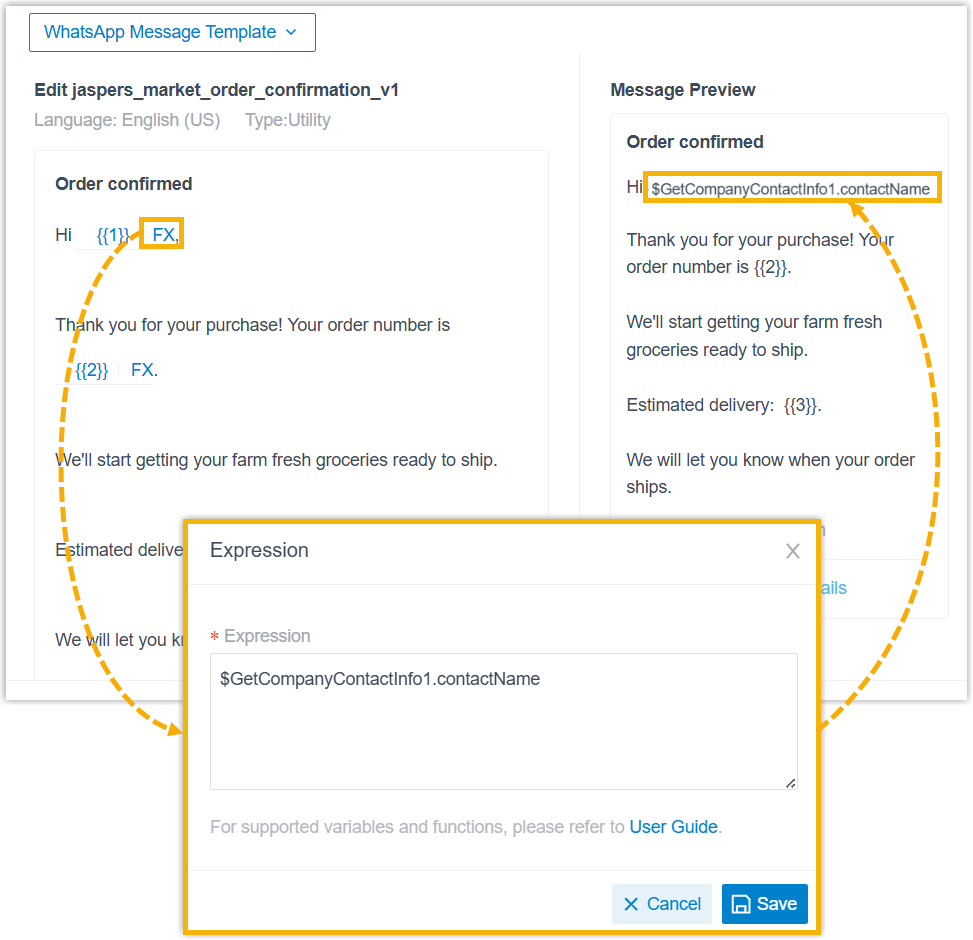
Save.Note: An expression may include variables, constants, and functions. You can enter
FXto view and select system‑supported functions, and enter$to view and select variables already stored in the current call flow.For more information about functions and variables, see Variables and Functions in Yeastar Expression.
 Note: For variables about location information, you can simply paste the Google Maps URL, the system will auto-fill the name and coordinates based on the URL. However, you need to manually enter the detailed address for the
{{Address}}variable.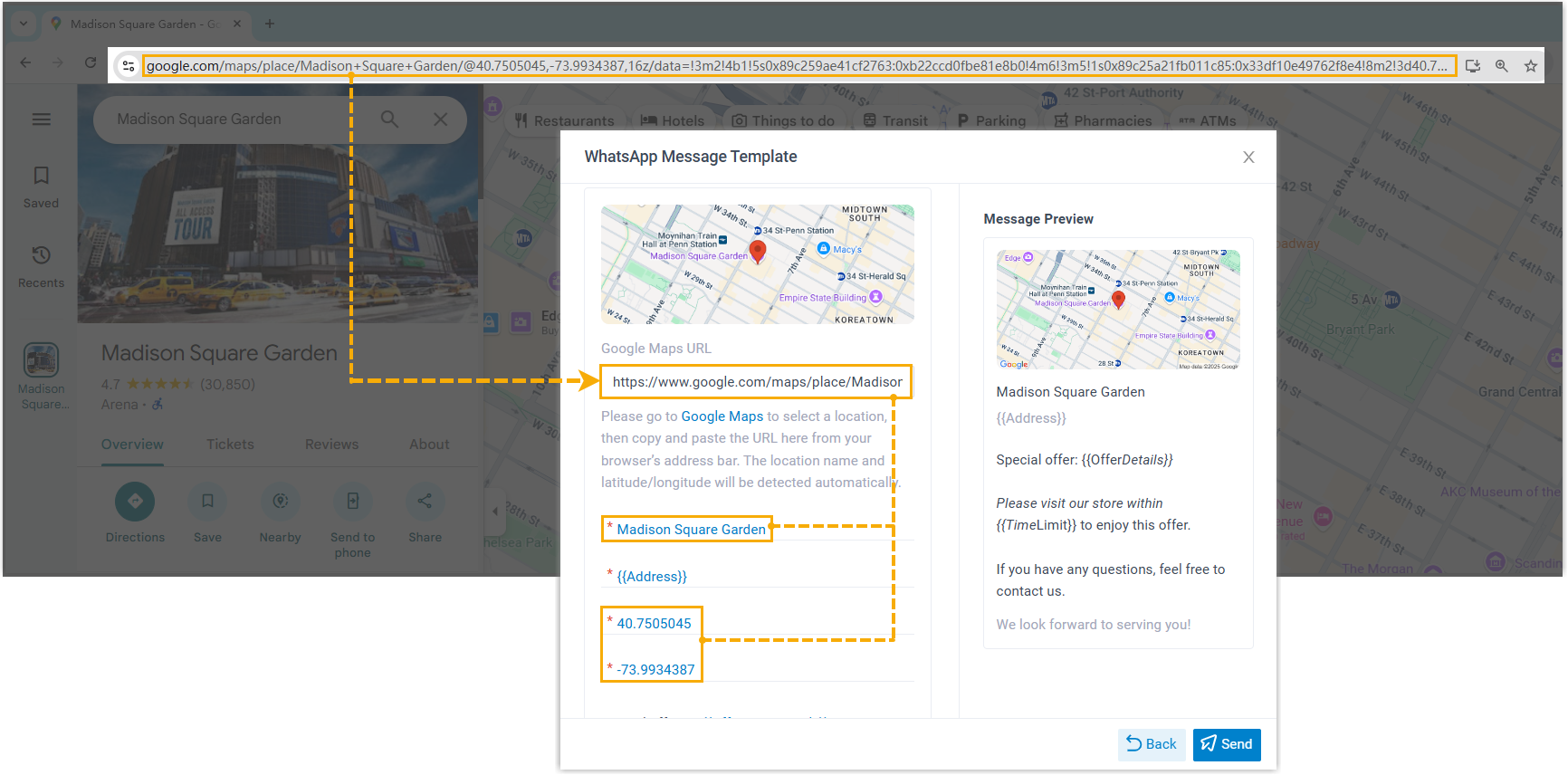
- To specify a constant as a variable value,
directly click {{Variable}} and
enter plain text.
- Upload media files.
- To send messages to the caller or a recipient
specified by the caller, click Original
Caller.
-
Optional: To route the call or trigger other actions when the component's branch conditions are met, hover over the desired branch and click
 to add the next component.
For more information about components that support to be connected, see Component connections.
- After adding Send WhatsApp Template Message
component to a message flow, click the component to proceed with the
configuration.
Component connections
| Component | Description |
|---|---|
| Initial Action |
Initial Action component is the entry point of a call flow. It allows you to specify the phone number(s) that callers can dial to initiate the flow, and optionally configure an audio prompt to welcome callers or provide instructions for them. For more information, see Initial Action. |
| Prompt |
Prompt component allows you to play audio prompt(s) or a text-to-speech message to callers. For more information, see Prompt. |
| Business Hours |
Business Hours component allows you to route calls to different destinations based on the time of day. For more information, see Business Hours. |
| Menu | Menu component allows you to present
callers with a set of menu options, and route calls based on the
DTMF digit they press. For more information, see Menu. |
| User Input |
User Input component allows you to collect DTMF digits from callers, typically used with Condition component to evaluate user input and route calls. For more information, see User Input. |
| Language |
Language component allows you to change the system prompt language for subsequent components in a call flow. For more information, see Language. |
| Record | Record component allows you to start
recording a call upon the caller being connected to another
participant, and optionally configure prompts to inform call
participants at the start and during the recording.
Alternatively, you can use the component to disable call
recording for calls that are supposed to be recorded. For more information, see Record. |
| Dial by Number |
Dial by Number component allows callers to directly dial a number to reach the destination. For more information, see Dial by Number. |
| Dial by Name |
Dial by Name component is one of the end components to terminate caller's connection to the current call flow. It allows callers to reach extension user by entering the first three letters of the user's name. For more information, see Dial by Name. |
| Transfer |
Transfer component is one of the end components to terminate caller's connection to the current call flow. It allows you to transfer callers to a designated destination, and optionally configure prompts to inform them of the transfer. For more information, see Transfer. |
| Hang Up Call |
Hang Up Call component is one of the end components to terminate caller's connection to the current call flow. When callers are routed to the component, the call will be disconnected. For more information, see Hang Up Call. |
| Condition | Condition component allows routing calls based on
logical expressions. For more information, see Condition. |
| Loop | Loop component allows a group of
components to be executed repeatedly, either for a specified
number of times or until a condition is met. For more information, see Loop. |
| Internal Data Ops | Internal Data Ops component allows you
to query and update data from PBX-native database. For more
information, see the following topics: |
| Email Sender | Email Sender component allows you to
send emails, enabling real-time notifications, alerts, or
delivery of user-specific information. For more information, see Email Sender. |
| Database Access | Database Access component allows you
to interact with database during a call flow. You can execute
SQL operations to retrieve or update data as needed. For more information, see Database Access. |
| HTTP Request | HTTP Request component allows you to
send HTTP requests to external web servers, enabling data
exchange with third-party services. For more information, see HTTP Request. |
| Send SMS | Send SMS component enables the system
to automatically send SMS messages to a recipient without
creating a new session. For more information, see Send SMS. |
| Send WhatsApp Template Message | Send WhatsApp Template Message
component enables the system to automatically send WhatsApp
messages to a recipient using specified WhatsApp message
templates. For more information, see Send WhatsApp Template Message. |