User Input
This topic provides an overview of the User Input component, and describes its configuration, variables, as well as supported connections.
Component introduction
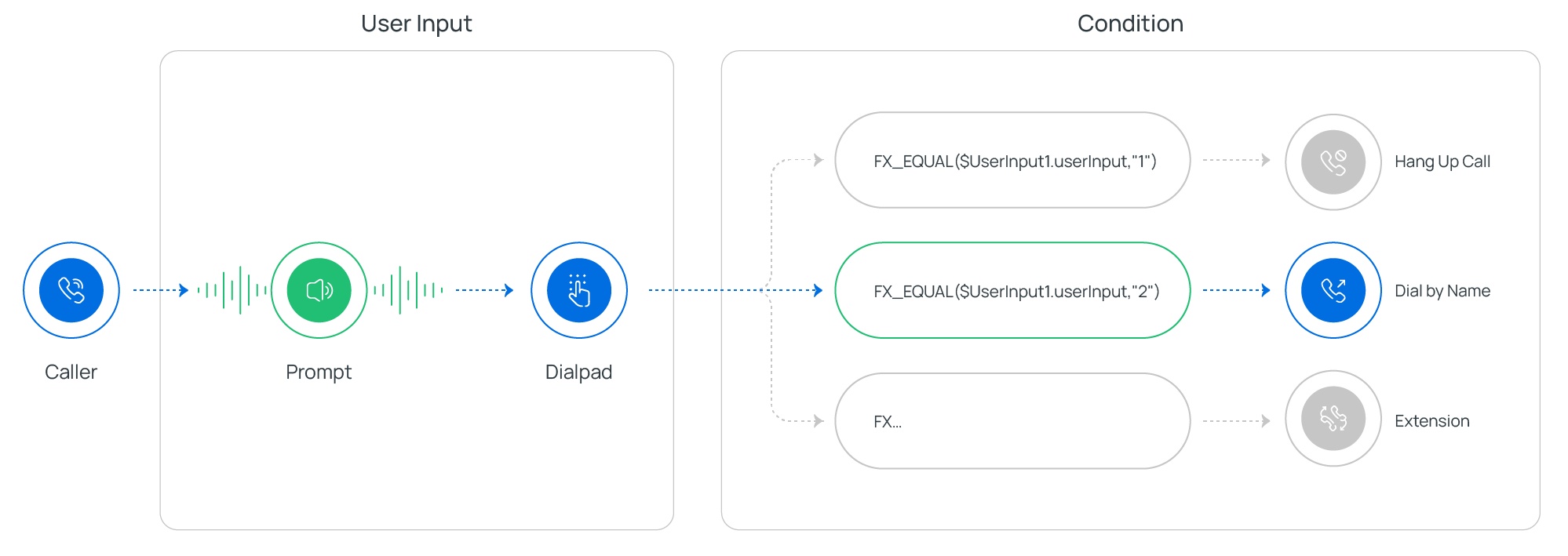
User Input component allows you to collect DTMF digits from callers, typically used with Condition component. The input value is stored in variables, which can be used as input for subsequent components or for condition evaluation.
You can configure when the system stops collecting DTMF digits - either when reaching digit or response timeout or when callers press an end key. Additionally, audio prompt(s) or a text-to-speech message can be set to prompt callers for input.
- Supported prompt types
-
Prompt Type Description Custom Prompt Choose from existing custom prompts, or create a new one by recording with an extension or uploading an audio file. Music on Hold (MoH) Choose from existing MoH, or create a new one and upload audio files. Text to Speech (TTS) Enter the desired text, which will be converted to speech in the selected language and voice style.
Note: Before you begin, make sure the Text-to-Speech feature is enabled in .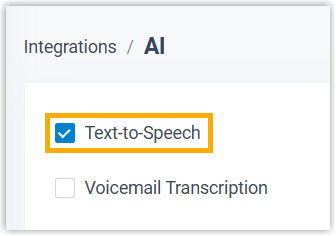
- Supported end keys
#,*, numeric key, or no key.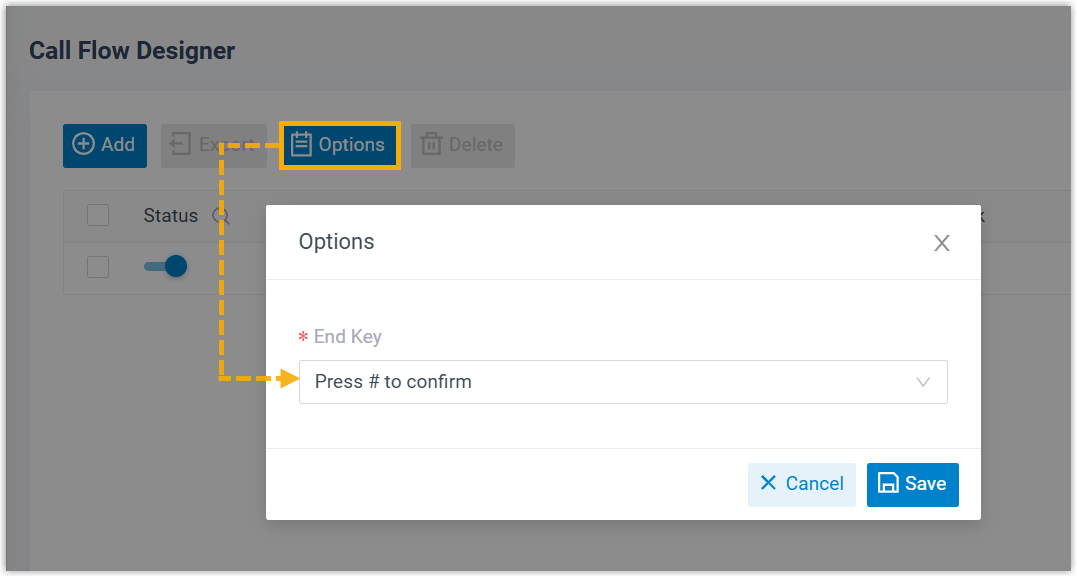
Component configuration
- After adding User Input component to a call flow, click
User Input component to proceed with the
configuration.
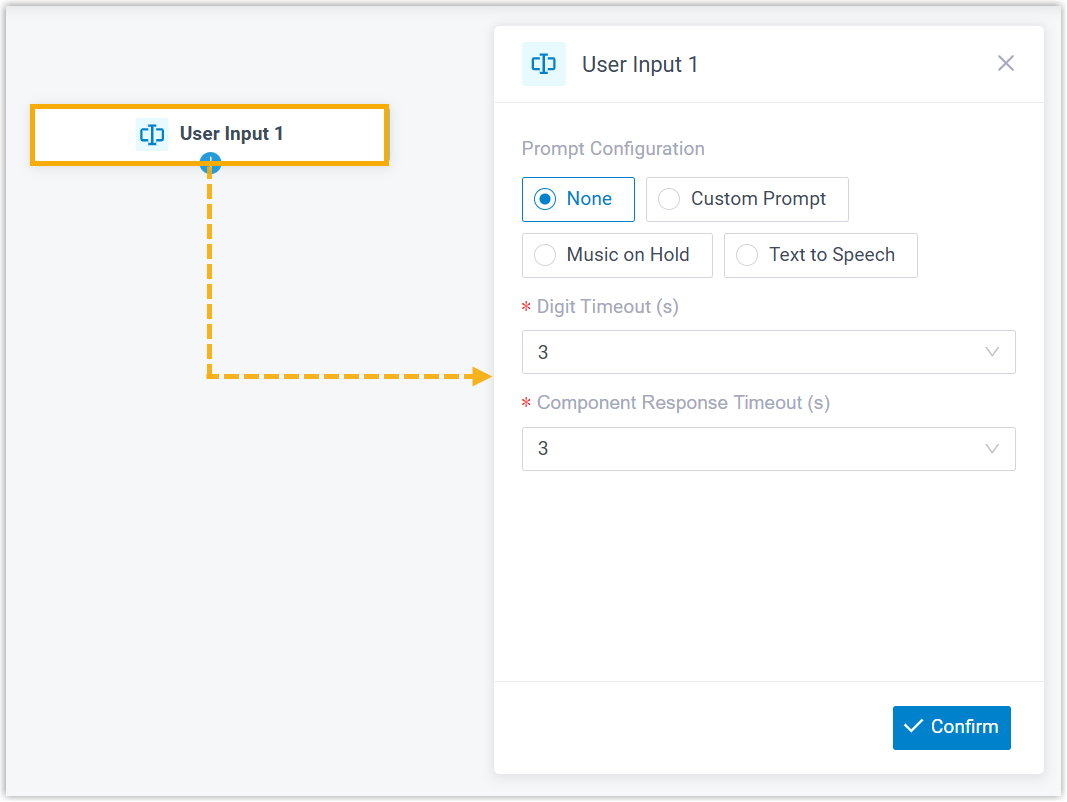
- Optional: Add audio prompt(s) or a text-to-speech message to instruct callers.
Item Description Custom Prompt 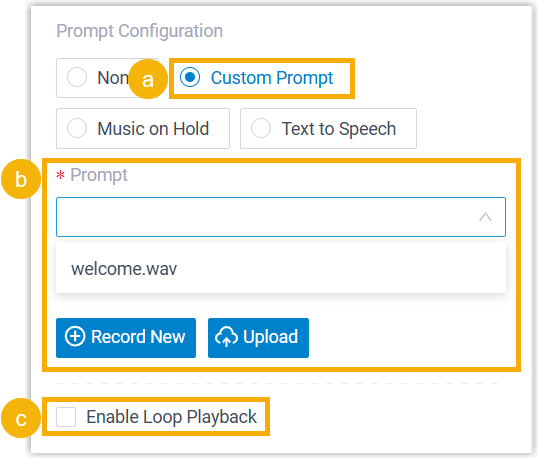
- Click Custom Prompt.
- In the
Prompt drop-down list,
specify custom prompt(s).Note: Up to 5 custom prompts are supported.
- Optional: To play
the custom prompt(s) in a loop, select the
checkbox of Enable Loop
Playback.Note: The looped prompt will be overridden if the next connected component is configured with a prompt.
Music on Hold (MoH) 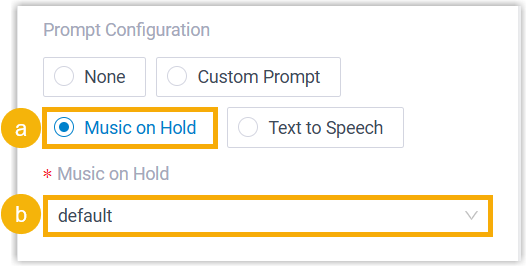
- Select Music on Hold.
- In the Music on Hold drop-down list, specify an MoH playlist.
Note: The MoH will be overridden if the next connected component is configured with a prompt.Text to Speech (TTS) 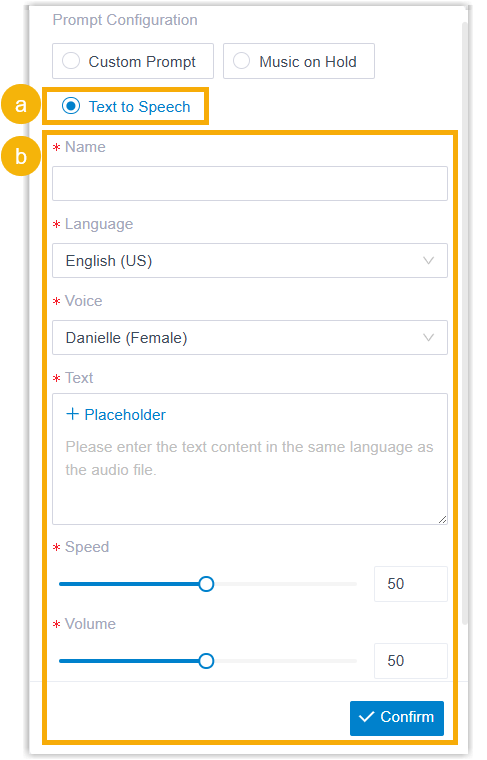
- Select Text to Speech.
- Customize the text content and voice style for
text-to-speech conversion.Note: Both static text and dynamic text are supported to convert into speech.
- Static text: Enter text directly in the Text field.
- Dynamic text: Enter text and configure
placeholders with corresponding variables to dynamically compose the text.
Optionally, you can configure prompt generation
timeout and its destination. If speech is not
generated within the timeout period, caller will
be routed to the corresponding timeout
destination.
Example:
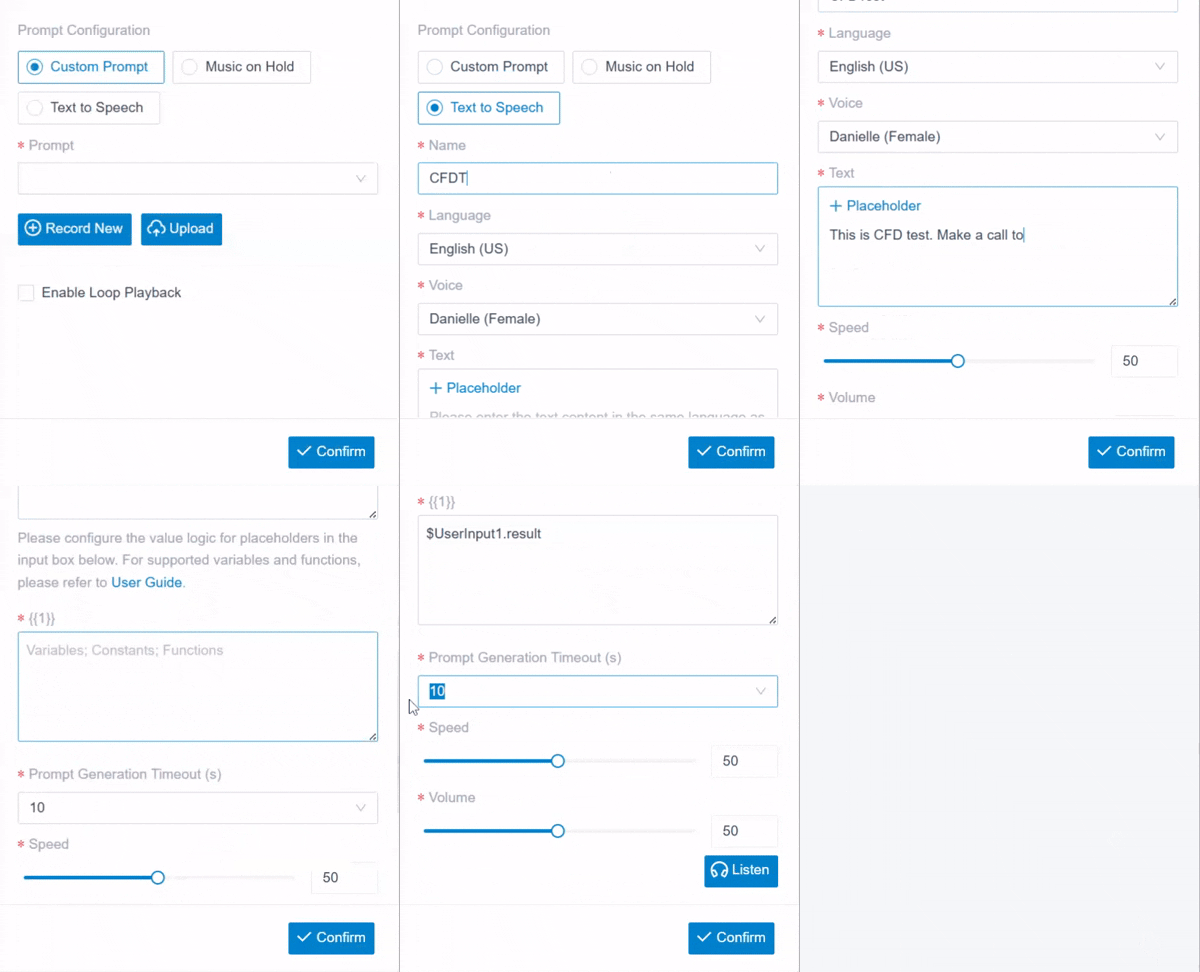
The new speech will be saved to the system and synchronized to .
- Optional: To customize the actions to be
executed when TTS prompt generation times out,
select the checkbox of TTS Response
Timeout and add subsequent components
to the TTS Playback Success
and TTS Response Timeout
branches.Note: If timeout destination is not configured, caller will be routed to the next component without hearing a prompt when TTS prompt generation times out.
- Configure the timeout for user input.
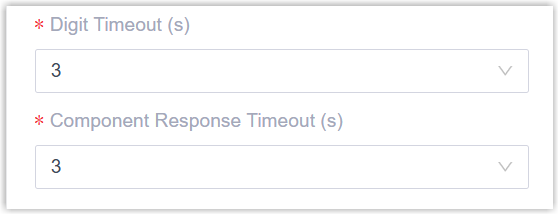
- Digit Timeout(s): Set how long to wait for the
caller to enter the next digit.
You can select a value from the drop-down list, or enter a value between 1 and 9999.
- Component Response Timeout(s): Set how long to
wait for the caller to operate.
You can select a value from the drop-down list, or enter a value between 1 and 9999.
- Digit Timeout(s): Set how long to wait for the
caller to enter the next digit.
- At the bottom-right corner, click Confirm.
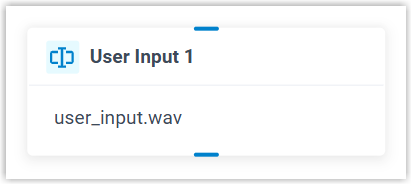
The selected prompt will appear on the component.
Component variables
When a User Input component is added to a call flow, the system stores caller's input in variables. These variables can be referenced in expression-supported components (such as Condition) to retrieve the input value and flexibly route the call.
| Variable | Type | Description | Example Value |
|---|---|---|---|
| $UserInput{index}.result | String |
The result of User Input component.
|
$UserInput1.result(STRING)=UserInputResult.Timeout |
| $UserInput{index}.ttsResult | String | The Text-to-Speech (TTS) result of the
User Input component.
|
$UserInput1.ttsResult(STRING)=UserInputTTSResult.Success |
| $UserInput{index}.userInput | String | The DTMF digit that the caller pressed,
excluding the end key (# or
*). |
"2" |
Component connections
User Input component can be connected to one or two components (depending on whether the TTS Response Timeout option is enabled), which can be any of the components listed below.
| Component | Description |
|---|---|
| Prompt |
Prompt component allows you to play audio prompt(s) or a text-to-speech message to callers. For more information, see Prompt. |
| Business Hours |
Business Hours component allows you to route calls to different destinations based on the time of day. For more information, see Business Hours. |
| Menu | Menu component allows you to present
callers with a set of menu options, and route calls based on the
DTMF digit they press. For more information, see Menu. |
| User Input |
User Input component allows you to collect DTMF digits from callers, typically used with Condition component to evaluate user input and route calls. For more information, see User Input. |
| Language |
Language component allows you to change the system prompt language for subsequent components in a call flow. For more information, see Language. |
| Record | Record component allows you to start
recording a call upon the caller being connected to another
participant, and optionally configure prompts to inform call
participants at the start and during the recording.
Alternatively, you can use the component to disable call
recording for calls that are supposed to be recorded. For more information, see Record. |
| Dial by Number |
Dial by Number component allows callers to directly dial a number to reach the destination. For more information, see Dial by Number. |
| Dial by Name |
Dial by Name component is one of the end components to terminate caller's connection to the current call flow. It allows callers to reach extension user by entering the first three letters of the user's name. For more information, see Dial by Name. |
| Transfer |
Transfer component is one of the end components to terminate caller's connection to the current call flow. It allows you to transfer callers to a designated destination, and optionally configure prompts to inform them of the transfer. For more information, see Transfer. |
| Hang Up Call |
Hang Up Call component is one of the end components to terminate caller's connection to the current call flow. When callers are routed to the component, the call will be disconnected. For more information, see Hang Up Call. |
| Condition | Condition component allows routing calls based on
logical expressions. For more information, see Condition. |
| Loop | Loop component allows a group of
components to be executed repeatedly, either for a specified
number of times or until a condition is met. For more information, see Loop. |
| Internal Data Ops | Internal Data Ops component allows you
to query and update data from PBX-native database. For more
information, see the following topics: |
| Email Sender | Email Sender component allows you to
send emails, enabling real-time notifications, alerts, or
delivery of user-specific information. For more information, see Email Sender. |
| Database Access | Database Access component allows you
to interact with database during a call flow. You can execute
SQL operations to retrieve or update data as needed. For more information, see Database Access. |
| HTTP Request | HTTP Request component allows you to
send HTTP requests to external web servers, enabling data
exchange with third-party services. For more information, see HTTP Request. |
| Send SMS | Send SMS component enables the system
to automatically send SMS messages to a recipient without
creating a new session. For more information, see Send SMS. |
| Send WhatsApp Template Message | Send WhatsApp Template Message
component enables the system to automatically send WhatsApp
messages to a recipient using specified WhatsApp message
templates. For more information, see Send WhatsApp Template Message. |