AI Receptionist Overview
Yeastar P-Series Software Edition provides an AI receptionist feature, which functions as a lifelike front-desk assistant. It automatically answers calls, greets callers, answers questions based on your custom knowledge base, intelligently collects information, and routes calls to the appropriate destinations, helping minimize repetitive call handling while ensuring consistent service delivery.
Requirements
- Firmware
- The firmware of Yeastar P-Series Software Edition is 83.24.0.30 or later.
- Subscription
- The AI Receptionist feature includes 60 one-time free minutes
with your plan subscription. To expand AI receptionist minutes, subscribe to
the following add-on service(s) (Path: ).
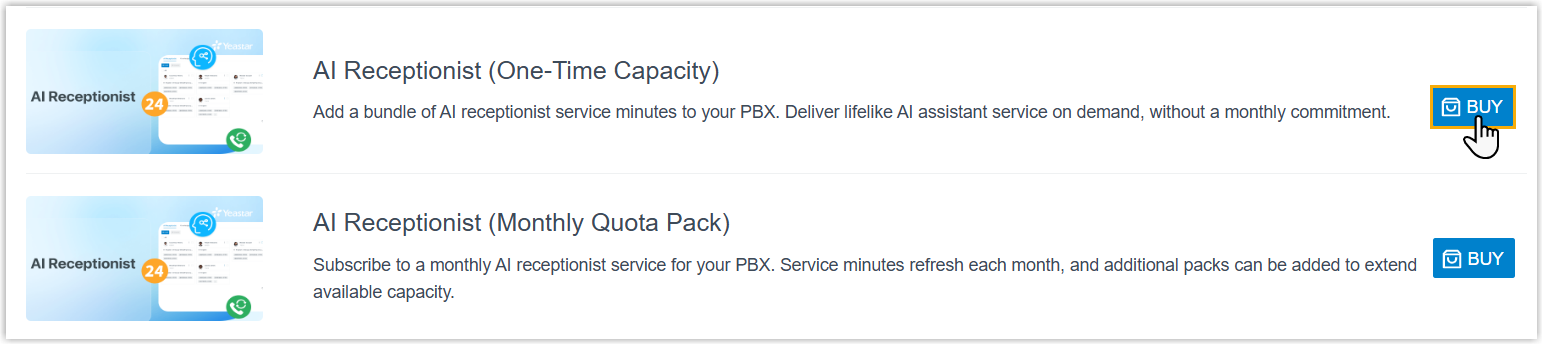
- AI Receptionist (One-Time Capacity): One-time receptionist minutes. When used up, you need to purchase additional capacity.
- AI Receptionist (Monthly Quota Pack): Monthly subscription pack with a fixed quota of 200 minutes that resets each month; unused minutes do not roll over to the next month.
Note: If both services are subscribed, minutes are deducted from the monthly quota pack first. - Network
-
- The PBX is able to access the Internet.
- The PBX is accessible via a domain name, either through
Yeastar
FQDN or a NAT-mapped domain (Yeastar
Domain or External
Host). The requirements vary by domain type,
as listed below.
Domain Type Requirement Yeastar FQDN The SIP access feature should be enabled (Path: ). 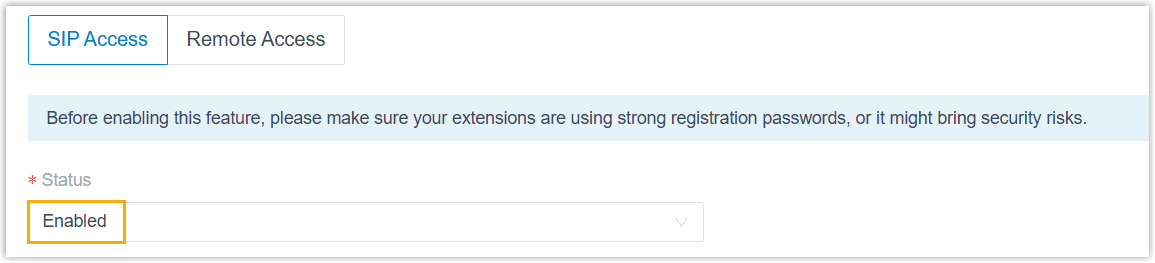
NAT-mapped domain - The PBX has installed a valid domain
certificate issued by a trusted CA (uploaded on ).

- If the Allowed
Country/Region IP Access
Protection feature is enabled
on the PBX (Path: ), allow the access of the following
countries based on the PBX's location:
- Germany (DE) - for PBX in Europe
- United States of America (US) - for PBX in other regions
- If your company has multiple public IP addresses, ensure the PBX domain name is resolved to the specific public IP address that the PBX uses for outbound SIP and RTP traffic to prevent one-way audio call issue.
- The PBX has installed a valid domain
certificate issued by a trusted CA (uploaded on ).
- SIP Settings
- The SIP TCP port is enabled to ensure AI receptionist call connectivity
(Path: ).Note: A system reboot is required after enabling this setting for the change to take effect.

Highlights
- 24/7 Always-on Receptionist
- AI receptionists operate 24/7 to answer incoming calls instantly. Each receptionist supports up to 10 concurrent calls, ensuring callers receive immediate attention even during peak periods.
- Multi-language Support
- AI receptionists can communicate with callers in multiple languages. They can identify the language a caller is speaking and automatically respond in that language, providing a seamless experience for multilingual callers.
- Customizable Personality and LLM
- Customize voice profiles, greetings, and supported languages to align with your brand. Specify a desired LLM (Gemini, GPT, Claude, etc.) to balance capability and speed, and define system prompts to set the AI receptionist's persona, tone, and behavioral guardrails.
- Knowledge-based Automatic Replies
- Upload FAQs, product documentation, or other guides to the knowledge base and assign them to desired AI receptionists. The AI receptionist retrieves relevant information in real time to answer common questions and handle routine inquiries, reducing the workload on your team.
- Intent-based Call Routing
- The AI receptionist identifies caller intent from natural conversation and instantly transfers the call to the right department or extension based on names, keywords, or other custom routing rules. This ensures callers are connected to the right person or team on the first attempt, reducing misdirected calls and improving first-call resolution.
- Intelligent Information Collection
- Define the caller information you want to capture (e.g., name, email, order number). The AI receptionist extracts the data from conversations and passes it to human agents upon call transfer, helping to provide faster, more personalized support.
- Custom Tool & MCP Server Integration
- Extend your AI receptionist's capabilities by connecting to external systems (such as CRM, ERP, or calendar services) via custom tools or MCP servers. During conversations, the AI receptionist can invoke the assigned tools to send requests to third-party systems, enabling real-time data retrieval and actions without human intervention.
Guidances
- Set up AI receptionist
-
Follow these steps to get your AI receptionist up and running.
- Create an AI Receptionist
Set up a new AI receptionist and configure basic settings, such as name, receptionist number, LLM (Large Language Model), language, voice profile, company information, greetings, etc.
For more information, see Create an AI Receptionist.
- Upload knowledges
Add well-organized contents to the knowledge base, such as frequently asked questions with detailed answers, documents, or website URLs. Regularly review and update the contents to keep information accurate and relevant. The AI receptionist will search the knowledge base in real-time during calls to provide accurate information.
For more information, see Add Contents to Knowledge Base.
- Add custom tools or MCP servers
Add individual tools with custom API calls to interact with external systems, or connect to an MCP server to access a bundled set of tools, allowing the AI receptionist to retrieve information or perform specific actions based on customer requests.
For more information, see Add tools and Add an MCP Server.
- Manage skills for an AI receptionist
Enable or disable capabilities such as greeting, knowledge base access, dial by name, intent-based transfer,information collection, SMS delivery, custom tools, or MCP servers to tailor the AI to your needs.
For more information, see Manage Skills for an AI Receptionist.
- Test an AI receptionist online
Make test calls or send chat messages to simulate customer scenarios, and verify response accuracy and overall performance.
For more information, see Test an AI Receptionist.
- Adjust the AI receptionist
Adjust language, voice, speech rate, LLM, or call settings based on test results or changing business requirements. Update company information as needed so that the AI receptionist can provide callers with the latest information about your company.
For more information, see Update Settings of an AI Receptionist and Update Company Information for an AI Receptionist.
- Use the AI receptionist for live calls
After configuration and testing, you can make the AI receptionist available to handle real customer calls. The AI receptionist can be reached using the following methods:
Method Description Direct access Users can reach the AI receptionist by dialing its number directly: - Internal extension users: Dial the AI receptionist's extension number directly.
- External callers: Dial the direct DID assigned to the AI receptionist.
Call routing destination You can add the AI receptionist as a destination for the following features to route calls to the AI receptionist. - Inbound route
- IVR
- Call Flow transfer component
- Service number in the Hotel Management Module
- Create an AI Receptionist
- Monitor usage and call performance
- Monitor your AI receptionist's usage and call statistics to ensure optimal performance.
-
Item Description Track usage capacity - You can view the AI receptionist usage from
the following location:
- Dashboard
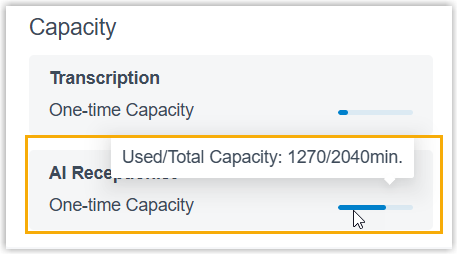
- Add-on
Subscription

- Dashboard
- The system automatically tracks usage and
triggers the following events when specific
thresholds are reached:
- Your AI Receptionist Usage is Reaching the Capacity Limit: Triggered when the used capacity of either one-time capacity or monthly quota pack has reached pre-configured capacity thresholds.
- AI Receptionist Limit Reached: Triggered when the used capacity of both one-time capacity and monthly quota pack has reached the capacity limit.
For more information, see Event Notification Overview.
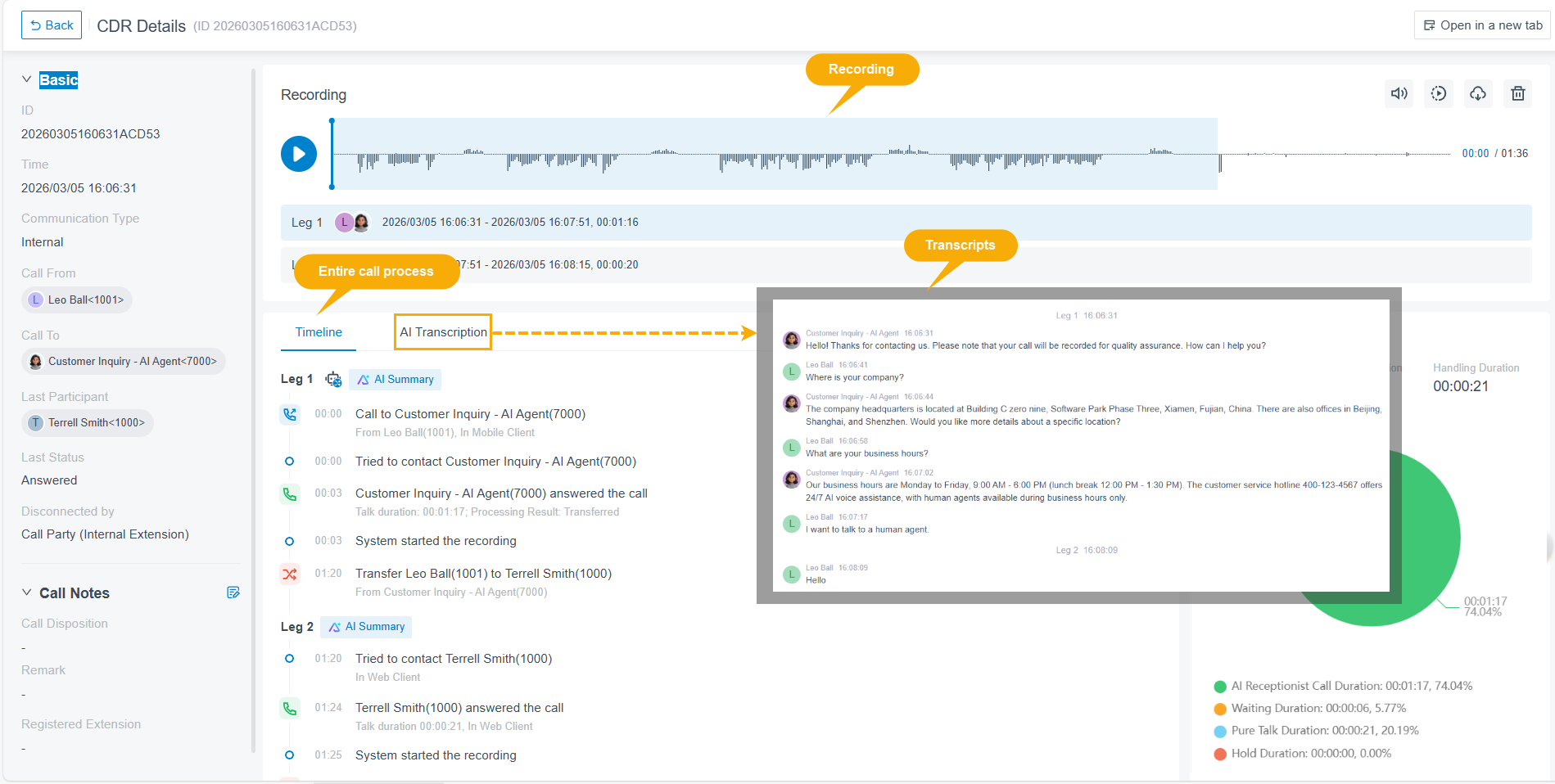
Review call performance - Check the call details and transcripts in CDR
(Path: ). You can view the entire process of the call and access the following information:
- Full conversation transcript and
summary: Review exactly what was discussed
between the AI receptionist and callers. The
transcript also includes tool invocation records,
showing which custom tools or MCP server tools
were triggered during the call.Note: The call transcripts generated by the AI Receptionist do NOT consume minutes from the AI Call Transcription feature.
- Call recordings: Listen to the call recordings to evaluate interaction quality.
- Full conversation transcript and
summary: Review exactly what was discussed
between the AI receptionist and callers. The
transcript also includes tool invocation records,
showing which custom tools or MCP server tools
were triggered during the call.
- Review the call report for the AI receptionist
(Path: ).
You can access the AI receptionist's call statistics from an AI Receptionist Call Activity call report. Key metrics include call volume, transfer rates, and call duration, etc.
For more information about the report, see Access AI Receptionist Call Activity Report.
- You can view the AI receptionist usage from
the following location: