Customize Navigation Bar
This topic describes how to customize the Linkus navigation bar for quick access to your frequently used features.
Procedure
- Log in to Linkus Mobile Client.
- At the bottom of Linkus, tap
More, then tap Custom
Menu.
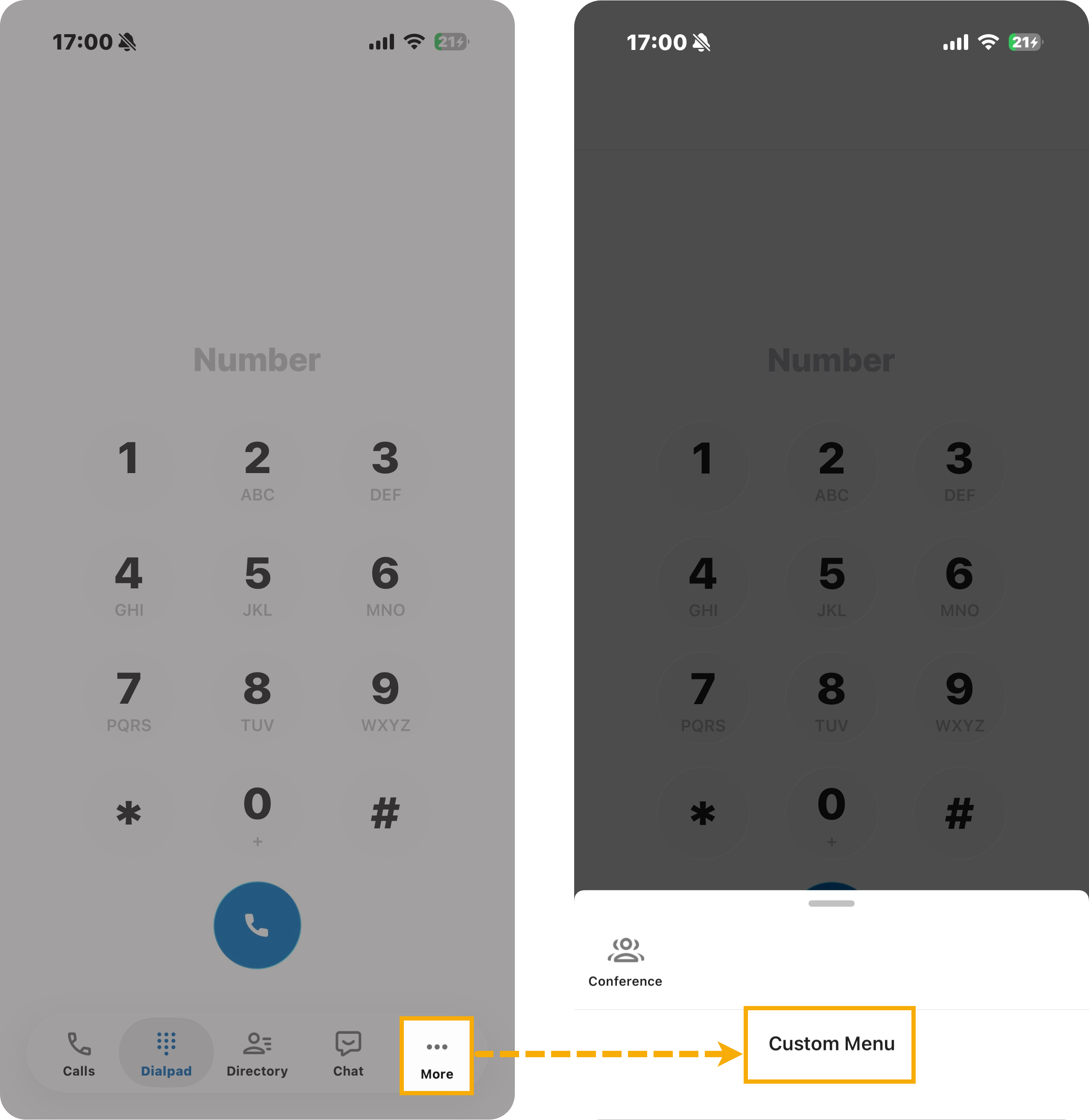
- In the Custom Menu page, customize the menu in the
navigation bar according to your needs.
Operation Instruction Specify tabs in the main menu For features under the Calls and Directory tabs, you can move them from the sub-menu to the main menu. 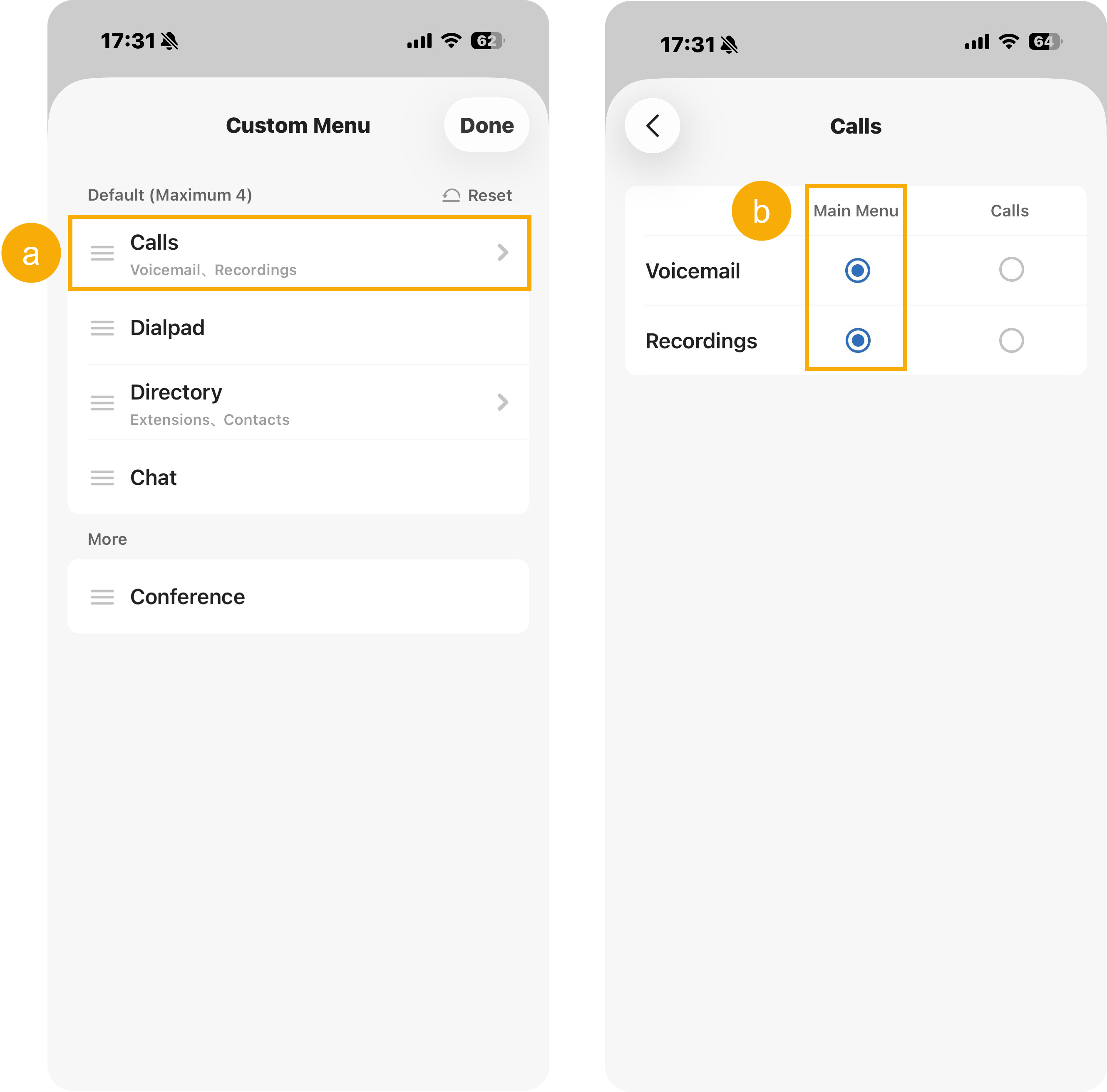
- In the menu list, tap Calls or Directory.
- Select Main Menu for
the desired feature.
The feature(s) are moved to the More list, and will appear as an independent feature tab in the navigation bar.
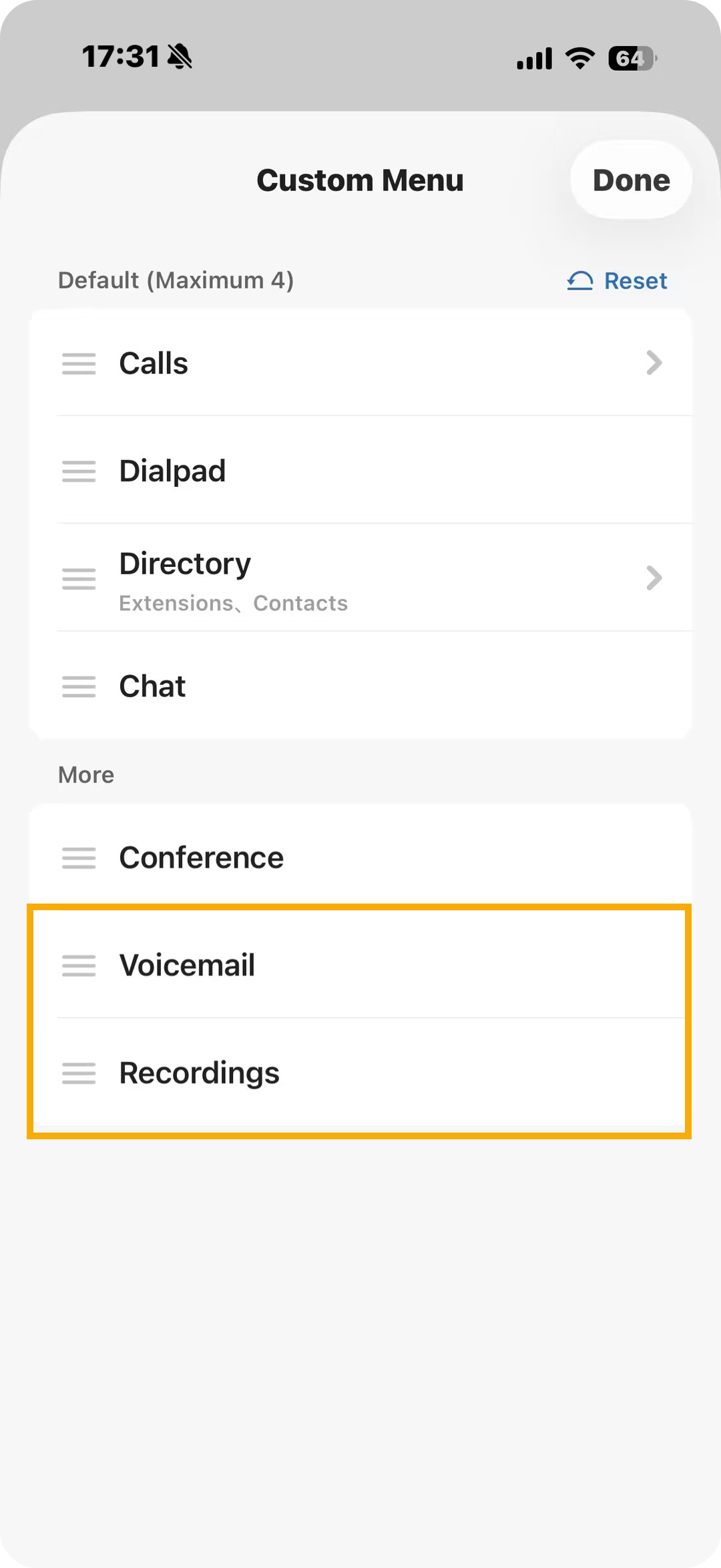
Reorder tabs You can reorder the feature tabs as needed for quick access.
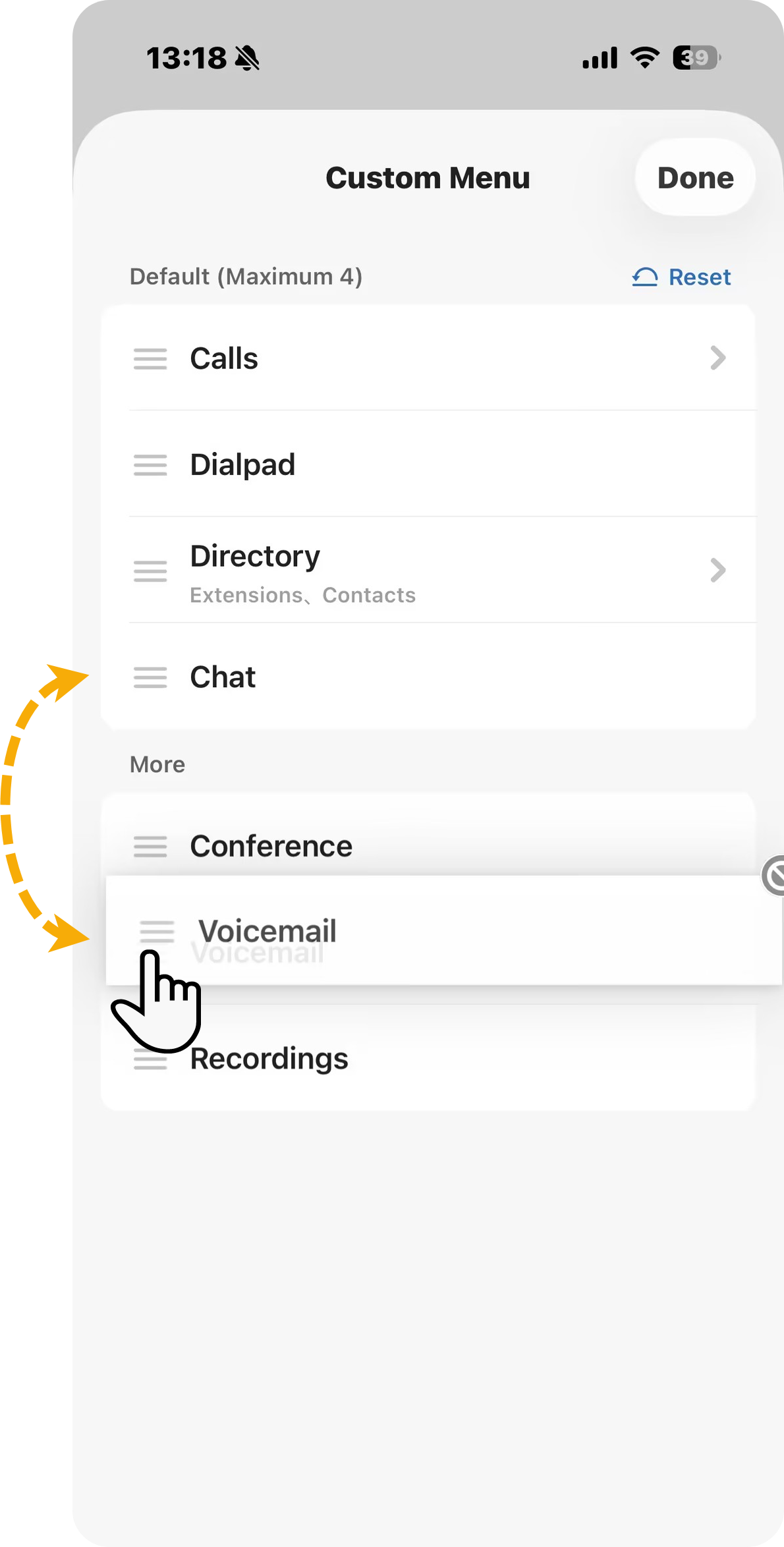
-
Tap and hold the tab you want to move.
-
Drag it to the desired position, then release.
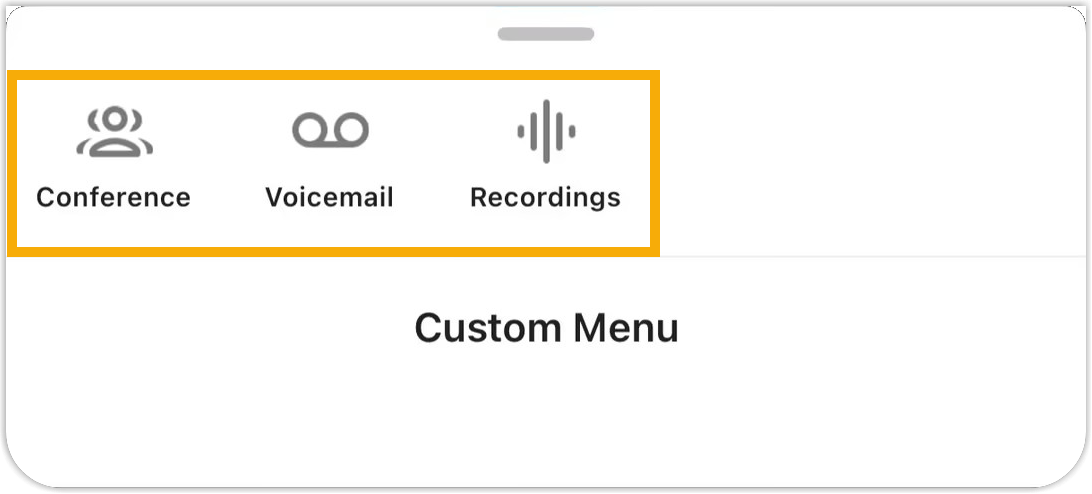
Note:- The navigation bar displays up to 4
feature tabs by default. Additional tabs are
automatically moved to theMore tab.
- The Dialpad tab is fixed in the navigation bar and cannot be moved to More tab.
- The navigation bar displays up to 4
feature tabs by default. Additional tabs are
automatically moved to theMore tab.
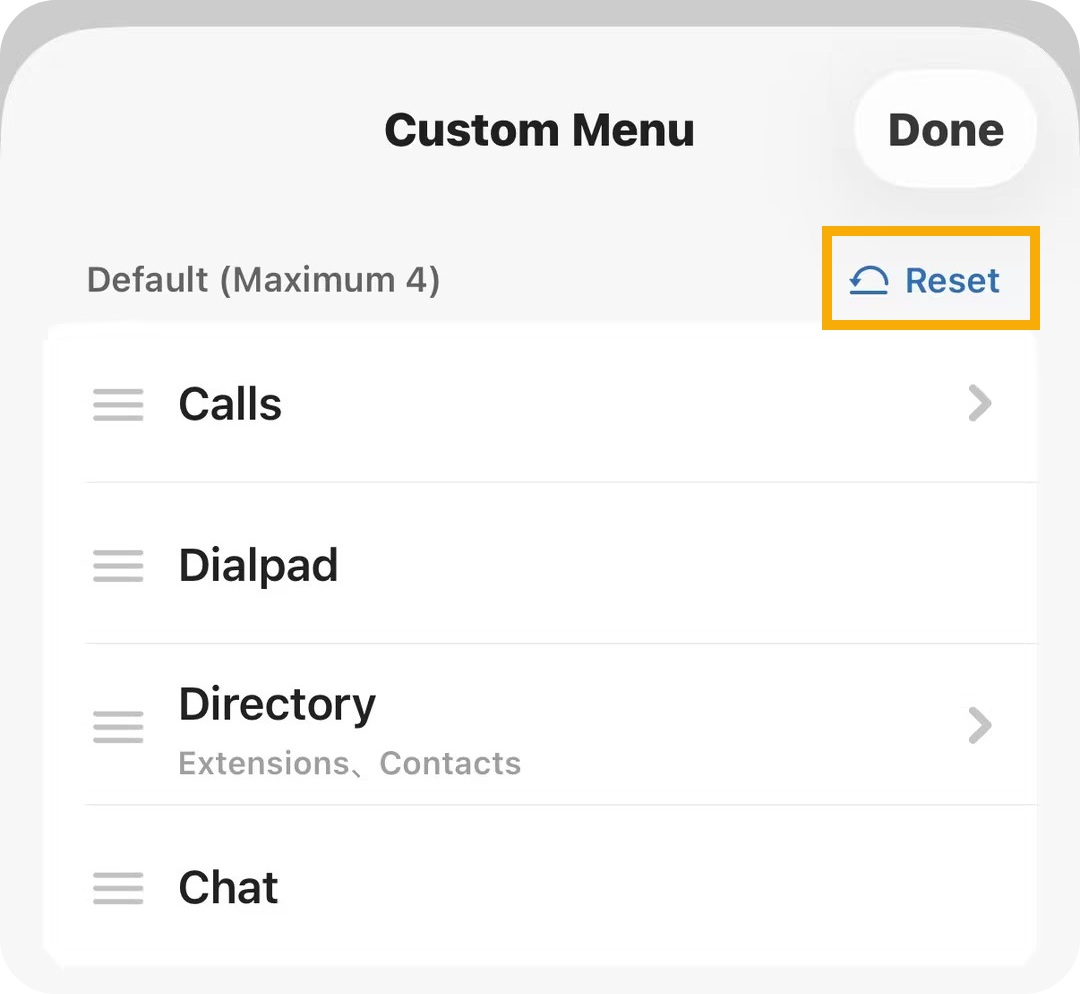
Restore to the default configuration To revert all customizations to the original menu layout, do as follows:
- At the top-right corner of the
Default list, tap
Reset.
- In the pop-up window, tap OK.
- At the top-right corner, tap Done.