Configure Theme Settings
By default, Linkus automatically adapts to your phone's system theme, switching between light and dark modes accordingly. In case of need, you can set Linkus to always use either light or dark mode, regardless of your device's settings.
Requirements
| Mobile Operating System Requirement | Linkus App Requirement | |
|---|---|---|
| iOS | iOS 13 or above | 5.14.3 or above |
| Android | Android 10 or above | 5.14.4 or above |
Procedure
- Log in to Linkus Mobile Client.
- At the top-left corner of the Calls page, tap your account.
- Go to .
- Enable light mode or dark mode as needed.
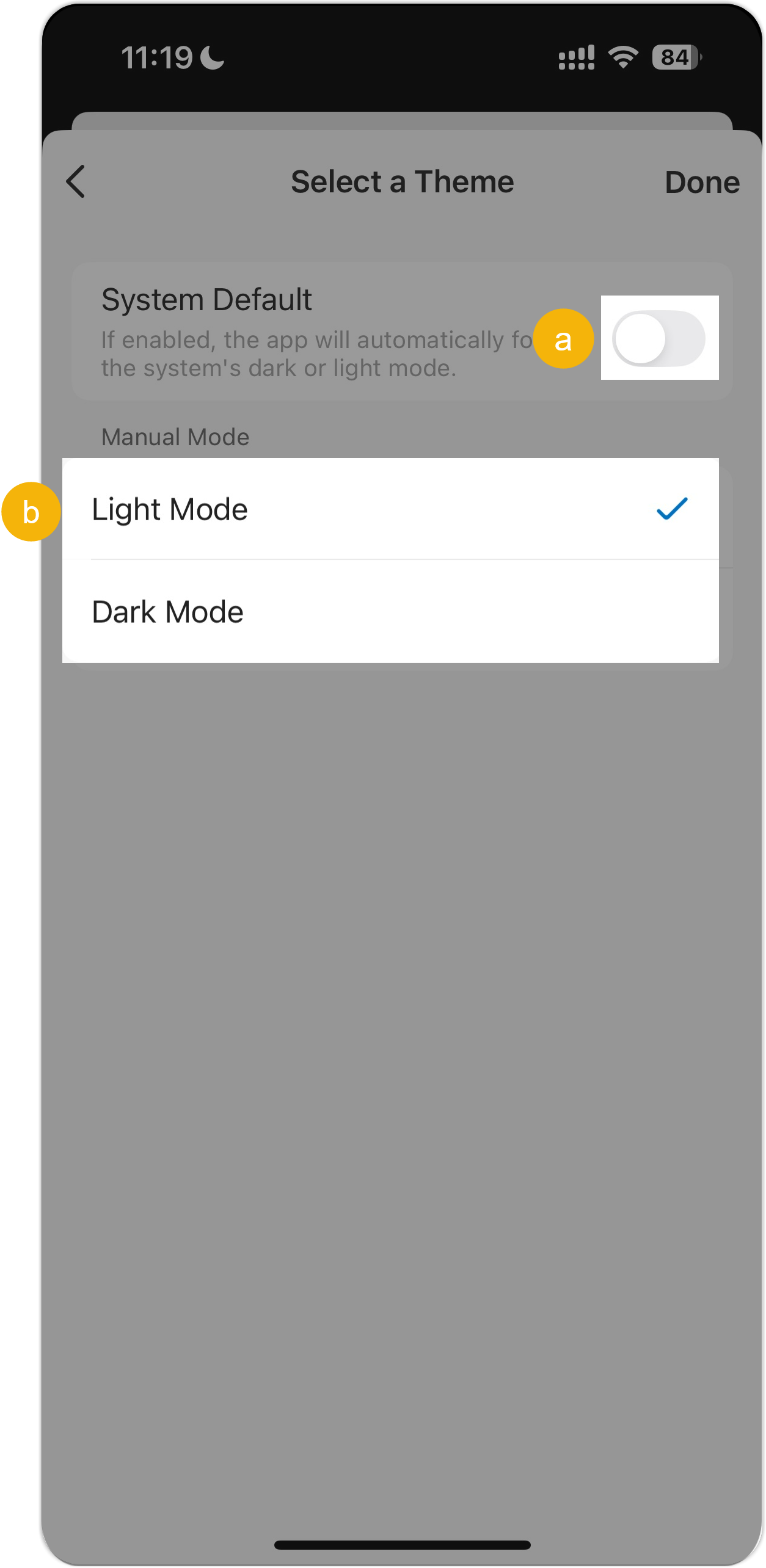
- Turn off the switch of System Default.
- In the Manual Mode section, select a mode.
For iOS, the setting takes effect immediately; For Android, you need to save the setting and then restart Linkus to make it take effect.
Result
The selected mode is applied to Linkus.