Widget Reference
This topic describes the widgets available on the Call Analytics dashboard and the information they provide.
Inbound
The Inbound widget help you monitor inbound call activity and performance, allowing you to track call volume, answer rates, and caller waiting time.
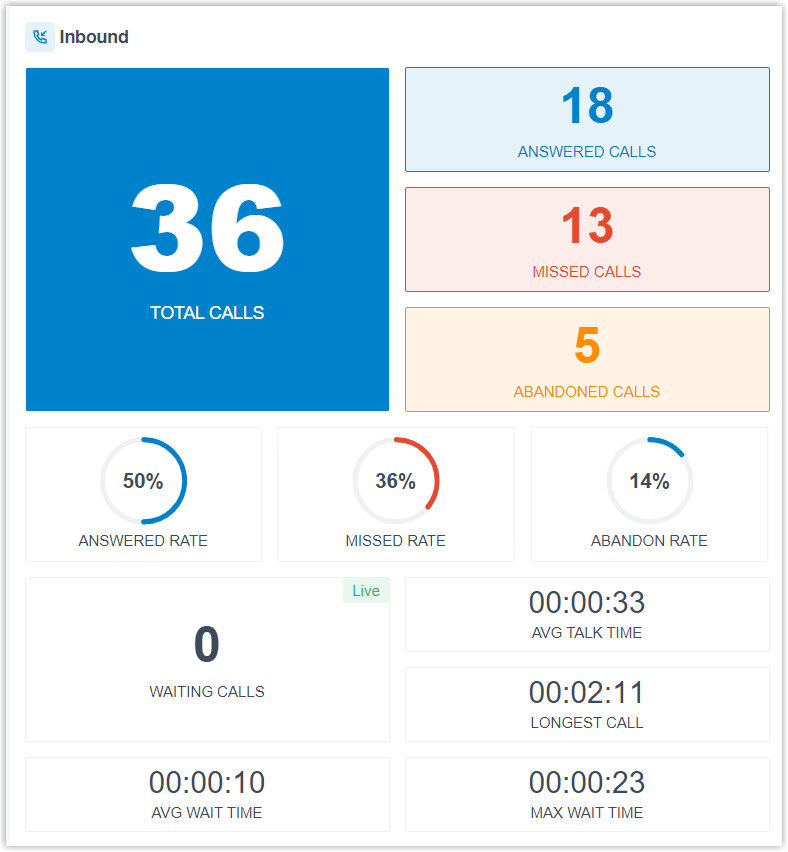
| Widget | Description |
|---|---|
| TOTAL CALLS | The total number of inbound calls received, excluding
internal calls and ongoing inbound calls. Note: You can click the widget
to view the corresponding call records in detail in a pop-up
window.
|
| ANSWERED CALLS | The total number of inbound calls answered. Note: You can click the widget
to view the corresponding call records in detail in a pop-up
window.
|
| MISSED CALLS | The total number of inbound calls that were not answered. Note: You can click the widget
to view the corresponding call records in detail in a pop-up
window.
|
| ABANDONED CALLS | The total number of inbound calls abandoned by callers. Note: You can click the widget
to view the corresponding call records in detail in a pop-up
window.
|
| ANSWERED RATE | The percentage of inbound calls answered out of the total inbound calls. |
| MISSED RATE | The percentage of missed inbound calls out of the total inbound calls. |
| ANBNDON RATE | The percentage of abandoned inbound calls out of the total inbound calls. |
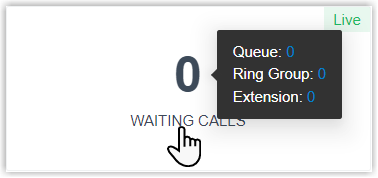
| WAITING CALLS | The number of inbound calls currently waiting to be
answered. Note: The count is updated in
real time. You can do the following:
|
| AVG WAIT TIME | The average ring duration of answered inbound calls. |
| AVG TALK TIME | The average talk time of answered inbound calls. |
| LONGEST CALL | The inbound call with the longest talk duration. Note: You can click the widget
to view the corresponding call records in detail in a pop-up
window. |
| MAX WAIT TIME | The longest ring duration among inbound calls. Note: You can click the widget
to view the corresponding call records in detail in a pop-up
window. |
The following table lists the metrics displayed in the call records pop-up window.
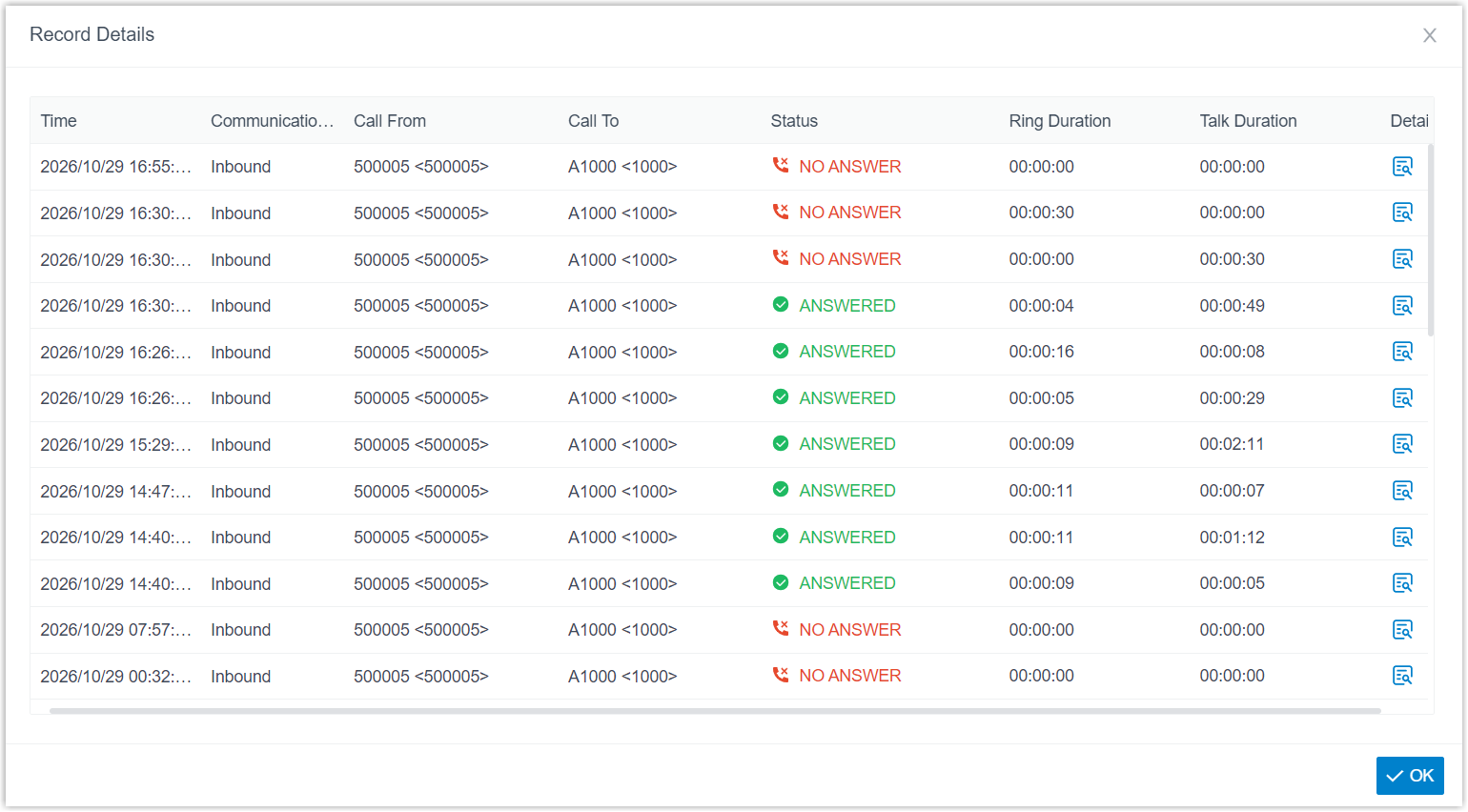
| Metric | Description |
|---|---|
| Time | The time when the inbound call was received. |
| Communication Type | The type of the call. |
| Call From | The caller's number and name. |
| Call To | The callee's number and name. |
| Status | The status of the call. |
| Ring Duration | The time between the call started and the call was answered. |
| Talk Duration | The time between the call answered and the call ended. |
| Details | Click  to view the CDR details. |
Outbound
The Outbound widget helps you monitor outbound call activity and performance, allowing you to track call volume, answer rates, and ongoing calls.
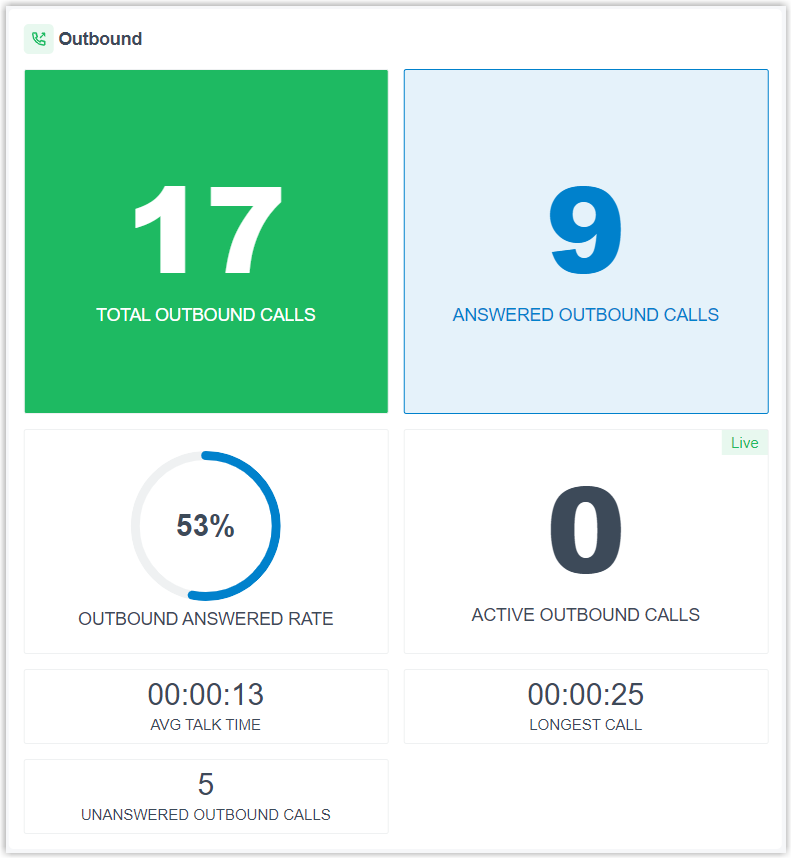
| Widget | Description |
|---|---|
| TOTAL OUTBOUND CALLS | The total number of outbound calls made, excluding ongoing
calls. Note: You can click the widget
to view the corresponding call records in detail in a pop-up
window. |
| ANSWERED OUTBOUND CALLS | The total number of outbound calls answered by the callee. Note: You can click the widget
to view the corresponding call records in detail in a pop-up
window.
|
| OUTBOUND ANSWERED RATE | The percentage of outbound calls answered out of the total outbound calls. |
| AVG TALK TIME | The average talk time of answered outbound calls. |
| UNANSWERED OUTBOUND CALLS | The total number of outbound calls that were not answered. Note: You can click the widget
to view the corresponding call records in detail in a pop-up
window.
|
| ACTIVE OUTBOUND CALLS | The number of outbound calls currently in progress. Note: The count is updated in real time. You
can click it to open Operator Panel and view live outbound
calls. |
| LONGEST CALL | The outbound call with the longest talk duration. Note: You can click the widget
to view the corresponding call records in detail in a pop-up
window. |
The following table lists the metrics displayed in the call records pop-up window.
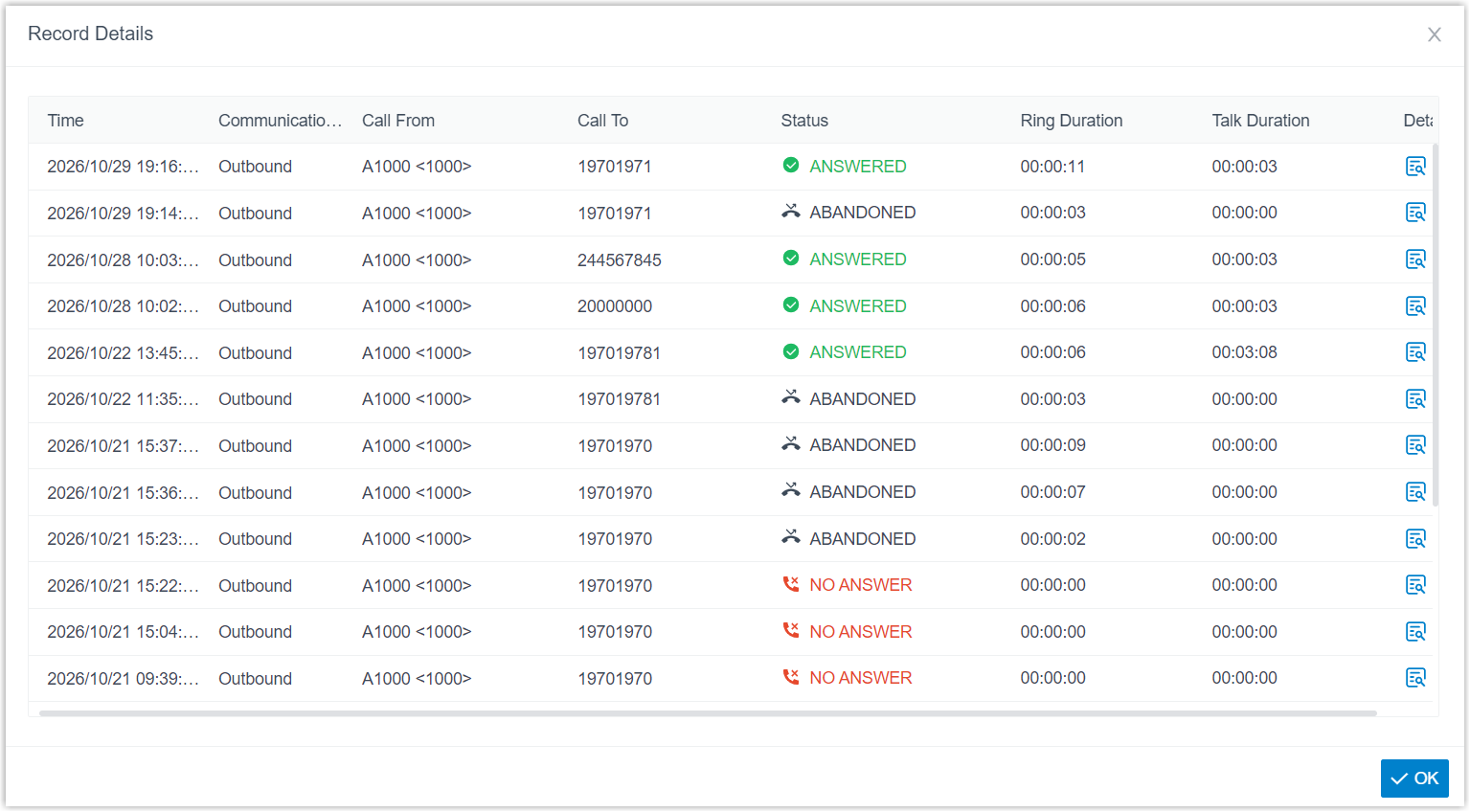
| Metric | Description |
|---|---|
| Time | The time when the outbound call was initiated. |
| Communication Type | The type of the call. |
| Call From | The caller's number and name. |
| Call To | The callee's number and name. |
| Status | The status of the call. |
| Ring Duration | The time between the call started and the call was answered. |
| Talk Duration | The time between the call answered and the call ended. |
| Details | Click to view the CDR details. |
Agent Status
The Agent Status widget displays the number of agents in each status across the selected teams, helping managers monitor agent availability across queues.
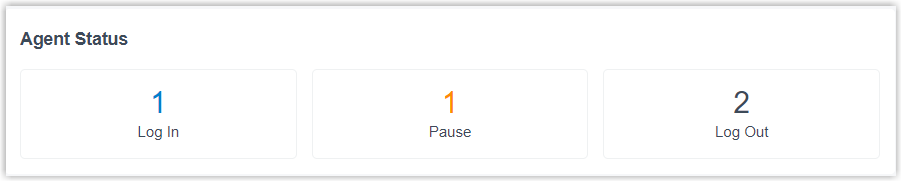
- Agents are counted separately for each queue they belong to.
- You can click the count to access Queue Panel and view real-time queue statistics.
| Widget | Description |
|---|---|
| Log In | The number of agents in the logged-in state (dynamic agents) and unpaused state (static agents). |
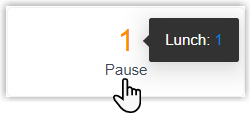
| Pause | The number of agents in the paused state. Note: Hover over the count to view the
number of agents under each pause reason.
|
| Log Out | The number of agents in the logged-out state. |
Call Performance
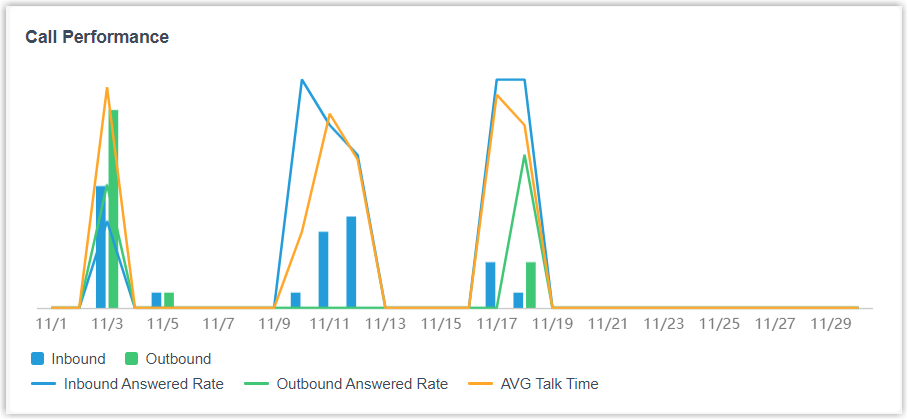
The Call Performance widget helps you monitor inbound and outbound call performance over time, making it easier to identify changes in call activity.
| Widget | Description |
|---|---|
| Inbound | The total number of inbound calls. |
| Outbound | The total number of outbound calls. |
| Inbound Answered Rate | The percentage of inbound calls answered out of the total inbound calls received. |
| Outbound Answered Rate | The percentage of outbound calls answered out of the total outbound calls made. |
| AVG Talk Time |
The average talk time of answered inbound and outbound calls. |
SLA
The SLA widget shows the overall service level for inbound calls across the selected teams, helping managers monitor overall inbound call handling performance.

SLA is calculated using the following formula:
SLA = (Number of inbound calls answered within the SLA time / Total inbound calls) * 100%Total inbound calls refers to all
inbound calls received, including answered calls, calls abandoned by callers,
and missed calls.| Widget | Description |
|---|---|
| SLA (%) |
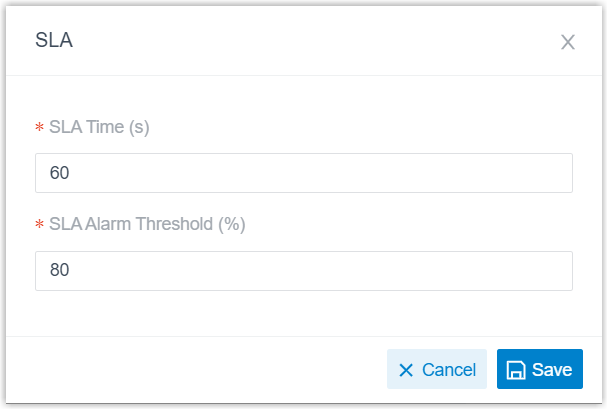
The percentage of inbound calls answered within the specified SLA time. By default, the target service level is 80% of inbound calls answered within 60 seconds. You can customize the SLA time and alarm threshold for this widget.
|
 .

 on the
widget.

Team SLA
The Team SLA widget shows the SLA performance of each team, helping compare service levels and identify teams that may need improvement.
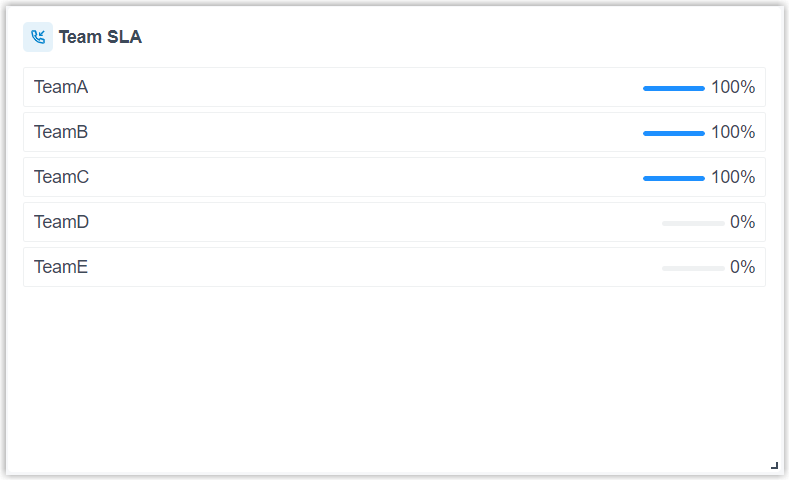
Team SLA is calculated using the following formula:
SLA = (Inbound calls answered within the SLA time / Total inbound calls) * 100%Total inbound calls refers to all
inbound calls received, including answered calls, calls abandoned by callers,
and missed calls.| Widget | Description |
|---|---|
| SLA (%) | The percentage of inbound calls answered within the specified
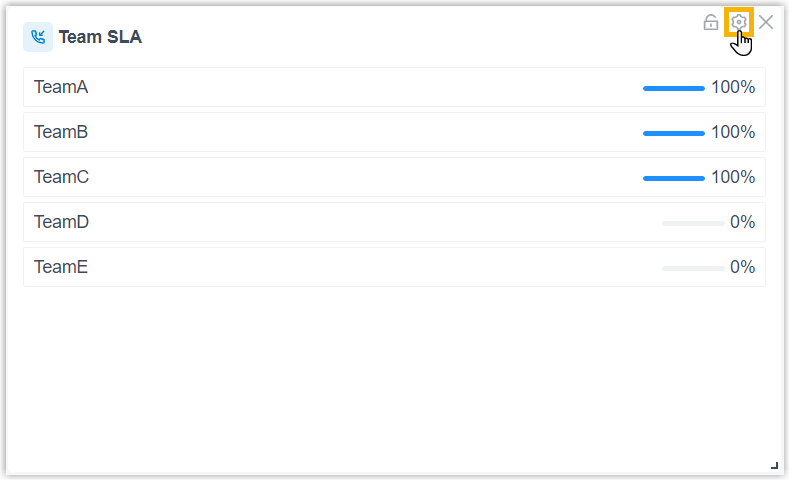
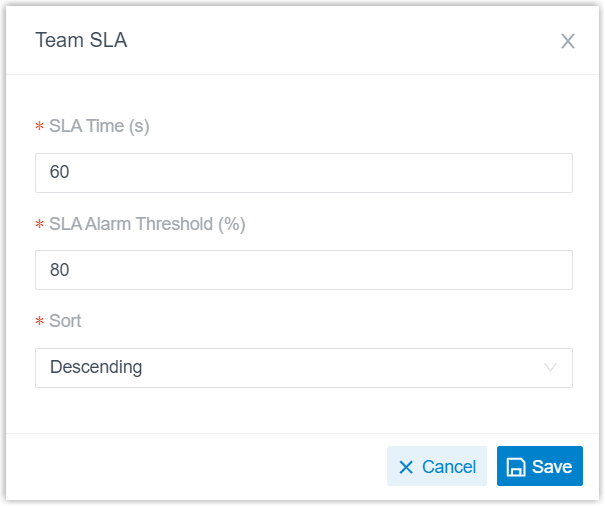
SLA time for each team. By default, the target service level is 80% of inbound calls answered within 60 seconds. You can customize the SLA settings for the widget, including the SLA time, alarm threshold, and team sorting order.
|
Extension Performance Ranking
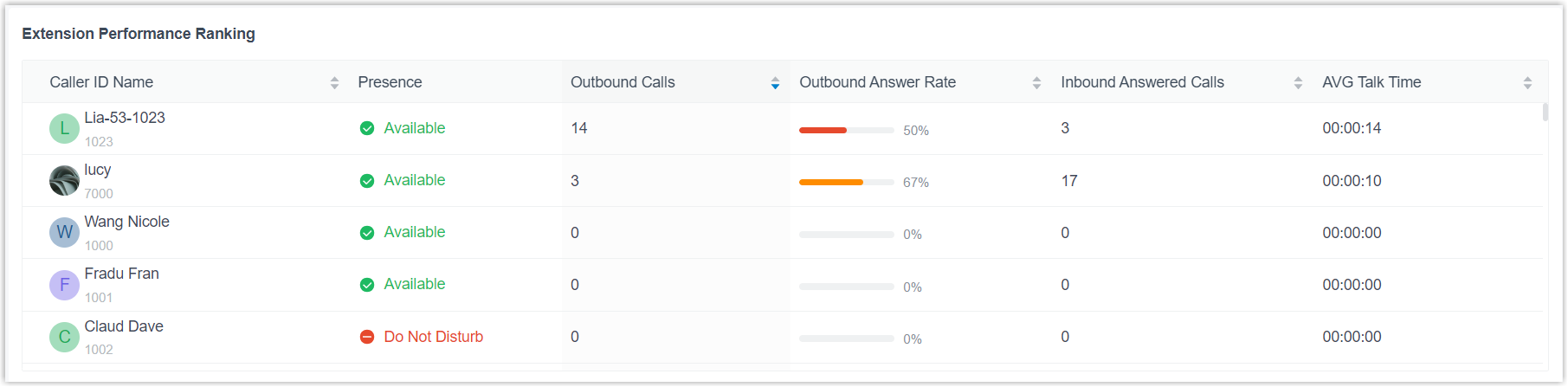
The Extension Performance Ranking widget ranks extensions based on their call performance, helping compare extension performance and identify top and low performing extensions.
| Metric | Description |
|---|---|
| Caller ID Name | The extension's name and number. |
| Presence | The extension's current presence status. |
| Outbound Calls | The total number of outbound calls made by the extension. |
| Outbound Answer Rate |
The percentage of outbound calls answered out of the total outbound calls made by the extension. |
| Inbound Answered Calls | The total number of inbound calls answered by the extension. |
| AVG Talk Time |
The average talk time of answered inbound and outbound calls for the extension. |
Call Records
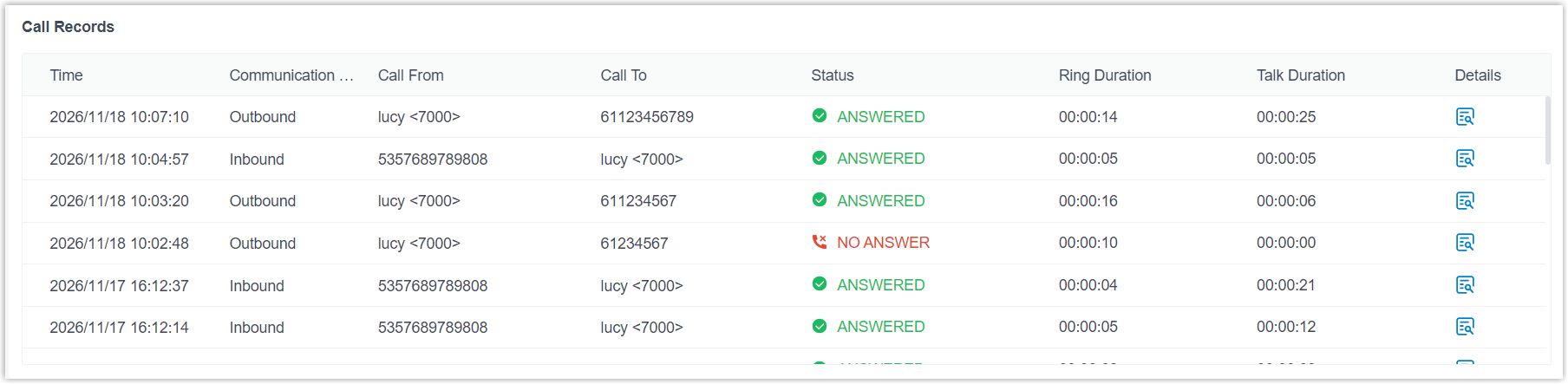
The Call Records widget displays inbound and outbound call records directly on the dashboard, allowing you to review call details at a glance.
| Metric | Description |
|---|---|
| Time | The time when the call was made or received. |
| Communication Type | The type of the call. |
| Call From | The caller's number and name. |
| Call To | The callee's number and name. |
| Status | The call status. |
| Ring Duration | The time between the call started and the call was answered. |
| Talk Duration | The time between the call answered and the call ended. |
| Details | Click to view the CDR
details. |
Unreturned / Unanswered Callback
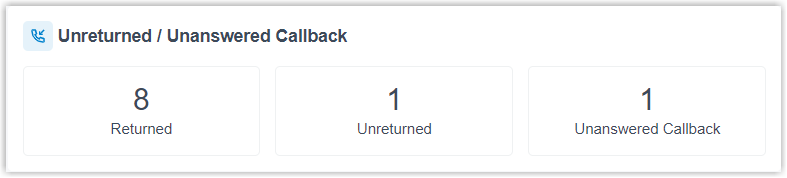
The Unreturned / Unanswered Callback widget tracks missed inbound calls and their callback status, helping you identify calls that require follow-up.
For more information, see Add a widget.
| Widget | Description |
|---|---|
| Returned | The number of missed inbound calls that were subsequently returned and successfully connected. |
| Unreturned | The number of missed inbound calls that have not been returned. |
| Unanswered Callback | The number of missed inbound calls that were returned but not answered. |
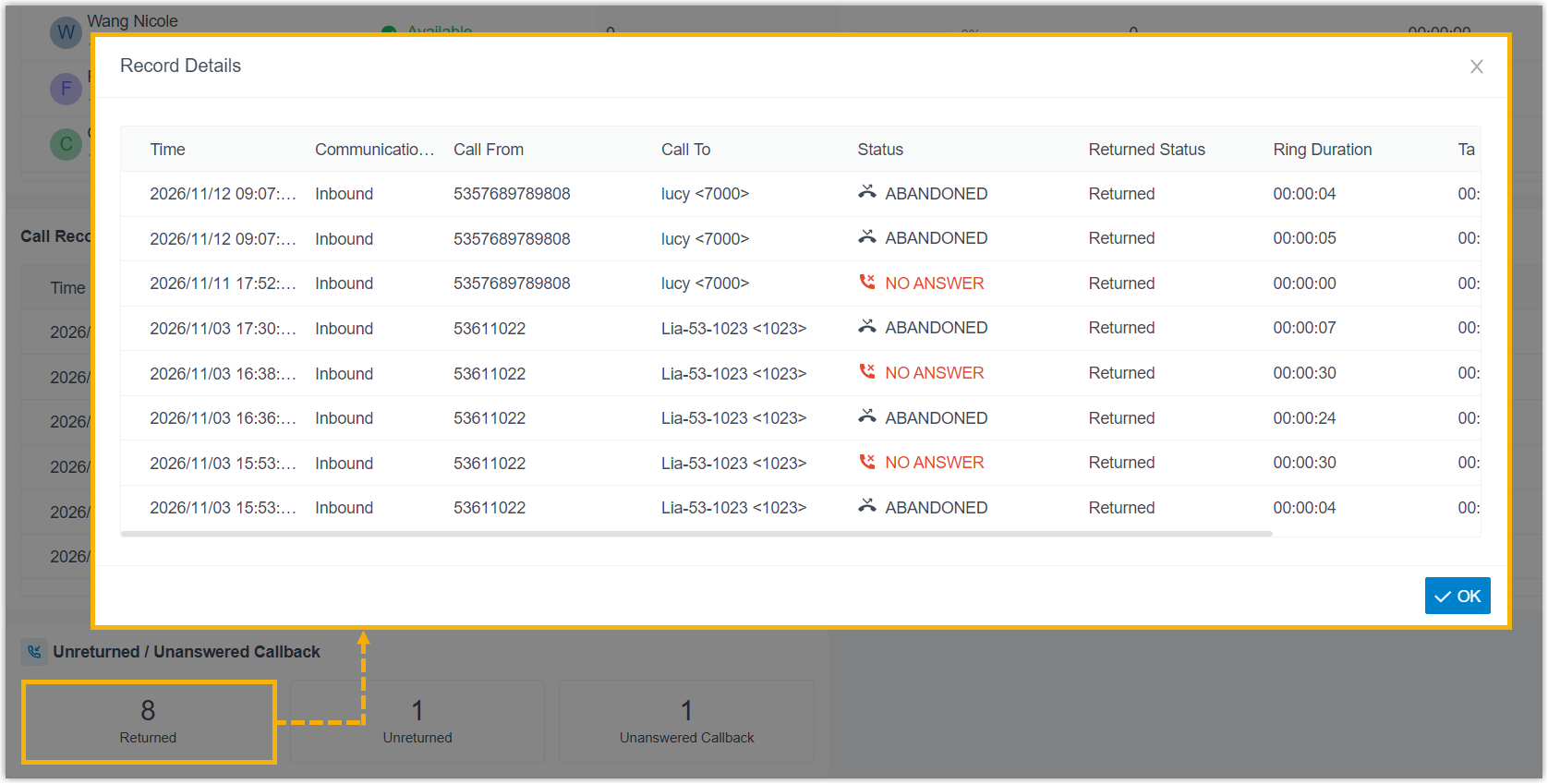
You can click any of the widgets above to view the corresponding call records in a pop-up window. The following table describes the metrics displayed in the records.
| Metric | Description |
|---|---|
| Time | The time when the inbound call was received. |
| Communication Type | The type of the call. |
| Call From | The caller's number and name. |
| Call To | The callee's number and name. |
| Status | The call status. |
| Returned Status | Whether the missed call was successfully returned. |
| Ring Duration | The time between the call started and the call was answered. |
| Talk Duration | The time between the call answered and the call ended. |
| Details | Click to view the CDR
details. |