Manage Widgets
You can customize the dashboard by adding, resizing, repositioning, locking, or deleting widgets. This topic describes how to manage widgets in Linkus Desktop Client.
Add a widget
- Log in to Linkus Desktop Client, go to Call Analytics.
- Click
 .

- Add a widget.
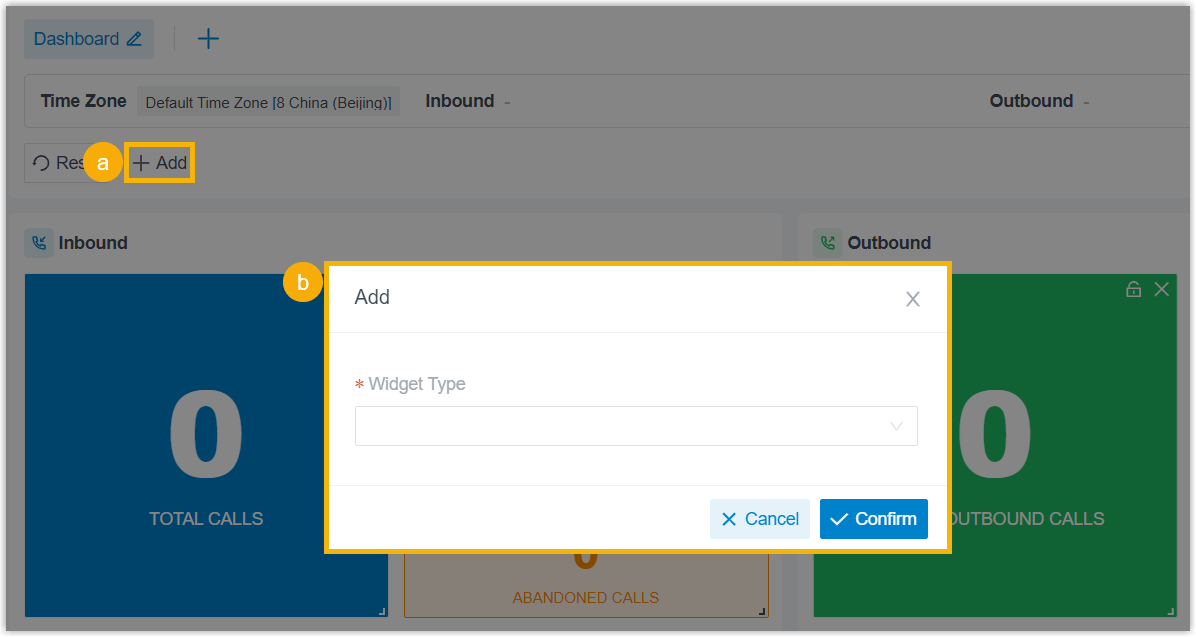
- Click Add.
- In the pop-up window, select the desired widget from the Widget Type drop-down list, then click Confirm.
Resize a widget
- Log in to Linkus Desktop Client, go to Call Analytics.
- Click .
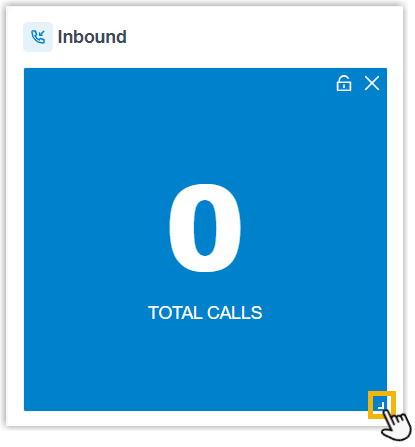
- Hover over the bottom-right corner of the widget you want to
resize.
-
Drag the corner to adjust the widget's size.
- Click Save.
Move and lock a widget
- Log in to Linkus Desktop Client, go to Call Analytics.
- Click .
-
Drag the desired widget to the desired position.
- Click
 on the widget.
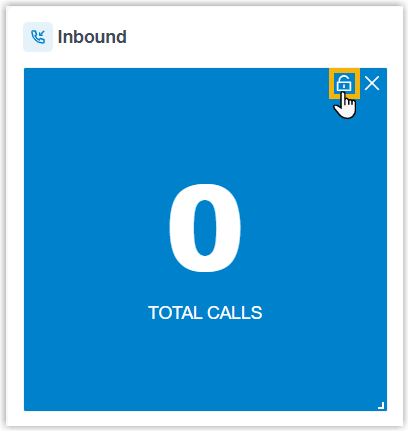
- Click Save.
Delete a widget
- Log in to Linkus Desktop Client, go to Call Analytics.
- Click .
- Click
 on the widget.
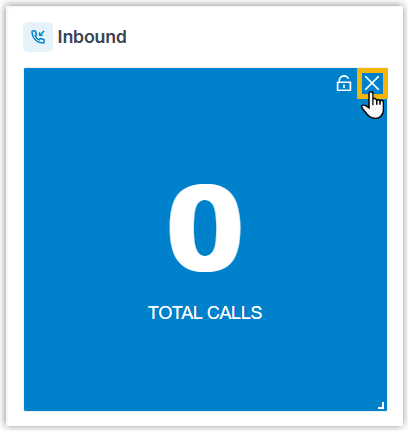
- Click Save.
Reset widgets
- Log in to Linkus Desktop Client, go to Call Analytics.
- Click .
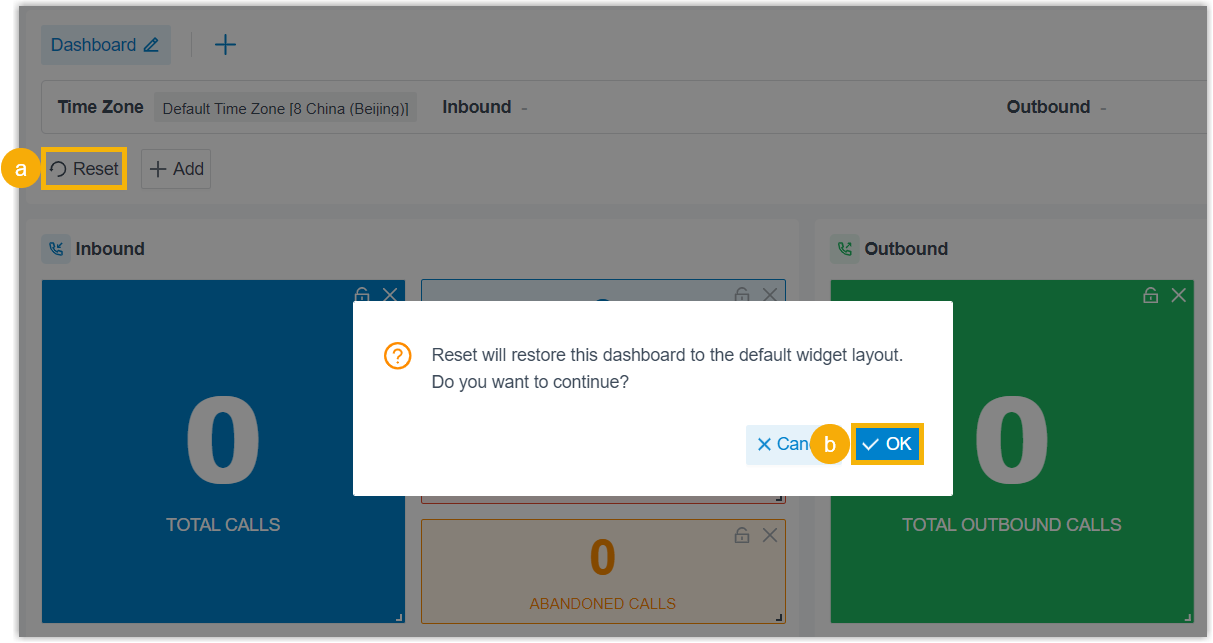
- Click Reset, then confirm the operation.