Configure Theme Setting
By default, Linkus automatically adapts to your operating system's theme, switching between light and dark modes accordingly. In case of need, you can set Linkus to always use either light or dark mode, regardless of your operating system's settings.
Requirements
- System administrator has upgraded the PBX server to 84.21.0.117 or later.
- The version of your Linkus Desktop Client is 1.19.3 or later.
Procedure
- Access the Settings menu of Linkus Desktop Client
based on your operating system.
- For Windows: At the system tray, right click
 , then select
Settings.
, then select
Settings.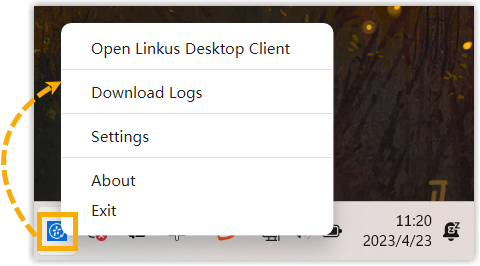
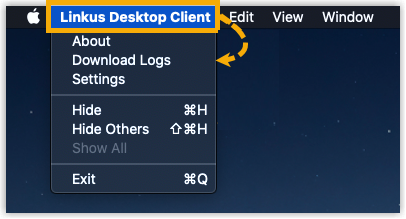
- For macOS: On the App menu, click Linkus Desktop
Client, then select
Settings.
- For Windows: At the system tray, right click
- In the Theme drop-down list, select
your desired theme mode.
Mode Description Follow System Automatically sync with your operating system's current theme. Light Mode Always use the light theme. Dark Mode Always use the dark theme.
Result
The selected theme mode is immediately applied to Linkus, the interface displays the corresponding theme colors.