View WhatsApp Message Templates
Yeastar P-Series Cloud Edition supports WhatsApp message templates, allowing extension users to send pre-approved, structured messages to their customers.
Introduction
PBX automatically synchronizes approved message templates based on the WhatsApp Business Account ID associated with the WhatsApp channel. By default, extension users can reply to inbound messages within the WhatsApp channel during the WhatsApp 24-hour customer service window. To proactively send messages, such as initiating a new WhatsApp session or launching a WhatsApp campaign for bulk messaging, outside this 24-hour time window, users must use these synchronized template messages.
- For more information about how to view message templates for a WhatsApp channel in PBX, refer to the instructions below.
- For more information about how to use template messages in a WhatsApp campaign, see Create a WhatsApp Campaign.
- For more information about how users can use the message templates, see Agent Guide - Start a Message Session via a WhatsApp Channel.
Prerequisites
- Ensure that the firmware of PBX server is 84.20.0.21 or later.
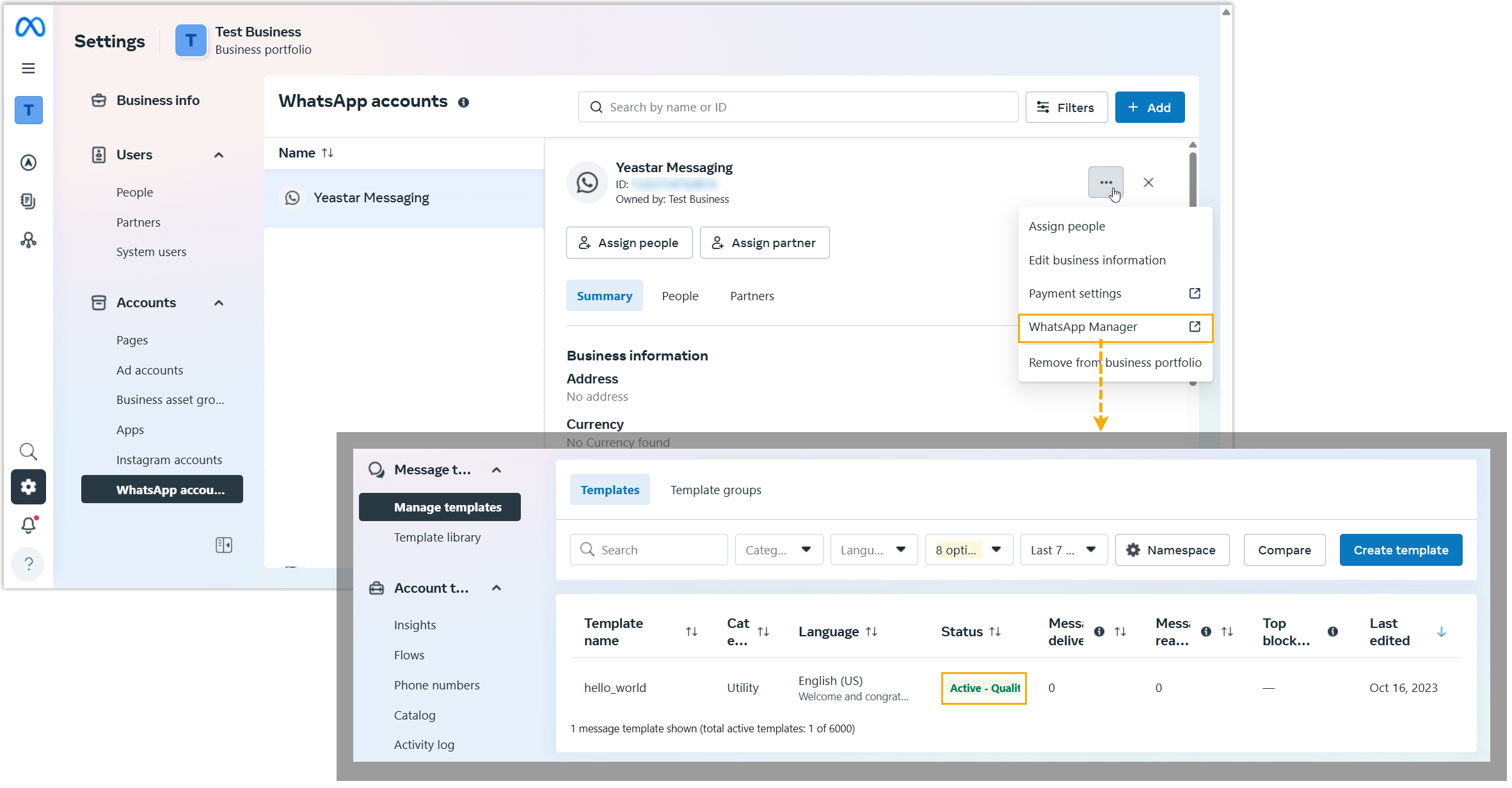
- Message templates have been created and
approved in your WhatsApp Business Account.Note:
- Only templates with Active status will be synchronized to the PBX; marketing templates of the Catalog type will be excluded.
- The PBX supports synchronizing up to 250 message templates for each WhatsApp channel.
- Variable names in the template support only lowercase letters and numbers. Do not use underscores or special characters, as this may affect usage.
- A WhatsApp channel has been set up with your WhatsApp Business Account.
Procedure
- Log in to PBX web portal, go to .
- Click
 beside a WhatsApp channel.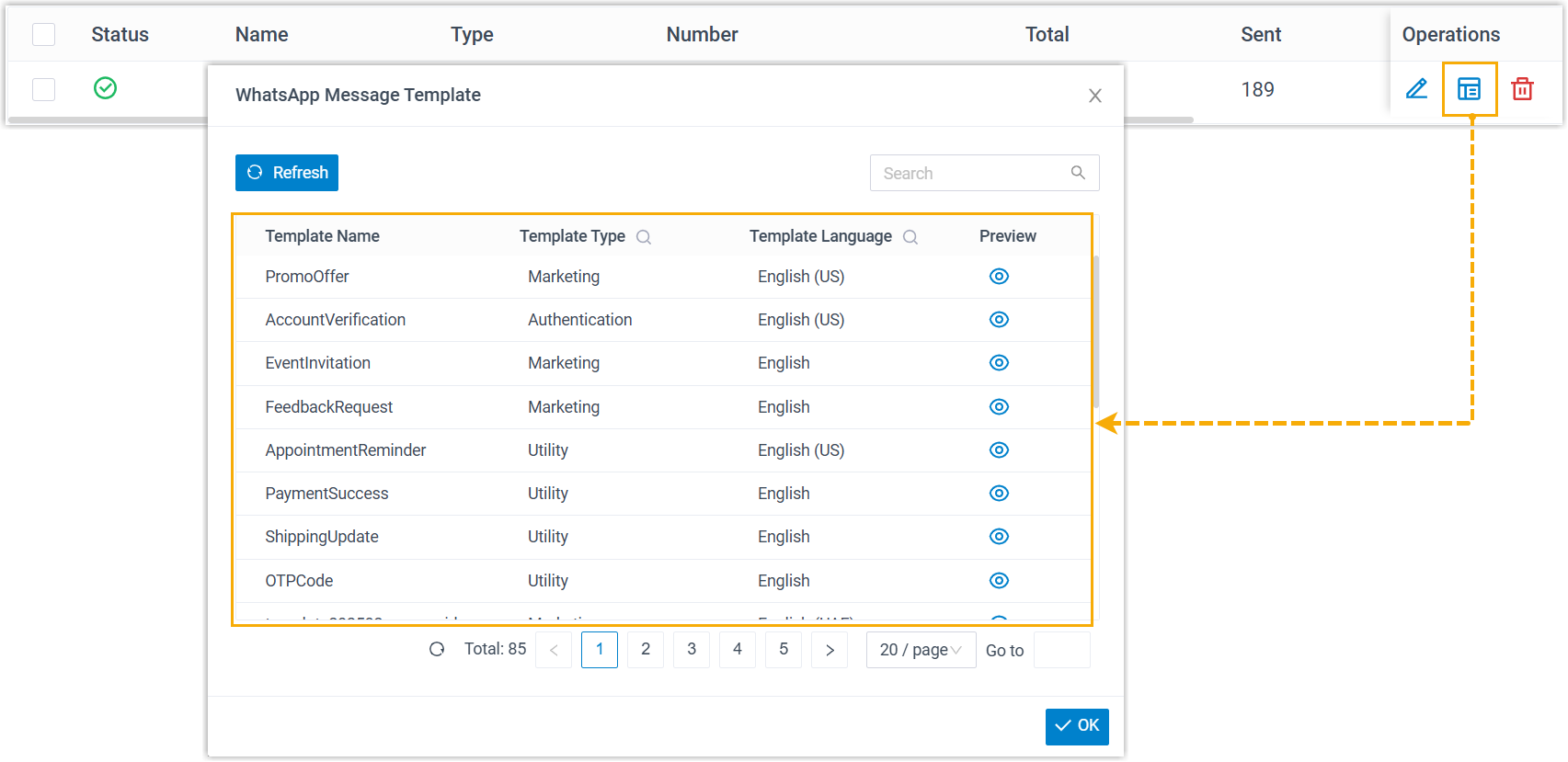
A window pops up, displaying all synchronized message templates associated with your WhatsApp Business Account.
- To preview a message template, click
 .
. - To update the list and content of message templates to the latest version,
click Refresh.Note: The system automatically refreshes the templates once a day by default. If needed, you can also refresh the list manually.