Set up User Voicemail
This topic describes how to enable and configure voicemail for users.
Procedure
- Log in to NovoOne Tenant portal, go to .
- Click
 beside the
desired user.
beside the
desired user. - In the Voicemail tab, configure the voicemail
settings.
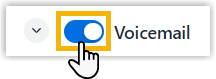
- Turn on the switch to enable voicemail.
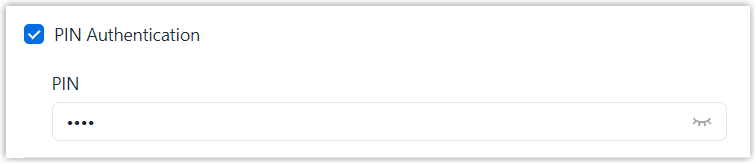
- Specify whether users must enter a PIN to access voicemail.
If enabled, enter a PIN in the PIN field.
- Specify the information to be announced during voicemail
playback.
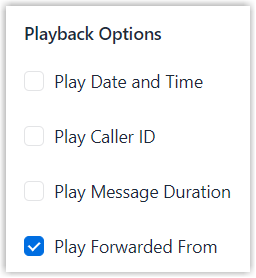
Setting Description Play Date and Time Announce the date and time when the message was received. If enabled, select the time format used for the announcement.
Play Caller ID Announce the caller ID of the party who left the message. Play Message Duration Announce the message duration. Play Forwarded From Announce the forwarding source if the message is forwarded. Note: If two or more options are enabled, the system announces the information in the following order: Forwarded From > Date and Time > Caller ID > Message Duration. - Specify
whether to enable voicemail to email to receive email notifications
when a new voicemail is received.
If enabled, configure the following settings.

Setting Description Voicemail to Email Turn on the switch to enable email notifications when the user receives a new voicemail. Attach Voicemail to Email Specify whether to attach the new voicemail message as a .wavfile to the notification email.After Notification Action Specify how to handle the voicemail message after notification email is sent. - Mark as Read: Mark the voicemail message as read.
- Delete Voicemail: Delete the voicemail message from mailbox.
- No Action: Keep the voicemail message as unread.
Send to Specify the email address to which notification emails are sent. - User Email: Send notification emails to the user's email address.
- Custom Email: Send
notification emails to a custom email
address.
If selected, enter the desired email address in the Email Address field.
- Specify the greeting to be played to callers before they leave
voicemail messages.
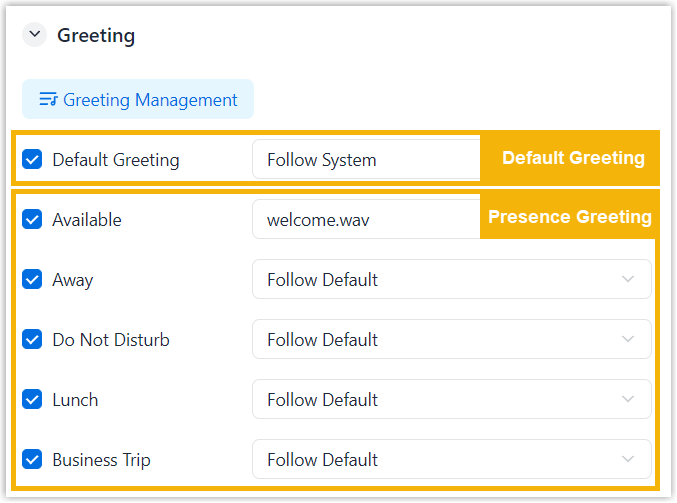
- Default
Greeting: Configure the greeting to be
played when the presence-specific greeting is set
to Follow Default.
You can select Follow System to use the system-level greeting (defined in ), or click Create New to add a new greeting.
- Presence-specific Greeting:
Configure the greeting to be played when the caller is
routed to the user's voicemail box while the user is in the
corresponding presence.
You can select Follow Default to use the default greeting, or click Create New to add a new greeting.
- Default
Greeting: Configure the greeting to be
played when the presence-specific greeting is set
to Follow Default.
- Turn on the switch to enable voicemail.
- Click Save.
Result
Voicemail is enabled for the user. Incoming calls can be routed to the user's voicemail according to the call handling settings.