Transfer a call
Call Transfer feature allows you to transfer an ongoing call to another number. For example, if you receive a call from a customer who reaches the wrong person or team, you can transfer the call to the correct one rather than asking the customer to hang up and call a different number.
Introduction
There are two types of call transfer supported:
- Blind Transfer: Transfer an ongoing call to a third
party immediately without giving him or her prior notification.
For more information, see Perform a blind transfer.
- Attended Transfer: Put the ongoing call on hold and
establish a second call with third party to pass on all relevant information
and get his or her consent before transferring the call.
For more information, see Perform an attended transfer.
Perform a blind transfer
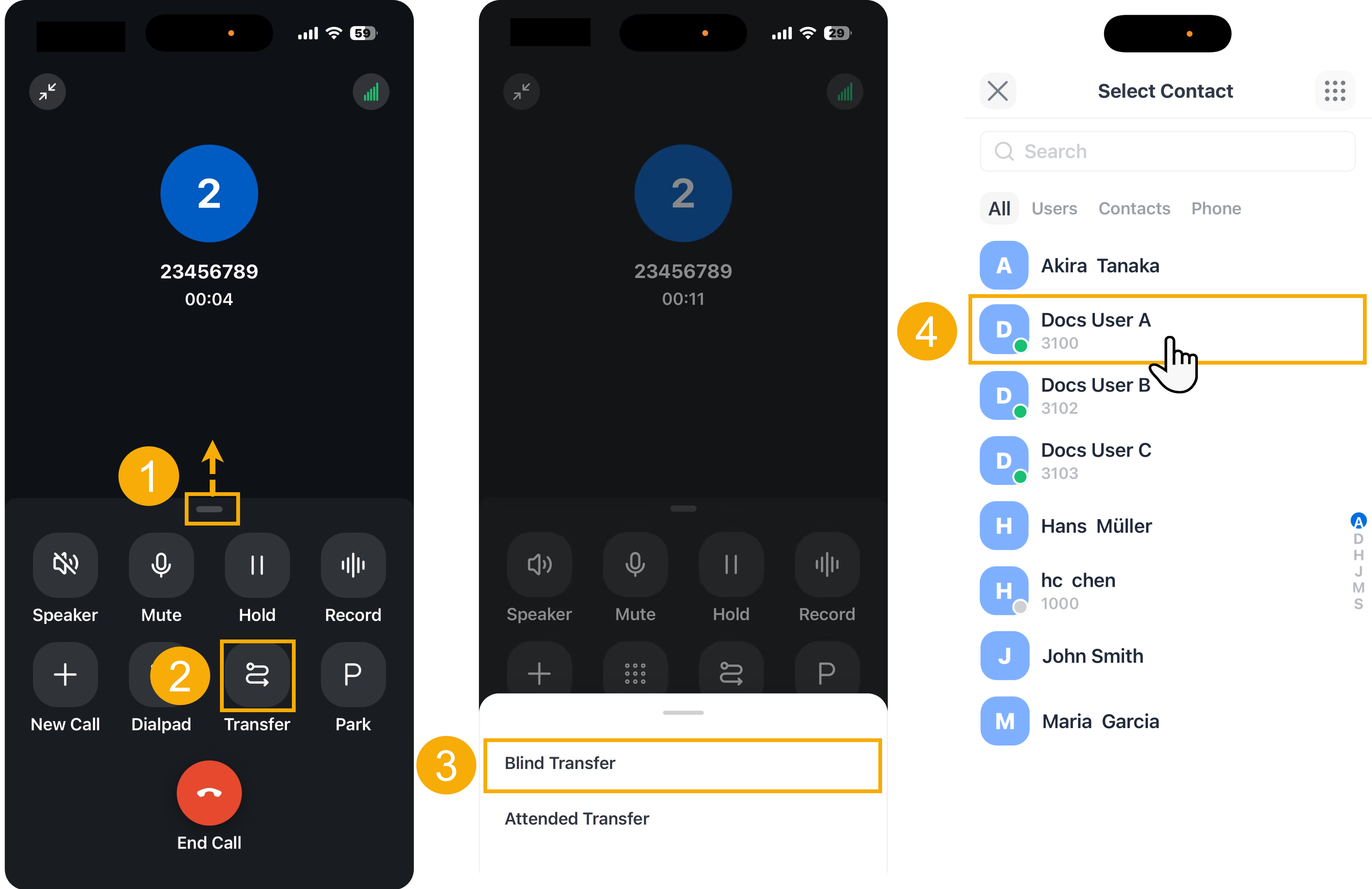
- During an active call, swipe up on the grabber to expand the call control panel.
- On the call control panel, tap
 (Transfer).
 - In the bottom panel, tap Blind Transfer.
The call is put on hold.
- In the Select Contact page, enter a
number or directly select the desired user or contact to transfer the
call.
The current call is disconnected; The specified user or contact will receive the call. When the call is answered, the other two parties are connected.
Perform an attended transfer
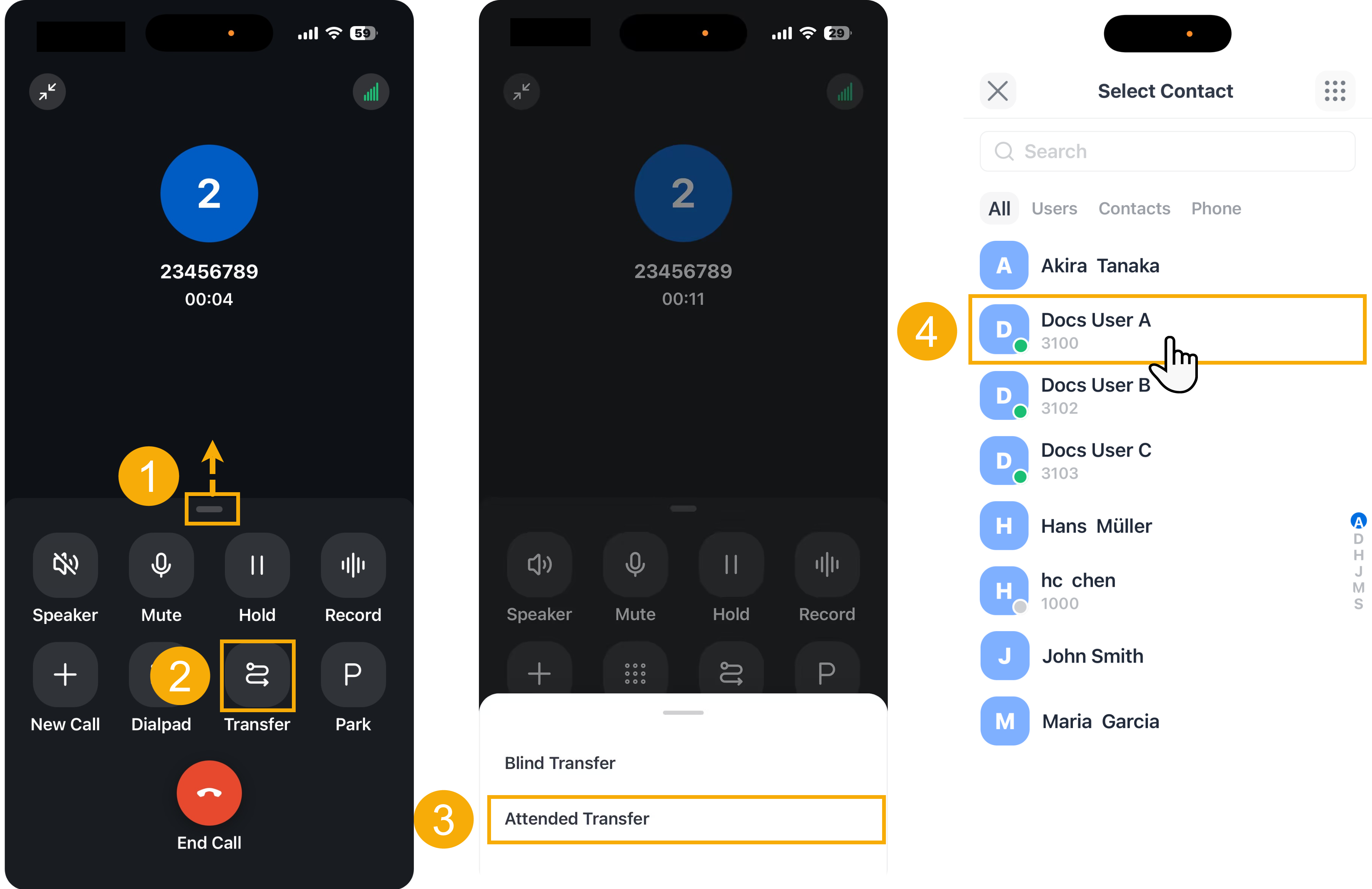
- During an active call, swipe up on the grabber to expand the call control panel.
- On the call control panel, tap
(Transfer).
- In the bottom panel, tap Attended Transfer.
The call is put on hold.
- In the Select Contact page, enter a number or
directly select the desired user or contact to transfer the call.
The specified user or contact will receive a call.
-
If the specified contact answers the call, you can talk to them to pass on all relevant information first, then tap Transfer.
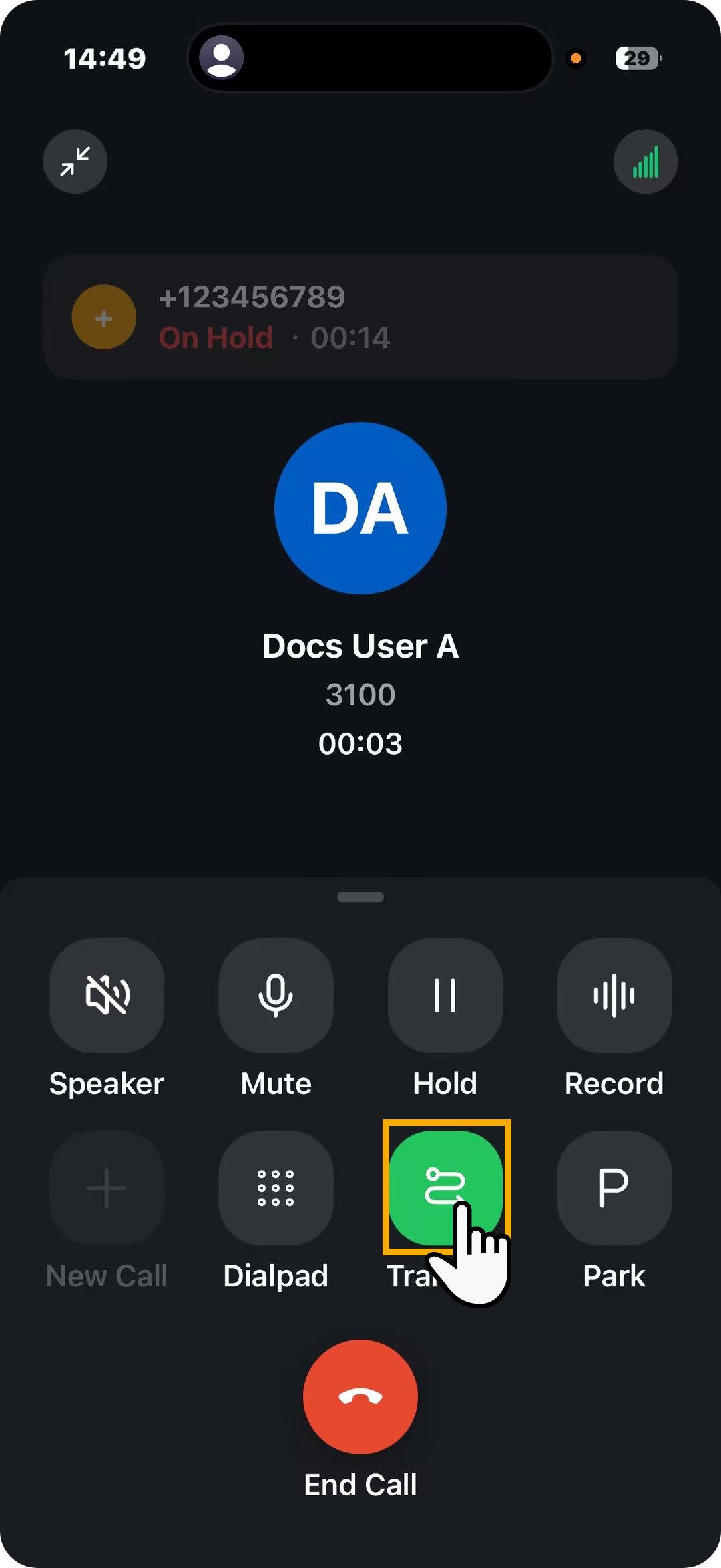
The current call is disconnected; The other two parties are connected.