Manually Transcribe a Call
With AI Call Transcription, you can transcribe your calls into readable text in real time, making it easier to review key points and follow up on action items.
Introduction
AI Call Transcription converts your one-on-one calls into readable text in real time, helping you capture key details without taking notes.
Call transcription can work in one of the following ways:
-
Automatic: If automatic call transcription is enabled, transcription starts automatically whenever you make or receive a one-on-one call. You can view the transcript in real time during the call.
-
Manual: If automatic call transcription is not enabled, you can start transcription manually during a call, as described below.
Requirements
System administrator has enabled AI Call Transcription feature and granted you permission to use it.
Procedure
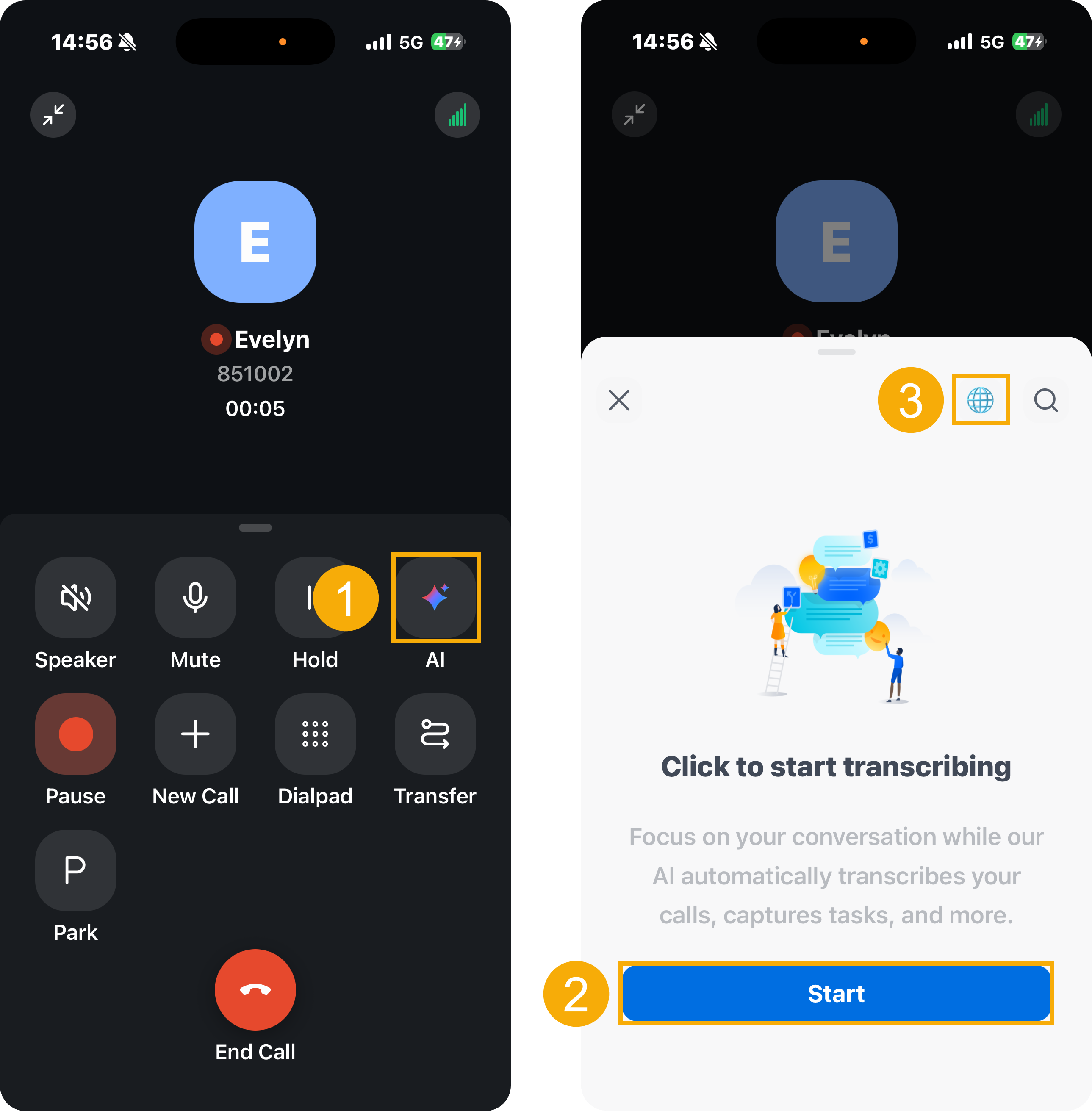
- During an active call, tap
 to open the transcription
panel.
to open the transcription
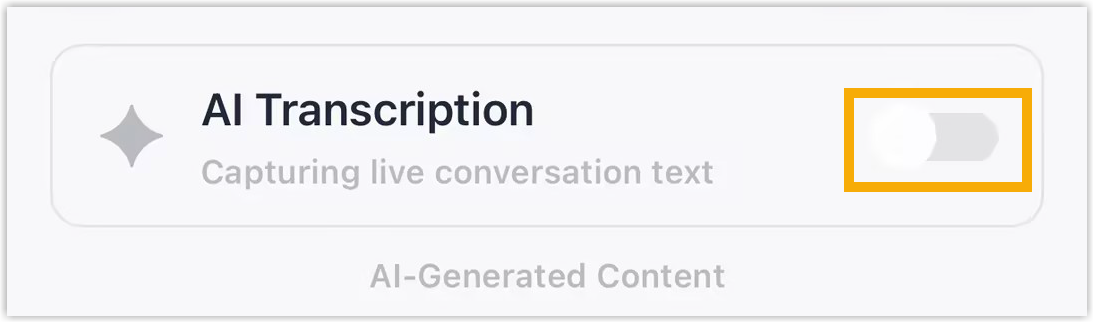
panel. - Tap Start to start call transcriptionNote: To pause transcription during the call, turn off the switch of AI Transcription.
- Optional: To change the transcription language for the current calls,
tap
 and select the desired language.
Result
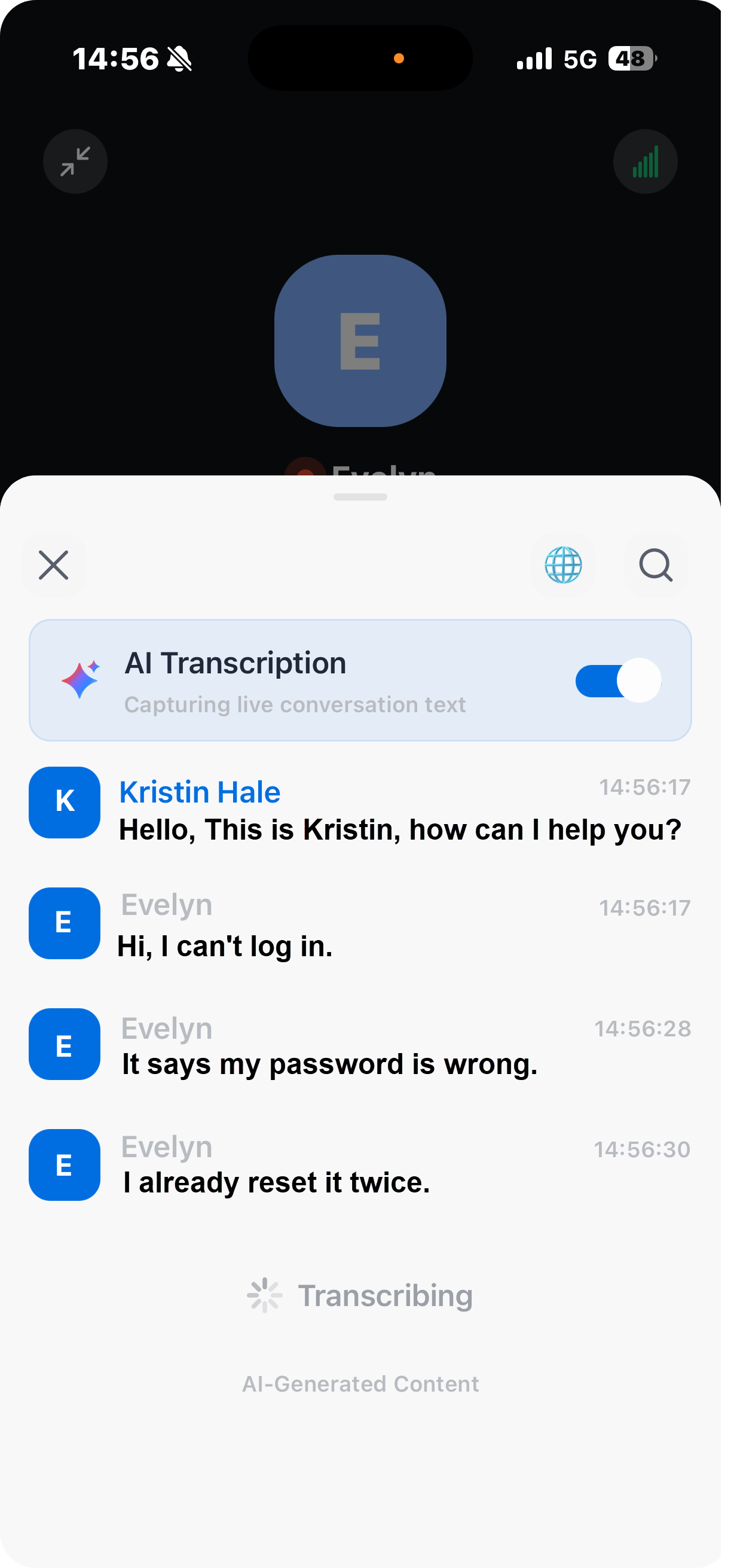
- During the call, the audio is being transcribed into readable text in real
time and is being displayed in the right panel.
- After the call ends, you can review the AI-generated summary and transcript
in the call log. Calls that have been transcribed are marked with
 .Note: If the call has been recorded, and you've initiated transcription on the call recording, the recording transcript will replace the original call transcript.
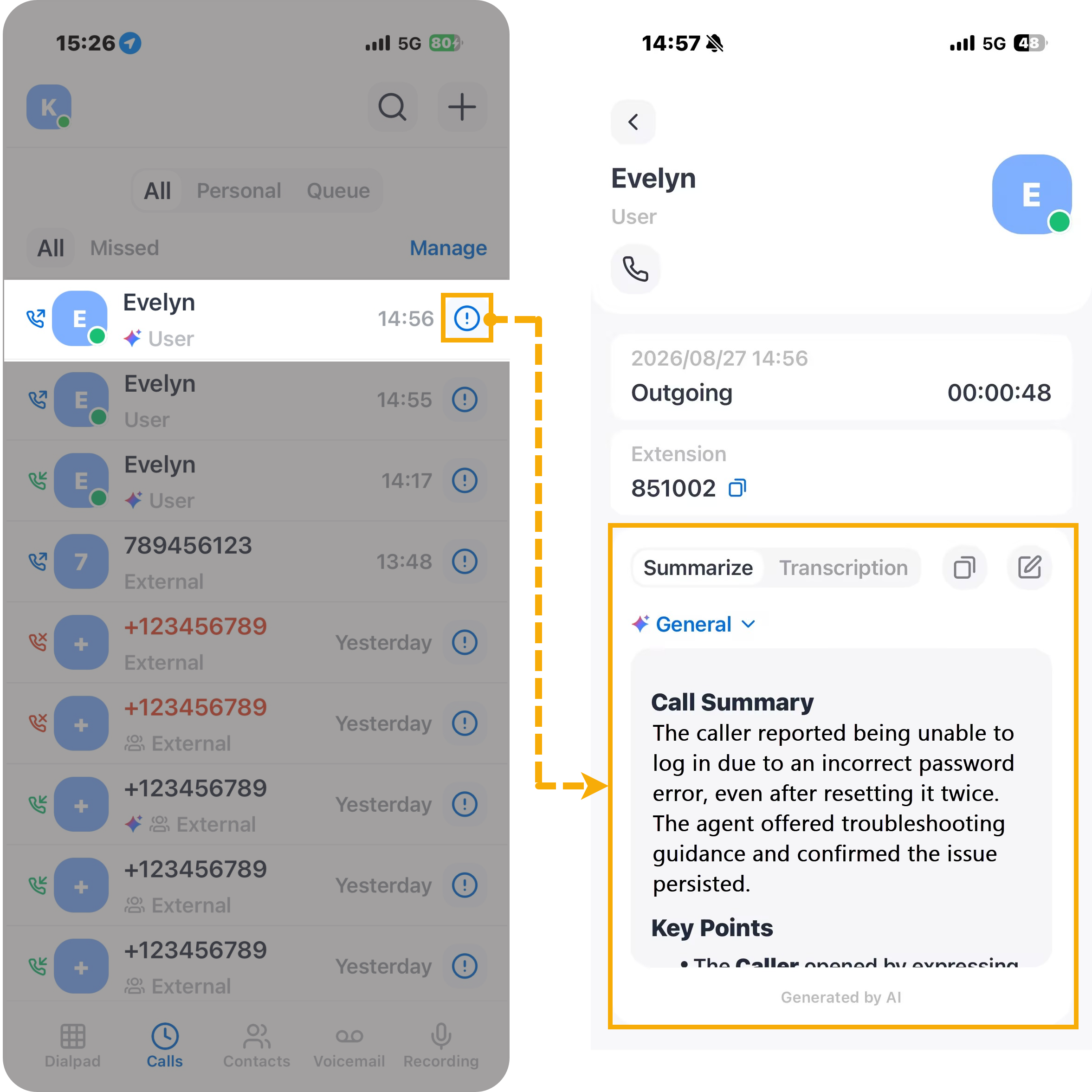 Tip: You can manage the summary and transcript with the following actions: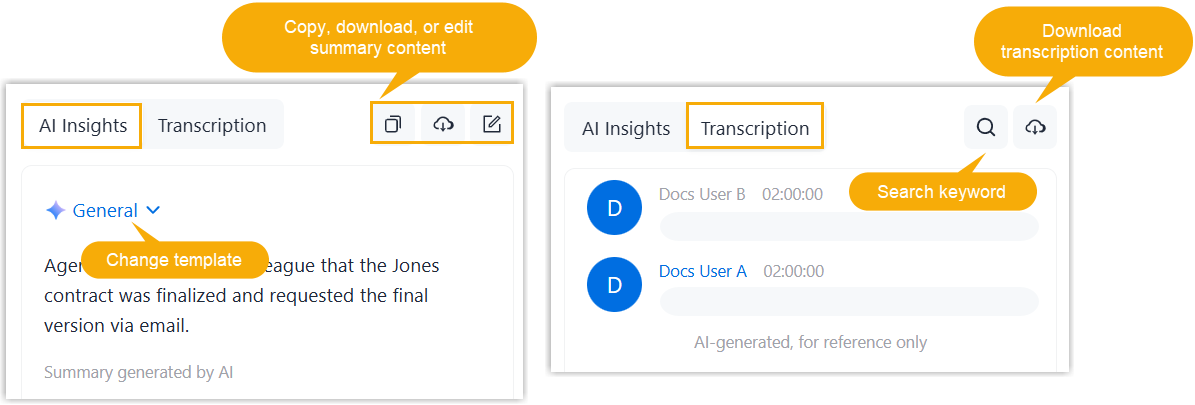
- Regenerate the summary using a different template to better suit your business needs.
- Copy, download, or edit the AI-generated summary content.
- Quickly locate specific information by searching for keywords in the transcript.
- Download the AI-generated transcription content.