Users and Contacts Overview
This topic provides an overview of the contact resources available in the NovoOne Mobile Client, including colleagues in your company, external contacts stored in the system, and native contacts in your phone.
Contact types
The contacts in NovoOne Mobile Client are divided into the following types:| Type | Description |
|---|---|
|
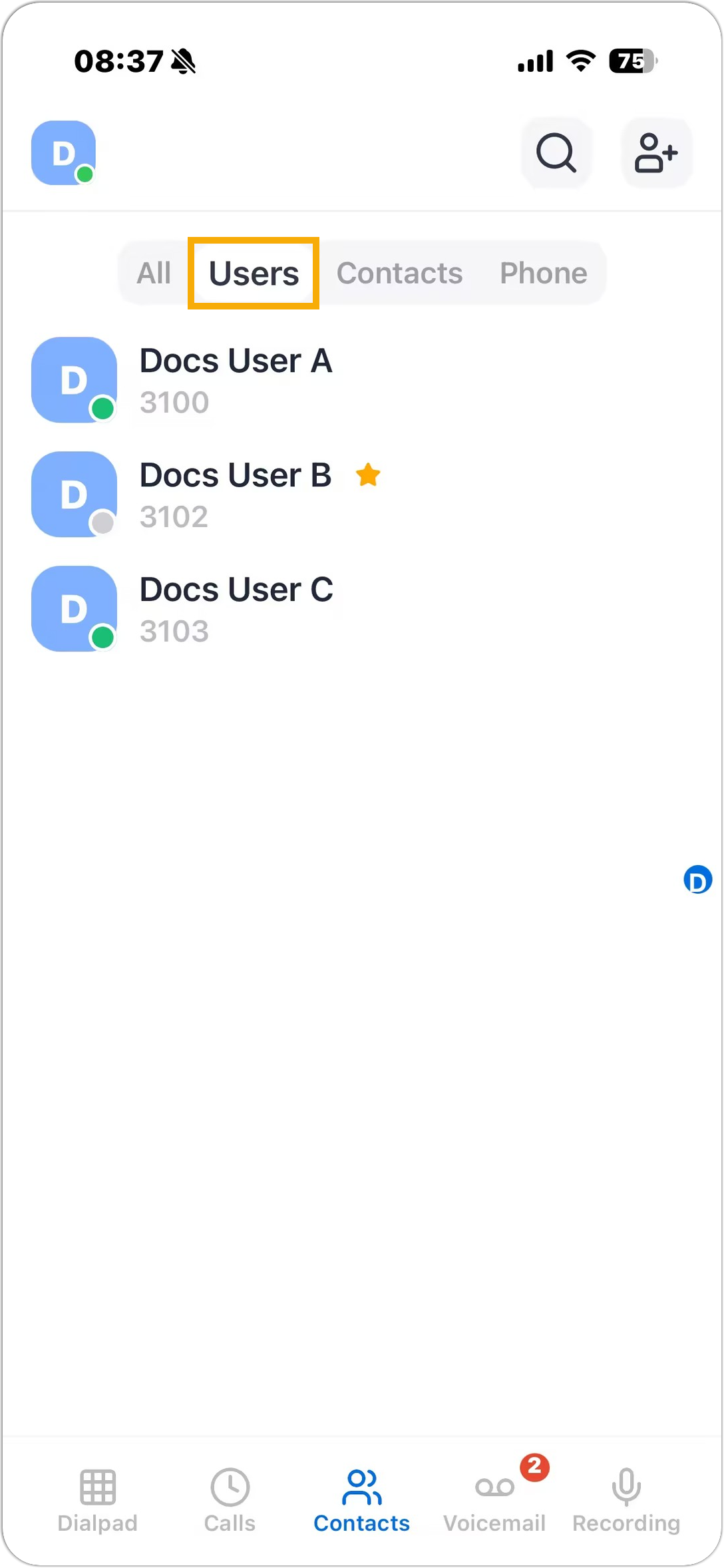
The Users tab contains your colleagues' extension information that is synchronized from the system. You can conveniently check your colleagues' availability and perform various actions, such as making a call or copying their details for sharing. For more information, see View Colleague Extensions. |
|
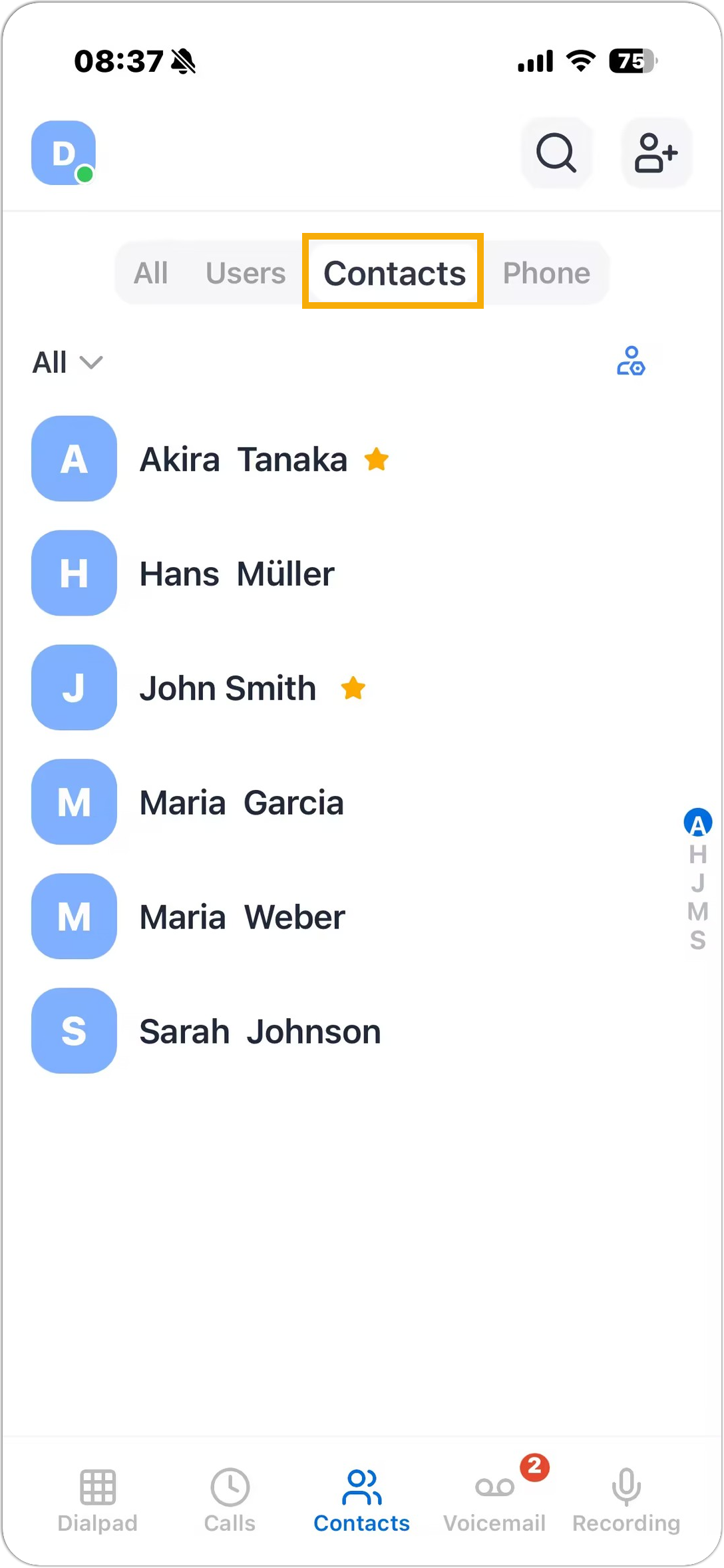
The Contacts tab provides an overview of your external
contacts that are stored in the system. The contacts are
subdivided into two types, namely personally managed contacts
(stored in Personal Contacts) and company shared contacts
(stored in Company Contacts).
|
|
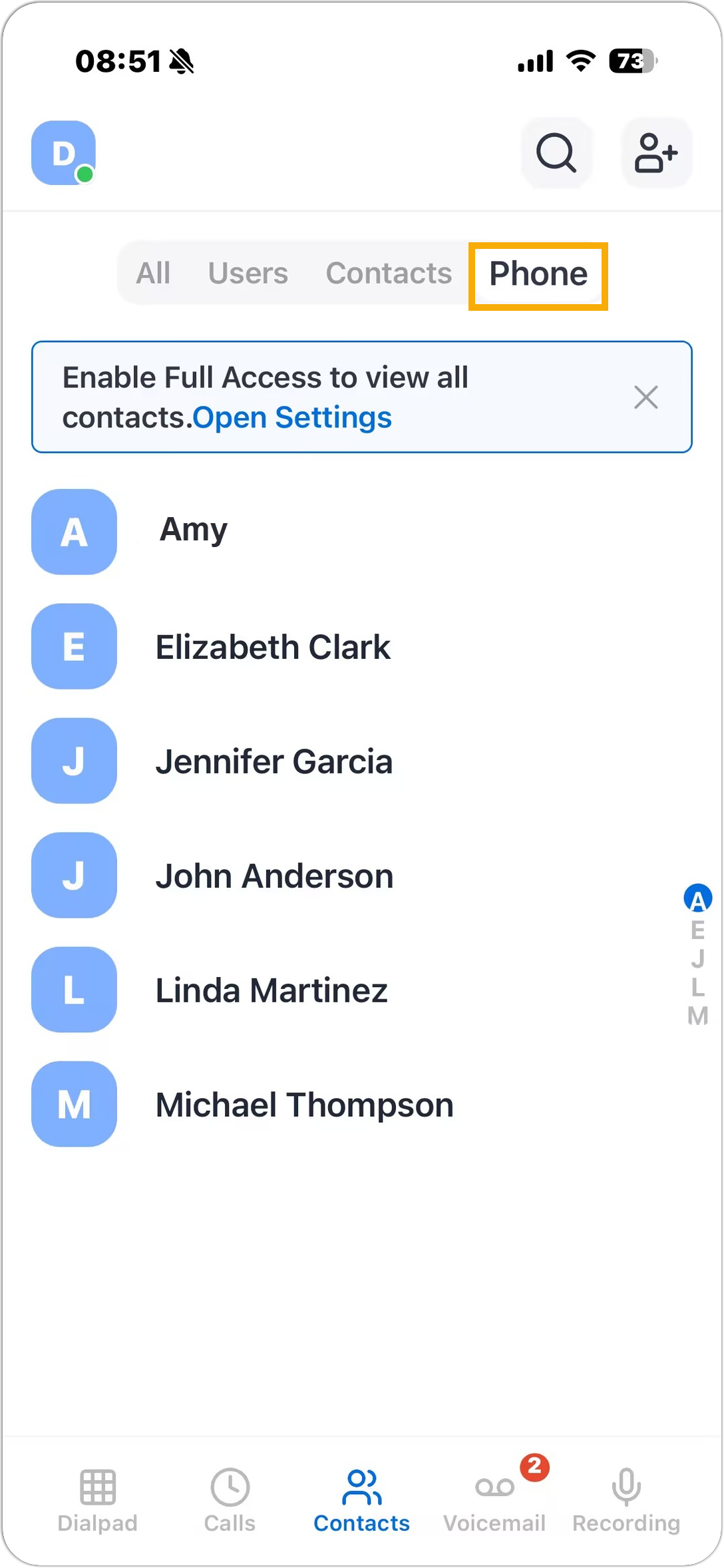
If you grant NovoOne Mobile Client the permission to access your phone contacts, the Phone directory will display the native contacts that are synchronized from your mobile phone. For more information, see Grant Access to Phone Contacts. You can easily add the phone contact to NovoOne Mobile Client's Contacts list as needed, and directly initiate a call to the contact via NovoOne Mobile Client.Note: The phone contacts only display on NovoOne Mobile Client, all data is
stored in your phone locally and will NOT be uploaded
anywhere. |
Favorite contacts
For contacts (Users, Personal Contacts, and Company Contacts) that you frequently communicate with, you can mark them as favorites. The marked contacts will be displayed in the Favorite Contacts list for quick location and retrieval.
For more information, see Mark or Remove Favorite Contacts.
Contact matching
When you receive an incoming call, the system automatically matches the caller's number against your colleagues and contacts to display the caller's name based on the matching priority: Phone Contacts > Users (your colleagues) > Personal Contacts > Company Contacts.