Restore P-Series Appliance / Software Edition from Another Backup
This topic describes how to restore a P-Series Appliance / Software Edition using a backup generated from another PBX.
Background information
Yeastar Central Management supports restoring P-Series Appliance / Software Edition from a backup created either on the same PBX or on another PBX of the same product model.
- To restore P-Series Appliance / Software Edition from a backup generated by another PBX, see this topic.
- To restore P-Series Appliance / Software Edition from its source backup, see Restore P-Series Appliance/Software Edition from Source Backup.
Requirements
- Your account has subscribed to RM Premium (Self-hosted) service.
- The firmware of Yeastar Central Management is 87.15.0.83 or later.
- The firmware of the P-Series Appliance/Software Edition is 37.24.0.122 / 83.24.0.122 or later.
Procedure
-
Log in to Yeastar Central Management, go to .
- Click
 beside a desired backup file.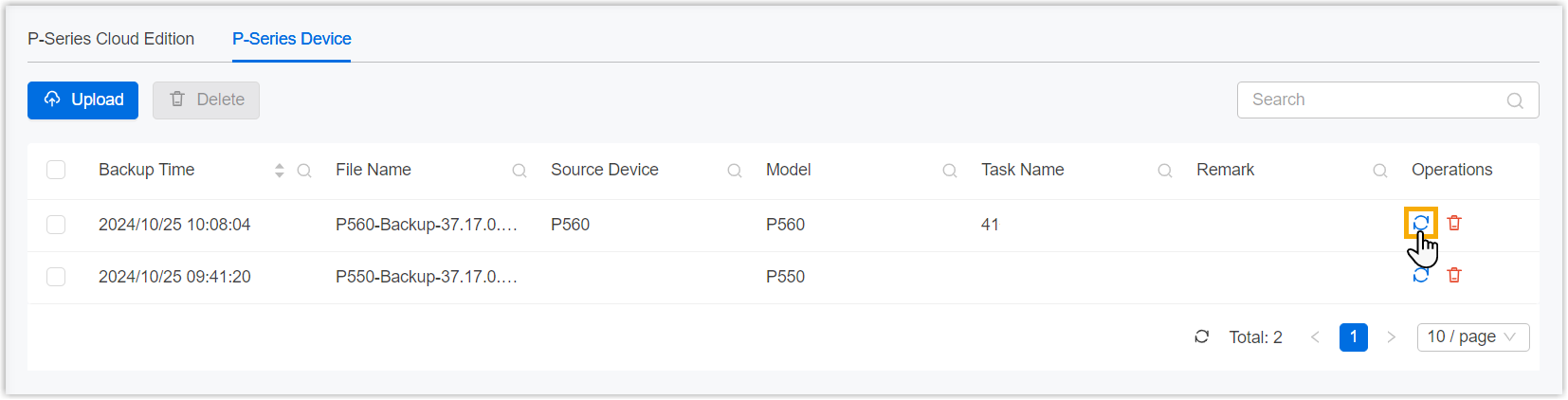
- In the pop-up window, do as follows:
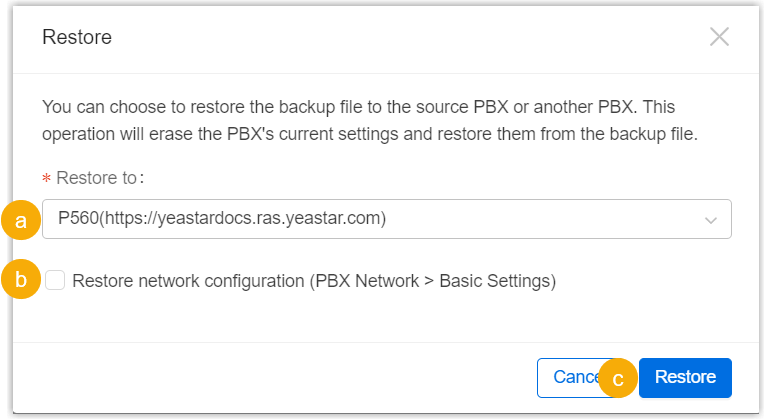
- In the drop-down list of Restore to, select a desired PBX.
- If you want to retain existing network configurations, unselect the checkbox of Restore network configuration.
- Click Restore.
Result
- PBX status is displayed as , and there is a pop-up window
prompting that PBX system is restoring from the backup file.Tip: You can click Collapse to collapse the window to the bottom-right corner.
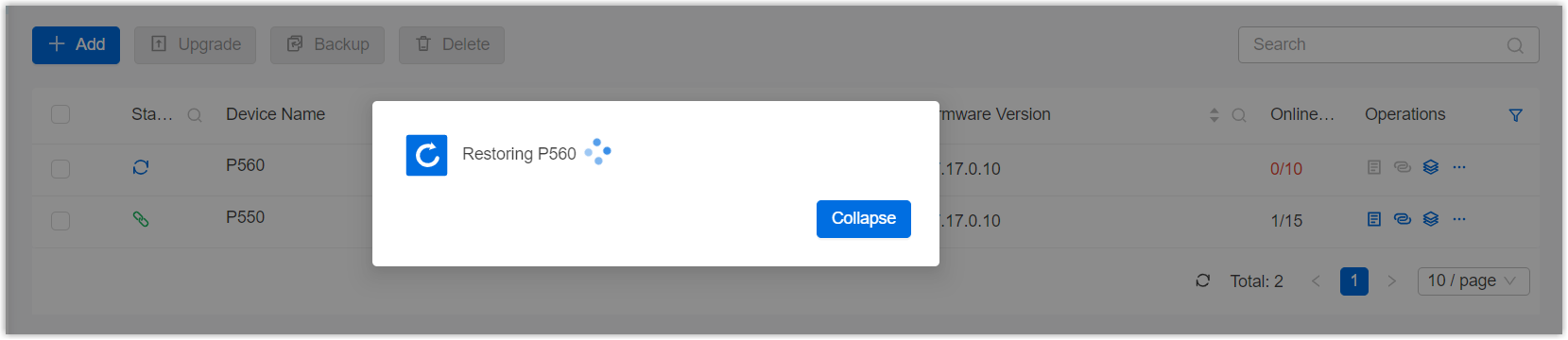
- After PBX system starts up, the current configurations are overwritten with
the backup data, and PBX status is displayed as
 .
.