Add a Fax Cover Page
Fax Cover Page appears as the first page of an outbound fax, typically displaying essential fields such as sender information, recipient details, brief message, etc. This topic describes how administrator can configure a fax cover page from PBX web portal.
Introduction
Both administrator and extension users can add cover pages.
- As an administrator, you can configure system-wide fax cover pages from PBX web portal. These cover pages will be available to the extension users who are authorized to send outbound faxes.
- For extension users, as long as they are authorized to send outbound faxes, they can create extension-specific fax cover pages from their Linkus Desktop or Web Client.
The following instructions describe how administrator can configure a fax cover page from PBX web portal. For more information about how extension users can proceed from their Linkus clients, see Add a Fax Cover Page from Linkus Desktop Client and Add a Fax Cover Page from Linkus Web Client.
Limitations
A maximum of 20 system-wide fax cover pages are
supported.
Note: Each extension user can customize up to
10 extension-specific fax cover pages.
Prerequisites
Prepare a cover page file that meets the following requirements:
Tip: You can download and use the sample.docx file to customize a new cover page, then
convert it to PDF for upload.
- File format:
.pdf - File size: Less than 5MB
Note: Encrypted PDF file is NOT supported.
Procedure
- Access the creation page of fax cover page.
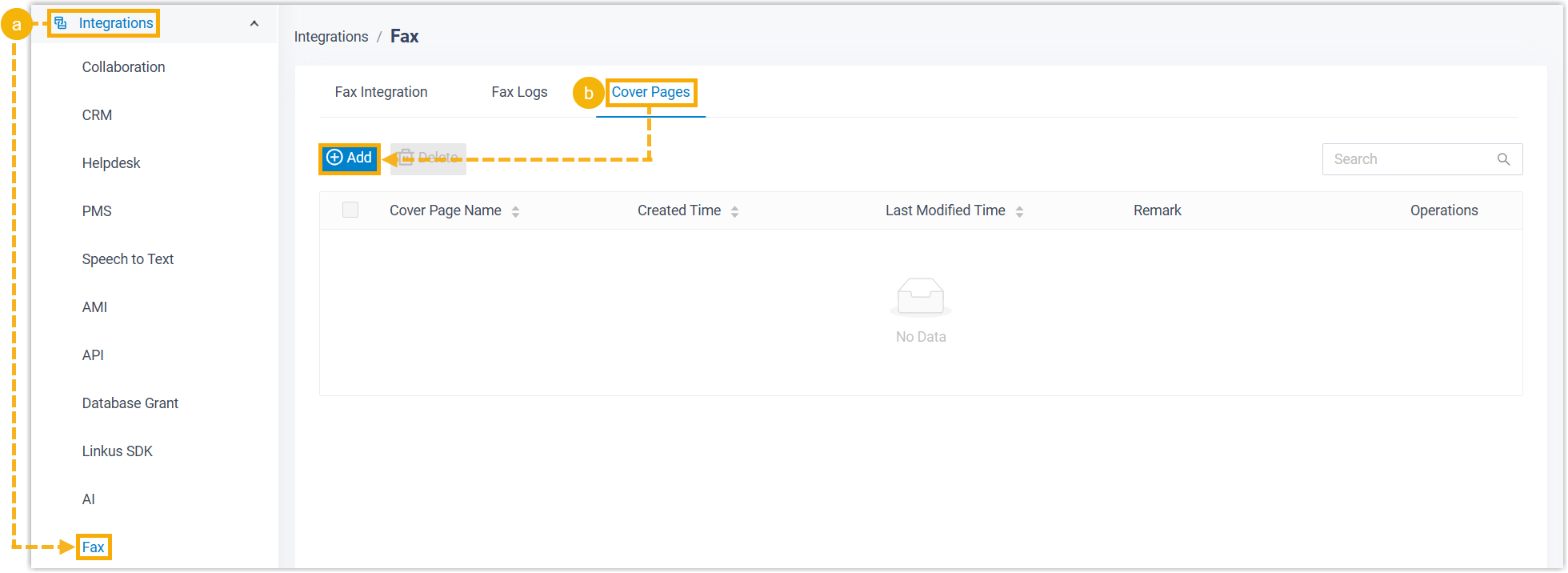
- Log in to PBX web portal, go to .
- Under the Cover Pages tab, click Add.
- Complete the following settings.
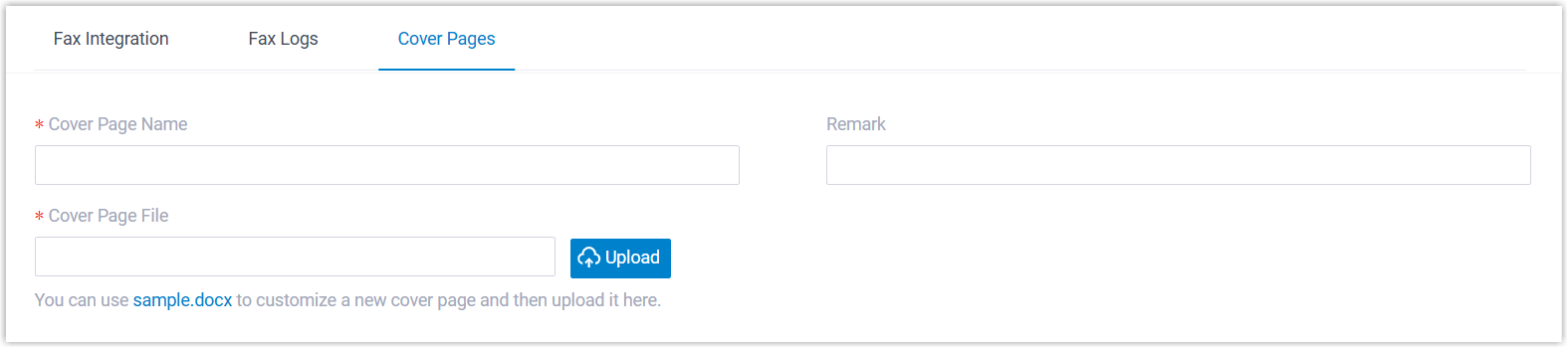
Setting Description Cover Page Name Enter a name to help you identify the cover page. Remark Enter a short description. Cover Page File Click Upload to upload a PDF file. - Click Save.
Result
- The fax cover page is created and displayed in the list.Tip: You can click
 to preview the cover page in a new browser tab.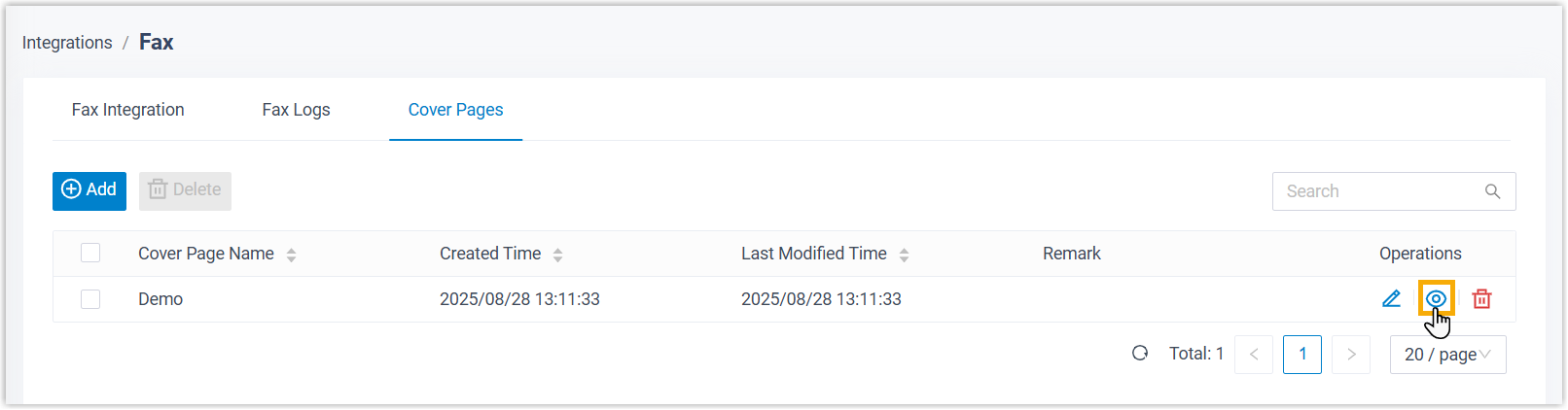
- Extension users authorized to send outbound faxes can view and use the cover page directly from Linkus Desktop or Web Client.