Manage Outbound Queue Call Logs on Linkus Mobile Client
This topic describes how to check and manage the outbound queue call logs on Linkus Mobile Client.
Requirements
Make sure that the version of your Linkus Mobile Client meets the following requirements:- Linkus iOS Client: Version 5.18.15 or later
- Linkus Android Client: Version 5.18.12 or later
Prerequisites
System administrator has granted you the viewing permission of queue call logs.Procedure
- Log in to Linkus Mobile Client, go to .
- At the top-left corner, filter the desired queue call logs.
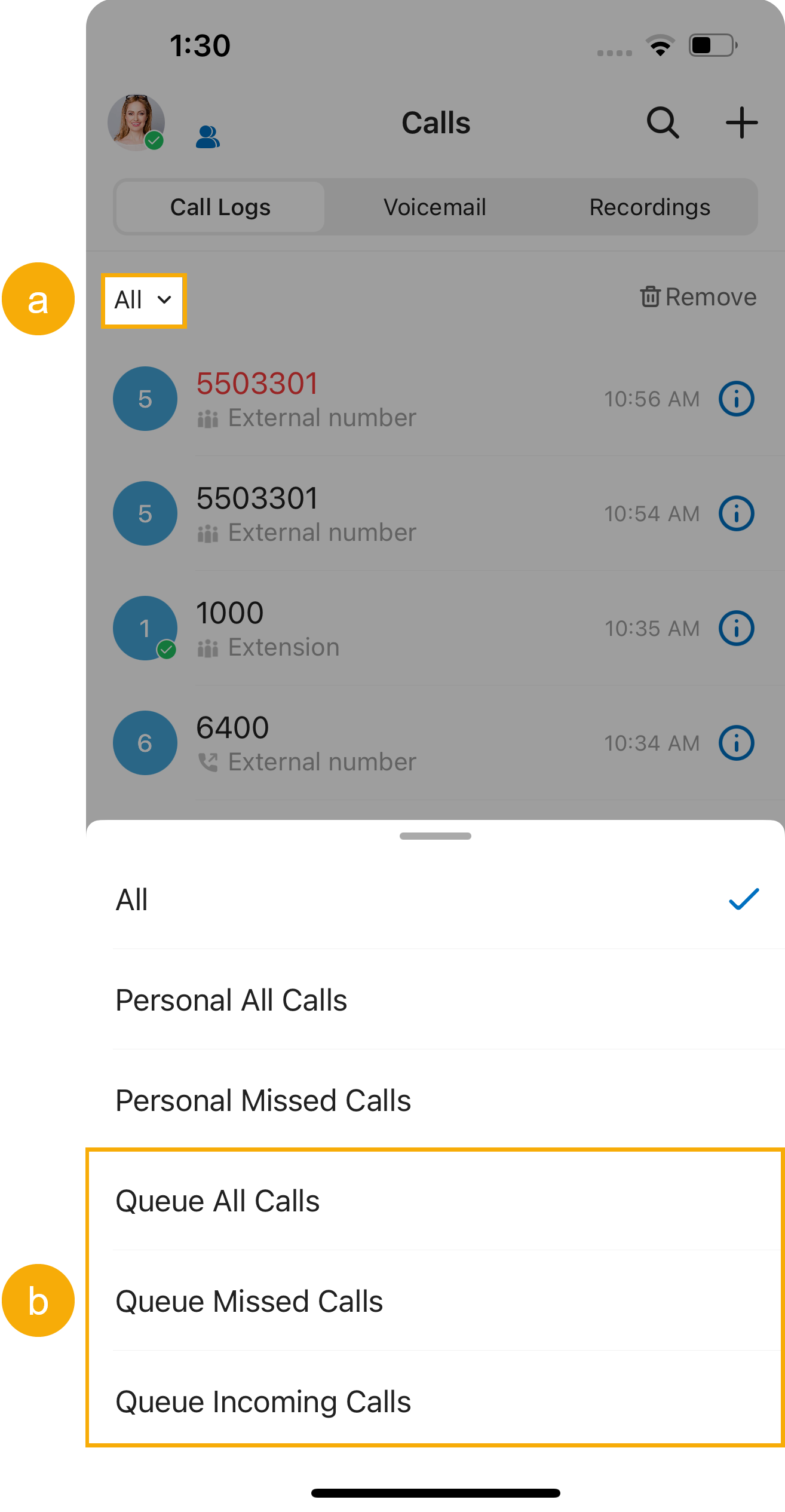
- Queue All Calls: Logs of the queue calls that you have answered and the queue has missed.
- Queue Missed Calls: Logs of the queue calls that the queue has missed.
- Queue Incoming Calls: Logs of the queue calls that you have answered.
- Manage the call logs according to your needs.
Operation Instruction Check the details of queue call logs You can conveniently check the source of the queue call logs, as well as the processing status of missed queue calls. 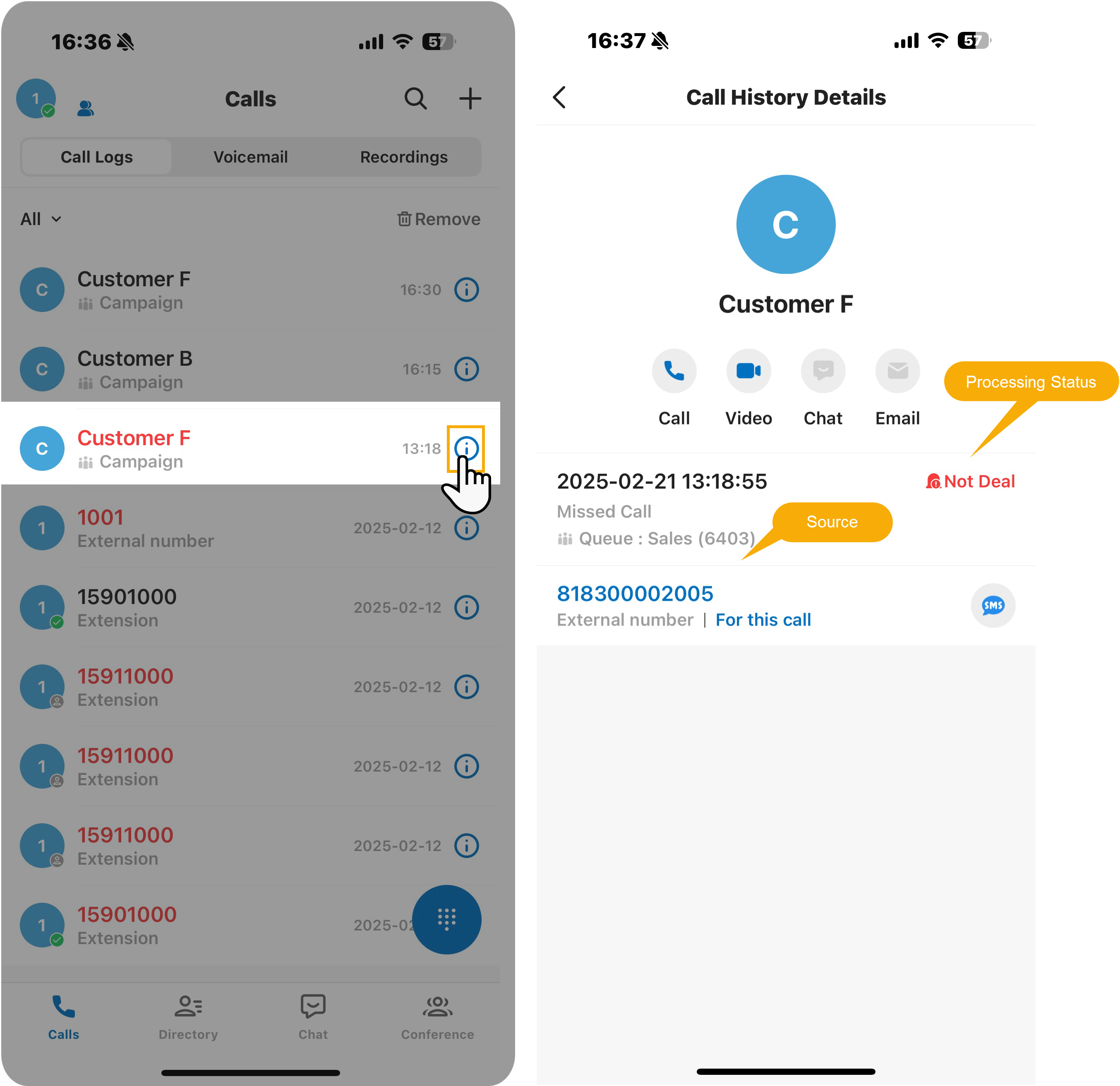
- Tap
 beside the
desired queue call log.
beside the
desired queue call log. - Check the details of the call log.
- Source: The queue the call came from.
- Processing Status: The processing status of a missed queue call.
Change the processing status of a missed queue call If you decide to handle a missed queue call, or you have handled it, you can change the processing status of the missed queue call. 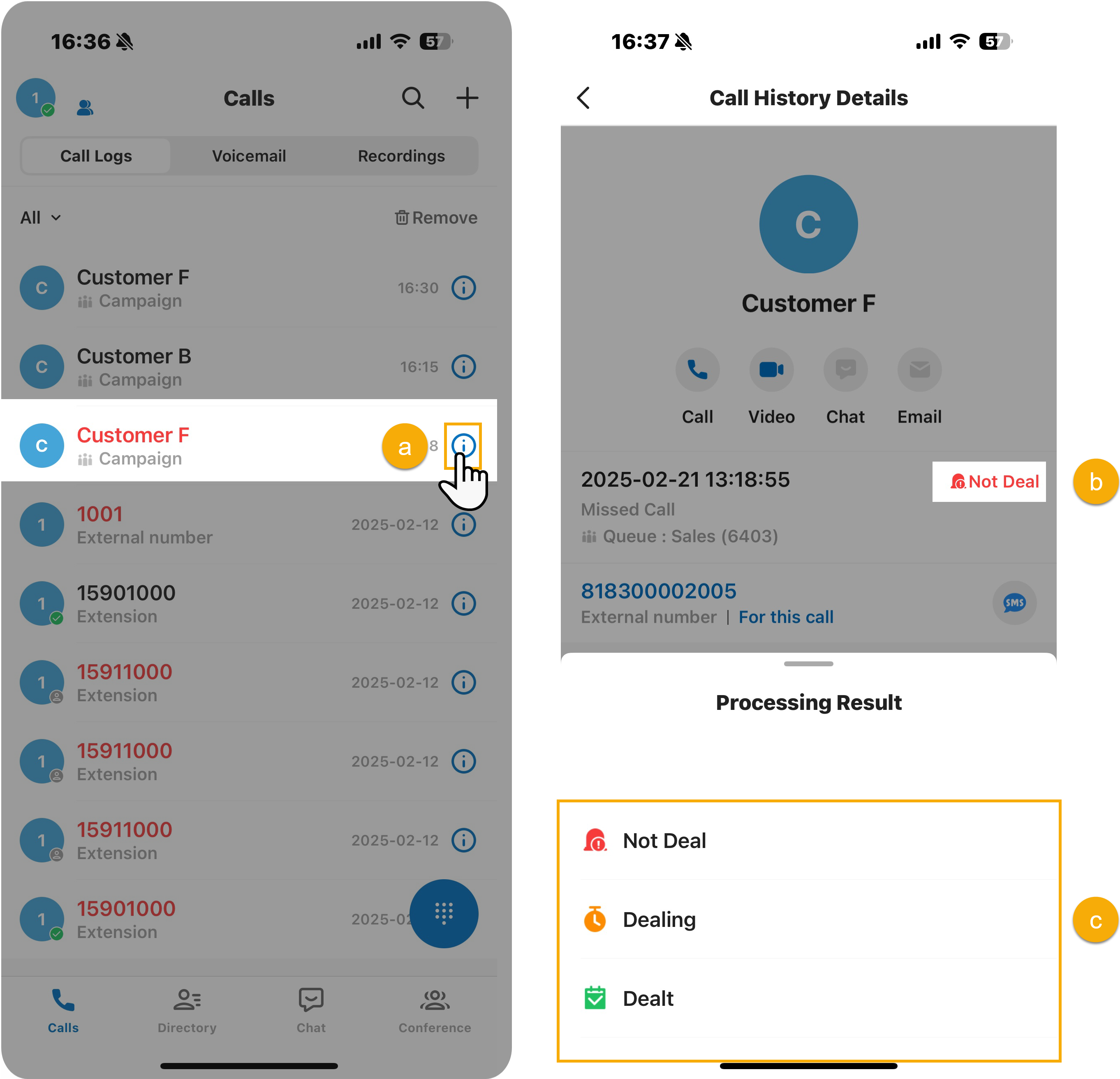
- Tap beside the
desired queue call log.
- Tap the processing status beside the call log details.
- Select the desired processing status.
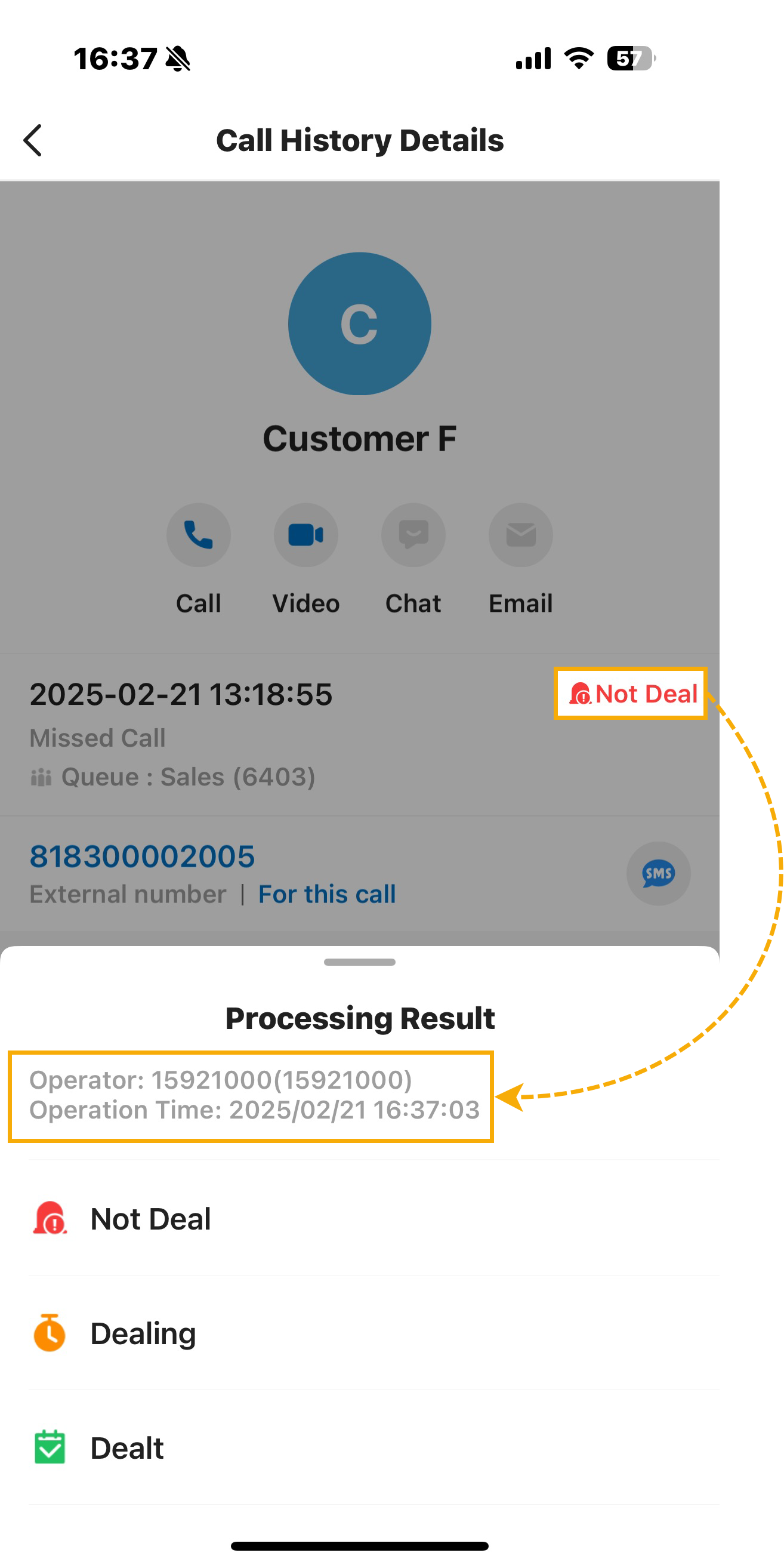
Place a call to the caller You can directly place a call from a call log by tapping the call log. 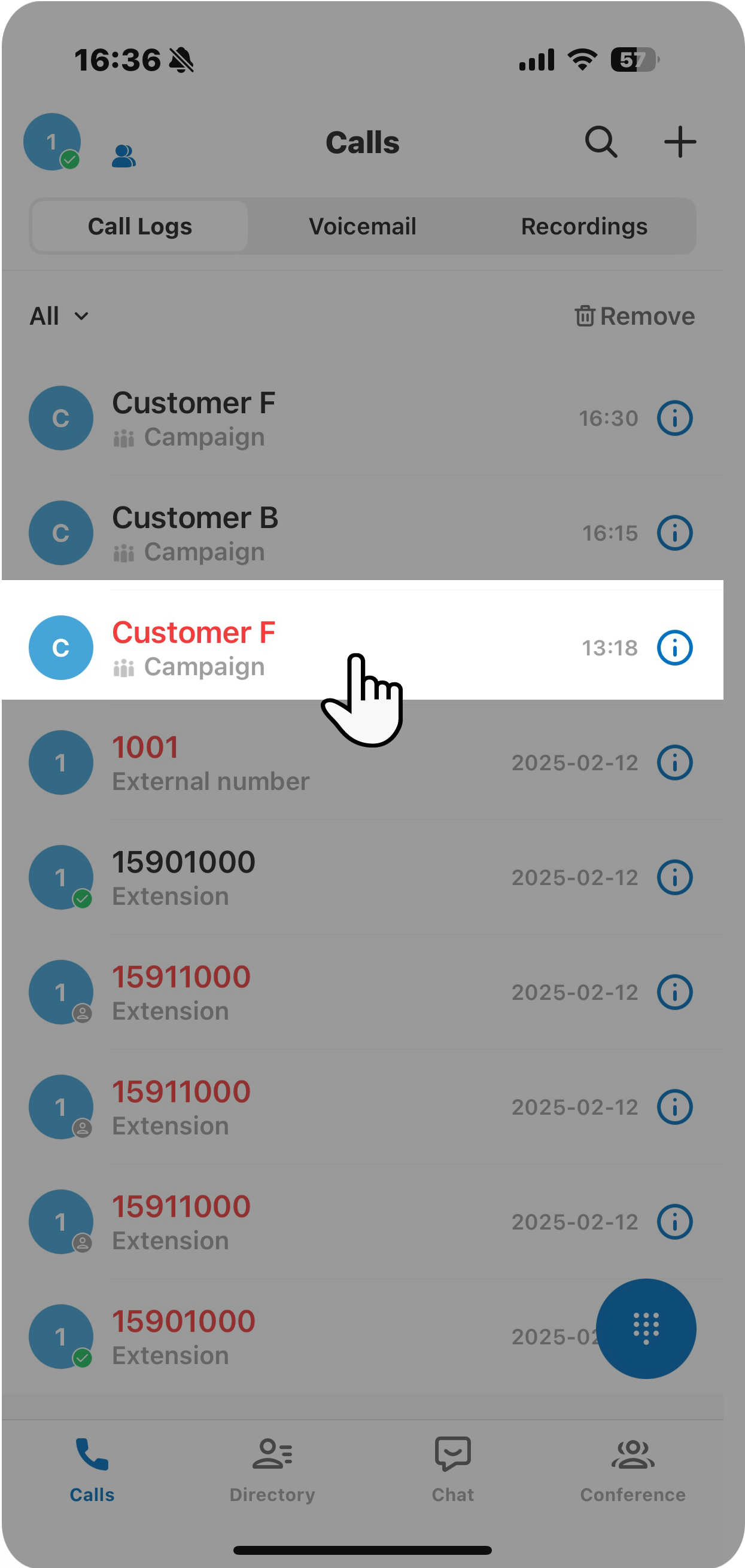
Check or edit call transcription You can check or edit call transcription for a call. Note: Whether a summary can be automatically generated and displayed depends on the system administrator's configurations on the PBX server.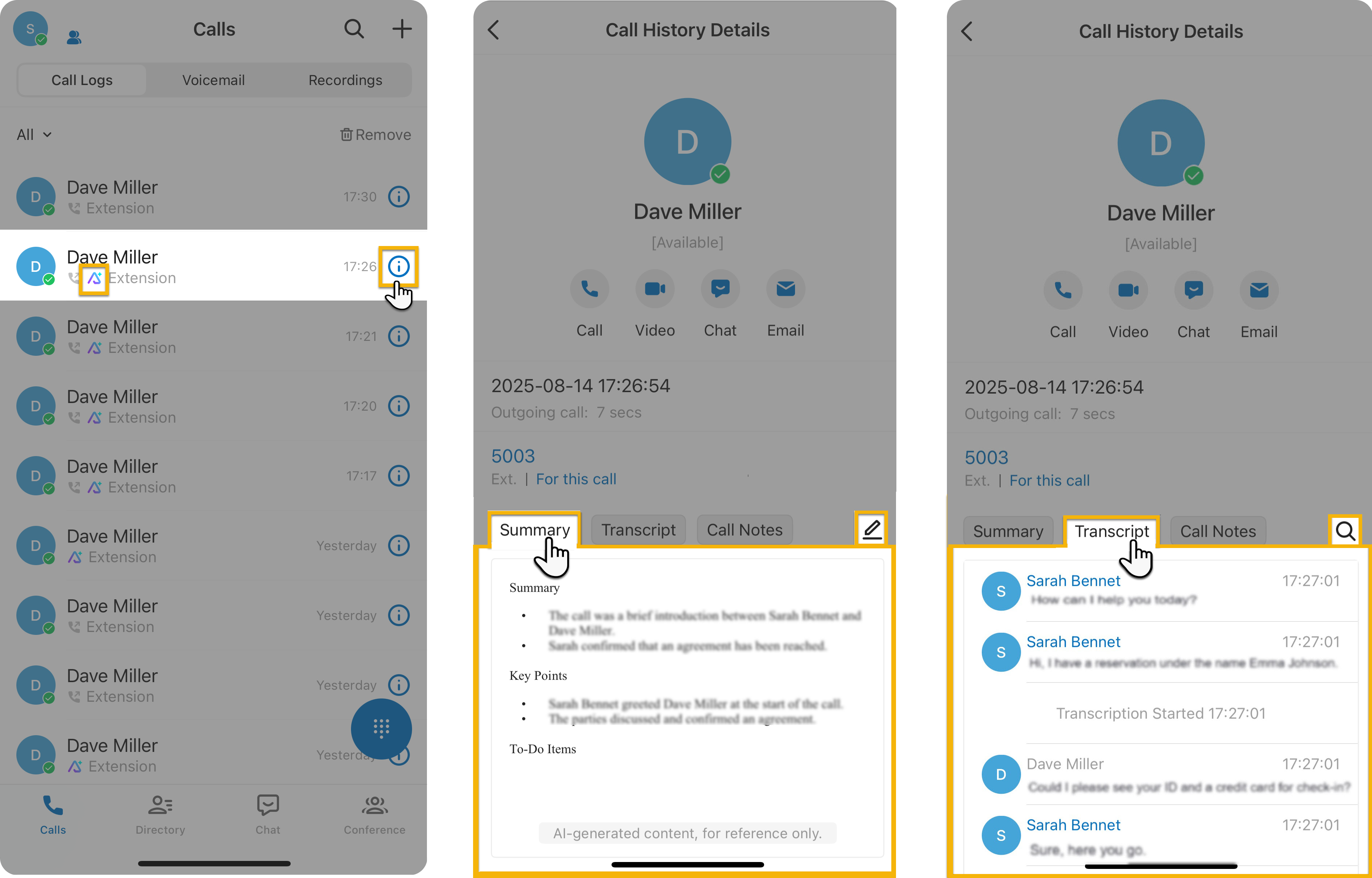
- Tap beside the
desired queue call log with
 icon.
icon. - In the top-right corner of the Summary
section, tap
 .
. - Edit the call summary as needed, then tap Save.
- Tap Transcript tab.
- In the top-right corner of the
Transcript section, tap
 to search content as
needed.
to search content as
needed.
Delete incoming queue call logs You can delete incoming queue call logs via the following methods:
- To delete a single call log, swipe left on the desired call log, then tap Delete.
- To bulk delete call logs, do as
follows:
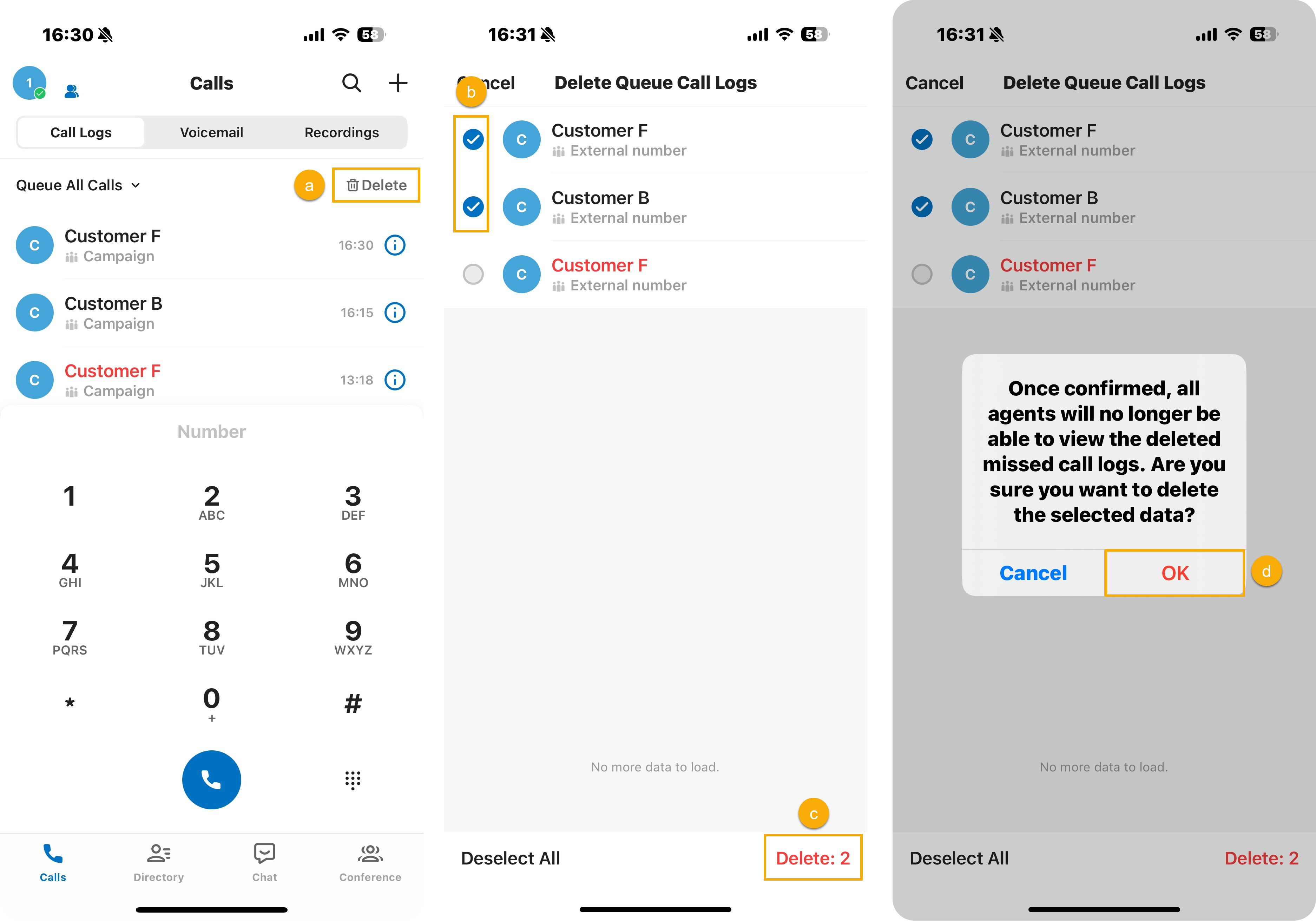
- At the top-right corner, tap Delete.
- Select the checkboxes of the desired incoming queue call logs.
- Tap Delete.
- In the pop-up window, tap OK to confirm your operation.
- Tap