Access Inbox
This topic provides an overview on the outbound call center dashboard Inbox on Linkus Web Client, designed for outbound queue agents to handle campaign calls, and describes how to access the dashboard.
Background information
Yeastar Outbound Call Center provides an intuitive dashboard Inbox for agents to handle campaign calls. The layout of the dashboard as well as corresponding descriptions are shown below.
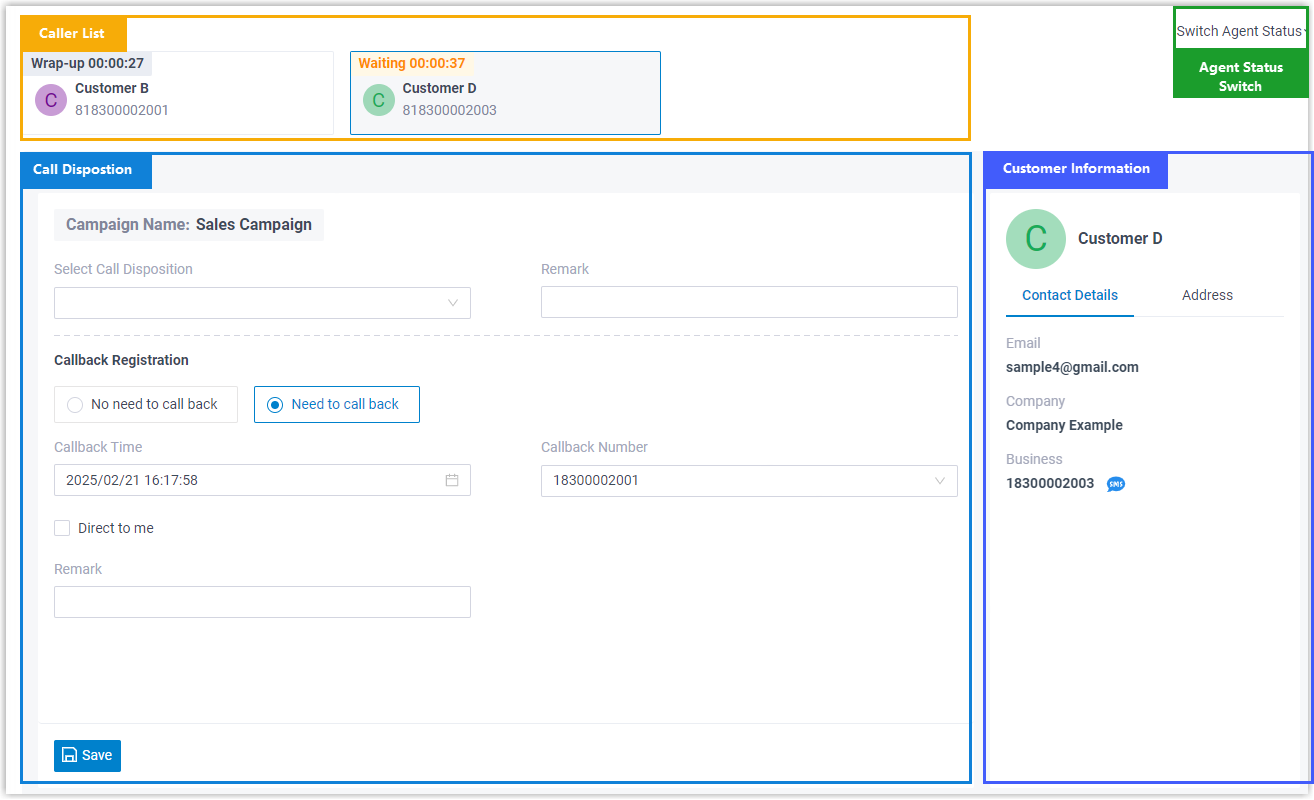
| Component | Description |
|---|---|
| Caller List | Displays the campaign calls routed to the agent, including ongoing calls and calls waiting to be answered. Agents can answer, hold, or hangup these calls directly from this list. |
| Agent Status Switch | Allows agents to switch their status in a specific outbound queue, ensuring proper availability for campaign calls. |
| Call Disposition |
Allows agents to efficiently categorize call outcomes using predefined disposition codes, schedule callbacks, add remarks related to the current call, and add contacts to Do Not Call (DNC) list. |
| Customer Information | Shows detailed information about the contact, providing agents with the essential context for efficient call handling. |
Prerequistes
- You have the permission to access Linkus Web Client or Linkus Desktop Client.
- The version of Linkus Desktop Client is 1.10.2 or later.
- You have get username and password as well as the server's network information from your system administrator.
Procedure
- Log in to Linkus Web Client or Desktop Client.Tip: If you have received a Linkus welcome email, you can click the login link for Web Client or Desktop Client to quickly log in.
- Log in to Linkus Web Client
-
- Launch your web browser, enter the IP address or domain of Linkus Web Client, press Enter.
- Enter your username and password, then click
LOG IN.
- Username: Extension number or Email address.
- Password: The password associated with the username.
- Log in to Linkus Desktop Client
-
- Open Linkus Desktop Client.
- Enter the login information, then click LOG
IN.
- Username: Extension number or Email address.
- Password: The password associated with the username.
- Domain: Enter the domain name or click
 to enter the
IP addresses and ports.
to enter the
IP addresses and ports.
- Go to .