Yeastar P-Series Cloud Edition 84.23.0.23 V24.1-Beta
This topic outlines the release history of firmware version 84.23.0.23, from the beta stages to the final release.
- To try out the new updates, check for firmware updates from PBX admin portal and upgrade your phone system.
- For details on the new features and improvements in Linkus UC Clients and 'Yeastar Linkus for Google' Chrome extension, see Linkus Release Notes.
- If you found something that doesn't work as expected, you can submit feedback directly from here .
Firmware 84.23.0.23-beta1
Release date:April 23, 2026
Release version:V24.1-Beta
Base version:84.22.0.139
New features
- Onsite Proxy
- Yeastar P-Series Cloud Edition provides Onsite Proxy
feature. By deploying the Yeastar-provided Onsite Proxy software in the
same subnet as remote IP phones, it establishes a secure communication
channel between the PBX and these phones, enabling them to be
auto-provisioned and accessed over the internet as if they were in the
same local network, while eliminating complex port forwarding
configurations.
For more information, see Onsite Proxy Overview.
In addition, the following related updates are introduced:
- Added support for provisioning remote IP phones via Onsite
Proxy.
For more information, see Auto Provision IP Phones Remotely with Proxy.
- Added an event notification Onsite Proxy
Error (Path: ), which is triggered when the connection between
the PBX and Onsite Proxy is interrupted, or the system resources
utilization for Onsite Proxy exceeds specified thresholds.
For more information, see Event Notification Overview.
- Added API interfaces for Onsite Proxy, which can implement the
followings:
- Query the list of Onsite Proxy instances.
- Search for specific Onsite Proxy instances.
- Query the information of one or multiple Onsite Proxy instances.
- Query or reset the secret key of an Onsite Proxy instance.
- Add, edit, or delete an Onsite Proxy instance.
For more information, see Developer Guide - Onsite Proxy.
- Added support for provisioning remote IP phones via Onsite
Proxy.
Improvements and bug fixes
- Extension
-
- Increased the maximum length of extension number from 8 to 11.
- Added support for copying the IP address of an extension's
online device with one click.

- Added support for uploading avatars when creating or editing
extensions individually or in bulk (Path: ).Note: The image format must be
.jpgor.png, and the file size can not exceed 1 MB.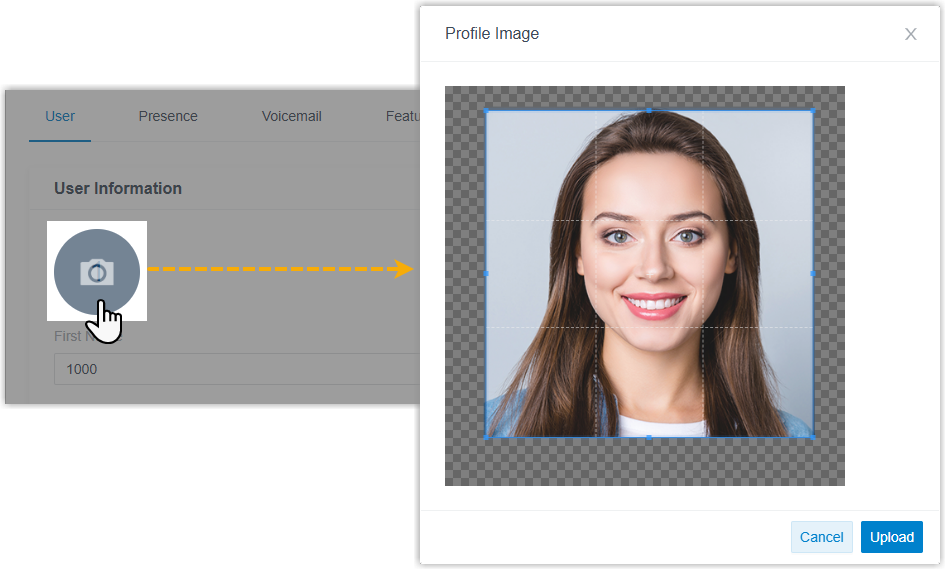
- Optimized the extension call forwarding settings (Path: ):
- Added a destination option Busy.
If this option is selected and an incoming call to the
extension meets the forwarding condition, the system
will reject the call and return a SIP response code
486 Busy Here.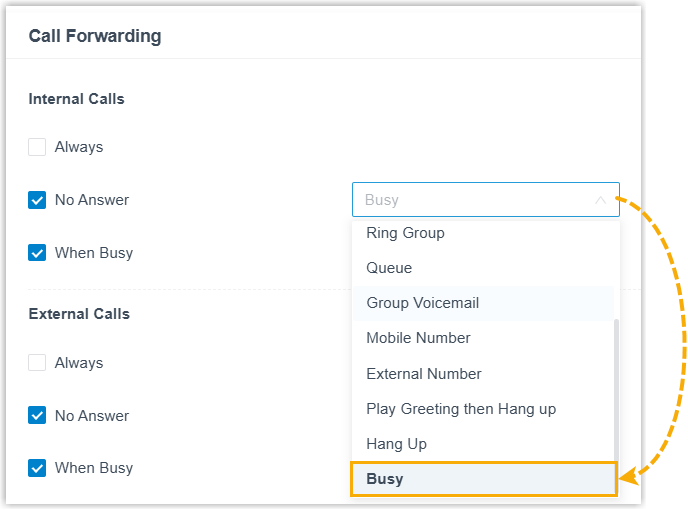
- Optimized the call forwarding behavior for the
When Busy condition: When the
destination is set to Hang Up and
an incoming call to the extension meets the forwarding
condition, the system will reject the call and return a
SIP response code
480 Temporarily Unavailable(previously486 Busy Here).
- Added a destination option Busy.
If this option is selected and an incoming call to the
extension meets the forwarding condition, the system
will reject the call and return a SIP response code
- Added support for configuring ringback tone for an extension
(Path: ). When the extension receives an incoming call,
the system will play this ringtone to the caller before the
extension user answers.
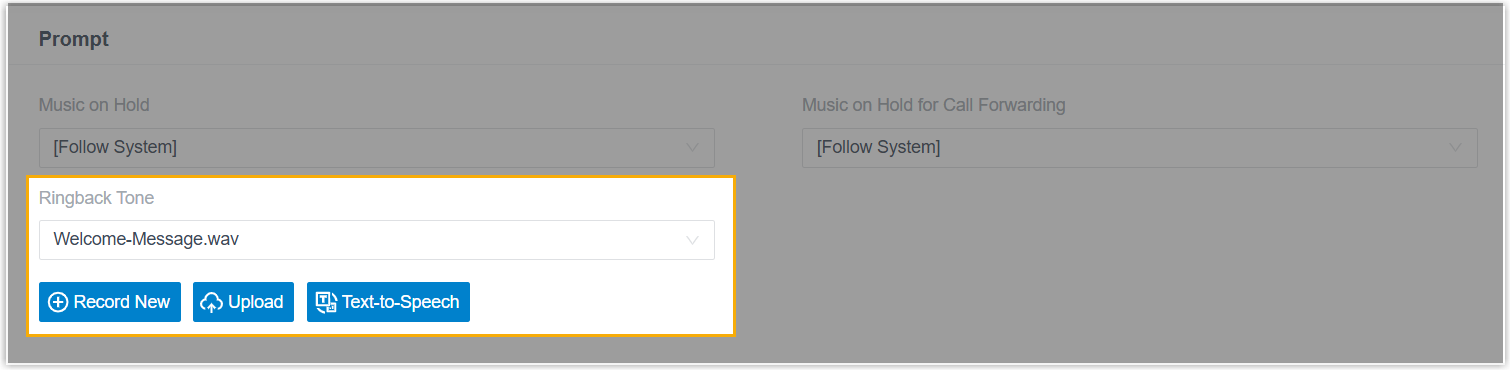
For more information, see Configure Ringback Tone for an Extension.
- Fixed the following extension issues:
- When the Accept calls from Ring Group setting is disabled for an extension, the extension could not receive a ring group call that was forwarded to a queue it belongs to.
- After an extension's mobile number was set to
nullwhen being edited via API, features that require member selection (queue, ring group, extension group, and outbound route, etc.) failed to display any extensions in the member selection list.
- Linkus Server
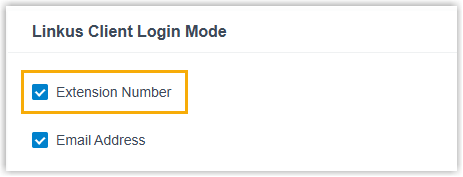
- Added support for extension users to log in to Linkus clients using
extension number. You can enable this login mode via the Linkus
Client Login Mode setting (Path: ).
- Client Permissions
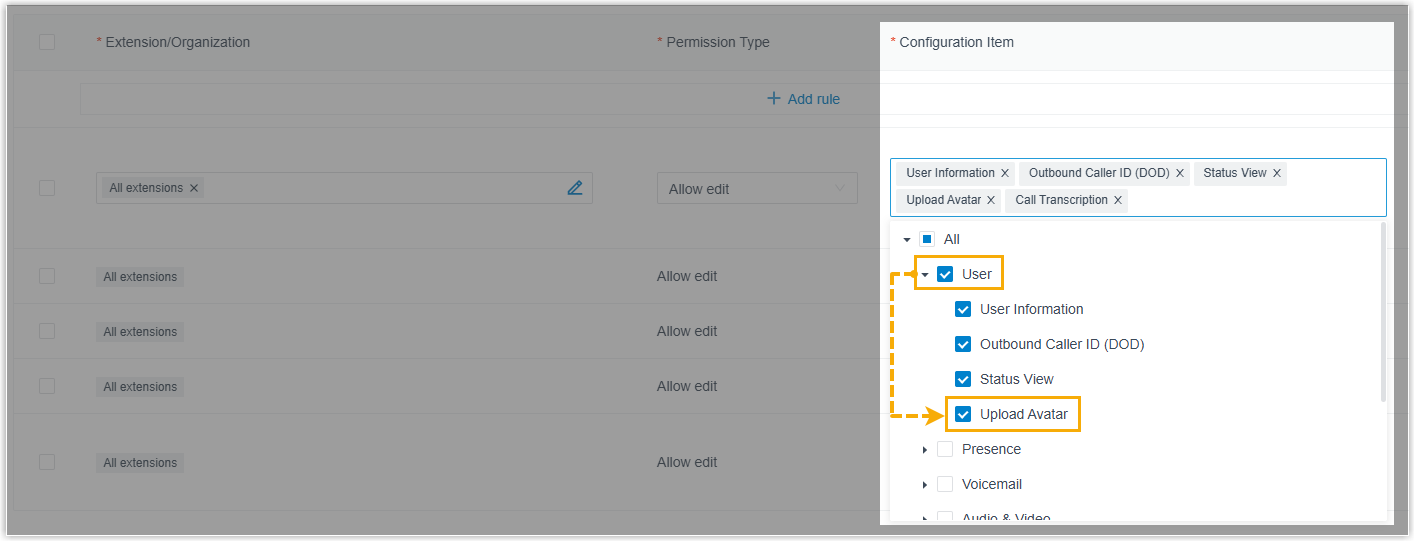
- Added a permission control setting Upload Avatar
(Path: ), which controls whether specified extension users can
upload their extension avatars on Linkus UC clients.
- Trunk
-
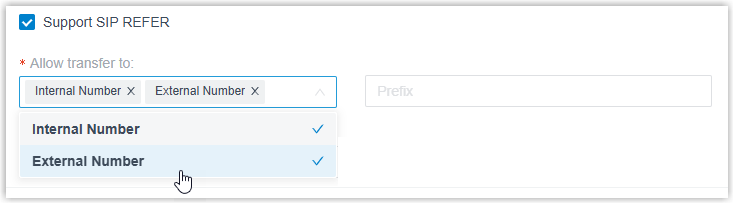
- Added a configuration item Support SIP
REFER (Path: ) for SIP trunk. When enabled, you can specify the
allowed transfer destination types Internal Number and/or
External Number. The PBX will process
REFER requests received via this trunk and transfer the call to
either internal or external destination as instructed.Note:
- For external number, the PBX will prepend the configured prefix to the target number in the REFER request when transferring the call.
- Only supports blind transfer.
- Fixed the call issue: When placing an outbound call via a SIP trunk with SRTP enabled, one-way audio occurred 15 minutes later and the caller could not hear the callee.
- Added a configuration item Support SIP
REFER (Path: ) for SIP trunk. When enabled, you can specify the
allowed transfer destination types Internal Number and/or
External Number. The PBX will process
REFER requests received via this trunk and transfer the call to
either internal or external destination as instructed.
- Auto Provisioning
-
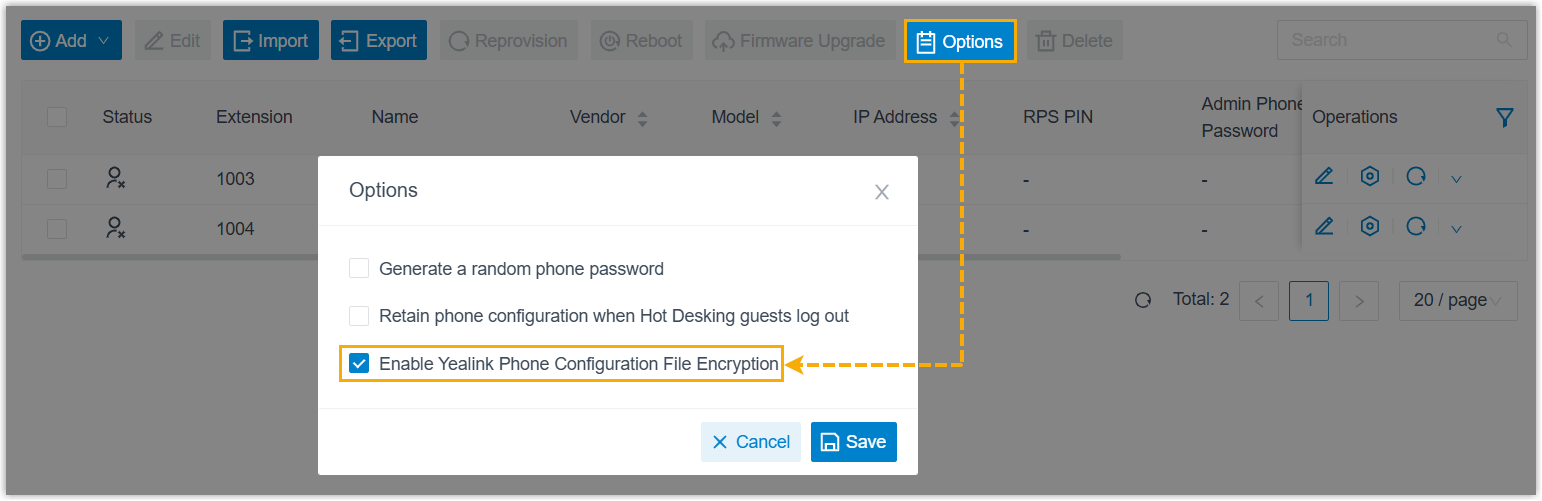
- Added an auto provisioning configuration option
Enable Yealink Phone Configuration File
Encryption (Path: ), which determines whether the PBX will encrypt
the configuration files for Yealink phones during the
auto-provisioning process.
- Added support for copying the IP address of an IP phone in the
list with one click.

- Added a Distinctive Ringtone setting for
auto-provisioned Mitel phones (Path: Auto Provisioning > Phones >
 ), which allows you to configure alert info and
corresponding ringtones.
), which allows you to configure alert info and
corresponding ringtones.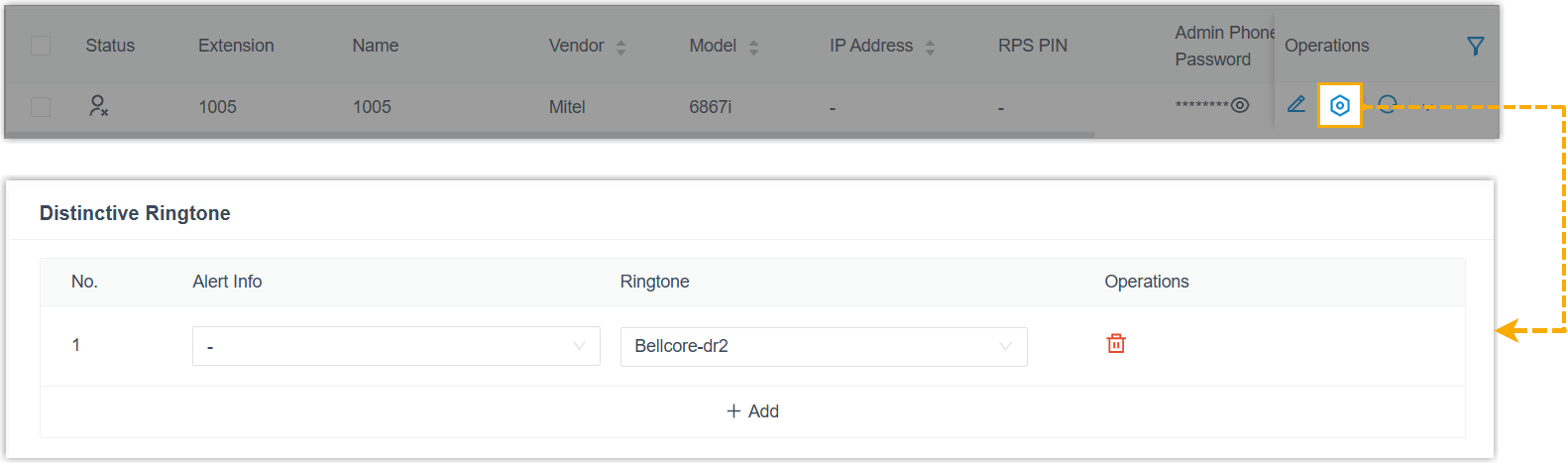
- Added compatibility with the 48kHz Opus sampling rate of
IP phones. The PBX can properly process RTP audio streams using
this sampling rate from IP phones, providing clearer call audio
quality.Note: This compatibility applies to both auto-provisioned IP phones and those with manually registered extensions.
- Fixed the Auto Provisioning issue: When auto provisioning an Avaya IP phone and setting the phone language to J169/J179 French, saving the configuration failed.
- Added an auto provisioning configuration option
Enable Yealink Phone Configuration File
Encryption (Path: ), which determines whether the PBX will encrypt
the configuration files for Yealink phones during the
auto-provisioning process.
- Inbound Route
- Fixed the inbound route issue: When an inbound route name was too long, calls routed through the inbound route would fail.
- Call Queue
-
- Optimized queue manager permission settings: Added the
following configuration items for queue call logs (Path: ).
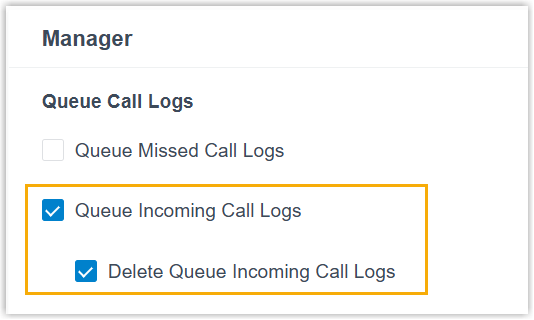
Configuration Item Description Queue Incoming Call Logs When enabled, queue managers can view call logs of all answered calls in the queue. Note: Only queue call logs generated in version 84.21.0.117 or later are accessible. Historical queue call logs prior to this version are not supported.Delete Queue Incoming Call Logs When enabled, queue manager can delete call logs of answered calls in the queue. Note: After deletion, all agents and managers in the queue cannot view the deleted records, but the records are still retained in the CDR. -
Optimized queue agent permission settings: Added granular control over the view range for answered call logs, which is divided into the following two options (Path: ).
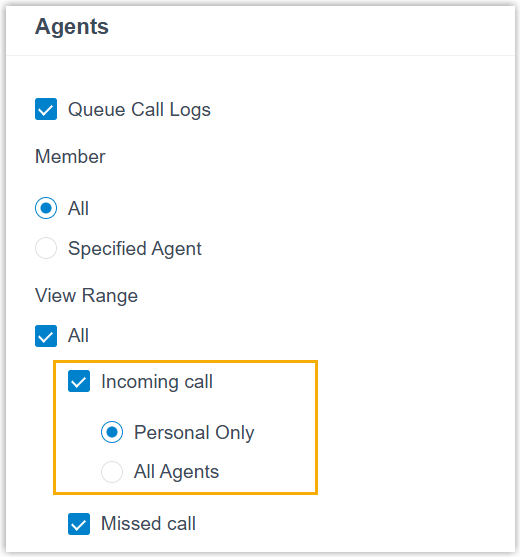
Option Description Personal Only If selected, authorized queue agents can only view the queue call logs they answered on their Linkus clients. All Agents If selected, authorized queue agents can view the queue call logs answered by all agents in the queue on their Linkus clients. Note: Only queue call logs generated in version 84.21.0.117 or later are accessible. Historical queue call logs prior to this version are not supported. - Fixed the Call Center issue: The time displayed on Wallboard was one hour ahead of the PBX system time.
- Optimized queue manager permission settings: Added the
following configuration items for queue call logs (Path: ).
- Voicemail
-
- Added support for extension users to forward their extension
voicemails to one or multiple specified extensions on their
Linkus UC Clients.Note: To achieve this, extension users must upgrade their Linkus clients to the following versions:For more information about how user can forward voicemails, see Check and Manage Voicemails on Linkus Web Client, Check and Manage Voicemails on Linkus Desktop Client, and Check and Manage Voicemails on Linkus Mobile Client.
- Linkus Desktop Client: Version 1.22.4 or later
- Linkus Mobile Client: Version 5.25.15 (iOS) / 5.25.13 (Android) or later
- Optimized voicemail playback experience: When listening to a forwarded voicemail via feature code, the system announces the forwarding source at the beginning.
- Added support for extension users to forward their extension
voicemails to one or multiple specified extensions on their
Linkus UC Clients.
- Call Recording
-
- Increased the download size limit for recording files from 600 MB to 2 GB.
- Fixed a multi-party conference call recording issue: Due to an incompatible filename format with a third-party platform, the recording was not parsed correctly, resulting in incomplete recording synchronization to the third-party platform.
- Call Disposition
- Increased the maximum capacity limit from 20 to 200.
- Hot Desking
- Fixed the Hot Desking issue: When using Yealink IP phones for hot desking, users occasionally failed to log in or log out.
- Messaging
-
- Added a configuration item Allow the Creation of
Duplicate Active Sessions for SMS channel and
WhatsApp channel (Path: ).
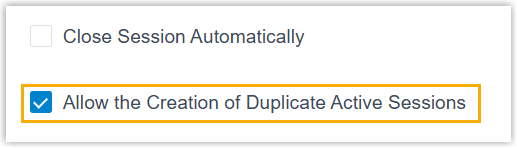
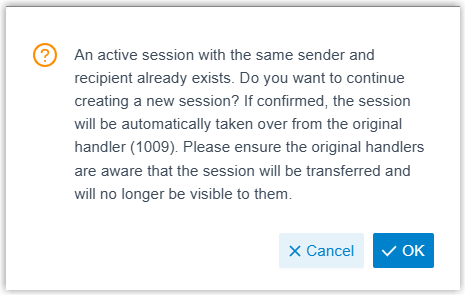
When enabled, if an extension user creates a session on Linkus clients, and the session already exists (same sender and receiver) on the channel, a prompt will appear. If the user continues, the original session will be taken over by that user, along with the complete chat history.
Note: For Linkus Mobile Client, users must upgrade their Linkus to the following versions:- Linkus iOS Client: Version 5.25.15 or later
- Linkus Android Client: Version 5.25.13 or later
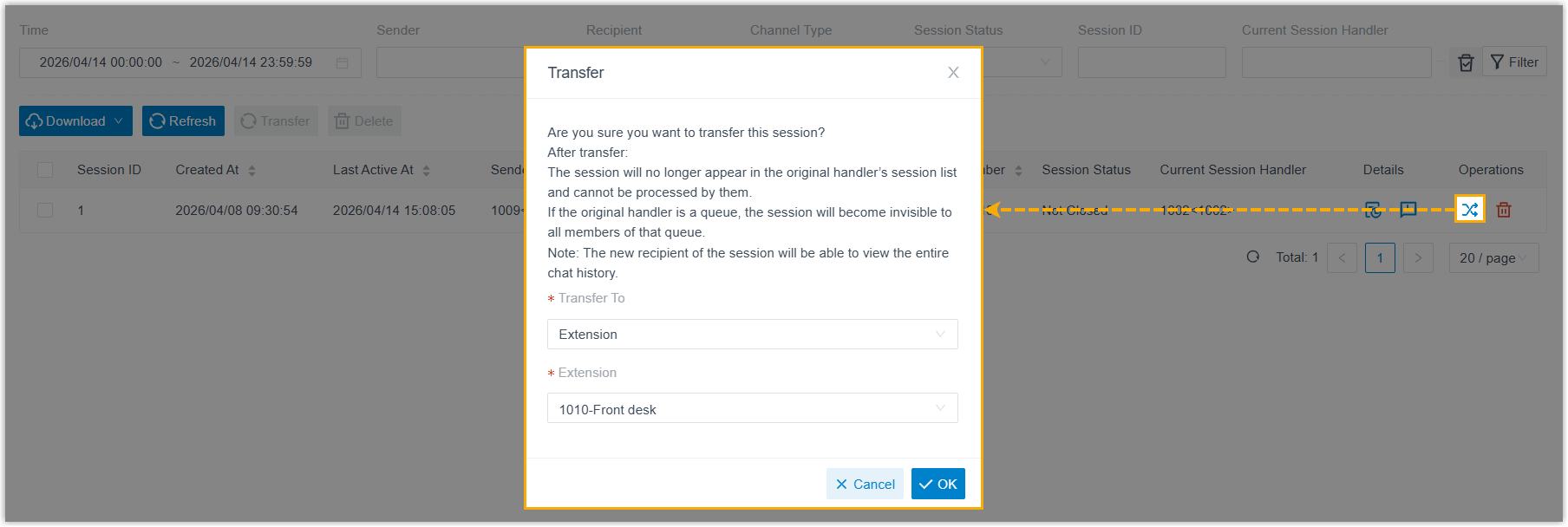
- Optimized external chat log management (Path: ).
- Added support for filtering chat sessions by
Current Session
Handler.

- Added a quick operation button
 , which can quickly filter
chat sessions of deleted extensions and queues.
, which can quickly filter
chat sessions of deleted extensions and queues.
- Added support for transferring one or multiple chat
sessions to a specified destination.
- Added support for filtering chat sessions by
Current Session
Handler.
- Added a configuration item Allow the Creation of
Duplicate Active Sessions for SMS channel and
WhatsApp channel (Path: ).
- PBX Settings
-
- Added an option Display the Diversion SIP Header for
Extension Forwarding for Distinctive
Caller ID Name (Path: ).
If enabled, when an incoming call to an extension is directly forwarded to a designated destination type specified in Extension Forwarding with Diversion SIP Header setting (Path: ), the Caller ID will display the name and number of the extension from which the call was forwarded.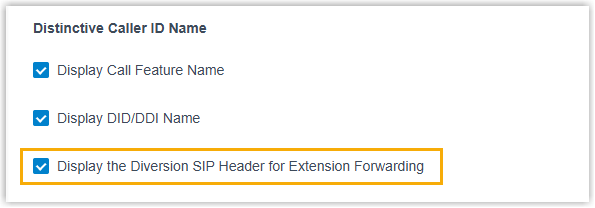 Note: This information can be displayed on both IP phones and Linkus clients. For proper display on Linkus clients, extension users must upgrade their Linkus clients to the following versions:
- Linkus Desktop Client: Version 1.22.4 or later
- Linkus Mobile Client: Version 5.25.15 (iOS) / 5.25.13 (Android) or later
- Added a destination type Queue for the
Extension Forwarding with Diversion SIP
Header setting (Path: ). If selected, when an incoming call to an
extension is forwarded to a queue, the INVITE request will carry
the
Diversionheader to inform the destination which extension the call was forwarded from.
- Fixed the Masked Number issue: When Calls initiated via "Open API" was enabled, the phone number in the caller name field was not hidden in Linkus Web Client for calls initiated via API.
- Added an option Display the Diversion SIP Header for
Extension Forwarding for Distinctive
Caller ID Name (Path: ).
- Email Template
-
- Added support for email template language of Spanish (Path: ).
- Removed the email signature from the bottom of all email templates.
- Archive
- Fixed the archiving issue: Failed to archive recording files to Amazon S3.
- Active Directory Integration
- Optimized the user synchronization settings:
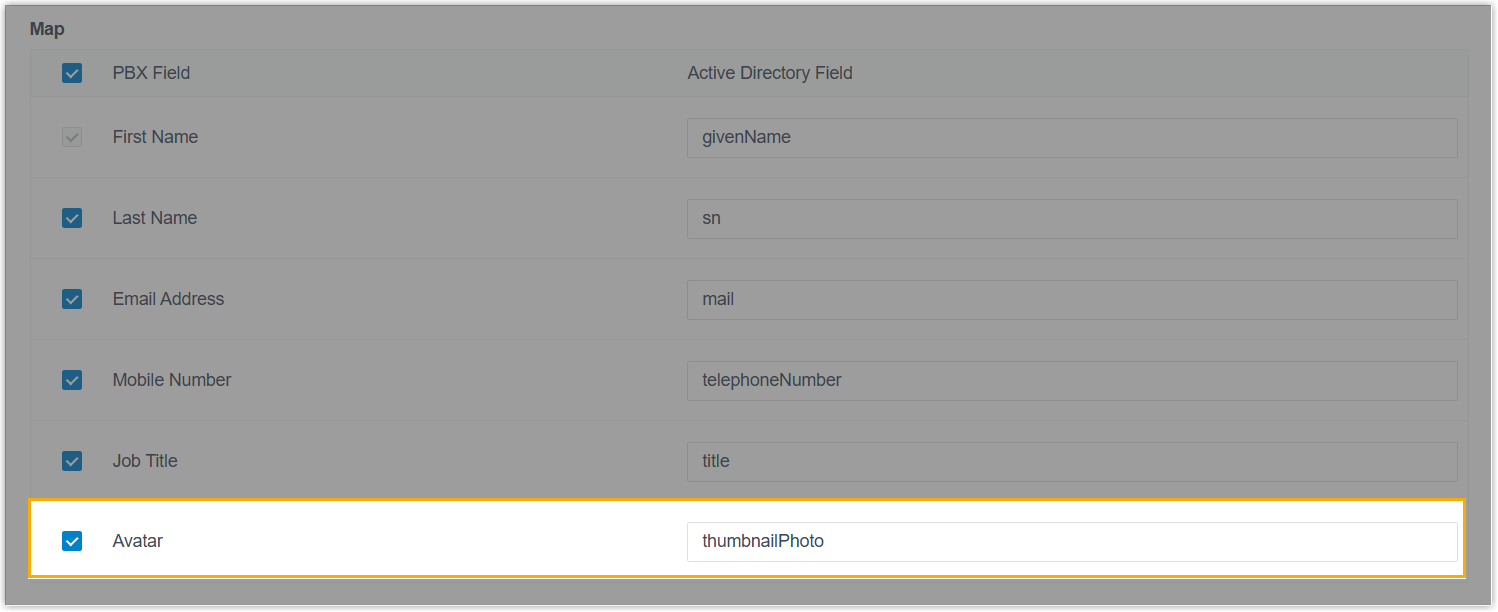
- Added a mapping field Avatar in
Map section. If selected, user
avatars will be synced from Active Directory to the PBX
extensions.
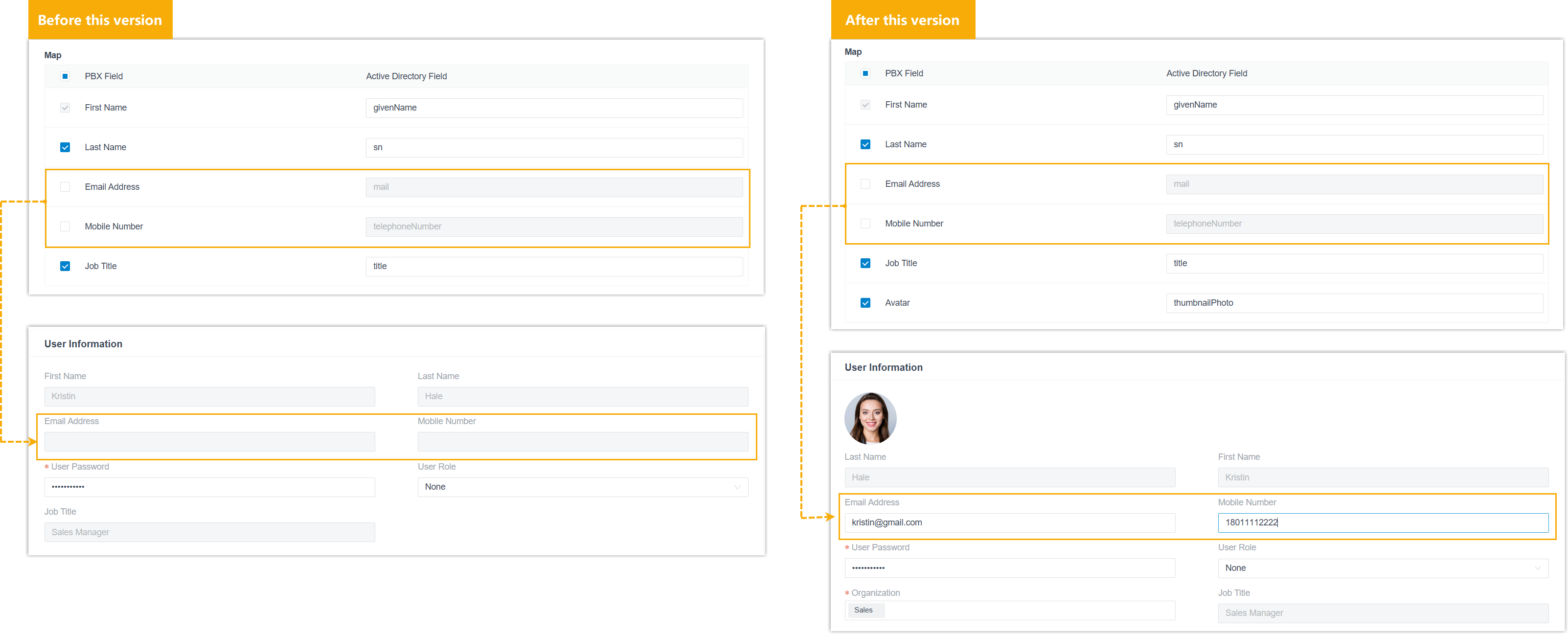
- Added support for modifying the extension information of synced
users.
If you disable the mapping of specific fields, the corresponding information will not be synchronized, and you can edit the information directly on the PBX.
- Added a mapping field Avatar in
Map section. If selected, user
avatars will be synced from Active Directory to the PBX
extensions.
- Collaboration Integration
- Optimized the user matching mechanism when the Auto associate
Extensions with the Users that share the same email
address option is enabled.
Integration Description Microsoft Entra ID (Azure Active Directory) Integration PBX uses the User principal name of Microsoft Entra ID user (instead of the Email Address mapping field configured in the Map section) to match the PBX extension's email address. Google Workspace Integration PBX uses the Primary email in Google Workspace (instead of the Email Address mapping field configured in the Map section) to match the PBX extension's email address. Note: For Active Directory Integration and Red Hat SSO Integration, PBX continues to use the Email Address mapping field configured in the Map section for matching. To ensure consistent and secure matching, it is strongly recommended to restrict users from modifying their email addresses in the identity provider platforms.
- Custom CRM/Helpdesk Integration Template
- Added support for setting Authorization Code Flow with Proof Key for Code Exchange (PKCE) as the OAuth 2.0 authorization mode.
- When configuring OAuth 2.0 authentication in an integration template,
you can enable this mode using the configuration items
Authorization Mode and PKCE
Verification Method (Path: ). This allows the integration to perform OAuth 2.0
authorization using the PKCE challenge-verifier pair instead of a client
secret, effectively preventing authorization code interception and thus
improving security.
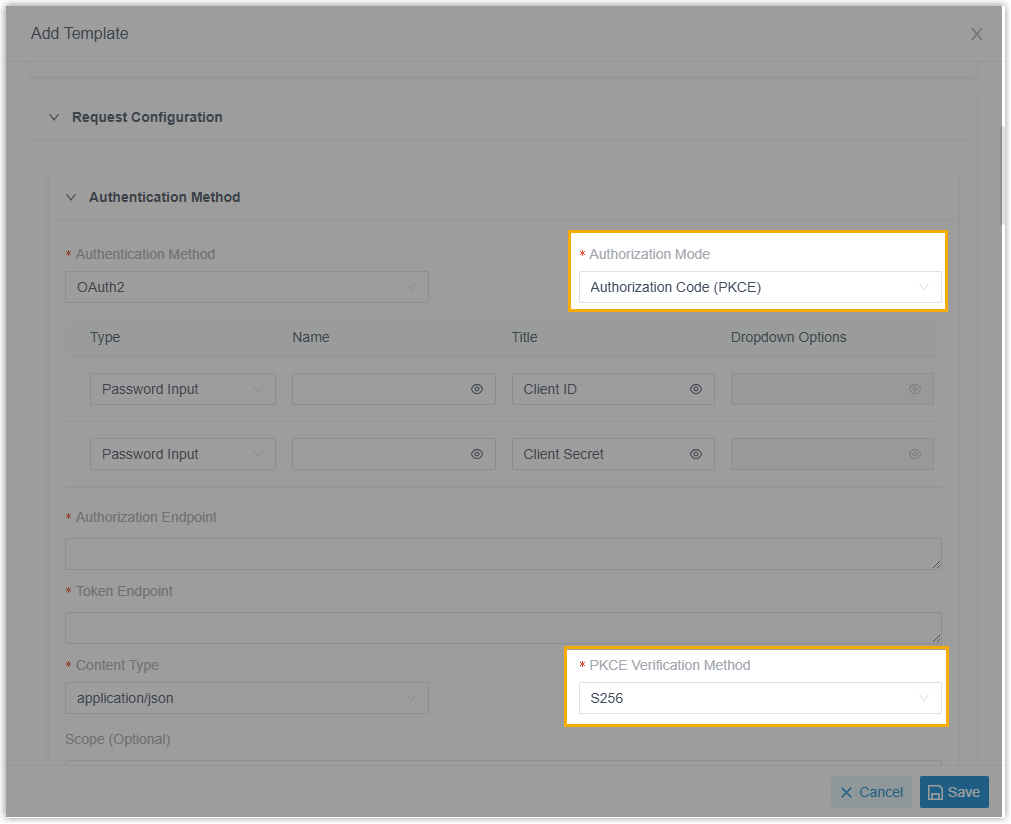
For more information, see Add a CRM Integration Template and Add a Helpdesk Integration Template.
- Dynamics 365 CRM Integration
- Fixed the call recording issue: Although Play Call Recording was enabled for the integration, the recording field in Dynamics 365 phone call activities was always empty.
- API
- Optimized the API interfaces for the following features:
Feature Description Extension - Added support for querying or configuring
avatar for extensions via the following API
interfaces:
- Added an interface
extension/uploadtempavatarfile, which can be used to upload extension avatar images to the PBX, with a file ID returned. - Added a parameter
avatarfor interfacesextension/get,extension/query,extension/create, andextension/update, which can be used to query the file ID of extension's avatar image, or set extension's avatar by specifying the corresponding file ID.
- Added an interface
- Added a value
send_busyto the destination parameters in extension presence settings for interfacesextension/get,extension/query,extension/create, andextension/update. If the destination issend_busy, the PBX will reject incoming calls and return a SIP response code486 Busy Here.
Trunk Added the following parameters for interfaces trunk/get,trunk/query,trunk/create, andtrunk/updateto query or configure SIP REFER related settings:refer_to_support: Whether the PBX can process SIP REFER request received via the trunk.refer_to_mode_list: The allowed transfer destination type(s) (internal number and/or external number).refer_to_prefix: The prefix to be prepended to the target number when transferring to an external number.
Voicemail - Added an interface
vm/forward, which can be used to forward a specific voicemail message to one or multiple extensions. - Added a parameter
vm_detailInfofor interfacesvm/getandvm/query, which returns the forwarding source (extension name and number) if the voicemail was forwarded.
Message Channel Added a parameter enb_duplicate_active_sessionfor interfacesmessage_channel/get,message_channel/query,message_channel/create, andmessage_channel/update, which can be used to query or configure whether the creation of duplicate sessions is allowed in the message channel.For more information, see Developer Guide - Message Channel.
- Added support for querying or configuring
avatar for extensions via the following API
interfaces:
- CDR
- Fixed the scheduled CDR issue: Call records for a contact could be searched in CDR, but downloading the scheduled report for the same contact returned empty content.
- Call Report
- Fixed the call report issue: Querying the Queue Performance report failed, and the system returned a "request timeout" error, even though the actual request limit had not been reached.