Manage Your Voicemails
This topic describes how to manage your voicemails.
Procedure
- Log in to Linkus Web Client.
- On the left navigation bar, click Voicemails.
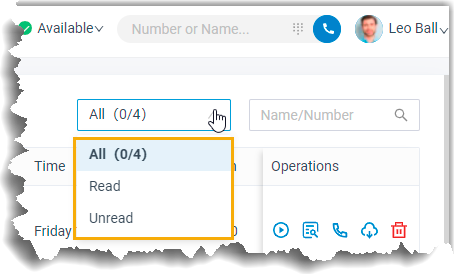
- Optional: To filter voicemails, you can do as follows:
- Select which status of voicemail messages you want to
check.
- In the search bar, enter the caller's name or number.
- Select which status of voicemail messages you want to
check.
- Check and manage voicemails according to your needs.Note:
- Changes to the voicemails will be synchronized to all Linkus UC Clients.
- If the label "Forwarded from: <Extension Name> - <Extension Number>" is displayed below a voicemail, this indicates that the voicemail was forwarded from another extension. Any changes on such voicemails will not affect the original voicemails.
- To listen to a voicemail, click
 .
. An unread voicemail will be marked as read.
- To view a transcribed voicemail text, click
 or
or  .Note: This feature is available only when system administrator has enabled voicemail transcription feature on the PBX server and there is sufficient transcription time.
 - To place a call to the caller, double click a record or click
 .
. - To chat with the caller, right click a record, click
Chat.Note: Chat feature is only for internal communication.
- To download a voicemail, click
 .
. - To forward voicemail(s) to one or more specified extensions, do as
follows:Note: After forwarding, your original voicemails will still remain in your voicemail list, and you can check and manage them as usual.
Operation Instruction Forward a voicemail - Click
 beside the desired
voicemail.
beside the desired
voicemail. - In the pop-up extension list, select one or more desired extensions.
- At the right-bottom corner, click OK.
Bulk forward voicemails - Select the checkboxes of the desired voicemails.
- At the top menu, click Forward.
- In the pop-up extension list, select one or more desired extensions.
- At the right-bottom corner, click OK.
- Click
- To delete voicemails, do as follows:
- To delete a voicemail, click
 beside the voicemail, and then click
OK in the pop-up window.
beside the voicemail, and then click
OK in the pop-up window. - To bulk delete voicemails, select the checkboxes of the desired voicemails, click Delete at the top menu, and then click OK in the pop-up window.
- To delete a voicemail, click
- To bulk mark voicemails as read, select the checkboxes of the desired voicemails, click Mark as read.
Tip: You can also right click a record to perform the above operations for a specific voicemail.