Change Theme Mode
By default, the PBX web interface automatically matches your browser’s theme, switching between light and dark modes accordingly. You can also manually set the PBX to use a fixed light or dark theme, regardless of your browser’s settings.
Requirements
The firmware of Yeastar P-Series PBX System is 37.21.0.117 or later.
Procedure
- Log in to PBX web portal.
- Configure the theme settings.
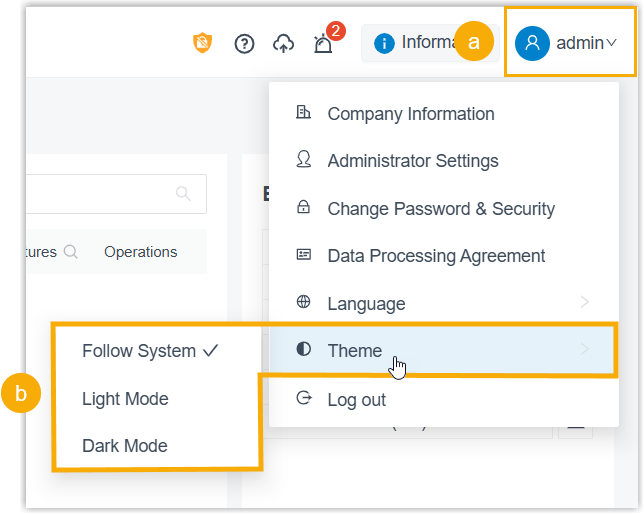
- At the top-right conner of the web page, click your profile icon.
- In the drop-down list, click Theme, then
select your desired theme mode.
Mode Description Follow System Automatically syncs with your web browser’s current theme. Light Mode Always use the light theme. 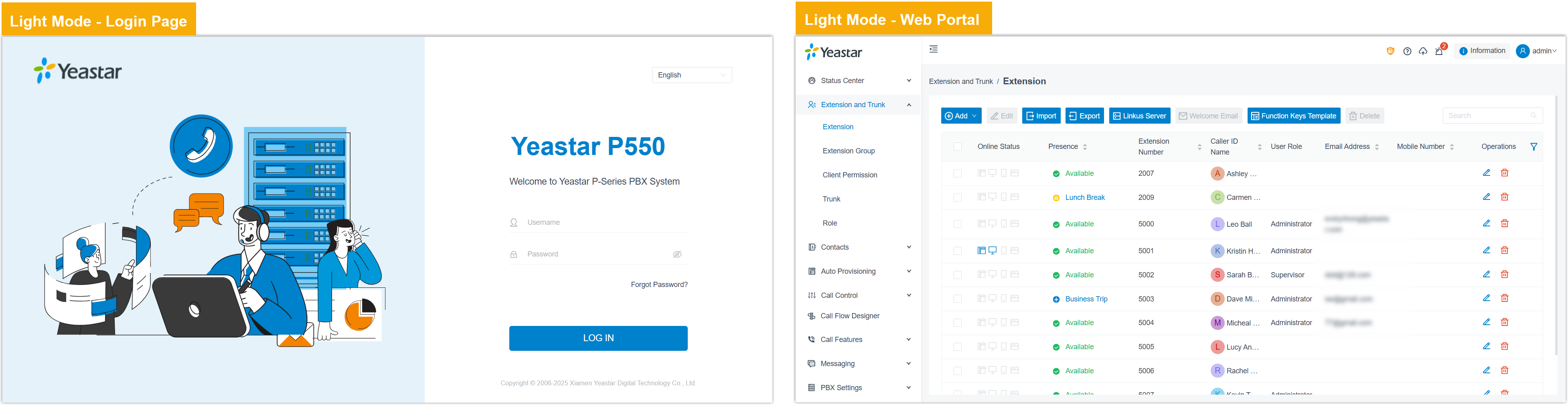
Dark Mode Always use the dark theme. 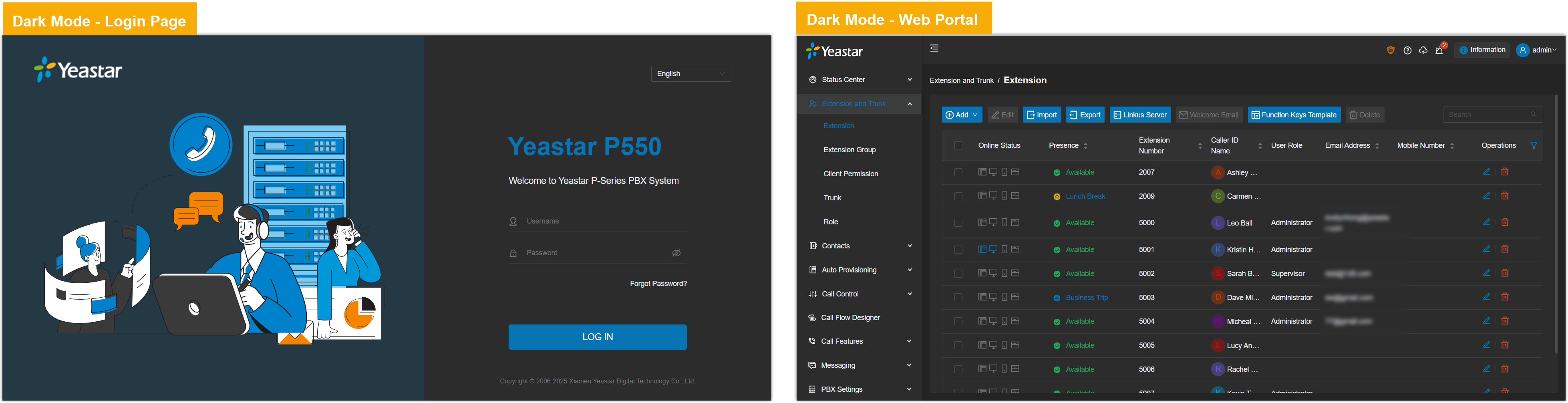
Result
The change takes effect immediately; The PBX web portal updates to the selected theme colors.
Note: Extension users can also customize the theme mode for
their Linkus clients. To use this feature, the Linkus clients should meet the
following version requirements.
- Linkus Desktop Client: Version 1.19.3 or later
- Linkus Mobile Client: Version 5.14.3 (for iOS) / 5.14.4 (for Android) or later