Manage Customer Queries from External Messaging Channels on Web Client / Desktop Client
This topic describes how to manage the messaging sessions of customer queries on Linkus Web Client and Desktop Client.
Requirements
- PBX Server
- Contact system administrator to make sure that PBX server meets the
following requirements:
- PBX Version: 83.24.0.73 or later.
- Messaging: At least one messaging channel is set up on PBX.
- Linkus Desktop Client
- Make sure that the version of your Linkus Desktop Client meets the following
requirement:
- Windows Desktop: 1.2.14 or later
- macOS Desktop: 1.2.14 or later
Handle messages within a session
In a messaging session, you can perform various operations on individual messages.
- On Linkus Web Client or Desktop Client, click Chat, then click the External Chat tab.
- Click the desired session, and handle the message as needed.
Operation Instruction For all sessions Copy message content To copy information for reuse, do as follows: - Right click the desired message.
- Click Copy.
The message content is copied to your clipboard and ready to paste elsewhere.
Forward a message To share the message to another external chat session, do as follows: 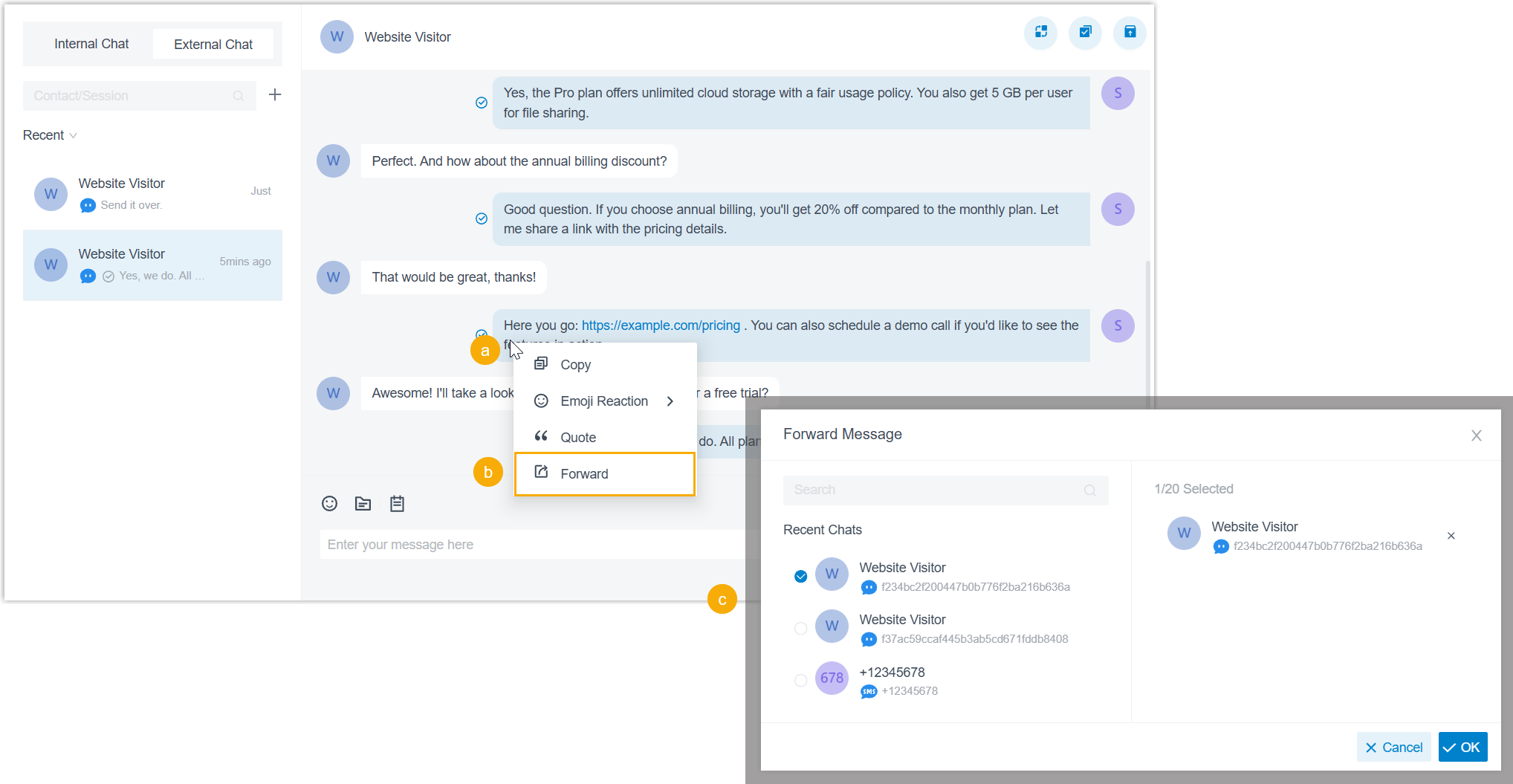
- Right click the desired message.
- Click Forward.
- In the pop-up window, select the desired external chat session, then click OK.
For sessions conducted via online message channels (WhatsApp, Facebook, and Live Chat) React to a message with emojis To add reaction to a chat message using an emoji without sending a text reply, do as follows: Note: This operation is available for WhatsApp and Live Chat channel only.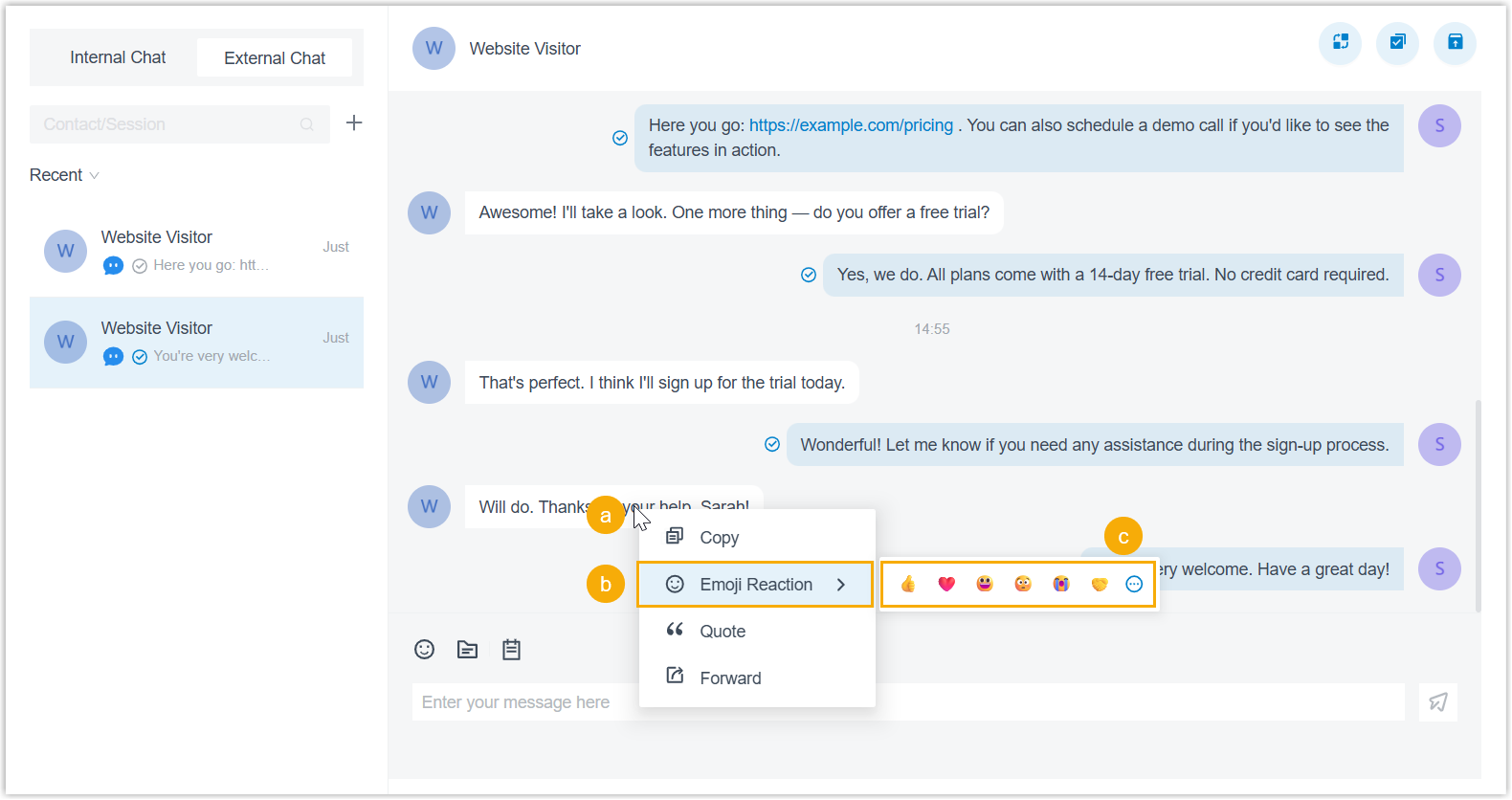
- Right click the desired message.
- Click Emoji Reaction.
- Select an emoji from the picker or click
 to find more
emojis.
to find more
emojis.The selected emoji will appear below the message.
Tip: To undo your reaction, click the emoji you reacted with.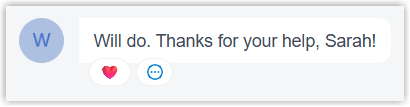
Reply to a specific message To respond directly to a specific message, do as follows: - Right click the desired message.
- Click Quote.
- Enter your reply in the message input box,
then click
 to send.The message will be sent as a quoted reply, clearly showing which message you are responding to.Tip: You can click the quoted content to jump directly to the original message.
Check the read status of a message To confirm whether the other party has read your message, do as follows: Note: This operation is available only when system administrator has enabled the Message Read Receipt feature.- Check the read status indicator beside your messages.
 : Message
read.
: Message
read. : Message
delivered but not read yet.
: Message
delivered but not read yet.
- Optional: Hover over the indicator to
view the read time.
 Note: In a group chat, you can view the number of members who have read the message and the list of members with their read status.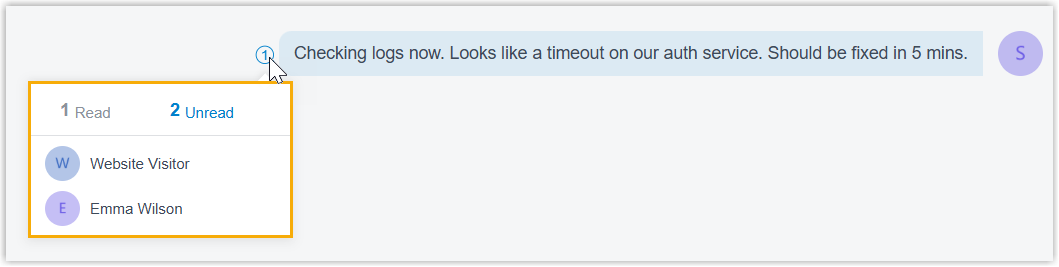
Check campaign sessions
If system administrator sets message campaigns to send messages in bulk, and assigns the campaign sessions to your extension or the message queue you belong to, you can view and manage these campaign sessions.
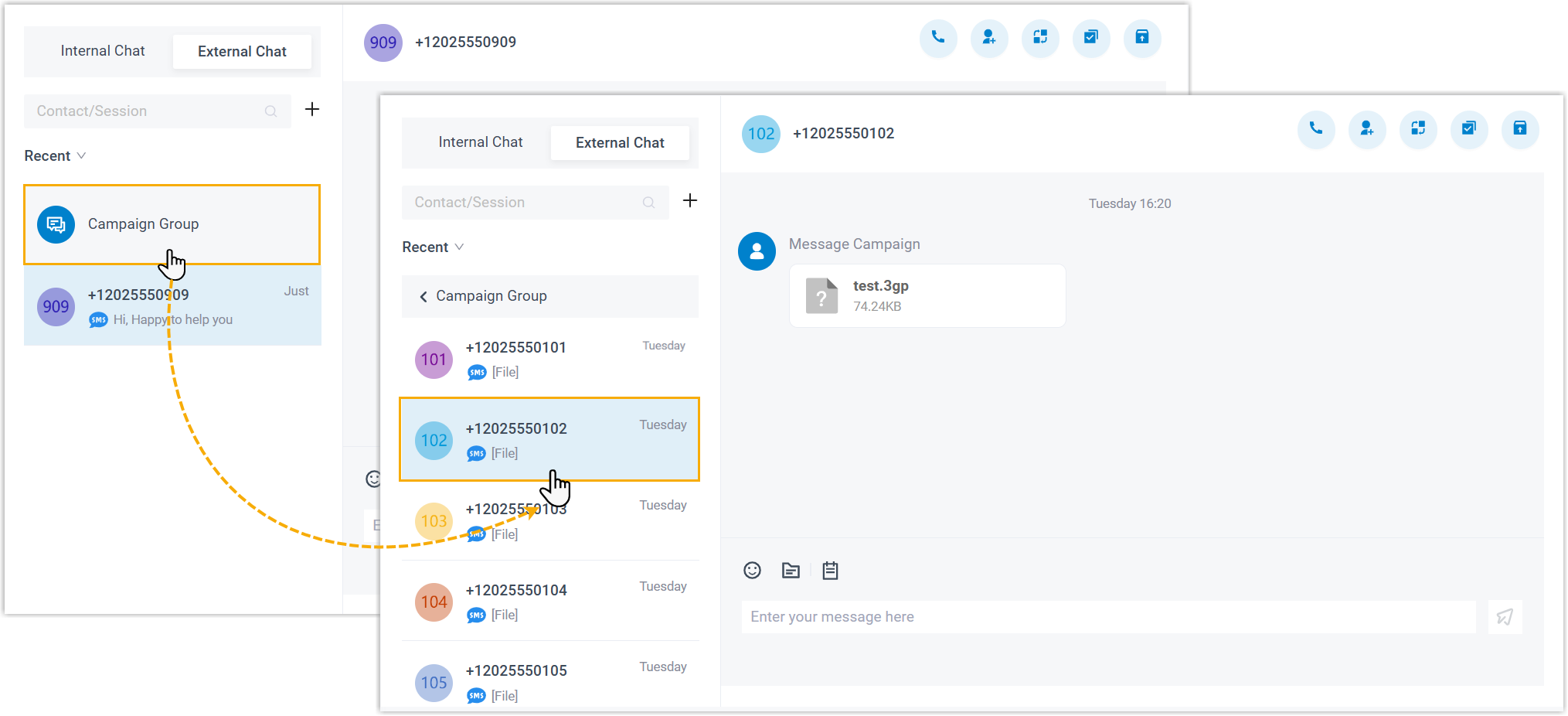
- On Linkus Web Client or Desktop Client, click Chat, then click the External Chat tab.
- In the external chat list, click Campaign
Group.
All sessions created by message campaigns will be listed.
- Click a session to view and respond to customer replies as needed.
Pick up a messaging session
- If the mode set to Manual Pickup, you need to manually pick up the session.
- If the mode is set to Auto-Pickup, the session will be automatically assigned to you if you are the first agent to reply. You can also manually pick up the session in this mode if needed.
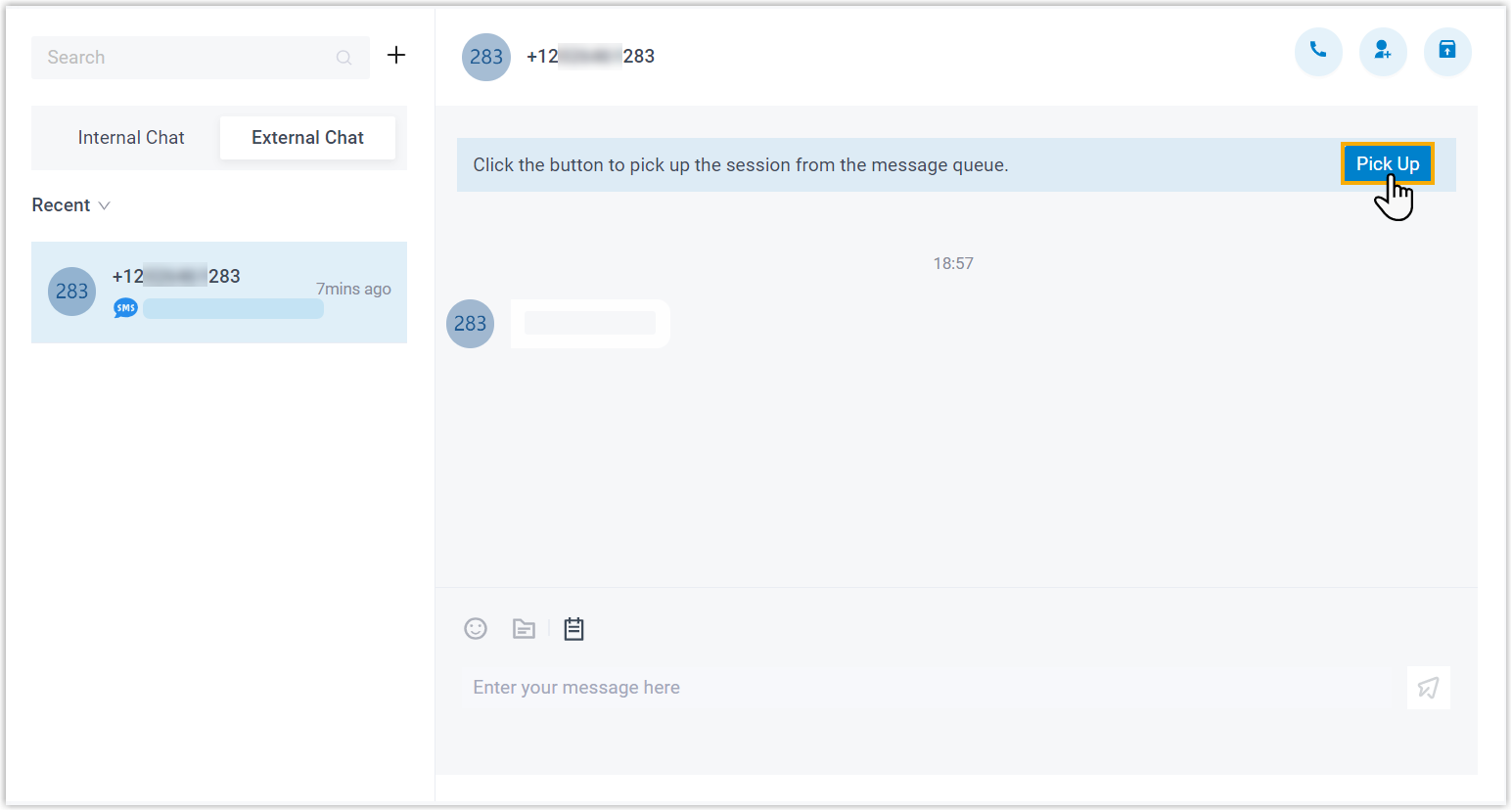
- On Linkus Web Client or Desktop Client, click Chat, then click the External Chat tab.
- To manually pick up a session, click Pick Up at the
top of the messaging session.
There is a prompt indicating that you have picked up the session from the message queue; Only you can see the session and respond to messages in the session.
Transfer a messaging session
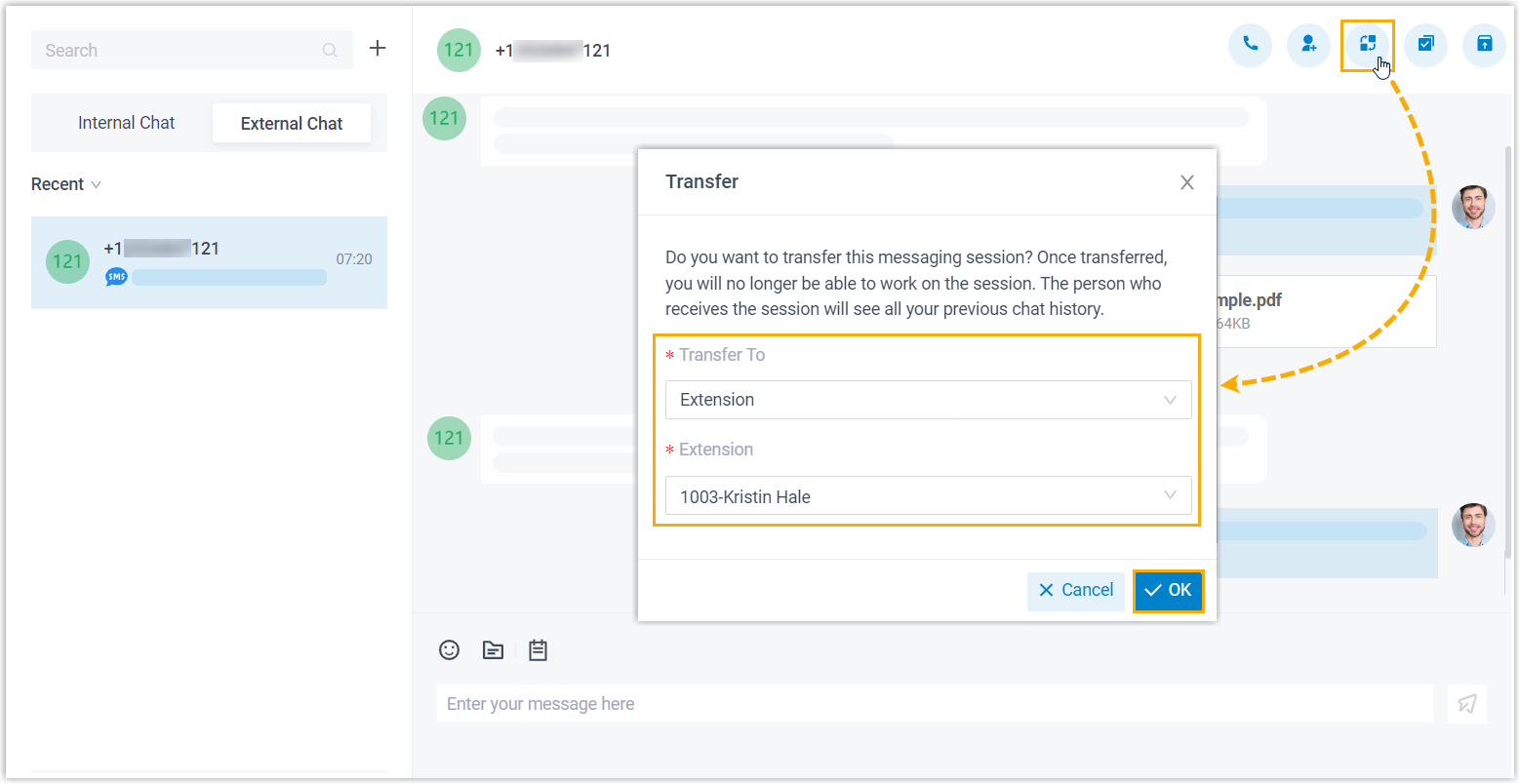
- On Linkus Web Client or Desktop Client, click Chat, then click the External Chat tab.
- At the top-right corner of the messaging session, click
 .
. - In the pop-up window, select the desired destination and click
OK.
The messaging session is removed from your external chat list, and transferred to the colleague / message queue / Third-party message analytics platform with whole chat history.
Initiate a voice call from a messaging session
You can initiate a voice call right from the messaging session to resolve a customer's issue if necessary.
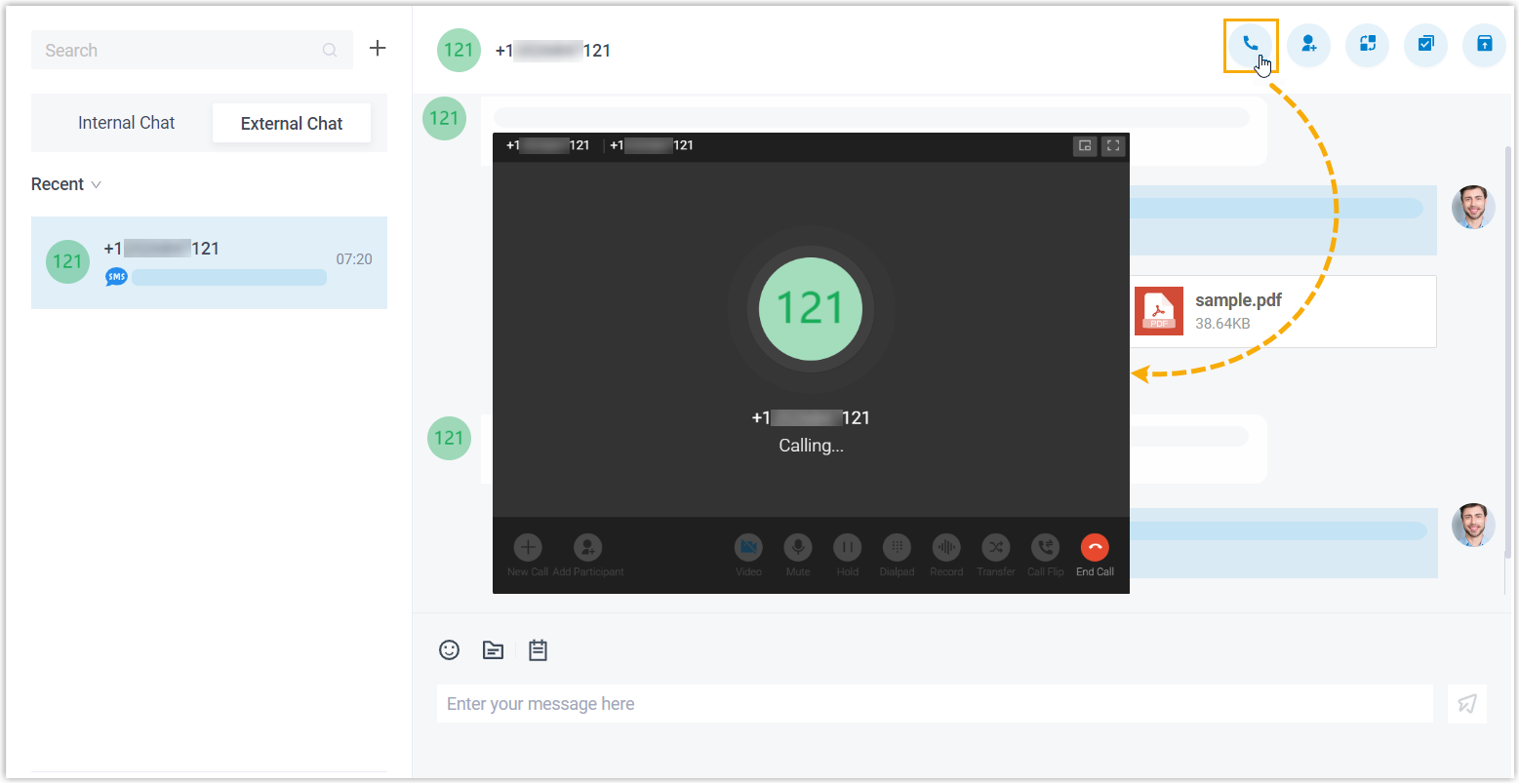
- On Linkus Web Client or Desktop Client, click Chat, then click the External Chat tab.
- At the top-right corner of the messaging session, click
 .
.Linkus Web Client quickly dials out the customer's number, and the call is sent through the PBX.
Add a customer to Contacts
You can add a customer to Contacts right from the messaging session.
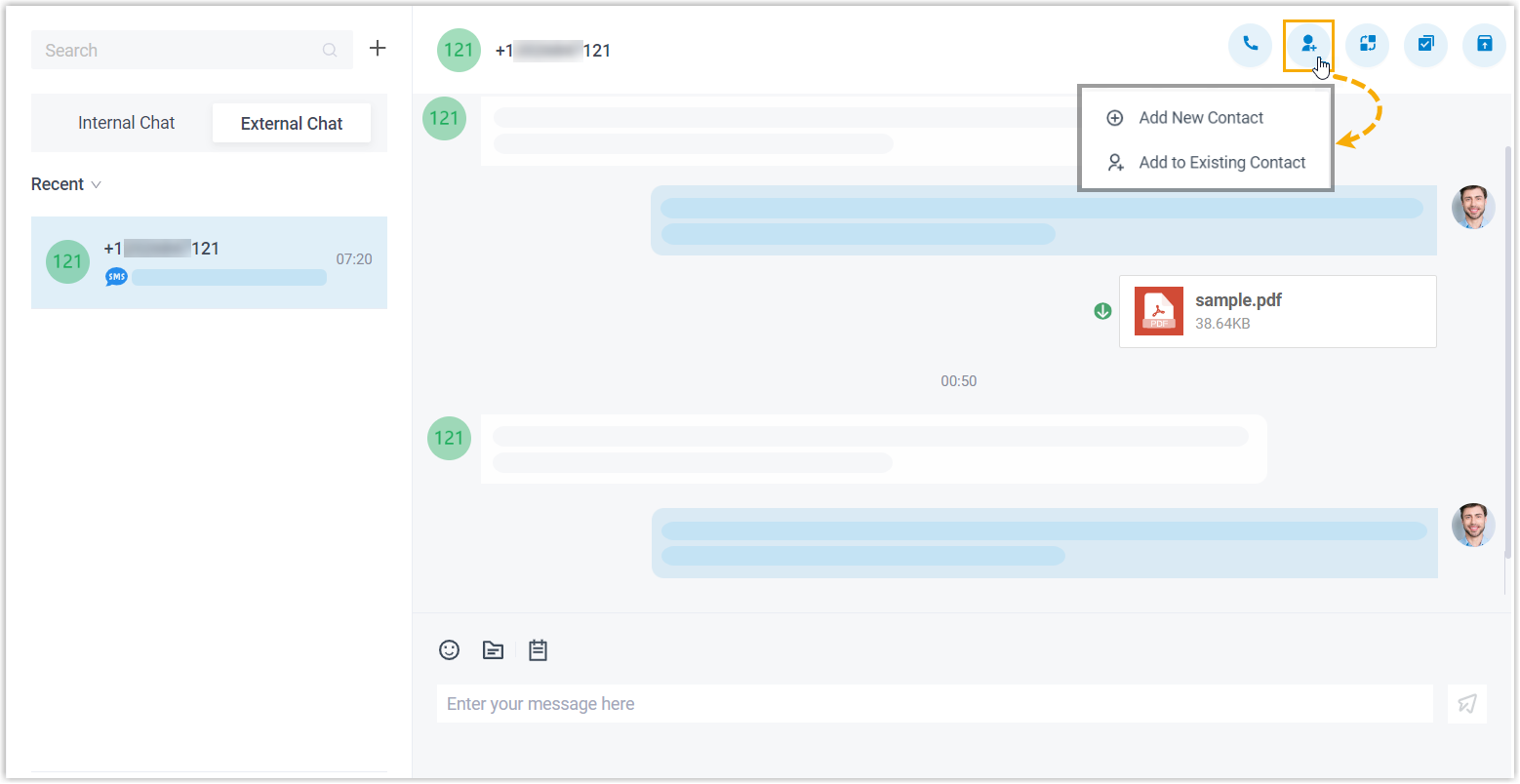
- On Linkus Web Client or Desktop Client, click Chat, then click the External Chat tab.
- At the top-right corner of the messaging session, click
 .
. - Add the customer to Contacts according to your needs.
- To add the customer as a new contact, click Add New Contact and enter the customer's information.
- To add the customer to an existing contact, click Add to Existing Contact and edit the contact's information as needed.
View messaging session details
You can check the detailed information of a messaging session, including the message source channel, channel number, etc.
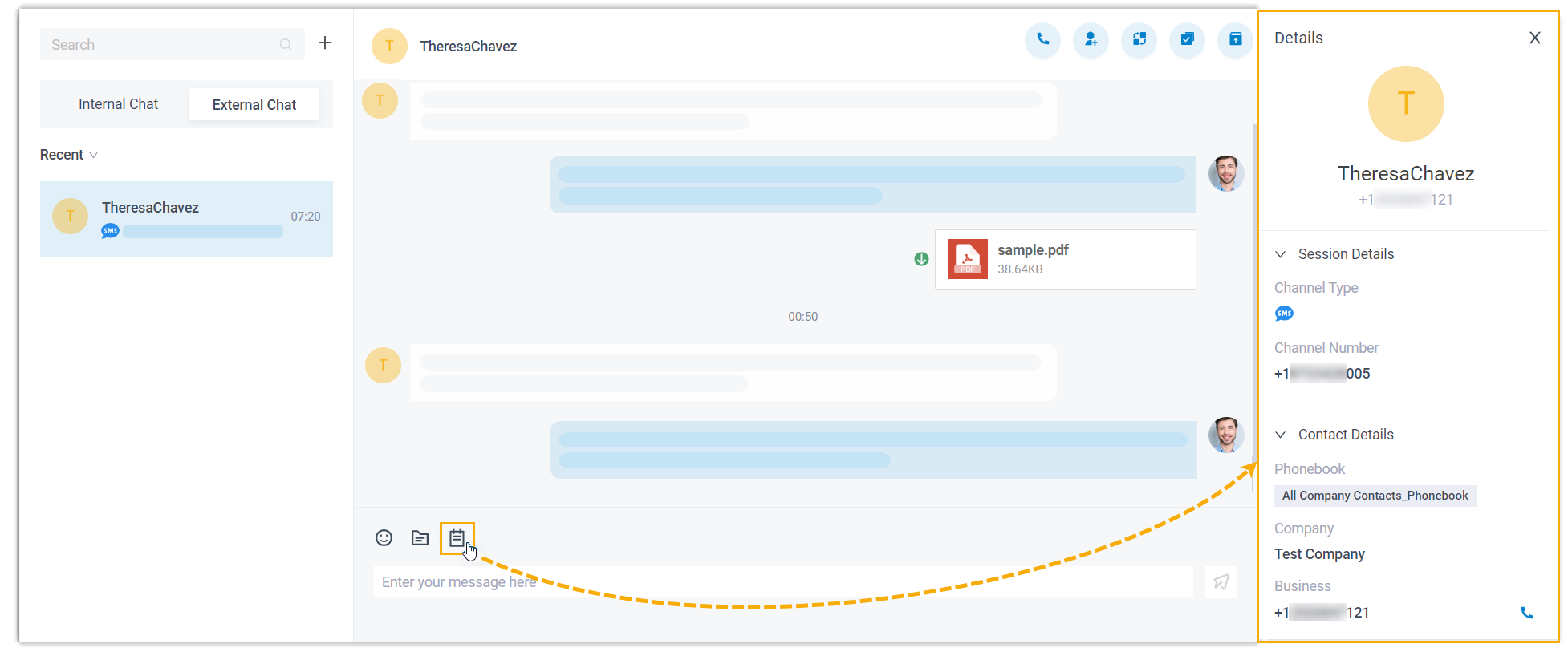
- On Linkus Web Client or Desktop Client, click Chat, then click the External Chat tab.
- At the bottom of the messaging session, click
 .
.The details of the messaging session is display at the right panel.
Archive a messaging session
You can archive a messaging session if there is no response from the customer or you wish to refer back to the session later.
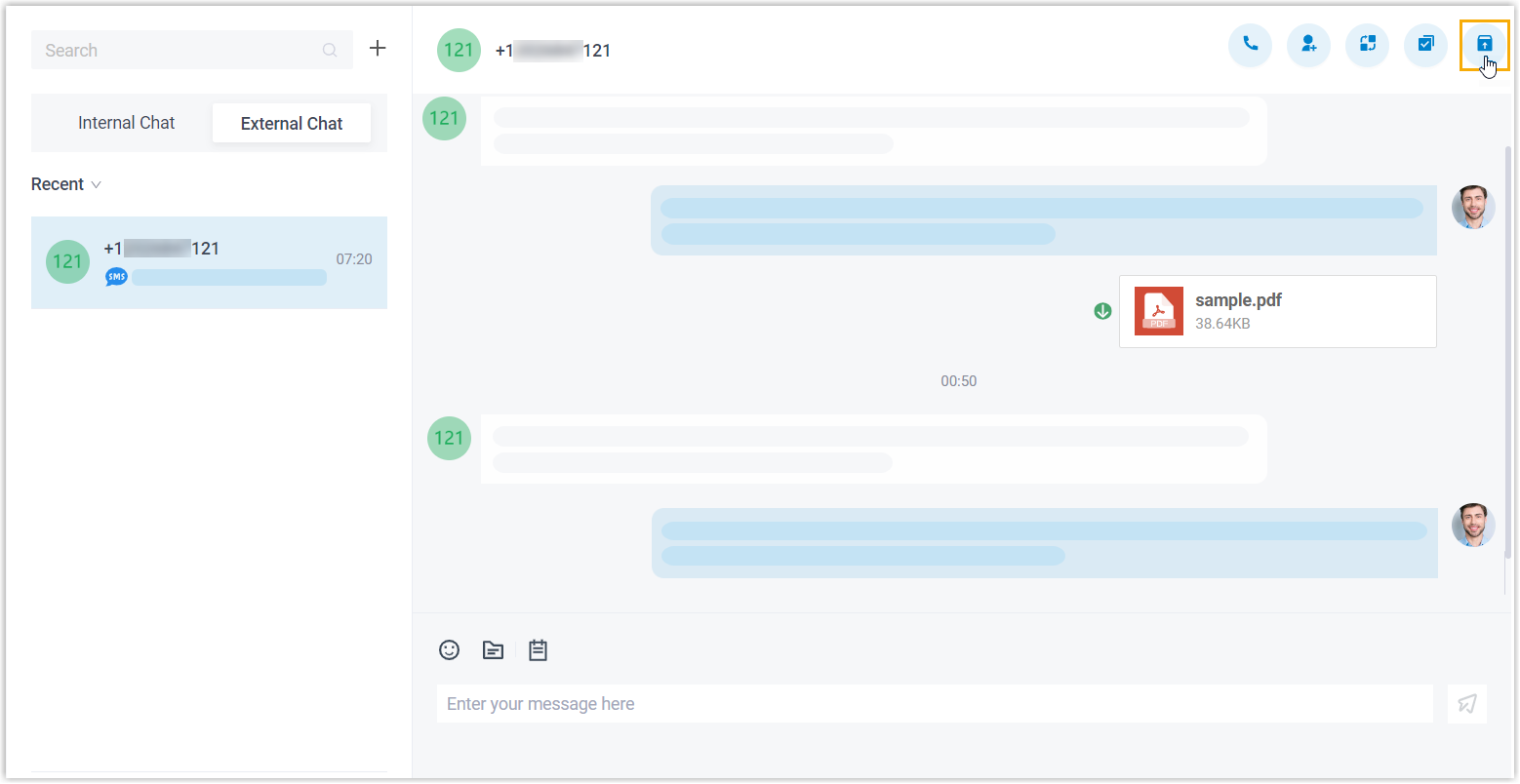
- On Linkus Web Client or Desktop Client, click Chat, then click the External Chat tab.
- At the top-right corner of the messaging session, click
 .The messaging session is moved from Recent list to the Archived list.Note: To start the conversation again, you can directly send a message in the archived messaging session, or click
 at the top-right corner to unarchive the messaging session. The
unarchived session will be moved back to the
Recent list.
at the top-right corner to unarchive the messaging session. The
unarchived session will be moved back to the
Recent list.
End a messaging session
When you’re done helping a customer, you can end the messaging session.
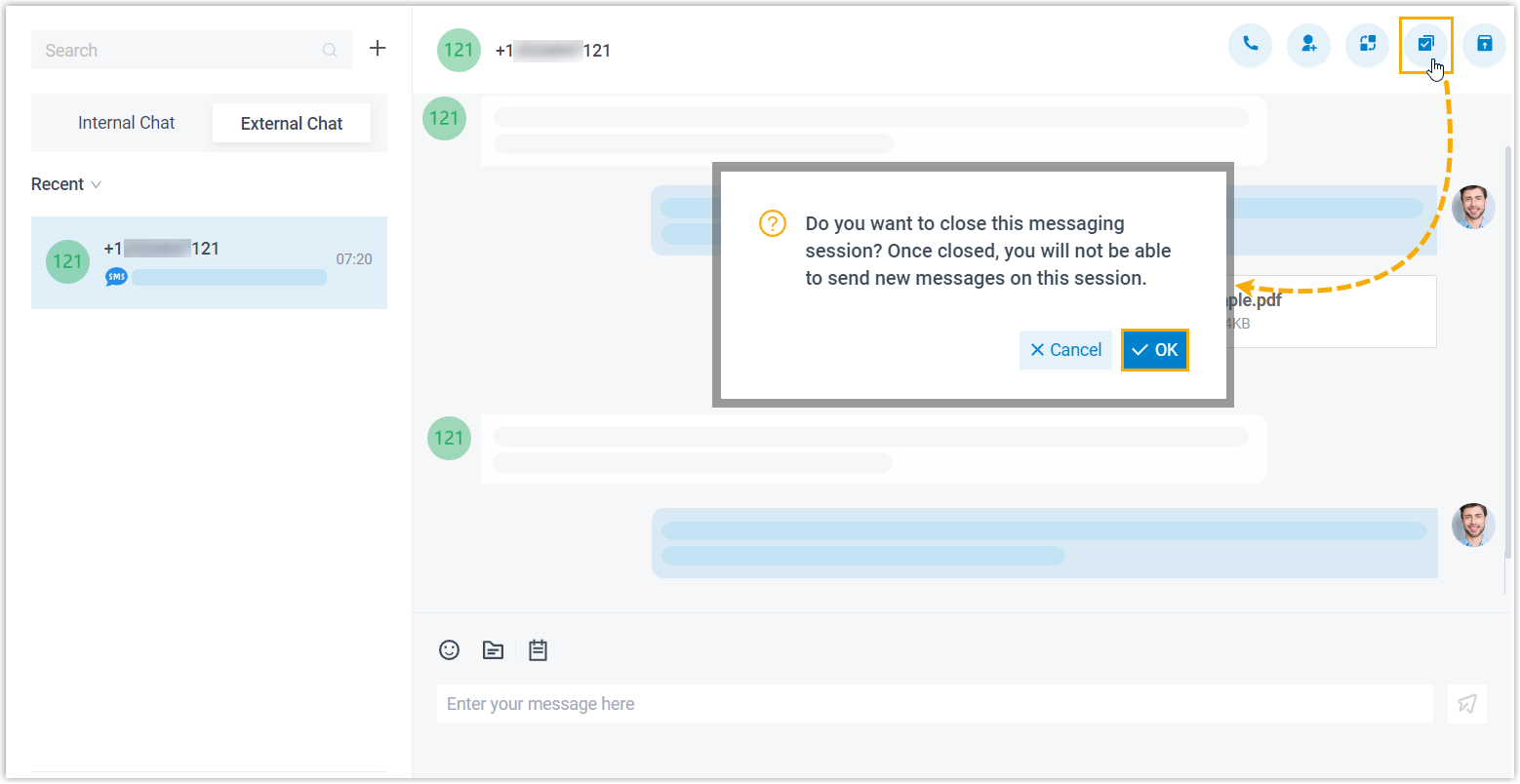
- On Linkus Web Client or Desktop Client, click Chat, then click the External Chat tab.
- At the top-right corner of a messaging session, click
 .
. - In the pop-up window, click OK.
The messaging session is closed and moved to the Archived list; You can NOT send messages on this session any more. Next time the customer sends messages, a new messaging session will be created.
Remove a messaging session
To remove a messaging session, do as follows:
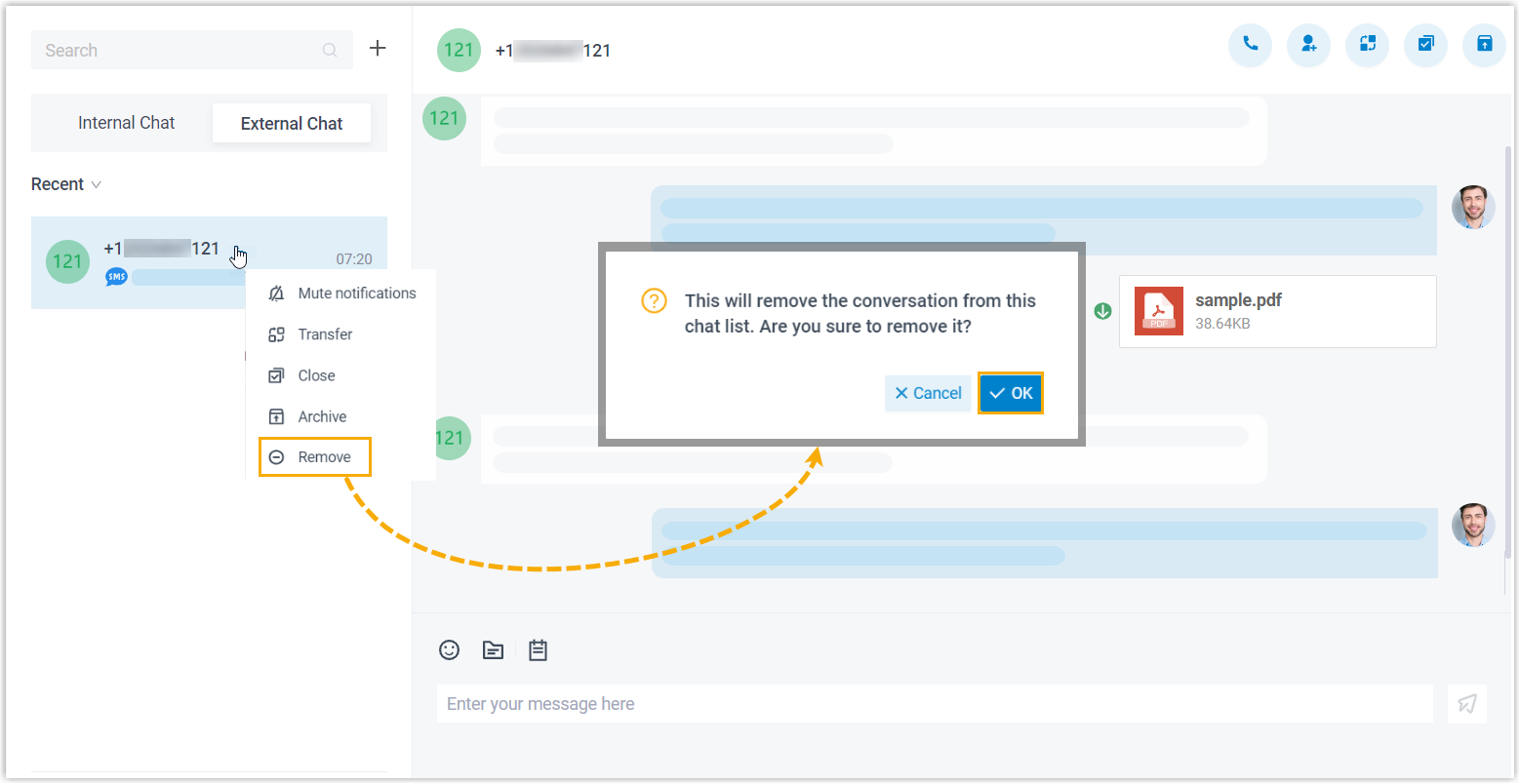
- On Linkus Web Client or Desktop Client, click Chat, then click the External Chat tab.
- In the external chat list, right click the messaging session that you want to remove.
- Click Remove.
- In the pop-up window, click OK.
The messaging session is removed from all your Linkus clients.