Integrate HID-compliant Headsets with Linkus Desktop Client
If you have a HID-compliant headset on hand, you can set up the HID-compliant headset as the audio device for Linkus Desktop Client, so as to control Linkus calls via the headset.
Supported headset types
All HID-compatible headsets (connected via USB or Bluetooth transmitter) are supported.
Note: Headsets from Jabra, Yealink, EPOS,
Poly have been verified to work properly. Headsets from other brands
may be subject to limitations.
Procedure
- Make sure that Linkus Desktop Client
is in Desktop Client mode, or you can NOT set up the
HID-compliant headset as the audio device.
- Log in to Linkus Desktop Client.
- At the toolbar, check if
 is displayed.
If not, select Desktop Client from the drop-down list.
- Connect the HID-compliant headset to the USB port of your computer.
- Go to , set the headset as the audio device.
-
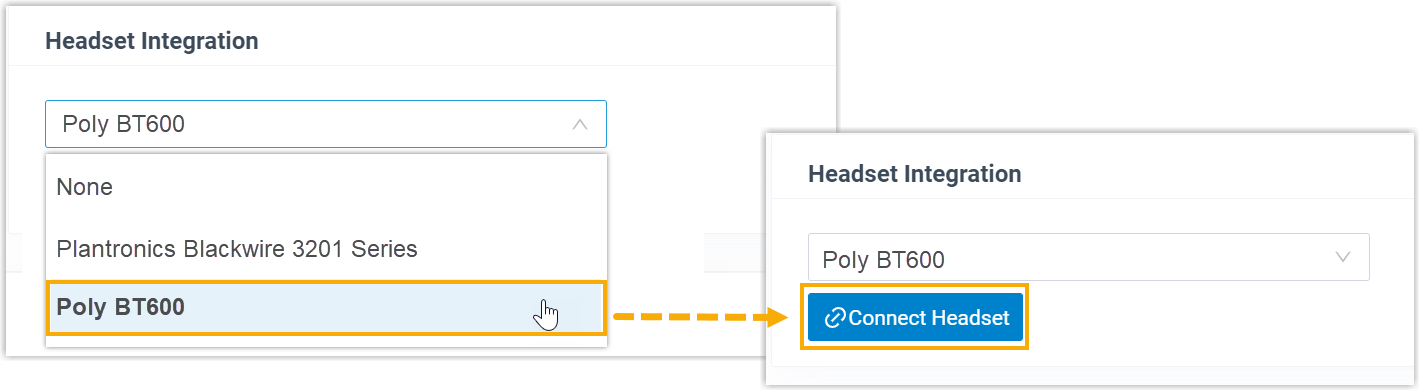
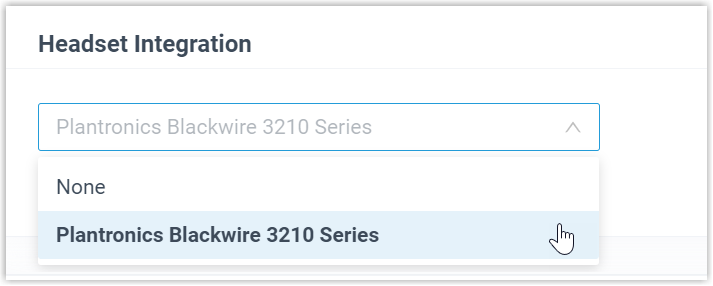
In the drop-down list, select the connected HID-compliant headset.
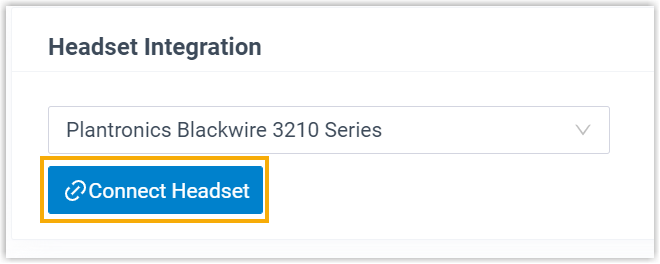
- Click Connect Headset.
-
- Click Save.
Result
You can use the HID-compliant headset to handle calls. The supported call operations
are as follows:
- Answer/Reject a call
- Answer/Reject a second call
- End a call
- Hold/Resume a call
- Mute/Unmute a call
- Adjust system volume
Tip: In case you want to change the connected
headset, select another connected HID-compliant headset and click
Connect Headset.