Change Incoming Call Pop-up Location
By default, when a call reaches Linkus, a pop-up appears at a fixed location - bottom right on Windows and top right on macOS. You can change the pop-up's location according to your preference.
Requirements
Make sure the version of Linkus Desktop Client is 1.17.4 or later.
Procedure
- Access the Settings menu of Linkus Desktop Client
based on your operating system.
- For Windows: At the system tray, right click
 , then select
Settings.
, then select
Settings.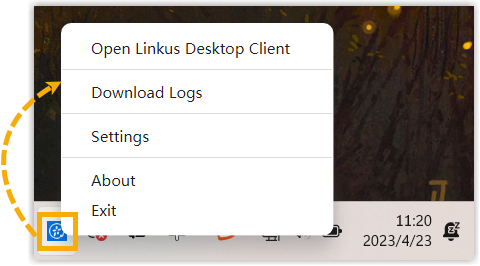
- For macOS: On the App menu, click Linkus Desktop
Client, then select
Settings.
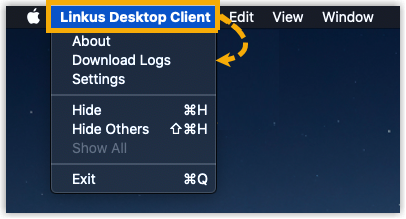
- For Windows: At the system tray, right click
- In the Incoming call pop-up location section, select
a desired location.
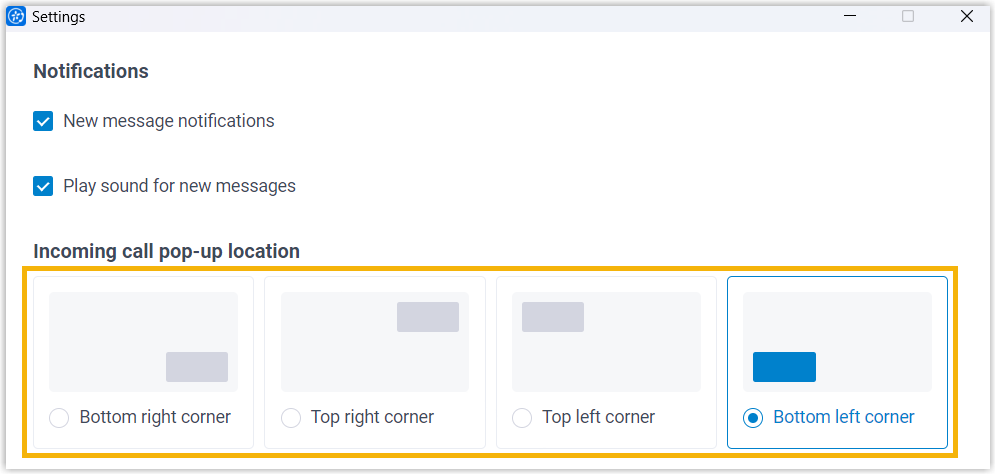
Result
When a call reaches Linkus, the incoming call
pop-up appears at the configured location.
Note: When working
with multiple monitors, the incoming call pop-up appears on the same screen as
the Linkus Desktop
Client.