Configure AI Call Transcription for an Extension
After AI call transcription is enabled, calls for authorized extensions can be recognized and transcribed in a global preset language. You can adjust the transcription settings for extensions individually to meet their specific needs.
Note:
- If the authorized extension is registered on Linkus Desktop Client, the AI Call Transcription feature is available only if the client’s firmware version is 1.15.3 or later.
- Authorized extension users can customize the AI call transcription settings directly on their Linkus Clients, and the changes will be automatically synchronized to the corresponding extension settings on the PBX.
Prerequisites
You have enabled AI call transcription and granted the usage permission for the desired extension.
Procedure
- Log in to PBX web portal, go to .
- Click
 beside the desired extension, then click the AI
tab.
beside the desired extension, then click the AI
tab. - In the Call Transcription section, configure the
following settings according to extension's need.
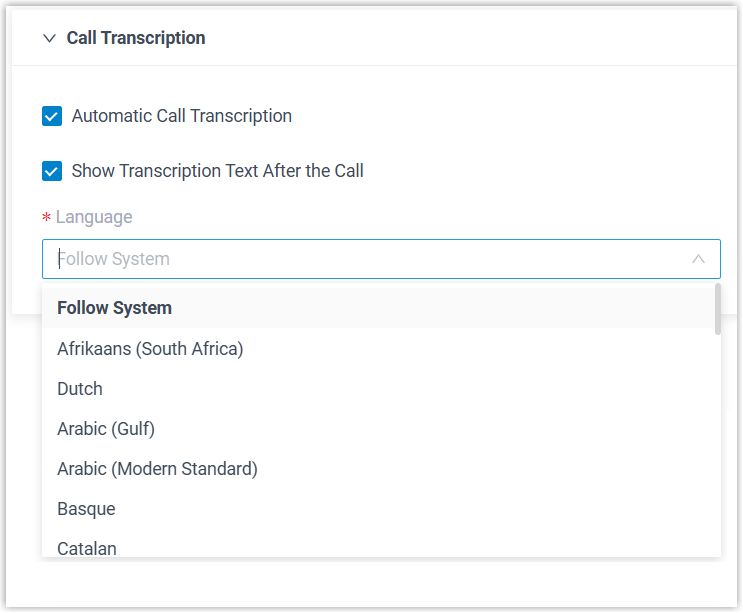
Setting Description Automatic Call Transcription Specify whether to automatically transcribe extension's calls in real time. If this option is disabled, extension users can manually trigger transcription from the call screen during an active call as needed.
Show Transcription Text After the Call Specify whether to automatically display the transcript and summary after the call ends. Language Select the desired language for call transcription. - Click Save.
Result
- When extension users join a one-on-one call, call audio can be recognized and transcribed in the configured language in real time, and a call summary can be generated automatically after the call ends.
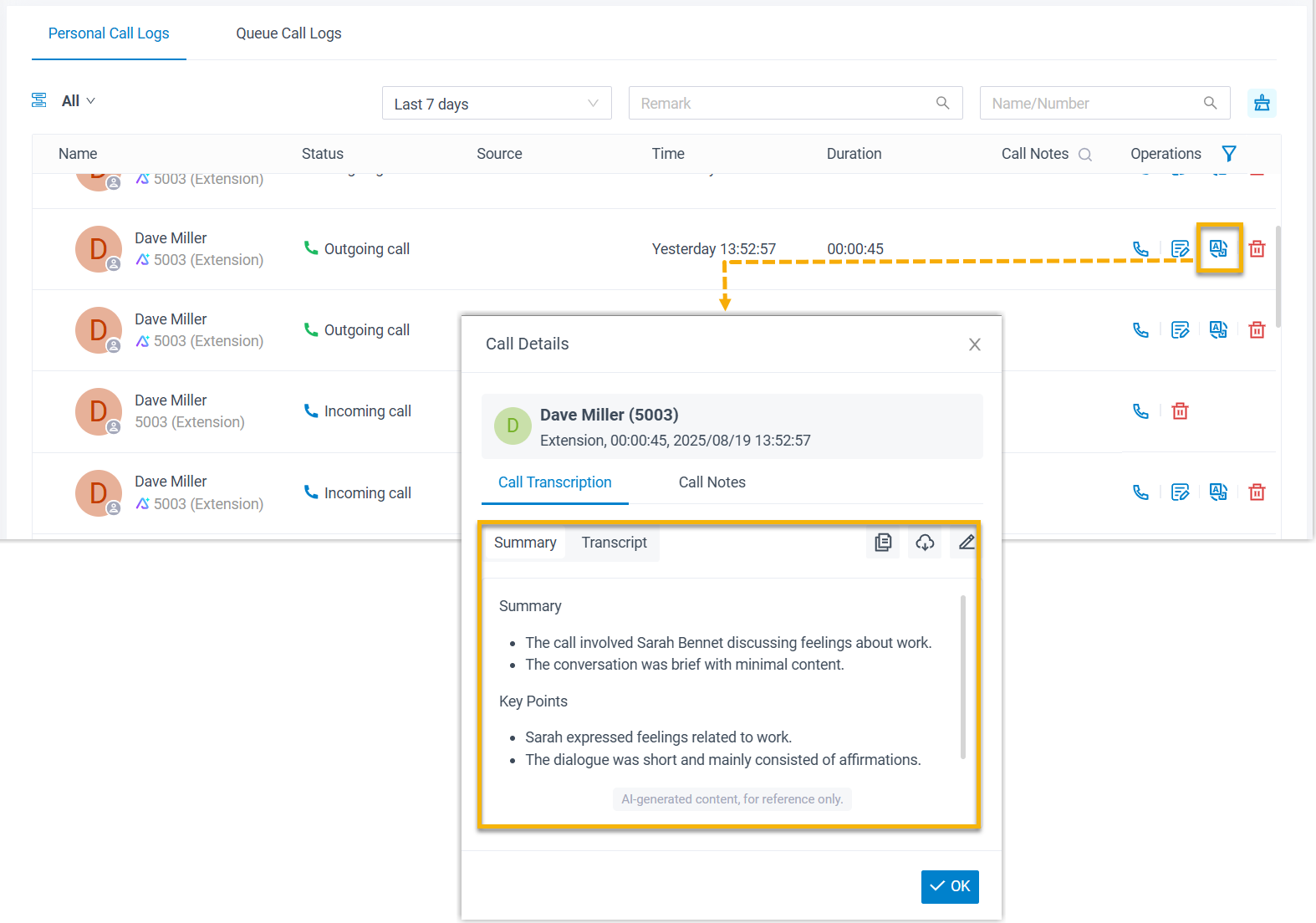
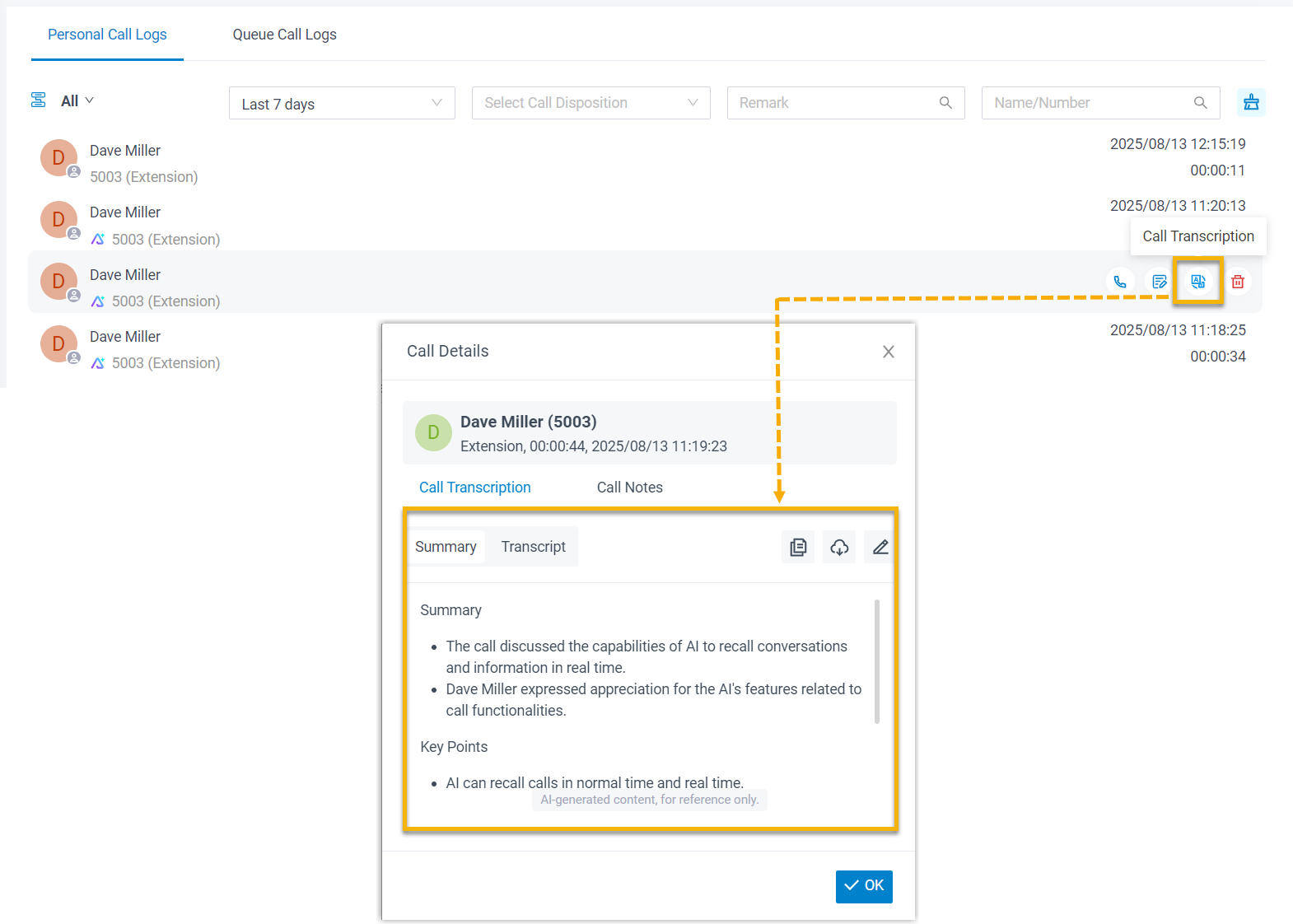
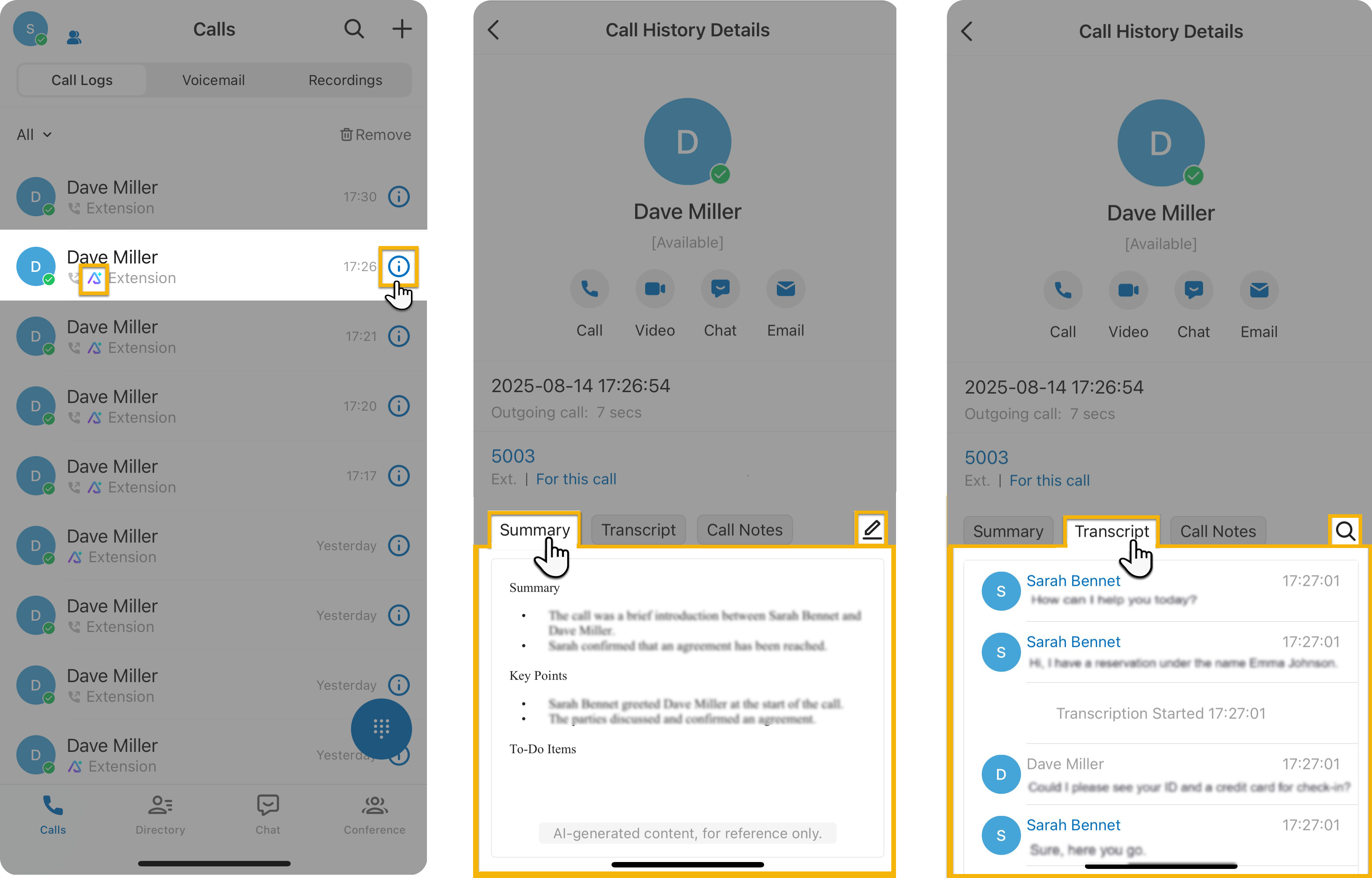
- Extension users can access the AI-generated transcript and summary of
transcribed calls in the call logs on their Linkus UC Clients. Calls that
have been transcribed are marked with a
 icon.
icon.Linkus Web Client Linkus Desktop Client Linkus Mobile Client