Access and use Queue Panel
This topic describes how a queue agent can access and use Queue Panel on Linkus Web Client or Desktop Client.
Requirements
- The firmware of PBX server is 84.19.0.70 or later.
- To access and use the Queue Panel on Linkus Web Client or Desktop Client,
make sure the following requirements are met.
Client Requirement Linkus Web Client Make sure your web browser meet the following requirements. - Google Chrome (recommended): Chrome 87 or later
- Microsoft Edge: Edge 87 or later
- Opera: Opera 72 or later
Linkus Desktop Client The version of Linkus Desktop Client is 1.13.1 or later
Procedure
- Log in to Linkus Web Client or Desktop Client, go to .
- If you belong to more than one queue, set the queue range to view the
corresponding statistics.
Queue Range Instruction A specific queue 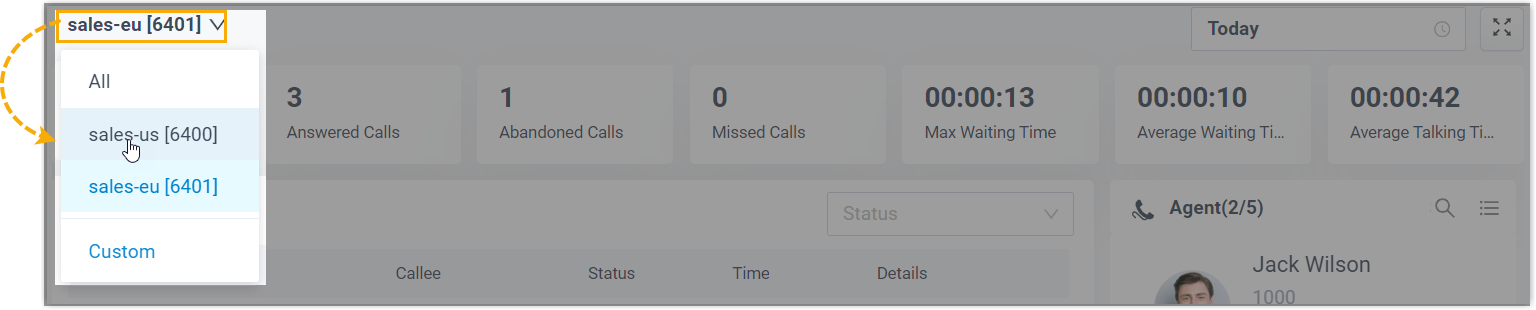
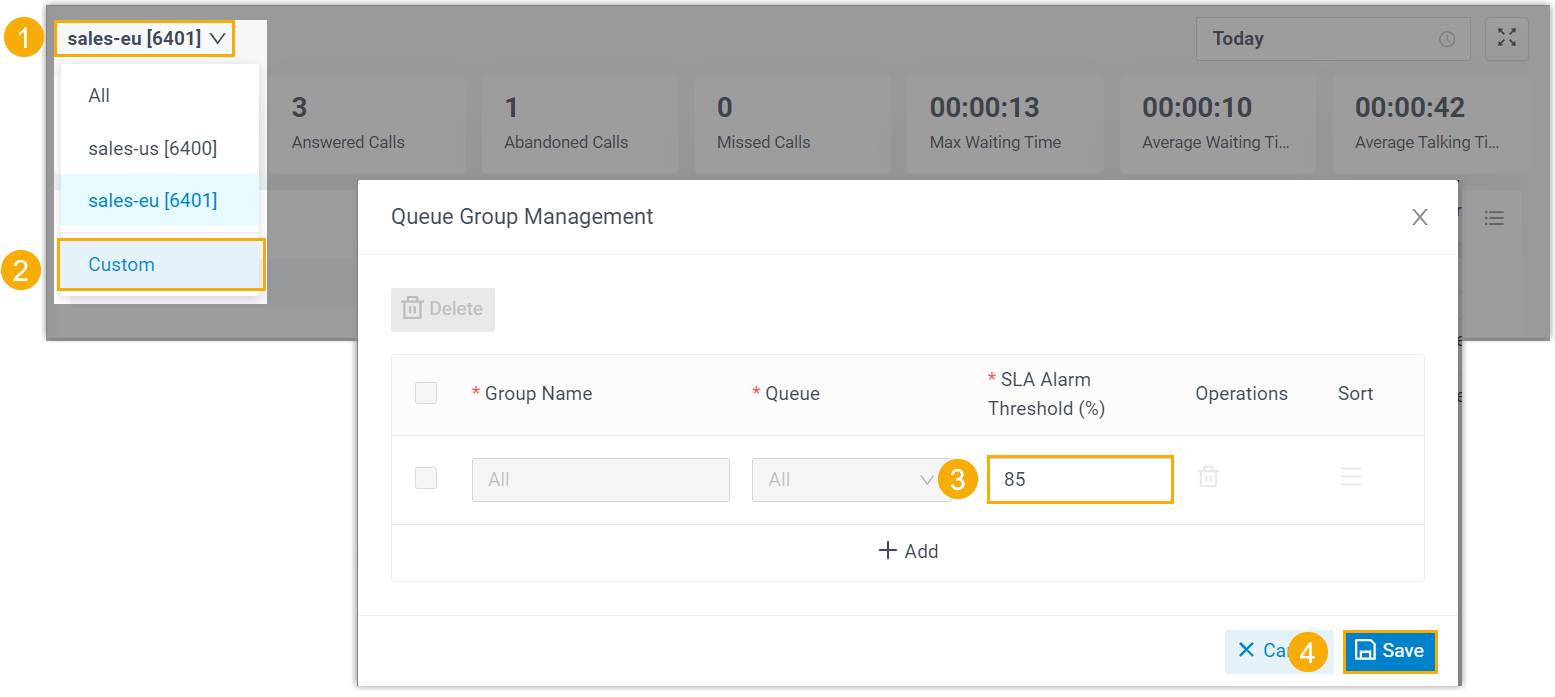
- At the top-left corner of the queue panel, click the current queue.
- In the drop-down queue list, select the desired queue.
A group of queues 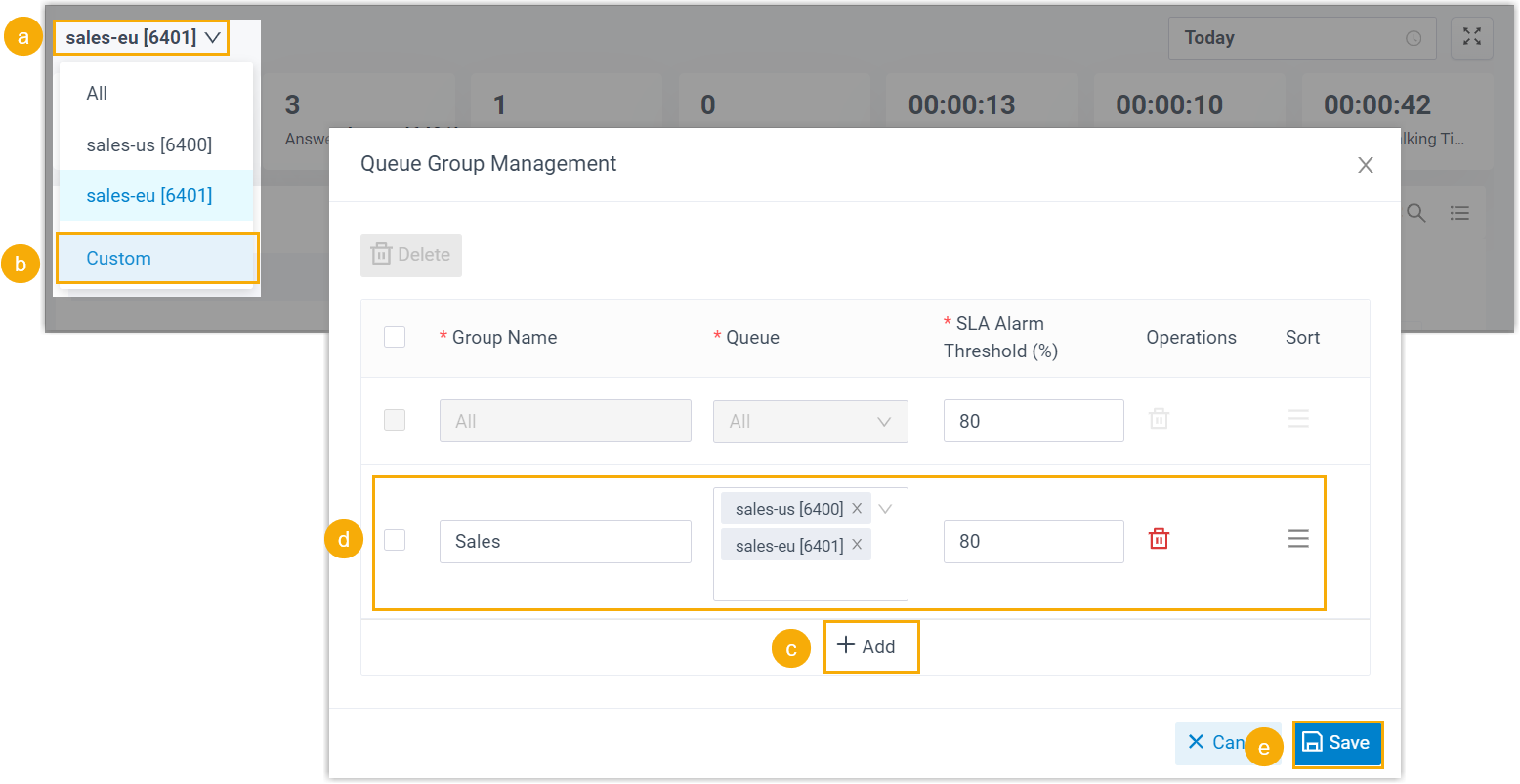
- At the top-left corner of the queue panel, click the current queue.
- In the drop-down queue list, select Custom.
- In the pop-up window, click Add to add a queue group.
- Configure a queue group.
- Group Name: Enter a name to help you identify the queue group.
- Queue: In the drop-down list, select the desired queues.
- SLA Alarm Threshold (%): Specify the SLA rate before an alert is triggered.
- Sort: Optional. Adjust the display order of the queue group in the queue list.
- Click Save.
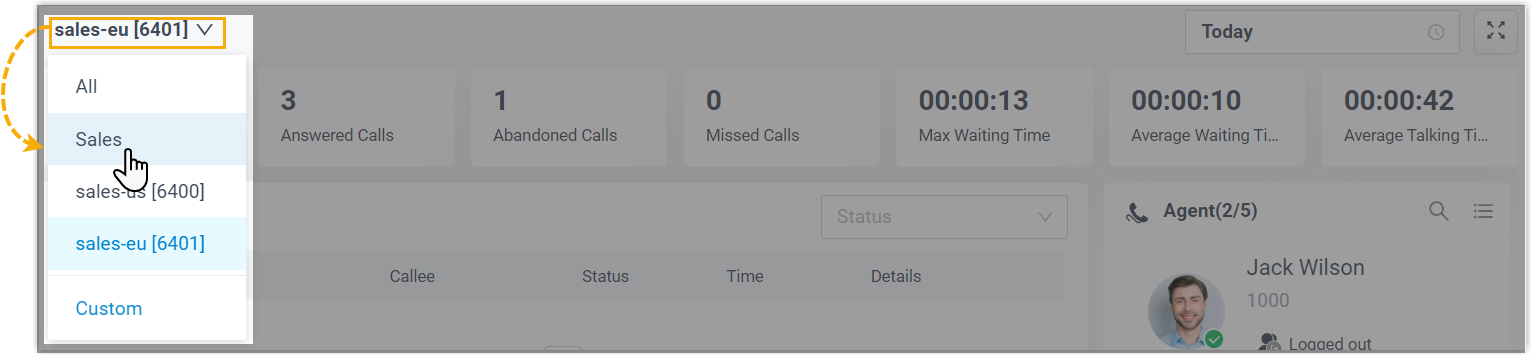
- In the drop-down queue list, select the queue
group.
All queues 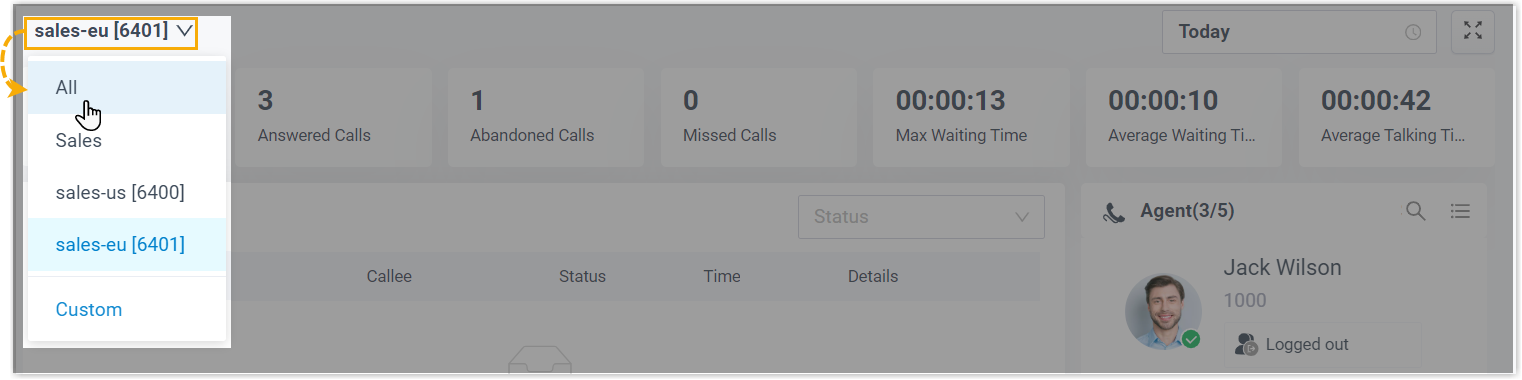
- At the top-left corner of the queue panel, click the current queue.
- In the drop-down queue list, select
All.Note: If you want to change the threshold of SLA for this queue range, select Custom, then edit the rate in the pop-up window.
- Select a time range.
- Today: View statistics of today.
- This Week: View statistics of this week.
- This Month: View statistics of this month.

- Optional: Click
 to display queue panel in a separate browser
window.
to display queue panel in a separate browser
window.For example, display the queue panel of Service in a browser window; display the queue panel of Sales in another browser window.
- Check queue statistics and handle queue calls in the following panels.
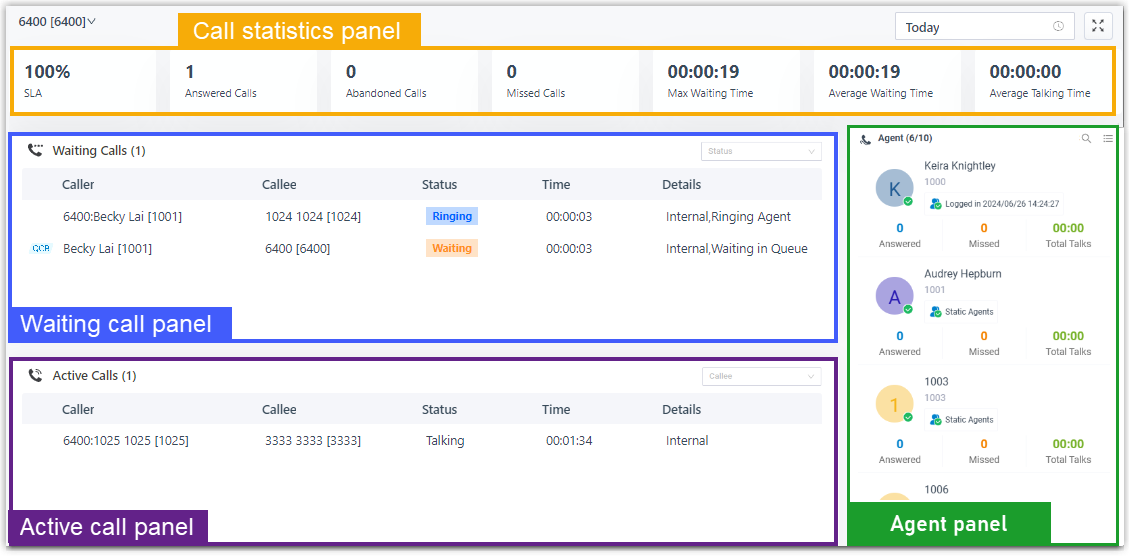
Check queue data on the call statistics panel
You can check the call statistics of the specified range of queue(s).

| Call statistics | Description |
|---|---|
| SLA | Display the percentage of calls answered within the target response time (SLA) for the queue(s). |
| Answered calls | Display the total calls that queue agents answered and Always call forwarding destinations of the agents' extensions answered over a period of time. |
| Abandoned Calls | Display the total calls that have been abandoned over a
period of time. Tip: You can
click on the widget to view detailed information about
related call logs and manage the processing
status. |
| Missed Calls | Display the total calls that queue missed over a period of time. Tip: You can
click on the widget to view detailed information about
related call logs and manage the processing
status.
|
| Max Waiting Time | Display the maximum call waiting time for all calls answered over a period of time. |
| Average Waiting Time | Display the average waiting time over a period of time for all queue calls. |
| Average Talking Time | Display the average talking time over a period of time for all queue calls. |
Check and manage calls on the waiting call panel
You can check the details of incoming call that is in ringing or waiting state in real time, including caller, callee, queue, status, time, and details. You can also manage the calls as needed.
 indicates that the caller has requested a
callback.
indicates that the caller has requested a
callback.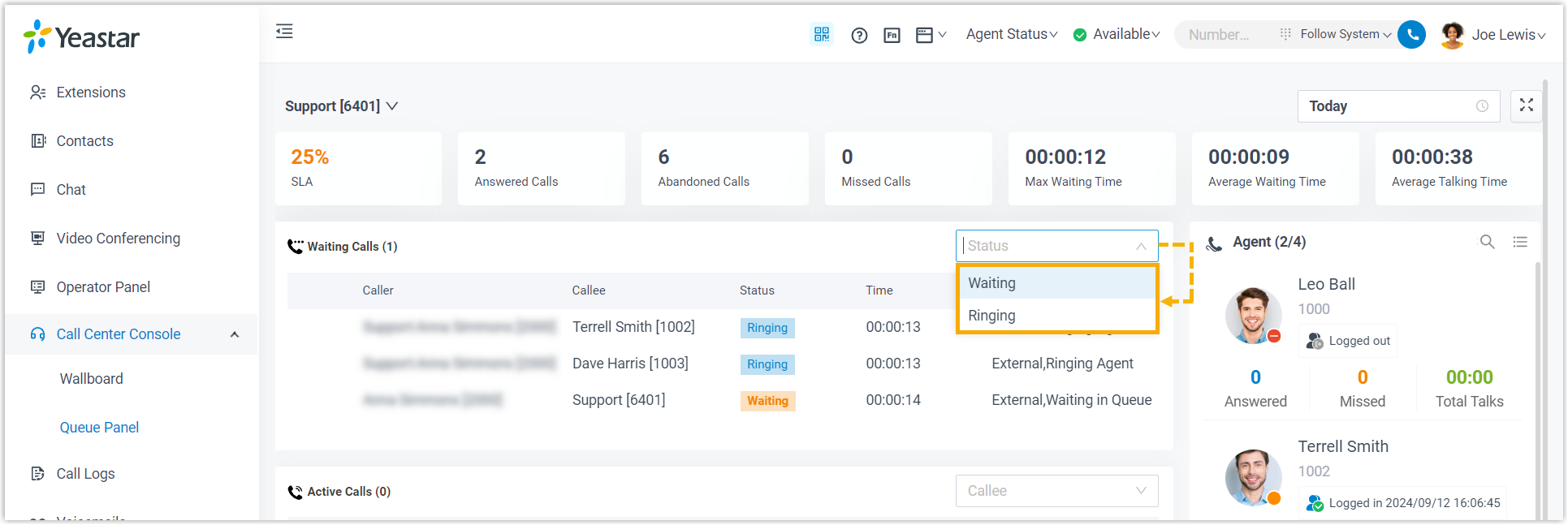
Check and manage calls on the active call panel
indicates that this is a callback.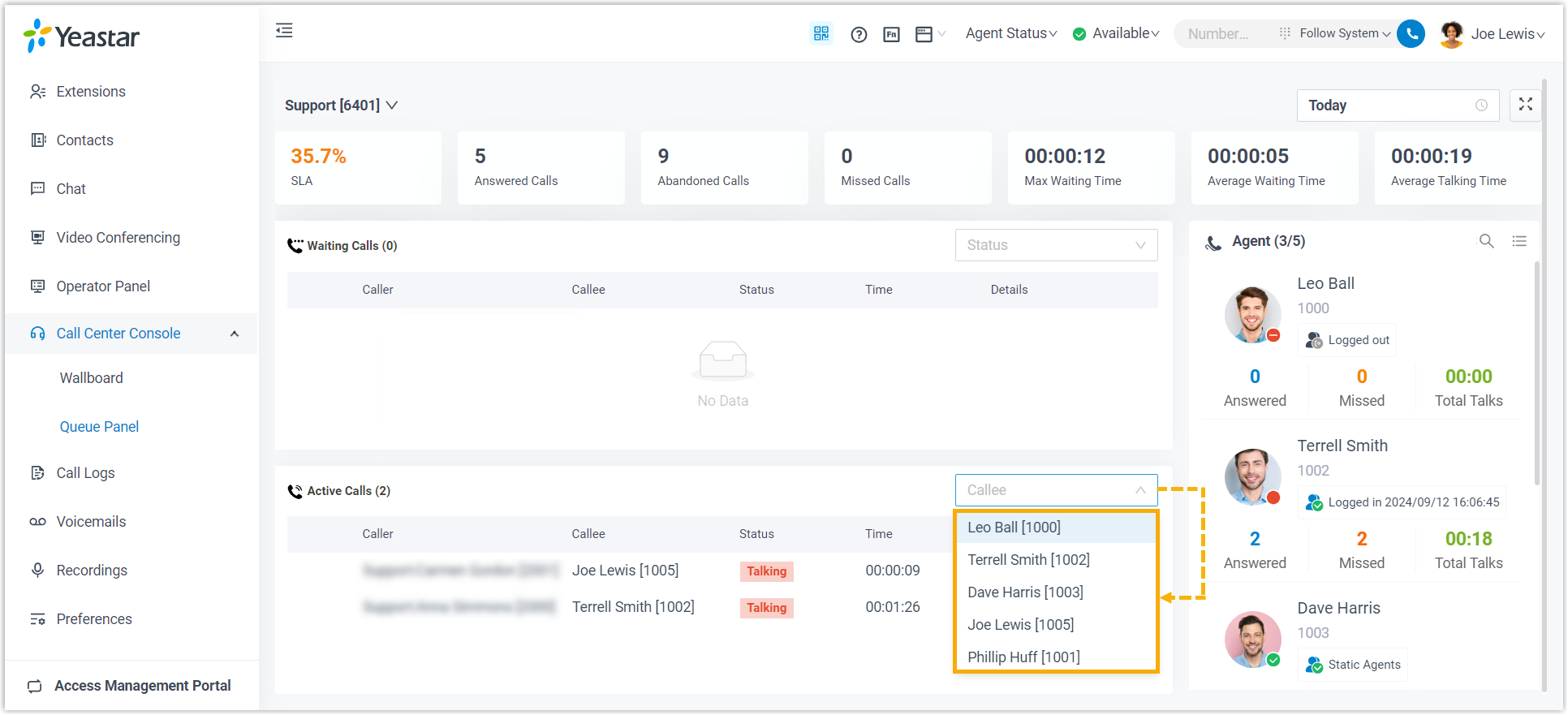
Check and manage agent status on the agent panel
You can check the agent details in the queue(s), including the agent's presence, queue status, and the agent's queue call statistics.
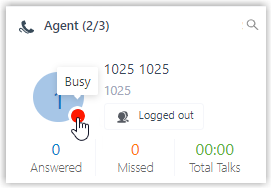
- Agent's presence
- To see an agent's presence status, hover your mouse over the presence
icon.
- Queue Status
-
Icon Presence 
The agent has logged in to the queue, and is available to receive a call. 
The agent logged out of the queue. 
The agent has paused receiving the queue calls.
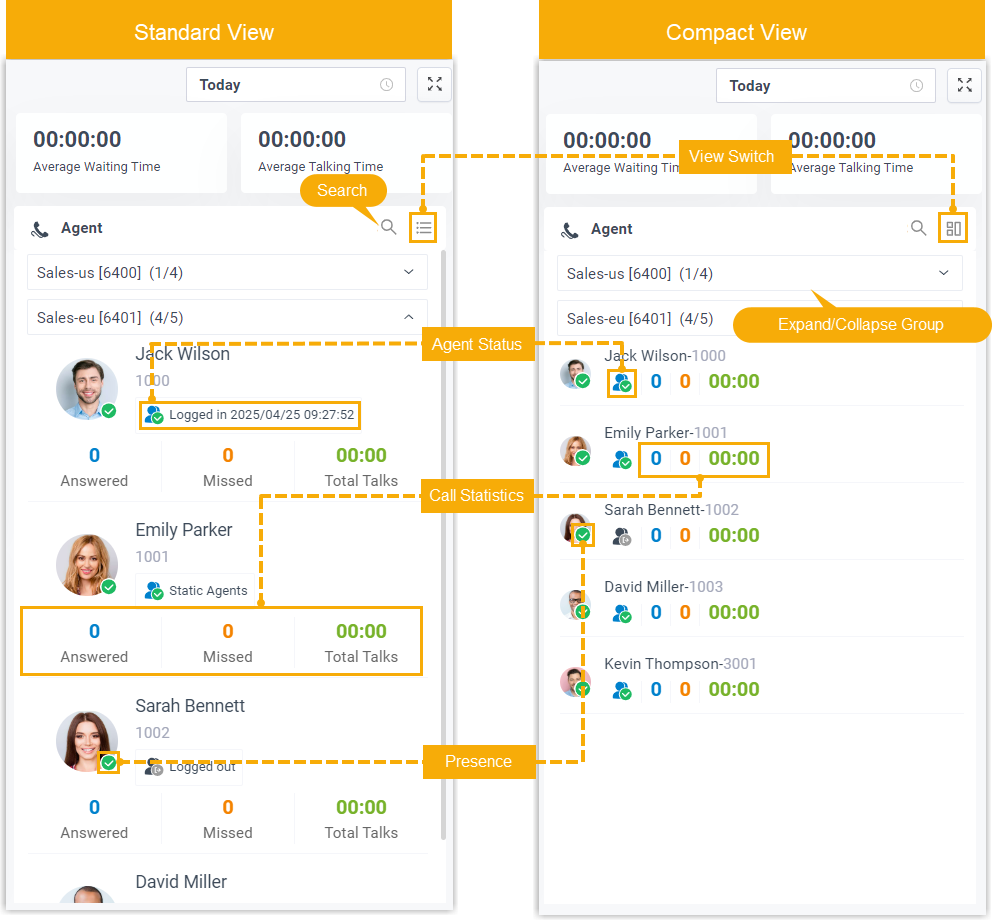
- View Switch
- By default, Standard View is displayed. You can click the View Switch button to switch to the Compact View, which allows you to view and manage queue agents more efficiently.
-
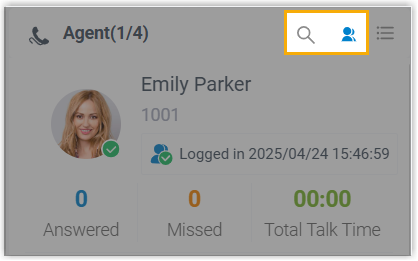
- Search and Filter
- You can search and filter from the list using the following options to find the desired agents quickly and efficiently.
-
Option Description 
Search the specific agent. 
Filter and display only online agents that meet with both of the following conditions: - The extension status is online, meaning it is logged in to a Linkus client, or registered on an endpoint.
- The agent status is set to Log In, Unpause, or Pause.