Configure Custom Domain for Microsoft Teams Integration
Before the integration, you need to configure a domain name and port mapping, so that users can remotely access Linkus Web Client from Microsoft Teams. This topic describe two NAT-based methods for custom domain configurations (external host domain and Yeastar domain).
Prerequisites
- PBX Server
-
If you use Yeastar domain, make sure the following prerequisites are met.
- Firmware: 37.18.0.102 or later.
- Subscription: Enterprise Plan or Ultimate Plan.
- DNS Service Platform
-
- If you use external host domain, purchase both a domain name and
a valid domain certificate by yourself.Note: If you use Yeastar domain, simply prepare a well-formed Yeastar domain name, and the PBX will automatically apply for the domain certificate.
-
Add an A record (for static public IP address) or configured DDNS (for dynamic public IP addresses) at your DNS provider to point your domain to your public IP address.
- If you use external host domain, purchase both a domain name and
a valid domain certificate by yourself.
- Router
- Configure the following settings on your router.
- If SIP ALG option is provided in your router, disable it.
- If using DDNS (Dynamic DNS), ensure that your router is configured to update the DDNS service with its current public IP.
- You have configured NAT settings and forwarded the following
ports to allow remote access of Linkus clients and other SIP
devices.
To check the relevant internal ports of your PBX, see Manage Service Ports of the PBX.
In this example, forward the following ports:
Service Internal Port External Port SIP registration UDP 5060 (default) UDP 8092 RTP UDP 10000-12000 (default) UDP 10000-12000 Web server TCP 8088 (default) TCP 9099 Linkus server TCP&UDP 8111 (default) TCP&UDP 6090
Procedure
- Log in to PBX web portal, go to .
- In Public IP (NAT) section, complete the following configurations:
- Public IP (NAT): Turn on this
option.
 Note: If a security notice pop-up appears, you can set up allowed country/region IP access protection to better secure remote access.
 - NAT Type: Select the desired NAT type and
complete the corresponding configurations.
NAT Type Instruction External Host Configure the following settings. 
- External Host: Enter
the purchased domain name.
In this example, enter
example.domain.com. - Refresh Interval (s): Leave the default setting or change the interval (in seconds) for PBX to request the external host for public IP.
Yeastar domain Configure the following settings. - Yeastar Domain: Set up
the Yeastar domain name.
In this example, set the Yeastar domain name to
docs.cloudpbx.yeastar.com.
- Select a domain suffix from the drop-down
list.
In this example, select
cloudpbx.yeastar.com. - Enter the subdomain in the first field.
In this example, enter
docs.Note: Think twice before you enter the subdomain, as the Yeastar domain name cannot be changed after you save the configurations.
- Select a domain suffix from the drop-down
list.
- Public IP Type: Select
the type of public IP as needed, and complete the
related settings.
- To use a static public IP address, do as
follows:

- Select Static Public IP Address (IP address does not change).
- In the Public IP Address field, enter your public IP address.
- To use a dynamic public IP address, do as
follows:

- Select Dynamic Public IP Address (IP changes).
- Optional: In the STUN
Server field, enter the address of
your STUN server.Note: If left empty, Yeastar's STUN server will be used by default.
- In the Refresh Interval
(s) field, specify the time interval
for the PBX to request the STUN server for public IP.Note: The supported value range is 30 to 3600.
- To use a static public IP address, do as
follows:
- External Host: Enter
the purchased domain name.
- Local Network Identification:
Add all your local network. This setting will allow all your
local devices to communicate with the PBX by the local IP
address instead of passing through the router.
In this example, add the local network
192.168.28.0/255.255.255.0. - NAT Mode: Select a SIP NAT mode.
In this example, select Yes.
- Yes: Use NAT and ignore the address information in the SIP/SDP headers and reply to the sender's IP address and port.
- No: Use NAT mode only according to RFC3581.
- Never: Never attempt NAT mode or RFC3581 support.
- Route: Use NAT but do not include Rport in headers.
- Prioritize NAT over
FQDN: Optional. Specify whether NAT should take
precedence over FQDN when both network settings are enabled.Tip: If this option is enabled, the system will use the NAT address instead of the FQDN when generating remote access URLs, such as Linkus login link, Live Chat embed code, etc.
- Public IP (NAT): Turn on this
option.
- In the Public Ports section, enter
the external ports that you have forwarded on your router.Note: At least one of the following fields must be filled: External SIP UDP Port, External SIP TCP Port, or External SIP TLS Port.
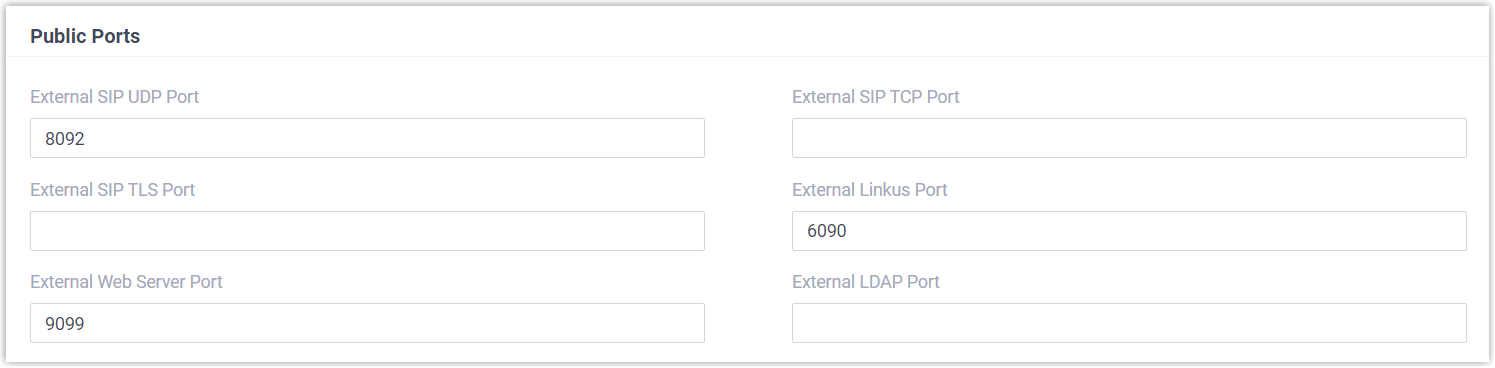
- External SIP UDP Port: Enter 8092.
- External SIP TCP Port: Leave it blank because SIP TCP protocol is not used in this example.
- External SIP TLS Port: Leave it blank because SIP TLS protocol is not used in this example.
- External Linkus Port: Enter 6090.
- External Web Server Port: Enter 9099.
- External LDAP Port: Leave it blank because LDAP protocol is not used in this example.
- Click Save.
Result
- You have configured a domain and port mapping, your PBX is now remotely accessible.
-
If you use Yeastar domain, the PBX will automatically apply for a certificate for the domain name. The certificate can be check on , and will be automatically renewed before it expires.
Note: If using external host domain, you need to manually upload the valid domain certificate on PBX (Path: ).