Active Call Panel Overview
Yeastar P-Series PBX System Active Call panel provides a unified view of both live call activities and extension statuses, enabling efficient monitoring and management.
Requirements
| Item | Requirement |
|---|---|
| Firmware | The firmware version of Yeastar P-Series PBX System is 37.21.0.66 or later. |
| Account | You are using one of the following account types:
|
Active Call Panel Layout
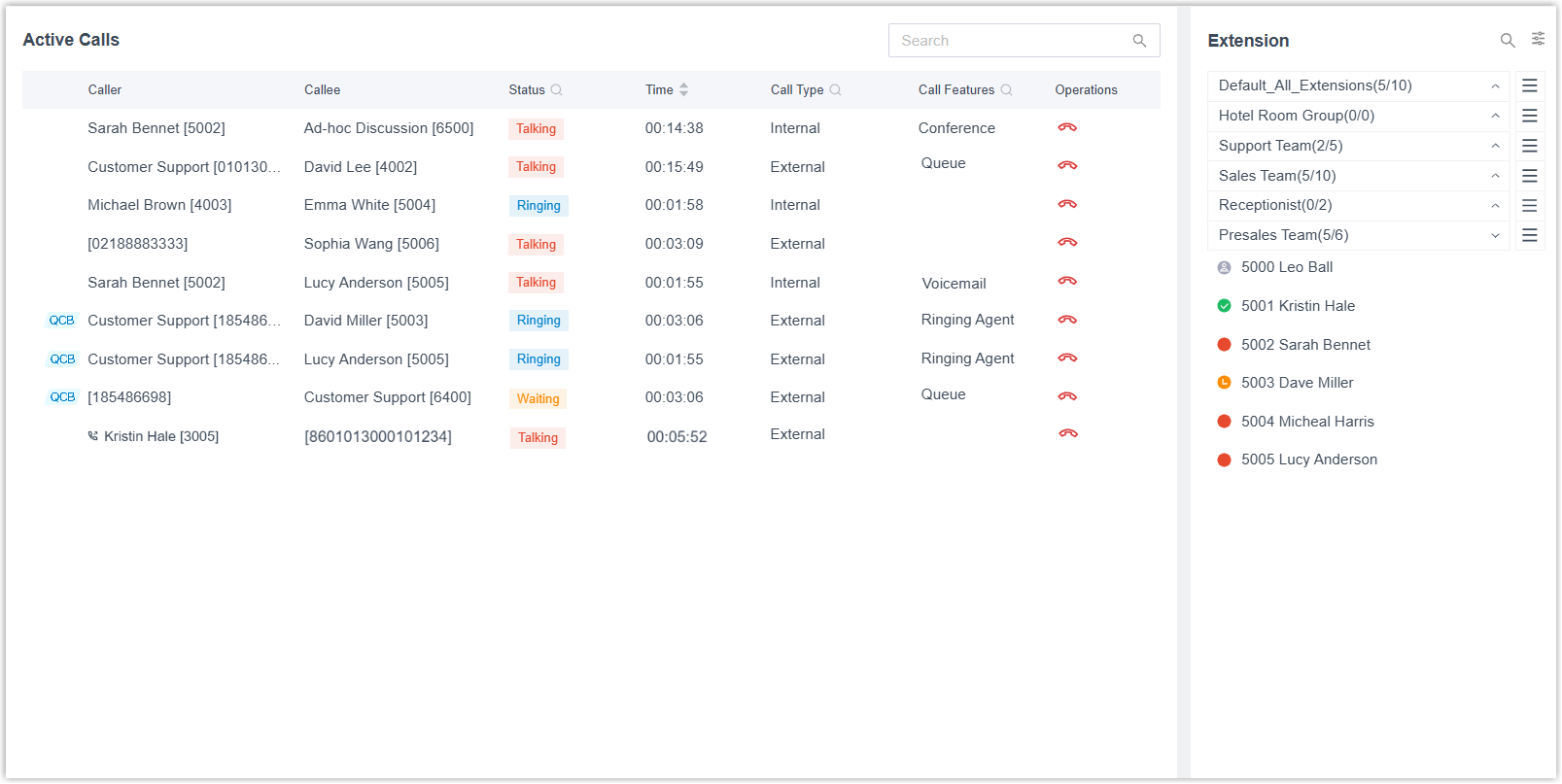
The following figure shows the layout of the Active Call panel. Click the desired area to view the detailed description.
Active Calls
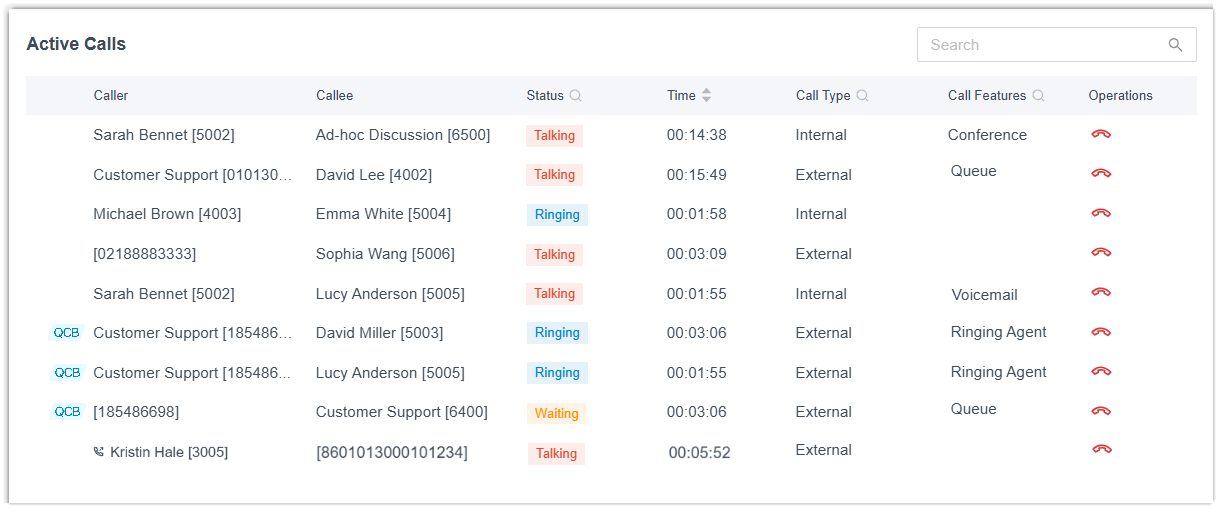
The Active Calls section displays all live calls in the system in real-time and supports the following operations.
 .
.
- Live call monitoring
- You can intuitively view the live calls from the list, including the
following call information:Note:
- Outbound calls display a
 icon before the
caller information.
icon before the
caller information. - Queue callback calls display a
 tag before the call
entry.
tag before the call
entry. - Queue calls waiting to be answered split into multiple entries
to show the full call
path.
- Caller to Queue: The original call from the caller to the queue (Waiting status).
- Queue to Agent(s): The distributed call(s) from the queue to ringing agents (Ringing status).
Field Description Caller The name and number of the caller. Callee The name and number of the callee. Status The current status of the call. - Waiting: The queue call is waiting in line for agent to answer.
- Ringing: The call is in ringing status.
- Talking: The call is in progress.
Time The duration of the call. Call Type The type of the call. - Internal
- External
Call Features The special call features used in the call, such as queue, conference, call flow, etc. - Outbound calls display a
- Live call management
-
You can perform the following operations to manage active calls:
Operation Description Search and Filter You can easily locate specific calls using the following methods: 
- Search: Enter a number or name in the search box at the top of the active call list to find matching calls by caller or callee information.
- Filter and Sort: Use the options on the top bar to narrow down the call list based on specific conditions, or sort calls by duration.
Hangup You can click  to terminate unauthorized
or unwanted calls.
to terminate unauthorized
or unwanted calls.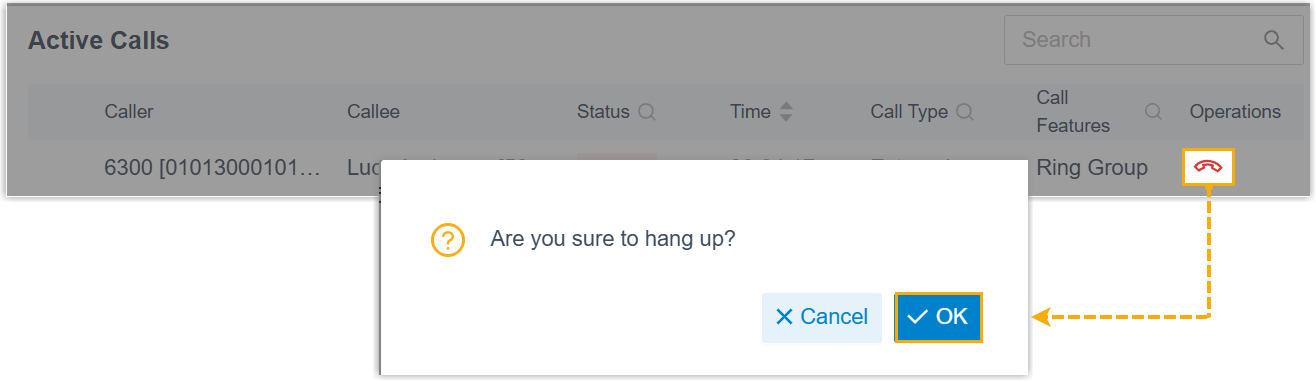 Note:
Note:- The hangup action is recorded in the Operation Logs (under the Status Center module) and the CDR (with the reason shown as Administrator Hung up).
- As a queue call waiting to be answered is
displayed as multiple call entries, hanging up
different call entries has different effects:
- Hanging up a Queue to Agent(s) call ends only that specific call attempt to the agent.
- Hanging up a Caller to Queue call ends all related call attempts of the queue call.
Extension
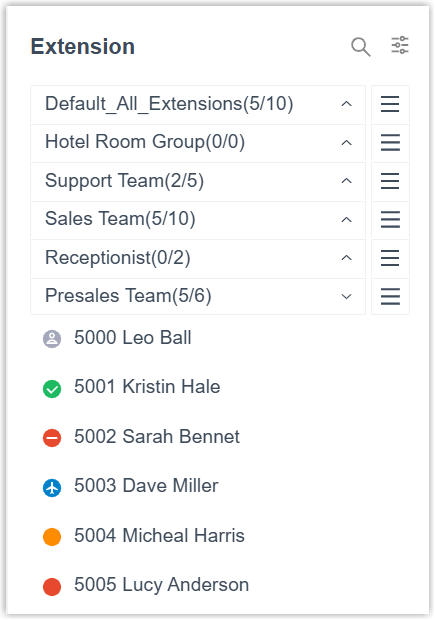
The Extension section displays the extension information and real-time status organized by extension groups or departments, providing you with an at-a-glance overview of user availability.
- Extension status monitoring
- You can easily check the online status, presence status, and call status of extension users.
-
Icon Description 
Unavailable. The user's extension is not registered. 
Ringing. The user's extension is ringing. 
Busy. The user is in a call. 
Available. The user is online and ready to receive and handle calls. 
Away. The user is currently away from office. 
Business Trip. The user is currently on a business trip. 
Do Not Disturb. The user doesn't want to be disturbed, and he/she won't receive any calls. 
Lunch Break. The user is currently on lunch break. 
Off Work. The user is currently off work.
- Extension list management
-
You can perform the following operations to manage extension list.
Operation Description Search extension You can use the search box to quickly find extensions by name, number, extension group, or department name, with support for fuzzy search. 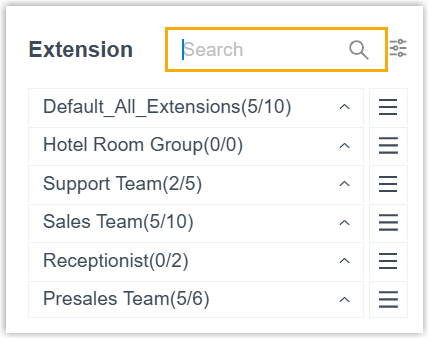
Customize display You can customize the display of the extension list: - Customize list: Click
 to select which extension
groups or departments to display.
to select which extension
groups or departments to display.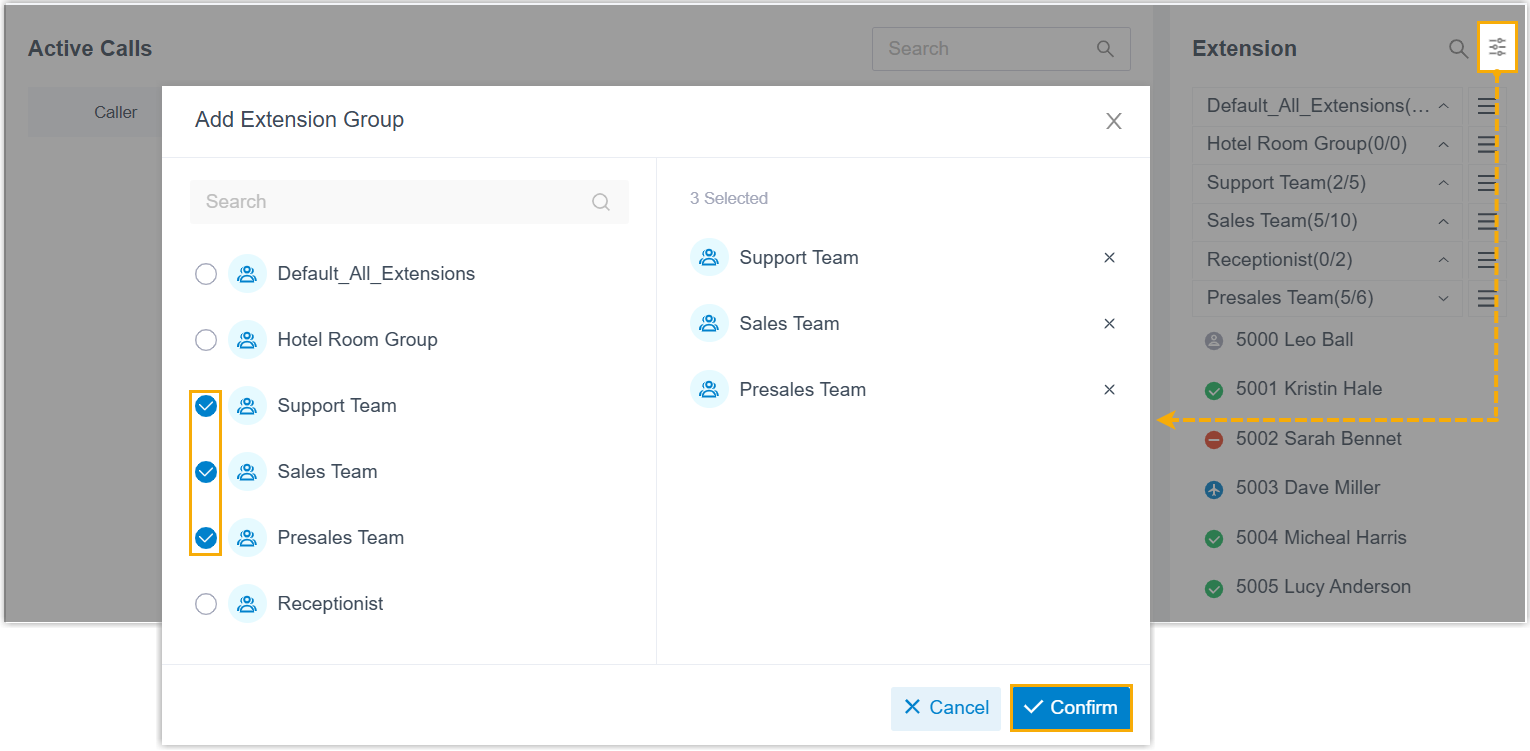
- Reorder list: Hover over
 , drag to the desired order, then
drop.
, drag to the desired order, then
drop.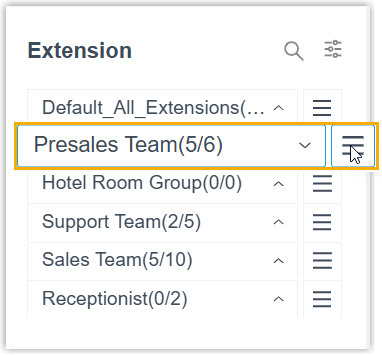
- Customize list: Click